
You’ve spent months setting up your Salesforce org, building custom fields, writing validation rules, and creating page layouts. But over time, things start piling up.
Unused fields everywhere. Triggers nobody remembers writing. Profiles with permissions that don’t match anyone’s actual job. Your org feels messy, slow, and hard to manage.
That’s exactly the problem Salesforce Optimizer was built to solve. It’s a free, built-in tool that scans your entire Salesforce org, analyzes 40+ metadata features, and gives you a prioritized list of recommendations to clean things up, no coding required.
Think of it as a doctor’s health checkup for your Salesforce instance.
In this article, I’ll show you 4 ways to use Salesforce Optimizer in Salesforce to get your org back in shape.
What is Salesforce Optimizer?
Salesforce Optimizer is a free diagnostic app built into every Salesforce org (Professional edition and above).
It scans your org’s metadata, not your customer data, and identifies where you can improve features, simplify customizations, reduce complexity, and drive user adoption.
When you run it, Optimizer produces a detailed report (previously a PDF, now an interactive app) with actionable recommendations.
Each recommendation tells you what the problem is, why it matters, and how much effort it will take to fix. It covers areas such as unused custom fields, redundant validation rules, over-permissioned profiles, too many triggers on a single object, and more.
Benefits of Salesforce Optimizer
Salesforce Optimizer offers several key benefits:
- Improved Performance: It finds areas that slow down the system and suggests fixes.
- Better User Experience: Streamlining layouts and fields makes Salesforce easier to use.
- Enhanced Security: It checks sharing settings and profiles to boost data safety.
- Cost Savings: Optimizer helps reduce the use of unused features and storage.
The app gives teams a clear plan to fix problems, making it easier to prepare for upgrades such as moving to Lightning Experience.
Why Salesforce Optimizer is Important
As businesses grow, Salesforce becomes more complex. Without optimization:
- Too many unused fields slow down performance
- Complex page layouts confuse users
- Unused reports increase storage
- Poor configuration reduces productivity
Salesforce Optimizer helps solve these problems by identifying inefficiencies and suggesting improvements. It helps admins maintain a clean and optimized system.
Key Features of Salesforce Optimizer
Salesforce Optimizer provides many useful features to improve your system.
- Org Analysis – It scans your entire Salesforce organization and analyzes multiple components, like:
- Fields
- Page layouts
- Apex code
- Reports and dashboards
- Detailed Reports – The tool generates a report with:
- Issues identified
- Recommendations
- Priority levels
This helps admins decide what to fix first.
- Field Usage Analysis – It shows:
- Which fields are used
- Which fields are unused
This helps in cleaning unnecessary fields.
- Layout Optimization – The optimizer checks page layouts and suggests:
- Removing unused fields
- Simplifying complex layouts
- Security Check – It analyzes:
- Profiles
- Permissions
- Sharing settings
This helps improve data security.
- Storage Optimization – It identifies:
- Unused data
- Large storage usage
This helps reduce costs and improve performance.
Real-World Scenario Used in This Guide
Imagine you’re the Salesforce Admin for Bright Tech Solutions, a B2B sales company with 200 users, managing 10,000+ active Opportunity records.
Over the past two years, your org has grown into a tangle of 300+ custom fields, 15 Apex triggers on the Account object, dozens of unused page layouts, and profiles granting Modify All Data permission to regular sales reps. You need to clean this up without breaking anything.
All four methods below use this scenario.
Method 1 – Run Salesforce Optimizer From Setup
Use this method for the quickest way to get a full org health report with zero coding. This is your starting point before trying anything else.
Step 1: Go to Setup
Click the gear icon (⚙) in the top-right corner of Salesforce Lightning and select Setup.
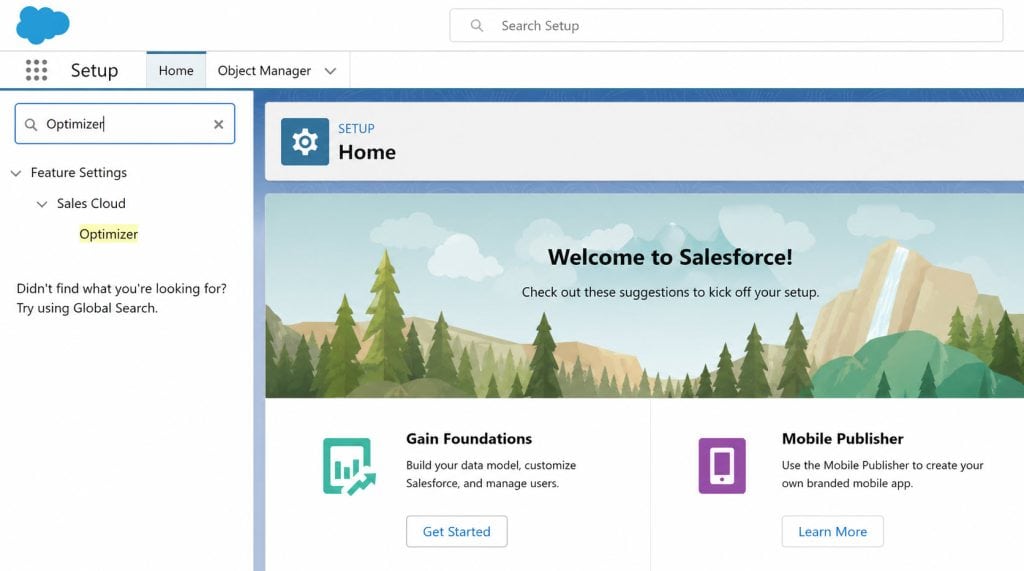
Step 2: Find Optimizer in Quick Find
In the left panel, type Optimizer in the Quick Find search box. Click Optimizer from the results.
Step 3: Allow Access
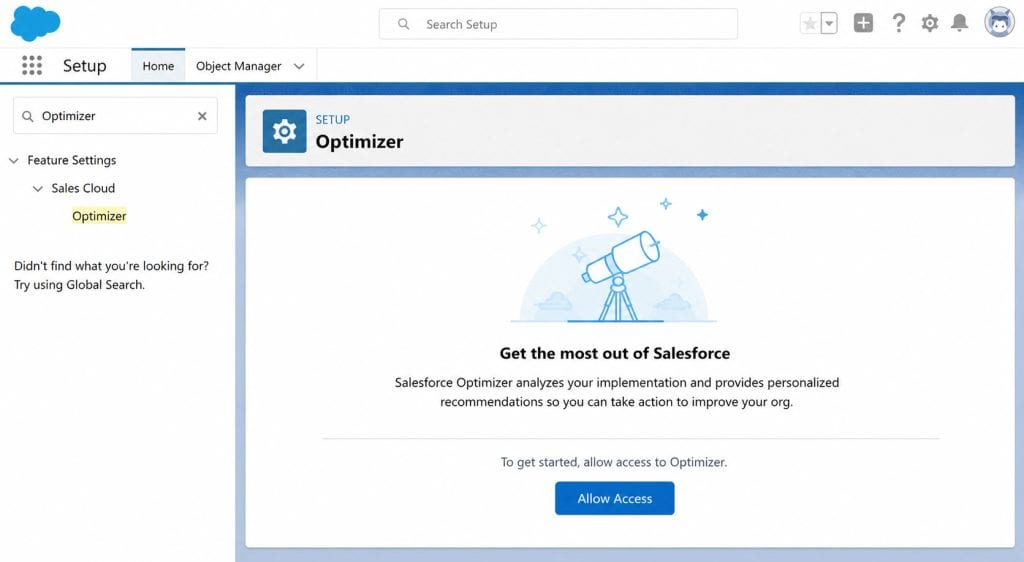
On the Optimizer page, click Allow Access. This grants the tool permission to scan your org metadata. You only need to do this once.
Important: You must have three permissions to run Optimizer: Customize Application, Modify All Data, and Manage Users. If you don’t see the Allow Access button, ask your System Administrator to check your profile.
Step 4: Open Optimizer App
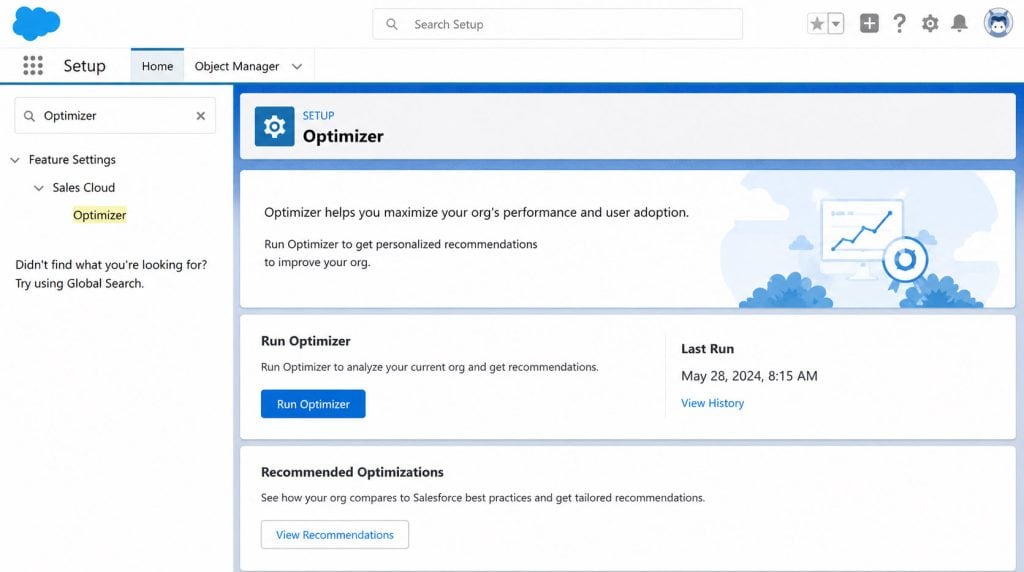
After granting access, click Open Optimizer. Salesforce will open the Optimizer app from the App Launcher.
Step 5: Run the Optimizer
Inside the Optimizer app, click Run Optimizer. Salesforce will now start scanning your org’s metadata. This process runs in the background and may take a few minutes depending on your org’s size.
Step 6: Check Your In-App Notification
When the scan finishes, Salesforce sends an in-app notification (the bell icon 🔔 in the top navigation). Click it to go directly to your results.
Sample Output:
After running, Optimizer shows a list of recommendations like:
- Fields: 47 custom fields on the Opportunity object have never been used
- Apex Triggers: The Account object has 15 triggers — simplify by consolidating
- Profiles: 12 users have the “Modify All Data” permission and may not need it
How does this work?
Optimizer reads your org’s metadata — the structure of your fields, triggers, rules, and settings — using a secure internal scan. It doesn’t read customer records, emails, or any personal data. It then compares what you have against Salesforce best practices and flags gaps.
Pro Tip: Run Optimizer in both your sandbox and production org separately. They often have different metadata states. Start with sandbox to practice reviewing and fixing recommendations before touching production.
Method 2 – Schedule Optimizer to Run Automatically Monthly
Use this method if you want Optimizer to run on its own every month, so you always have a fresh health check without having to remember to do it manually. Perfect for busy admins at Bright Tech Solutions managing fast-changing orgs.
Step 1: Go to Setup → Optimizer
Follow Steps 1 and 2 from Method 1 to reach the Optimizer Setup page.
Step 2: Enable Auto-Run
On the Optimizer page, look for the option “Automatically run and update once a month”. Toggle this setting to On.
Step 3: Confirm the Setting
Salesforce will confirm that Optimizer is now scheduled. You’ll see the next scheduled run date on the same page.
Step 4: Review Results Each Month
Each month, when Optimizer finishes its automatic scan, you get an in-app notification and an email letting you know results are ready. Open the Optimizer app from the App Launcher to review the latest recommendations.
Sample Output:
Month-over-month, you’ll see a trend:
- February: 47 unused fields flagged → March: 30 unused fields (17 cleaned up)
- February: 15 Account triggers → March: 15 Account triggers (still needs action)
This view helps you track your cleanup progress over time.
How does this work?
Salesforce schedules an internal background job that automatically reruns the same metadata analysis. Each run creates a new set of recommendation records inside the Optimizer app so you can compare results over time.
Pro Tip: Treat your monthly Optimizer report like a Salesforce org backlog. At Bright Tech Solutions, your admin team could create a Chatter post in a dedicated admin group whenever a new report lands, then assign cleanup tasks to team members.
Method 3 – Read and Act on Optimizer Recommendations by Category
Use this method once you have your Optimizer results and want to understand what each recommendation means and which ones to prioritize. Don’t just run Optimizer and ignore the findings — the real value is in acting on them.
Optimizer organizes its recommendations into clear categories. Here’s what each one means for Bright Tech Solutions:
Step 1: Open the Optimizer App
From the App Launcher (the 9-dot grid icon in the top-left), search for Optimizer and open the app.
Step 2: Review the List View
You’ll see a list of all recommendations with three pieces of information for each:
- Feature name (e.g., Fields, Triggers, Profiles)
- Status (e.g., Action Required, Informational)
- Effort (Low, Medium, High)
Step 3: Click Into a Recommendation
Click any recommendation to see the full detail. For example, click on “Fields” to see which specific custom fields are unused.
Step 4: Use the Setup Link Inside Each Recommendation
Every recommendation includes a direct link to the relevant Setup page where you can fix the issue. For unused fields, it links you directly to Setup → Object Manager → [Object Name] → Fields & Relationships.
Step 5: Fix the Issue and Re-Run
Make your changes in Setup, then go back to Optimizer and click Run Optimizer again to see if the issue has been resolved.
Key Recommendation Categories and What They Mean:
| Category | What Optimizer Checks | Typical Finding for Bright Tech |
|---|---|---|
| Fields | Unused custom fields per object | 47 Opportunity fields never filled in |
| Apex Triggers | Multiple triggers on one object | 15 triggers on Account — consolidate needed |
| Profiles | Over-permissioned system access | 12 reps have Modify All Data |
| Page Layouts | Unassigned or duplicate layouts | 8 layouts assigned to no profile |
| Validation Rules | Inactive or conflicting rules | 5 inactive rules still consuming metadata |
| Workflow Rules | Deprecated automations | 11 old Workflow Rules ready to migrate to Flow |
| Report Types | Unused custom report types | 14 report types with zero reports built on them |
How does this work?
Optimizer pulls metadata from your org using internal Salesforce APIs. It cross-references fields in your schema with those that actually appear in records, reports, and layouts. If a field has no data and appears on no layout, it is flagged as a cleanup candidate.
Pro Tip: Start with “Low Effort” recommendations first. At Bright Tech Solutions, deleting 47 unused fields is probably a Low-to-Medium effort task that delivers an immediate, visible improvement to your page layouts without any risk of breaking automation logic.
Method 4 – Use Org Check as the Modern Replacement for Optimizer
Use this method if you’re on the latest Salesforce releases and want a more powerful, real-time version of the Optimizer experience. Salesforce announced that Optimizer is sunsetting and its replacement — Org Check — is now the recommended tool for deep org health analysis.
Step 1: Install Org Check from AppExchange
Go to the Salesforce AppExchange (appexchange.salesforce.com) and search for Org Check. Install it as a free managed package in your org.
Step 2: Open Org Check from App Launcher
After installation, open the App Launcher and search for Org Check. Click the app tile to open it.
Step 3: Run a Full Org Analysis
Inside Org Check, click Run Analysis. The tool scans your org in real time and displays results immediately inside the app — no PDF, no waiting for an email.
Step 4: Explore the Dashboard
Org Check gives you a visual dashboard broken into categories. For Bright Tech Solutions, you’ll see:
- A score for each feature area (e.g., Automation: 6/10, Security: 4/10)
- Detailed drill-downs into each issue
- Dependency maps showing which customizations are connected
Step 5: Prioritize and Export
Use the built-in filtering to sort by Risk Level (High → Medium → Low). You can also export the findings as a CSV for your admin team’s backlog at Bright Tech Solutions.
How does this work?
Org Check is a Lightning app that runs metadata queries against your org using the Tooling API and Metadata API. Because it runs inside your org (not as an external scan), it has access to more detailed dependency data than the older Optimizer PDF ever could. It shows you not just what exists, but what’s connected to what.
Pro Tip: Run Org Check in your sandbox first, especially for large orgs like Bright Tech Solutions with complex automation. Org Check’s dependency maps can reveal that a field you were about to delete is still referenced in an active Apex class — saving you from a production error.
Interpreting the Optimizer Report
The Optimizer Report clearly shows your organization’s health. It covers over 50 metrics in different areas, including storage use, custom fields, code, layouts, and more.
Each metric has detailed data and a grade ranging from Critical to Excellent. This helps you quickly spot areas that need work.
The report is interactive. You can drill down into specifics for each metric. This makes it easier to understand issues and plan fixes.
Automated Insights & Recommendations
Salesforce Optimizer doesn’t just show data. It gives smart, tailored advice. Each metric has specific recommendations for improvement.
These practical and easy-to-follow tips might include removing unused fields, simplifying page layouts, or optimizing custom code.
The tool also highlights best practices. It shows where you’re doing well and where you can improve, helping admins make informed choices about where to focus their efforts.
Optimizer keeps learning and updating. New features and recommendations are added regularly, ensuring you always have the latest insights to keep your organization running smoothly.
Salesforce Optimizer and System Health
Salesforce Optimizer is a powerful tool for maintaining and improving your Salesforce org. It scans your system, examines how features are used, and offers advice on improving performance.
Salesforce Optimizer vs Health Check
| Feature | Salesforce Optimizer | Salesforce Health Check |
|---|---|---|
| Purpose | Improve performance and usage | Improve security |
| Focus | Fields, layouts, reports | Security settings |
| Output | Detailed recommendations | Security score |
| Usage | Admin optimization | Security auditing |
Both tools are important, but serve different purposes.
Managing Custom Fields and Objects

Salesforce Optimizer helps users track custom fields and objects and provides insights to improve their use and creation.
Field and Object Usage Analysis
Salesforce Optimizer checks how often custom fields and objects are used. It shows which ones are not being used much or at all, helping admins spot areas to clean up.
The tool lists fields that may be redundant and identifies objects that aren’t being used. This information helps teams decide what to keep and what to remove.
The optimizer also looks at field data types. It can suggest more appropriate data types for certain fields, helping make reports more accurate and saving storage space.
Custom Field Creations Best Practices
When creating new custom fields, it’s helpful to follow a few rules. Salesforce Optimizer can help with this.
It suggests using standard fields when possible. This keeps things simple and easy to understand.
The tool also recommends using picklists for fields with predefined choices, which speeds up data entry and improves consistency.
The Optimizer warns against having too many fields on a single object. Too many fields can slow page load times and make forms difficult to use.
It’s important to give fields clear names and descriptions. This helps users know what each field is for.
Salesforce Optimizer for Admins
Salesforce Optimizer gives admins powerful tools to improve their org. It helps with maintenance, user adoption, and security.
Routine Maintenance and Updates
Salesforce Optimizer helps admins keep their org running smoothly. It scans for unused fields, objects, and reports. This helps clean up clutter and boost performance.
Optimizer also flags outdated customizations. Admins can update these to use newer Salesforce features, keeping the organization modern and efficient.
The tool also checks for best practices. It may suggest ways to simplify page layouts or streamline processes. Admins can use these tips to make the org easier to use and maintain.
User Adoption Strategies
Optimizer helps admins boost user adoption by showing which features are most and least used. This lets admins focus training on underused tools.
The report highlights complex page layouts or processes. Admins can simplify these to make them more user-friendly. This often leads to higher adoption rates.
The optimizer also tracks login trends. Admins can spot users who may need extra help or training. By addressing these issues, they can improve overall adoption.
Security and Sharing Settings Review
Salesforce Optimizer helps admins keep orgs secure. It checks sharing rules and org-wide defaults. This ensures data is only seen by the right people.
The tool flags inactive users and roles, which admins can remove to tighten security. It also checks password policies and login IP ranges.
The optimizer looks for overused profiles and permission sets. Admins can streamline these to reduce security risks. The tool also suggests ways to improve field-level security.
Optimization of Automation Processes
Salesforce Optimizer helps streamline automation processes to boost efficiency. It analyzes workflow rules, process builders, Apex triggers, and validation rules to find areas for improvement.
Workflow Rules and Process Builder
Salesforce Optimizer checks workflow rules and Process Builder flows for issues. It looks for inactive or redundant rules to remove and flags rules that might slow down system performance.
The optimizer suggests ways to combine similar rules to improve efficiency. It may recommend moving some workflows to Flow, Salesforce’s newer automation tool. This can help reduce clutter and make processes easier to manage.
The tool also checks for best practices in naming and describing automation. Clear labels and descriptions help admins understand and maintain the system.
Apex Triggers and Validation Rules
Salesforce Optimizer examines Apex triggers and validation rules for potential problems. It flags triggers that might cause performance issues or data conflicts and suggests ways to optimize trigger code to improve execution speed.
For validation rules, Optimizer looks for overlapping or conflicting conditions. It helps identify rules blocking legitimate data entry and checks for complex formulas that could slow down save operations.
Optimizer provides tips for simplifying and optimizing validation rules. Moving some logic to Flow or Apex may be suggested for better control and flexibility.
Incorporating Lightning Experience Enhancements
Lightning Experience is Salesforce’s modern interface. It offers a more user-friendly design and faster performance. New Lightning features often include:
- Updated page layouts
- Improved navigation
- Enhanced reporting tools
Admins can use Optimizer to find areas where Lightning can boost productivity. The tool highlights Classic components that could benefit from Lightning upgrades. It also points out unused Lightning features that teams might want to try.
For example, Optimizer may suggest switching to Lightning record pages. These pages are more flexible and can display key information more clearly.
Utilizing New Salesforce Releases
Salesforce puts out major updates three times a year. These releases bring new tools and improvements across the platform. Optimizer helps admins take advantage of these updates by:
- Spotting chances to use new features
- Finding old customizations that new standard features could replace
- Suggesting ways to streamline processes with the latest tools
The Optimizer report lists specific new features that fit an organization’s needs. This helps admins plan which updates to roll out first. It also shows how new features can solve existing problems or make users’ work easier.
Admins can run Optimizer after each release to see what’s new and relevant for their org.
Frequently Asked Questions
Salesforce Optimizer helps organizations improve their Salesforce implementation. Users often have questions about its features, usage, and benefits.
1. What is Salesforce Optimizer used for?
Salesforce Optimizer analyzes your Salesforce org and provides recommendations to improve performance, usability, and efficiency.
2. Is Salesforce Optimizer free?
Yes, it is a built-in tool available in Salesforce.
3. How often should I run Salesforce Optimizer?
It is recommended to run it monthly or quarterly to maintain system health.
4. Does Salesforce Optimizer delete data?
No, it only provides suggestions. Admins must manually apply changes.
5. Can beginners use Salesforce Optimizer?
Yes, it is easy to use and provides simple recommendations.
Conclusion
Salesforce Optimizer is a powerful tool that helps improve the performance and usability of your Salesforce organization. It scans your system, identifies issues, and provides actionable recommendations to optimize your setup.
By regularly using Salesforce Optimizer, you can maintain a clean, efficient, and user-friendly Salesforce environment. This not only improves system performance but also increases user adoption and productivity.
You may like to read:
- How to Become a Salesforce Developer in 2026
- Salesforce Sales Cloud Interview Questions and Answers
- Salesforce Developer Job Description
- Advantages of the Salesforce Platform (Complete Guide for Beginners)

I am Bijay Kumar, the founder of SalesforceFAQs.com. Having over 10 years of experience working in salesforce technologies for clients across the world (Canada, Australia, United States, United Kingdom, New Zealand, etc.). I am a certified salesforce administrator and expert with experience in developing salesforce applications and projects. My goal is to make it easy for people to learn and use salesforce technologies by providing simple and easy-to-understand solutions. Check out the complete profile on About us.