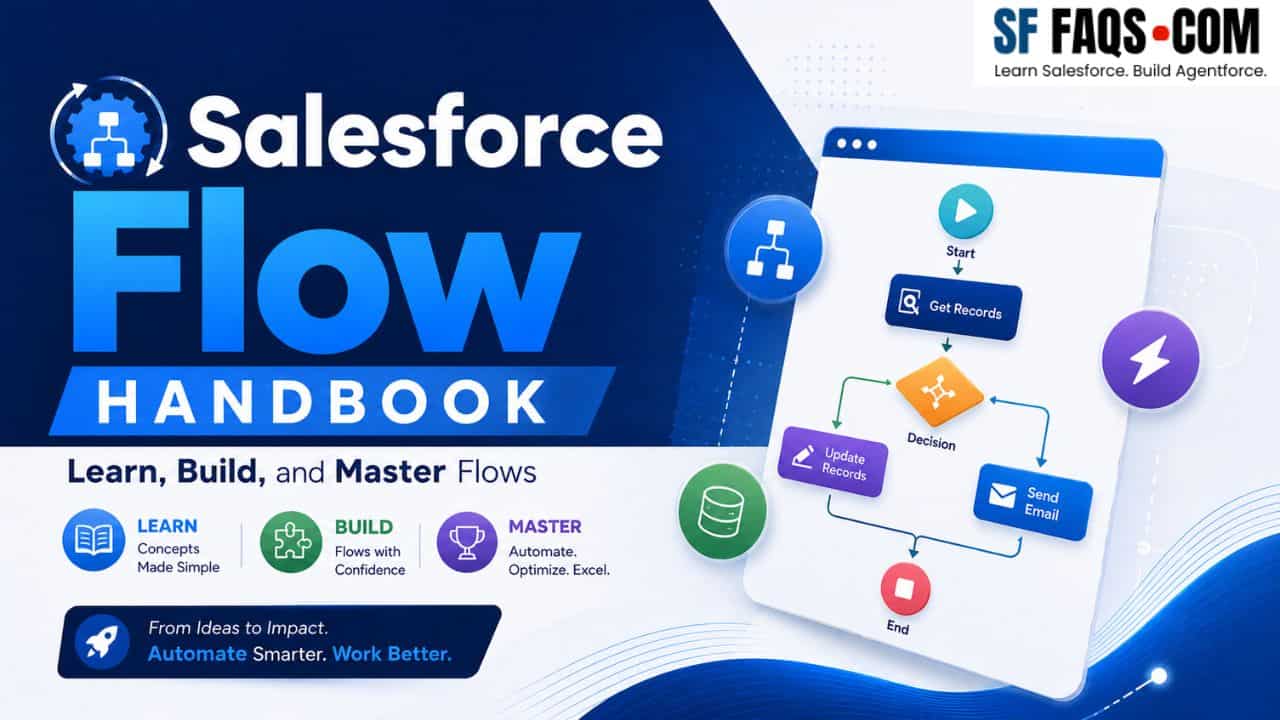
Salesforce Flows

Salesforce Flows enables businesses to automate complex processes and workflows within the Salesforce platform. With Flows, you can create seamless, automated solutions that enhance productivity, improve user experience, and ensure data accuracy. In this tutorial, I will explain to you the essentials of Salesforce Flows, from basic concepts to advanced functionalities.

Introduction to Salesforce Flows

Salesforce Flows are part of the Salesforce automation suite, including Workflow Rules and Process Builder. Unlike these tools, Flows offers a more flexible and powerful way to automate business processes. With Flows, you can create guided visual experiences, automate complex business logic, and manipulate data across multiple objects.

Flows are built using Flow Builder, a point-and-click tool that allows you to visually design and test your flows. This makes it accessible to users with little to no coding experience while offering developers advanced capabilities.

Types of Flows in Salesforce

There are several types of Flows in Salesforce, each designed for specific use cases:

  • Screen Flows: These are user-guided flows involving user interaction through screens. They are ideal for creating wizards, forms, and other guided processes.
  • Autolaunched Flows: These flows run in the background without user interaction. Various events, such as record creation, updates, or scheduled times can trigger them.
  • Record-Triggered Flows: These are triggered when a record is created, updated, or deleted. They are often used to automate processes related to specific objects.
  • Scheduled Trigger Flows: These flows run at specified intervals or times, making them suitable for periodic tasks such as data cleanup or batch processing.
  • Platform Event Triggered Flow: It is used to automate the tasks or actions based on events that are occurring within the org.

Key Components of Salesforce Flows

To build effective flows, it’s essential to understand the key components:

  • Elements: These are the building blocks of a flow. Common elements include:
    • Screen: Displays a screen to the user.
    • Assignment: Assigns values to variables.
    • Decision: Creates branches in the flow based on conditions.
    • Create Records: Creates new records in Salesforce.
    • Update Records: Updates existing records.
    • Get Records: Retrieves records from Salesforce.
    • Delete Records: Deletes records from Salesforce.
    • Subflow: Calls another flow from within the current flow.
  • Resources: These are variables, constants, and other data structures used within the flow. Common resources include:
    • Variables: Store data that can change during the flow.
    • Collections: Store lists of records or values.
    • Formulas: Perform calculations or manipulate data.
    • Text Templates: Store text that can be reused within the flow.
Salesforce flows tutorials

Create Your First Flow in Salesforce

Let’s walk through the steps to create a simple Screen Flow that collects user information and creates a new Contact record.

Step 1: Access Flow Builder

  1. Navigate to Setup.
  2. In the Quick Find box, type “Flows” and select Flows.
  3. Click the “New Flow” button.
  4. Choose “Screen Flow” and click “Next.”

Step 2: Design the Flow

  1. Drag a “Screen” element onto the canvas.
  2. Add input fields to collect user information (e.g., First Name, Last Name, Email).
  3. Configure each field with appropriate labels and data types.
  4. Click “Done” to save the screen.

Step 3: Create the Contact Record

  1. Drag a “Create Records” element onto the canvas.
  2. Configure the element to create a new Contact record.
  3. Map the input fields from the screen to the corresponding Contact fields.
  4. Click “Done” to save the element.

Step 4: Connect the Elements

  1. Connect the “Start” element to the screen element.
  2. Connect the screen element to the “Create Records” element.

Step 5: Save and Activate the Flow

  1. Click “Save” and provide a name for your flow.
  2. Click “Activate” to make the flow available for use.

Advanced Flow Features in Salesforce

Once you’re comfortable with the basics, you can explore advanced features to enhance your flows:

  • Subflows: Break down complex processes into smaller, reusable flows.
  • Loops: Iterate over collections to perform actions on multiple records.
  • Apex Actions: Invoke custom Apex code from within your flow for more advanced logic.
  • Fault Paths: Handle errors gracefully by defining fault paths for elements that might fail.
  • Pause Elements: Pause the flow and wait for a specific condition or user action to resume.

Best Practices for Salesforce Flows

To ensure your flows are efficient and maintainable, follow these best practices:

  • Keep It Simple: Start with simple flows and gradually add complexity. Avoid overcomplicating your flows.
  • Use Subflows: Break down large flows into smaller, manageable subflows.
  • Test Thoroughly: Test your flows in a sandbox environment before deploying them to production.
  • Handle Errors: Implement fault paths and error handling to manage exceptions gracefully.
  • Document Your Flows: Add descriptions and comments to your flow elements to make them easier to understand and maintain.

Salesforce Flows Tutorials

Here is the list of flow tutorials in Salesforce.

Conclusion

Salesforce Flows significantly enhance your Salesforce automation capabilities. By learning about the different types of flows, key components, and best practices, you can create powerful, efficient, and maintainable automation solutions. Whether you’re a Salesforce administrator or developer, mastering Flows will enable you to streamline business processes and improve overall productivity.

Agentforce in Salesforce

DOWNLOAD FREE AGENTFORCE EBOOK

Start with AgentForce in Salesforce. Create your first agent and deploy to your Salesforce Org.