
For one of our clients, I created an AI Agent in Salesforce and added an action to update the case owner. So whenever a user wanted to change the case owner, they had to type a prompt to the agent, who then updated the case owner.
Later, the client wanted this to happen automatically. They didn’t want users to give a prompt every time the case was updated. They wanted the agent to update the case owner automatically whenever the case record changed.
To solve this, I created a Record-Triggered Flow. Now, whenever a user updates a case, the flow automatically calls the Agentforce agent, and the agent updates the case owner without providing a prompt.
In this article, we will learn how to call Agentforce agent via record-triggered flow in Salesforce, so that whenever a record is updated, the agent can run its action automatically.
Call Agentforce Agent via Record-Triggered Flow in Salesforce
In the steps below, I will show you how to create a record-triggered flow that automatically calls an AI Agent, so users don’t have to type a prompt every time.
Before creating the flow, let me explain the manual process the user followed to update the case owner: they needed to provide a prompt to the AI agent in Salesforce Agentforce.
So I created an Apex action and assigned it to the AI agent. This action updates the case owner based on the Issue Type (custom field) selected in the case record.
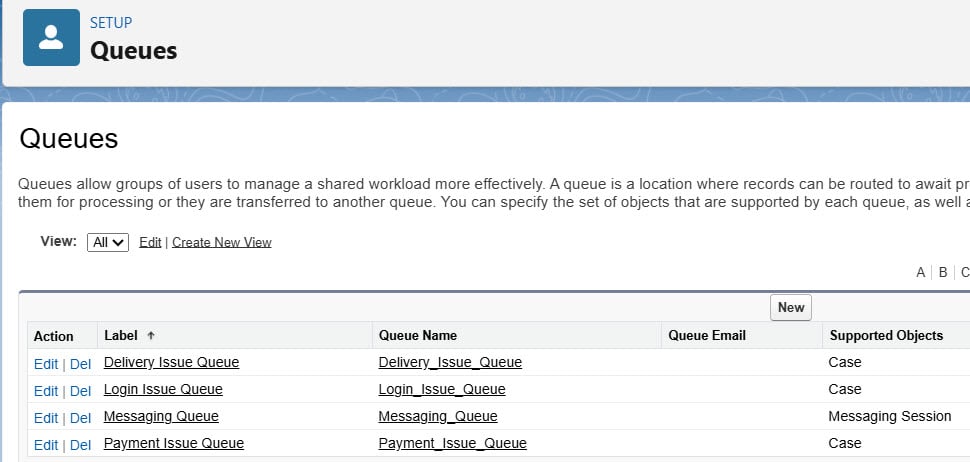
In the image below, you can see the queues I created. The agent will assign one of these queues as the case owner based on the issue type.
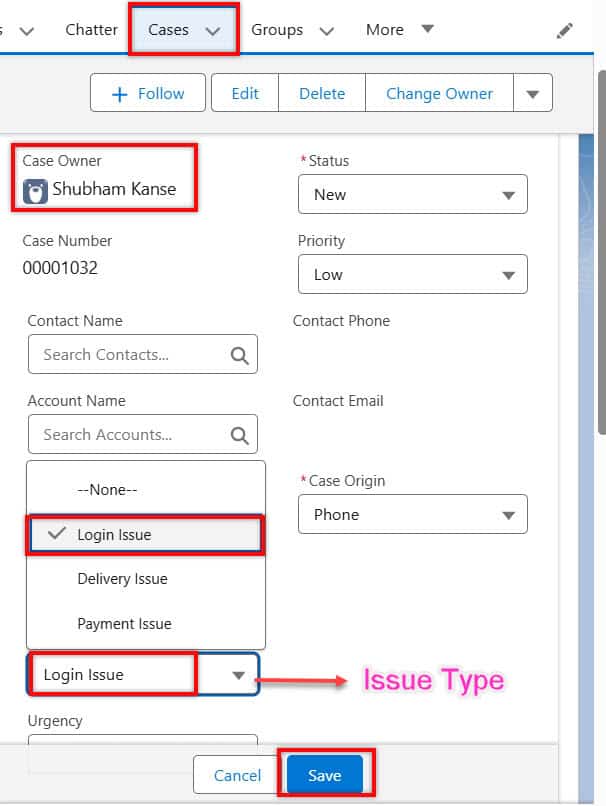
Here, I have opened a case record where the current case owner is Shubham Kanse. Now, I selected the Issue Type as “Login Issue.” Based on this Issue Type, the case owner should change to the Login Issue Queue when I save the record.
But to invoke the AI agent, we usually have to provide a prompt that asks it to update the case owner based on the selected Issue Type. So the user had to give this prompt manually every time.
Now, instead of giving a manual prompt to the agent every time the case is updated, we will create a Record-Triggered Flow that automatically calls the AI agent to update the case owner.
Create Record Trigger Flow to Call Agentforce Agent in Salesforce
In the steps below, I will explain how to call the AI agent from a Salesforce Flow so the agent can perform the action it is created to handle.
Click on the Setup. -> Home Page. -> In the Quick Find Box, Search for Flows. You will see an option under Process Automation. -> Click on Flows.
In the flows setup window, click on the button New Flow -> Start From Scratch -> select the Record Trigger Flow -> Next.
In the start element, we need to select the object we want to automate. In our scenario, the Case is a triggering object.
In Configure Trigger, I have selected A Record is Created. Then add a condition to return only those records that meet it. Here, I set the Issue Type– ‘Does Not Equal’ – Blank.
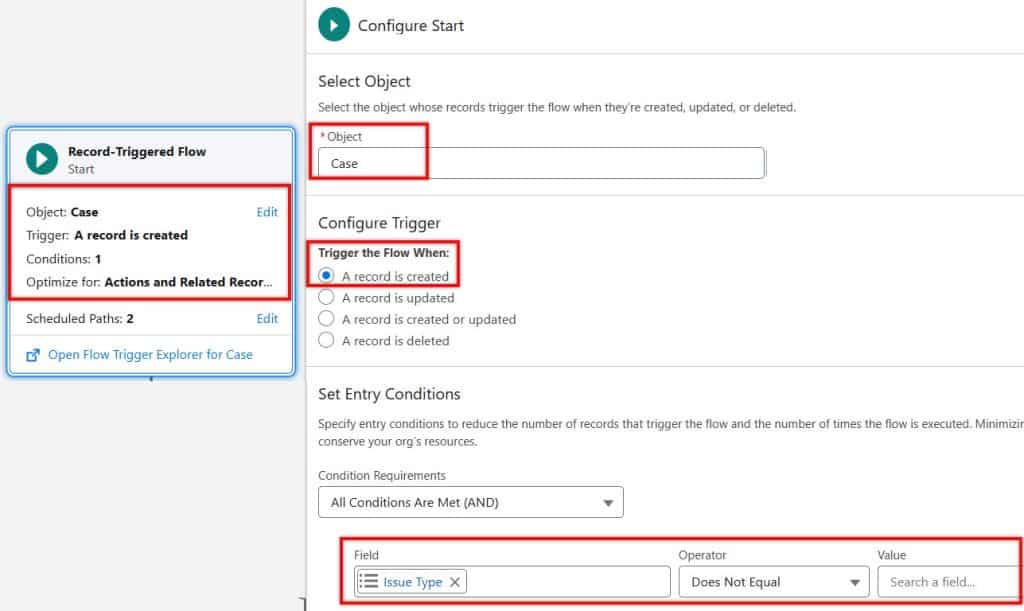
Now, in the flow, we need to add an Action element to invoke the AI Agent, which updates the case owner.
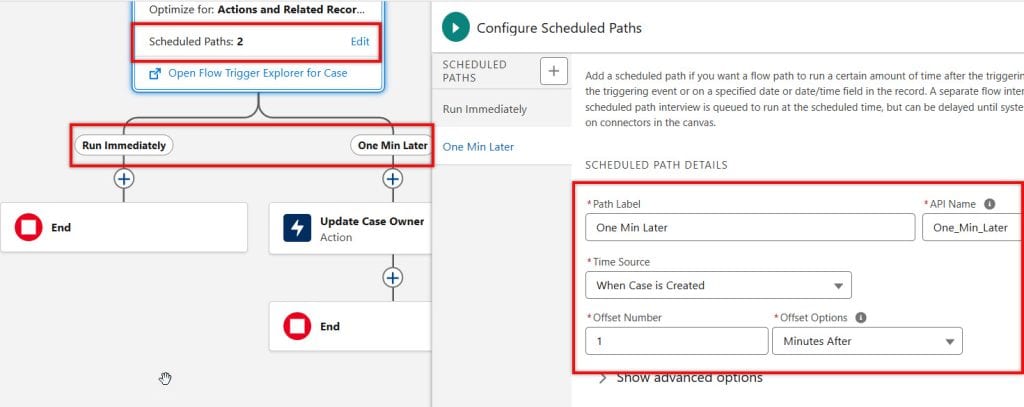
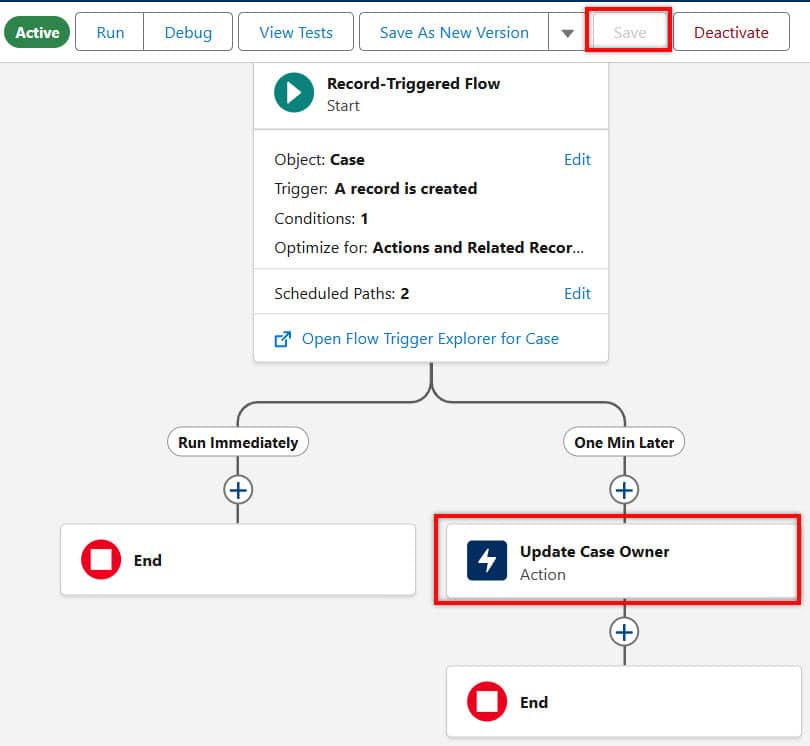
But instead of adding the action element directly, we use a Scheduled Path because it ensures the agent runs after the record is fully saved and avoids any locking or timing issues.
For that, click the Scheduled Paths option, then provide a Label and an API Name. Next, in the Time Source, select the action for which you want to set the schedule path.
Then, in the Offset Number, we need to provide a number, and then in the Offset Option, we can select the following values:
| Before Execution | After Execution |
| Months Before | Months After |
| Days After | Days Before |
| Hours After | Hours Before |
| Minutes After | Minutes Before |
For this scenario, I have added that when a Case is created, then 1 minute after, further action should be executed.
Now, we need to add the Action element, and in the Search box, enter the name of the AI Agent you want to invoke from the Flow. Here, I have selected Agentforce Service Agent.
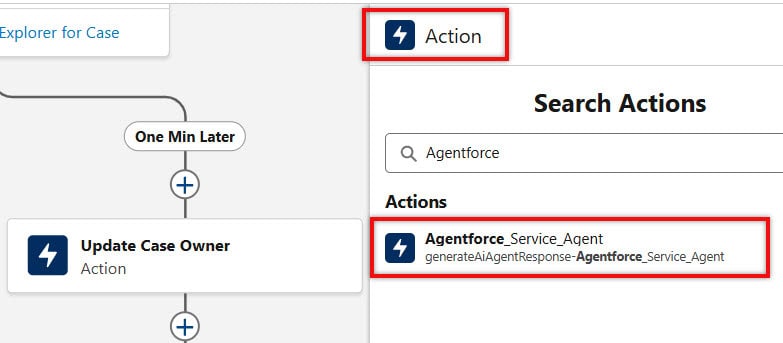
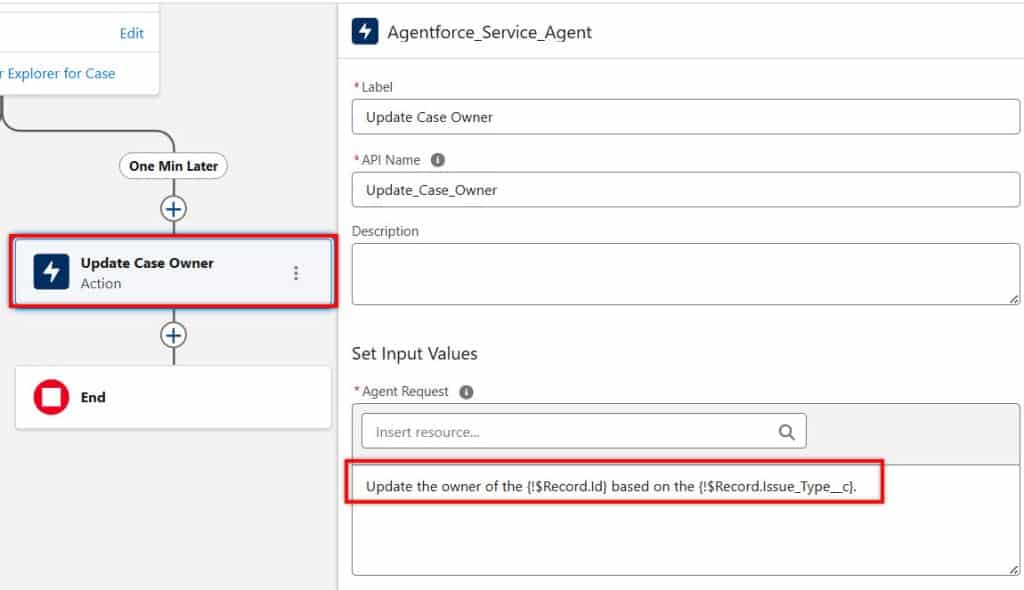
After that, provide the Label, and the API Name will populate automatically. Then, in the “Set Input Values” section, enter the prompt that we usually give to the agent to update the case after it is created or updated.
In this prompt, we need to provide the Record ID of the case we want to update. We also need to specify the Issue Type so the agent knows which case owner to assign to it.
These values can be provided dynamically, so whenever a new Case is created, the Flow automatically passes the Case Record ID and the Issue Type entered by the user to the AI agent to update the case owner.
After that, first save the flow. You can see the Save button. Click on it and then click on the Debug button. Then click on the Activate button; always remember to debug the flow before activating it. It’s good practice to use flow.
Proof of Concept
Since we created this Record-Triggered Flow to run when a new Case is created, it will only trigger when the user creates a new Case.
Now, let’s create a new Case record. In the Issue Type field, I selected “Delivery Issue” and then saved the record.
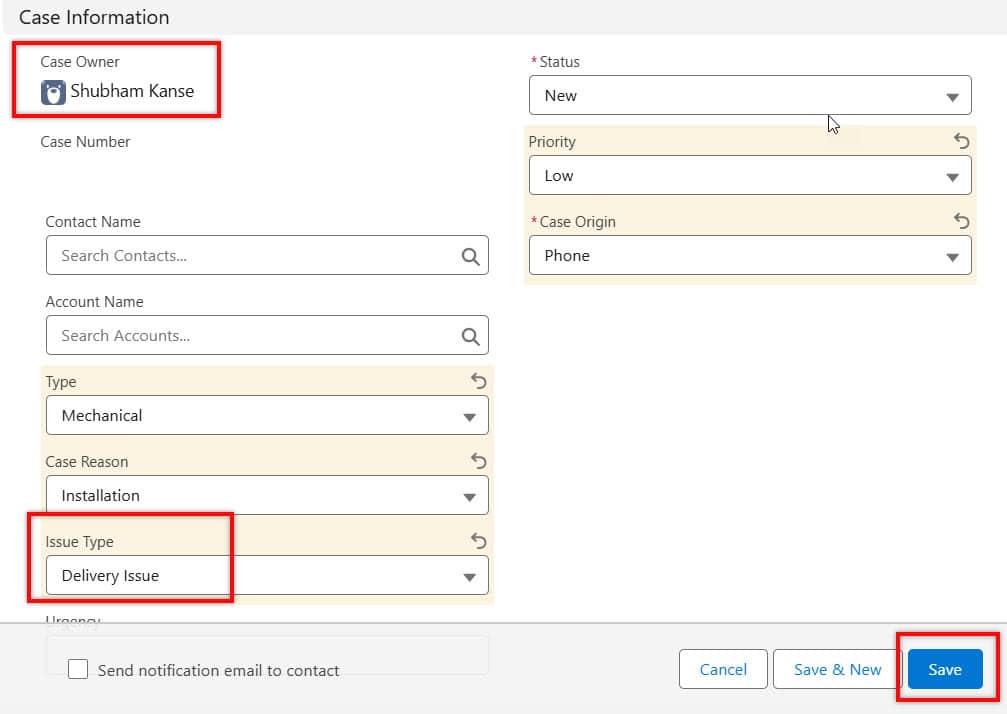
Now, let’s create a Case record. In the Issue Type field, I selected “Delivery Issue” and saved the record.
After saving, the new Case is created, and the Flow automatically takes the Case Record ID and the selected Issue Type. It then builds the prompt we defined in the Action element and sends it to the AI Agent.
After that, the Flow calls the AI Agent and sends the prompt. The agent then runs the action we created to update the Case Owner. Based on the Issue Type, the agent selects the correct queue and assigns it as the new Case Owner.
In the image below, you can see that without giving any manual prompt to the agent, the Case Owner was updated automatically based on the Issue Type.
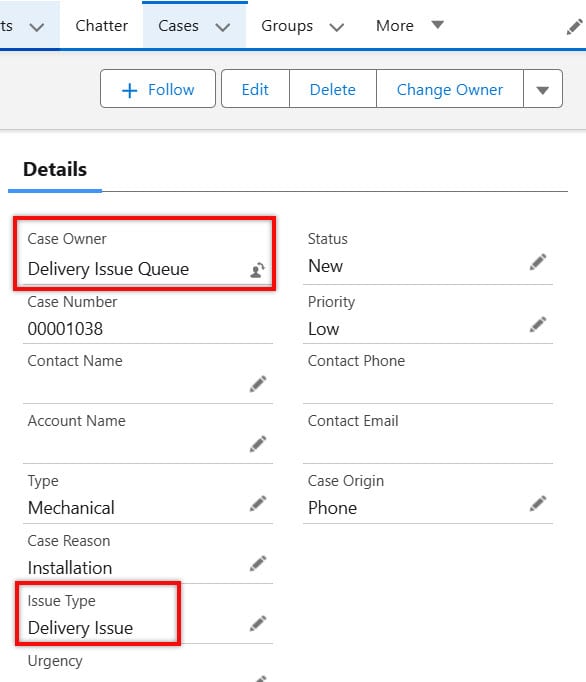
In this way, we can invoke the Agentforce Agent from a Salesforce Flow to automatically perform actions without needing any manual prompts.
Conclusion
I hope you have got an idea about how to call an Agentforce agent via a record-triggered flow in Salesforce, so that whenever a record is updated, the agent can run its action automatically.
You may like to read:
- Create & Assign Custom Actions to AI Agents in Salesforce Agentforce
- Deploy Agentforce Service Agent to Slack Workspace in Salesforce
- Prompt Builder and Prompt Template in Salesforce Agentforce

Shubham is a Certified Salesforce Developer with technical skills for Building applications using custom objects, approval processes, validation rules, Salesforce flows, and UI customization. He is proficient in writing Apex classes, triggers, controllers, Apex Batches, and bulk load APIs. I am also familiar with Visualforce Pages and Lightning Web Components. Read more about me.