
In Salesforce Service Cloud or Sales Cloud, support users talk to customers every day over the phone. These calls may be about customer queries, support issues, product failures, or follow-ups.
Now imagine a support agent just finished a call with a customer. The customer explained their problem. The agent provided a solution and promised a follow-up.
Now the question is Where do you record this conversation in Salesforce? How will other team members know what was discussed? How will the agent remember to follow up?
This is where log a call in Salesforce becomes very useful. In this article, we will learn about how to log a call in Salesforce. Additionally, I will explain how to create a log call report in Salesforce.
What is “Log a Call” in Salesforce?
Log a Call is a quick action that lets users record details of a phone conversation with a customer.
It helps store important information, such as what was discussed, how long the call lasted, and whether any follow-up is required.
When you log a call, Salesforce creates a completed Task in the background and saves information such as the call summary, duration, and follow-up date.
This helps maintain an accurate record of the customer discussion.
Anyone opening the record later can easily understand the previous conversation without having to ask the customer again.
Where Can You Find “Log a Call” in Salesforce?
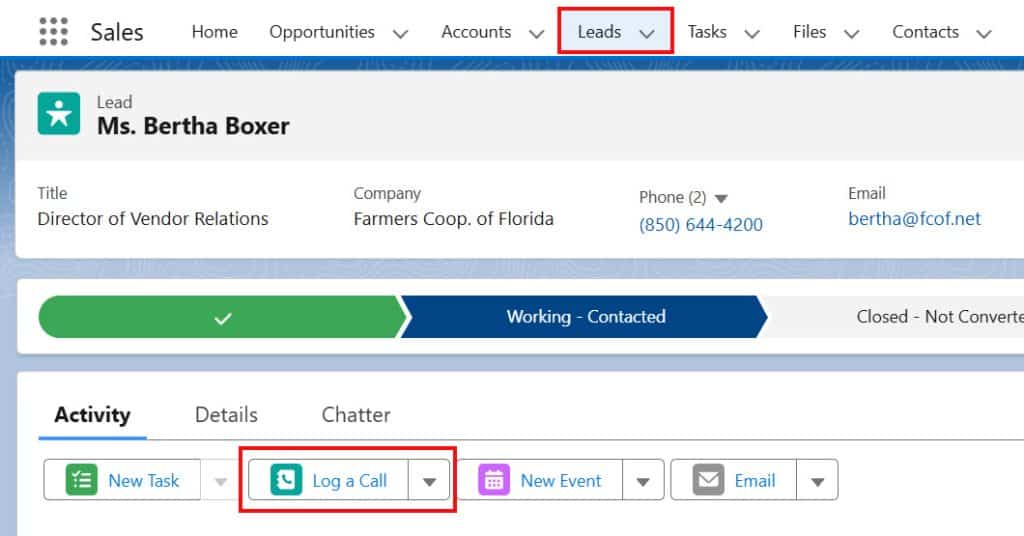
You can find Log a Call in the Activity section of many records in Salesforce. It is available in many records, such as:
- Leads
- Contacts
- Accounts
- Opportunities
- Cases
When you open any of these records and go to the Activity timeline, you will see the Log a Call button there. Users can click this button immediately after a phone conversation to record the call details.
What Happens When You Click “Log a Call” in Salesforce?
When you click the Log a Call button, a small pop-up window opens. This window is simple and designed to quickly capture call information without taking much time.
In this window, you can enter the Subject (short summary of the call), Comments (what you discussed with the customer), Call Type (inbound or outbound), Call Duration, and even set a follow-up date if needed.
After you click Save, Salesforce automatically creates a completed Task in the background. This task is added to the Activity timeline of that record, so anyone can see the call history later.
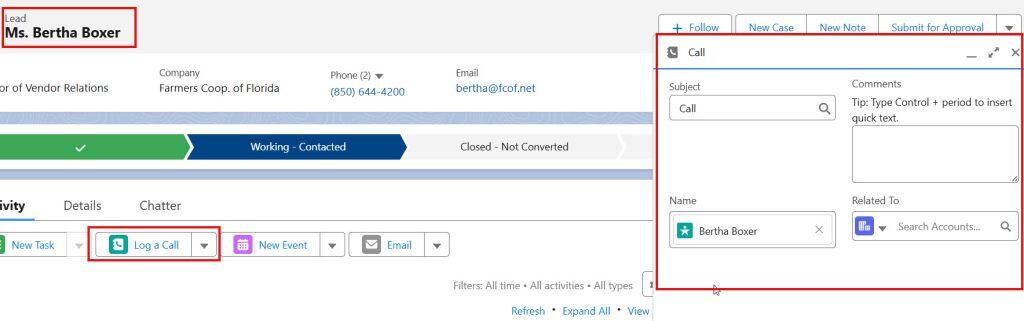
Below are the fields in the Log a Call in Salesforce:
| Field Label | Description |
| Subject | It specifies the main mode of communication and is automatically set to “Call”. |
| Comments | It is a field where users note the detailed conversion they made during a phone call with a client. |
| Name | It is a lookup field that refers to the contact. It is the name of the client you spoke with. |
| Related To | It is a lookup field that refers to the account. It specifies the account name. |
Why Log a Call is Very Important in Salesforce
Logging a call may seem like a small step, but it plays a big role in maintaining an accurate communication history. It ensures that every conversation with the customer is recorded for future reference.
This helps team members understand past discussions and prevents the same questions from being asked again. It also improves teamwork and customer experience.
Difference Between Log A Call vs Tasks in Salesforce
In Salesforce, a log a call is one type of task, but it differs from other tasks in several ways.
Below are the differences between log a call and tasks in Salesforce.
| Salesforce Tasks | Salesforce Log a Call |
|---|---|
| Tasks are to-do lists or activities that users need to perform. | Log a call is one kind of activity the user needs to perform. |
| Tasks can be related to any mode of communication or subject. It can be a call, email, letter, etc. | Log a call is always related to the call as a mode of communication or subject. |
| Tasks have one optional field, “Due Date”. | Log a call doesn’t have any field named “Due Date.” |
| Salesforce tasks have two mandatory fields: Status, set to “Not Started” by default, and Priority, set to “Normal.” | In Log a Call, there are no fields for “Status” or “Priority”. |
| Tasks are always assigned to some users in Salesforce. | A log call is not assigned to any user. Even users can perform the task, like calling a client later on and noting down the conversation in the log call. |
| Salesforce Tasks can be regarding upcoming activities or past activities. | Salesforce log a call activity always shows you the past; as the due date is set to the current day, the status is automatically set to complete. |
| Example: Schedule a meeting with the XYZUSA company. | Example: Call with the XYZUSA company. |
How to Log a Call in Salesforce
Below, I will explain how to log a call in Salesforce.
- Open the Object from App Launcher and select the record on which you want to log a call.
- Here I have selected the Contact object and opened Ashley James record.
- Scroll to the Activity timeline where you track emails, tasks, and calls. Click on the Log a Call button.

- Fill in the Subject with a short title and write proper comments explaining the discussion. Select the call type and duration, and set a follow-up date if needed.
- Click Save and check the Activity timeline. You will see the call recorded there as a completed activity.

- When you save the call, the task automatically shows up under “Past Activities”. Since the due date is set to today, the status is automatically set to complete.

How Create a Call Report in Salesforce
In Salesforce, log a call is also known as a record of the contact activities. You can also create a report of the call log to easily manage and track call records.
Below are the steps to create a call report in Salesforce:
- Go to the “Setup” in Salesforce, click on the “App Launcher”, search for “Reports”, and click on it.
- Click on the “New Report” button to create a new report with contact activity records.
- Select the category of the report as “Activities”, then select the report type as “Activities with Contacts”. Then, click on the “Start Report” button to generate the report.

- Now, set up the report filters as required. Click on the “Filters” set up the filter columns with range value, and also set the columns on the reports that you require.
- For example, in the “Date” filter, I selected the range “On or After 07 Jul 2023” and clicked on the “Apply” button.

- Click the “Save & Run” button to generate a report of the filtered records in the preview panel.

In this way, you can create a report of the log call records in Salesforce.
Conclusion
I hope you have understood Salesforce call logging. I have also explained about the fields in log a call and how log a call is different from tasks in Salesforce. Additionally, I have guided you step-by-step on how to log a call in Salesforce.
You may like to read:
- Customize Log a Call in Salesforce
- Salesforce Lightning Log a Call button is missing
- Call Apex Methods From LWC in Salesforce
- Call Approval Process From Flow in Salesforce

Shubham is a Certified Salesforce Developer with technical skills for Building applications using custom objects, approval processes, validation rules, Salesforce flows, and UI customization. He is proficient in writing Apex classes, triggers, controllers, Apex Batches, and bulk load APIs. I am also familiar with Visualforce Pages and Lightning Web Components. Read more about me.