
In Agentforce, we have various types of prompt templates that can be invoked from AI Agent, Apex, Flows, or record pages in Salesforce.
For example, I created a Field Generation Prompt Template on the Account object that summarizes a particular account and displays it in a custom field named Account Summary__c.
Now this prompt template is invoked on the Account record page, where we add the field (Long Text Area). When a user clicks the Generate button, the information will be summarized in that field.
However, here the problem is that whenever we update the account record, we need to click the generation button to update the account summary stored in the Account Summary__c field.
Now we want to automate this process so that whenever a user updates the account record, the summary field is automatically updated based on the value that changed.
In this article, we will learn how to auto-generate field summaries in Salesforce Agentforce, allowing users to avoid clicking the ‘Generate’ button every time they update a record.
Auto-Generate Field Summaries in Salesforce Agentforce
In the steps below, I will explain how we previously had to update the account summary manually before invoking the Prompt Template from Salesforce Flow. Then, I will show how this process becomes automated after invoking the Prompt Template from the Flow.
Before Invoking Prompt Template From Salesforce Flows
First, I’ll show you how, before invoking the field generation prompt template from the Flow, we had to manually click the ‘Generate‘ button multiple times to create the Account record summary.
As you can see below, we’ve created a field generation prompt template in Agentforce that summarizes account information.
It displays the Account Name, Rating, and Customer Priority fields, along with a summary of the related Soft Drink Orders (custom object) associated with this Account.

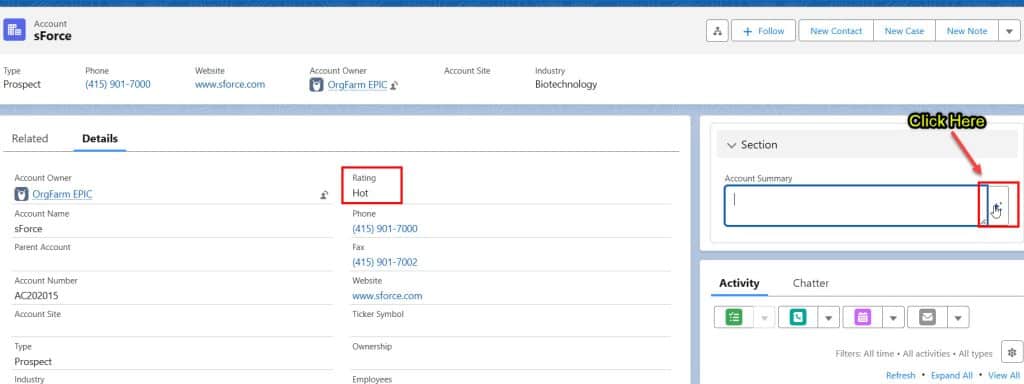
Now, you can see that the Account Rating is set to ‘Hot.’ When we click the ‘Click Here’ button, it generates the account summary based on the prompt template we created.
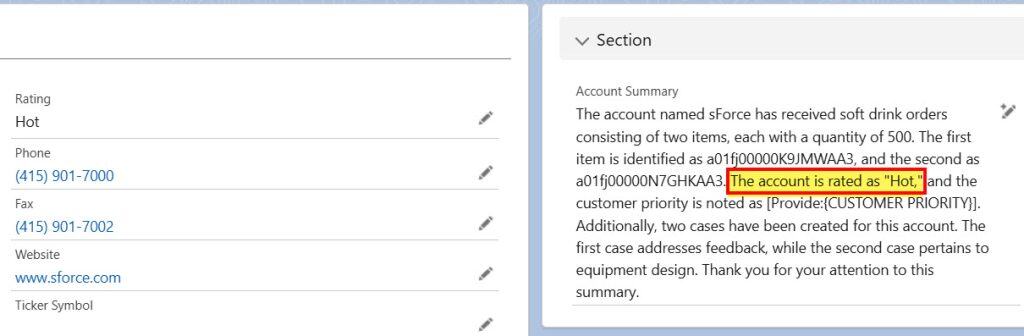
Here is the generated account summary.
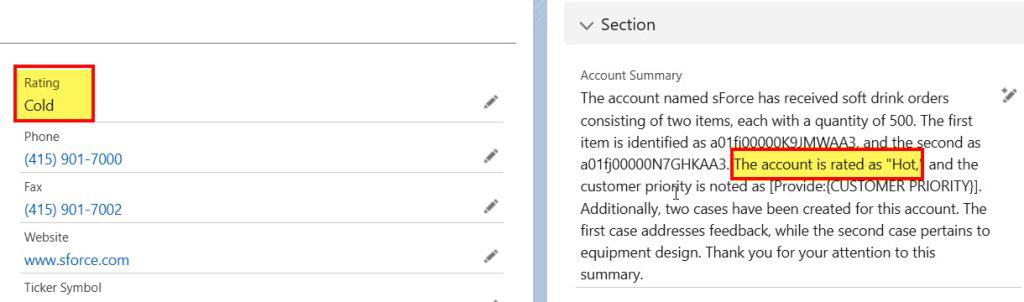
Now, I have updated the Account Rating to ‘Cold’, but the Account Summary is not updating based on the changes to the Account record.
To make the changes again, click the ‘Generate‘ button to update the account summary.
To automate this process, we’ll create a Flow that updates the Account Summary automatically whenever the Account record is modified.
Create a Record Trigger Flow to Invoke a Prompt Template in Salesforce Agentforce
Now, let’s create a Record-Triggered Flow that invokes the Prompt Template to automatically update the Account Summary whenever the Account record is modified.
To do that, click “Setup.” -> Home Page. -> In the Quick Find Box, Search for Flows. You will see an option under Process Automation. -> Click on Flows. In the flows setup window, click on the button New Flow -> Start From Scratch -> select Record Trigger Flow -> Next.
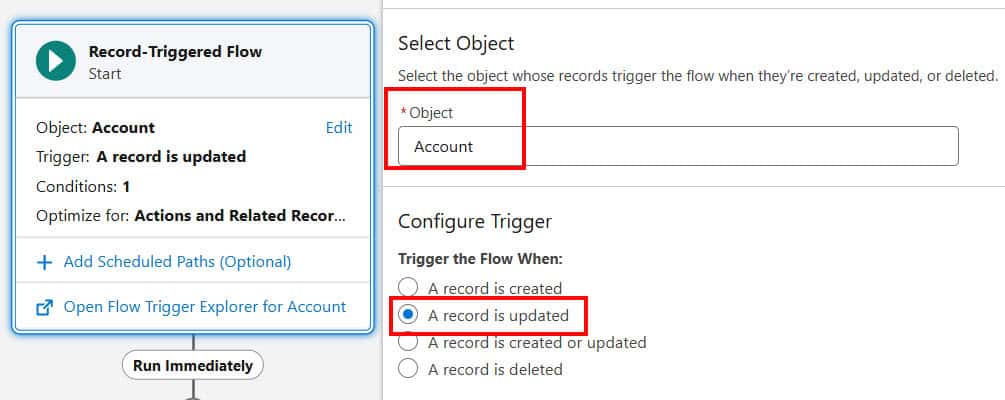
In the start element, we need to select the object we want to automate. In our scenario, the Account is a triggering object. In Configure Trigger, I have selected “A Record is Updated” because the flow should trigger when an account is updated.
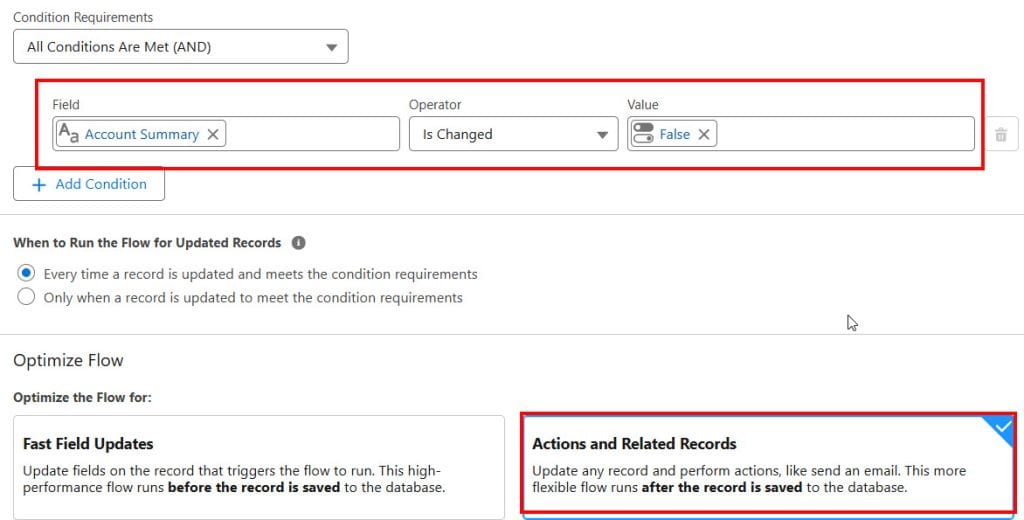
Next, we set entry conditions. In the Condition Requirement option, we select ‘All Conditions Are Met (AND)‘ because the following conditions must meet the specified criteria.
Here, the Flow should trigger only when the Account Summary field ‘Is Changed’ is False.
This means that if we update the Account record without manually changing the Account Summary field and then save the record, the Flow will only be triggered.
Next, we need to select ‘Optimize the Flow for Action and Related Records’.
Since we’re getting the AI-generated summary from the Prompt Template, we need to store it in a variable so that we can assign it to the Account Summary field on the Account record.
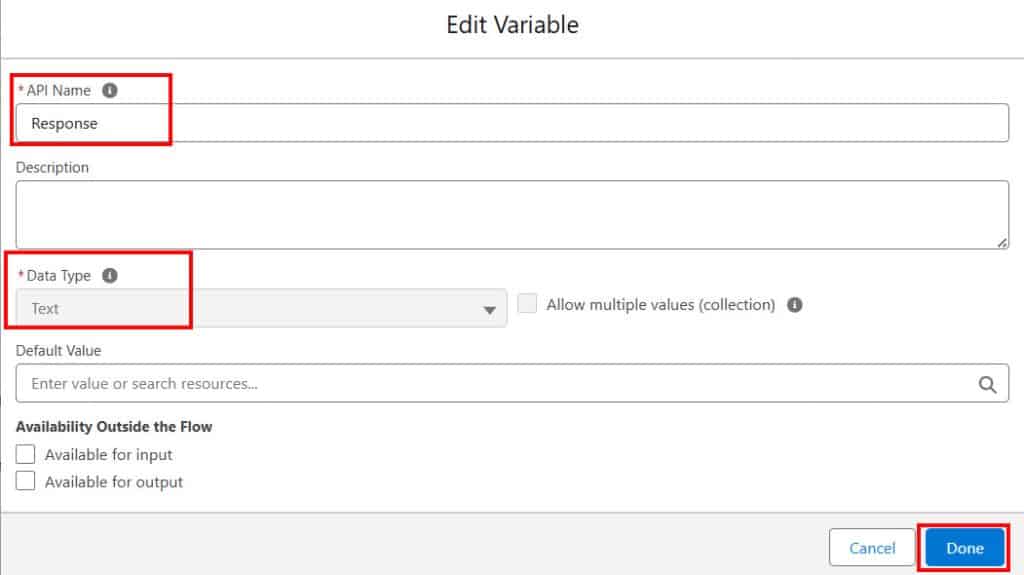
So, first, we need to create a new resource variable to store the account summary.
To do this, go to New Resource. In the Resource Type, select Variable, provide an API Name, and choose Data Type as Record. Here, I have selected Text. Then, click the Done button.
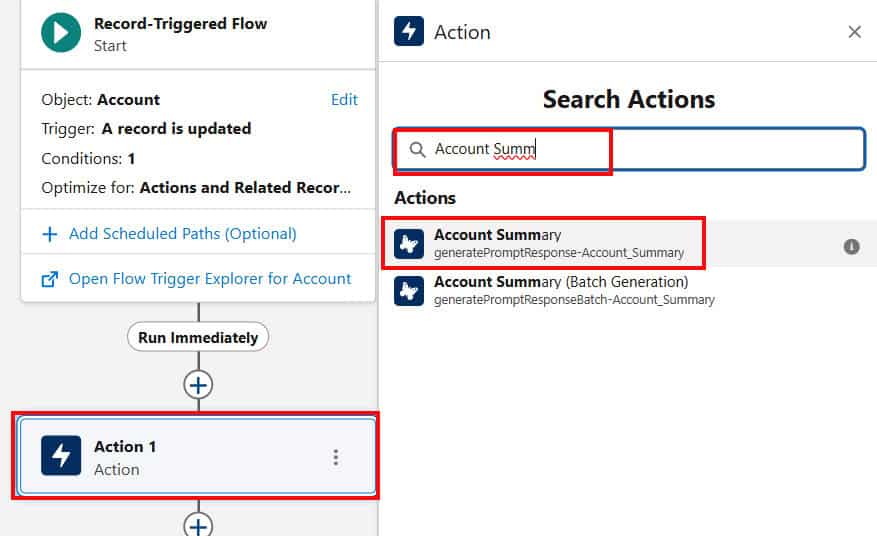
Now, we need to invoke the Prompt Template in the Salesforce flow; for this, we must add an Action element.
In the Search Actions panel, search for the Prompt Template by entering the name you provided to your template and selecting it.
After that, in the RelatedEntity field, we need to provide the Account record ID so the Prompt Template knows which record to reference when generating the summary.
Next, select the ‘Manually Assign Variables (Advanced)’ option. This allows us to specify the Text Variable we created earlier, where the Prompt Response (generated summary) will be stored.
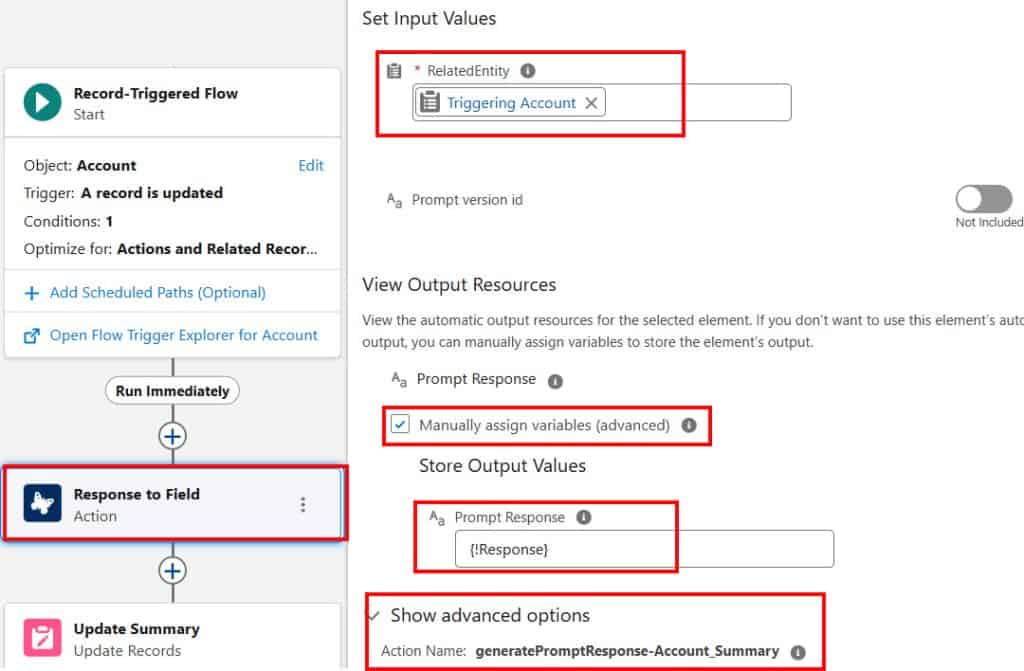
Now, we’ve received the response from the Prompt Template and stored it in a Text Variable.
Let’s assign this variable to the Account Summary field so that whenever the Account record is updated, the Flow will trigger and automatically update the Account Summary field with the new Prompt response. You’ll then be able to see the updated summary on the record page.
To achieve this, add an Update Records element and assign the Response variable to the Account Summary field, so that the summary generated by the Prompt Template is automatically updated on the Account record.
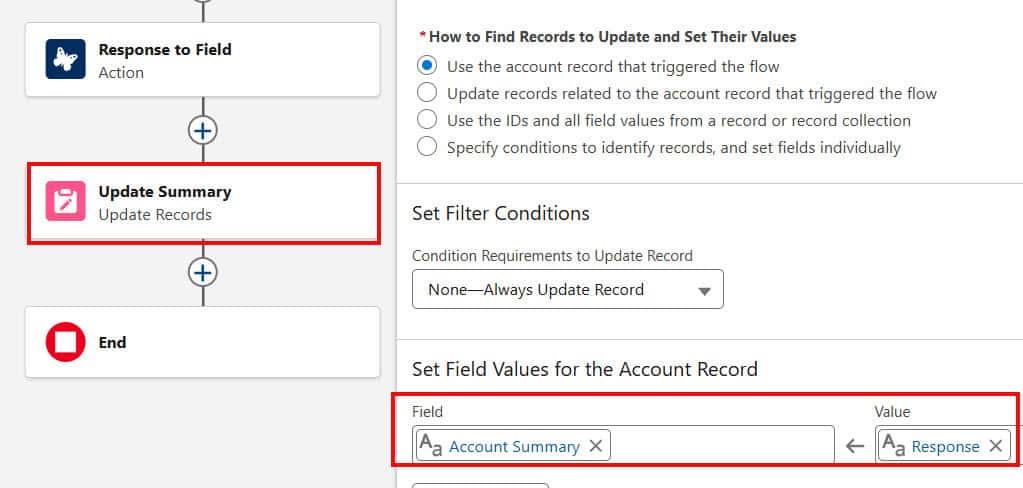
After setting up all labels and conditions, click the Save button to save the flow. For that, we need to enter the Flow Label. The API Name will automatically populate as we click the text box. After saving the flow, click on the Debug button. Then click on the Activate button.
Proof of Concept
Earlier, you could see that the Account Summary field showed the Rating as ‘Hot.’ Now, I’m updating the Rating from ‘Hot’ to ‘Warm’ and then saving the record.
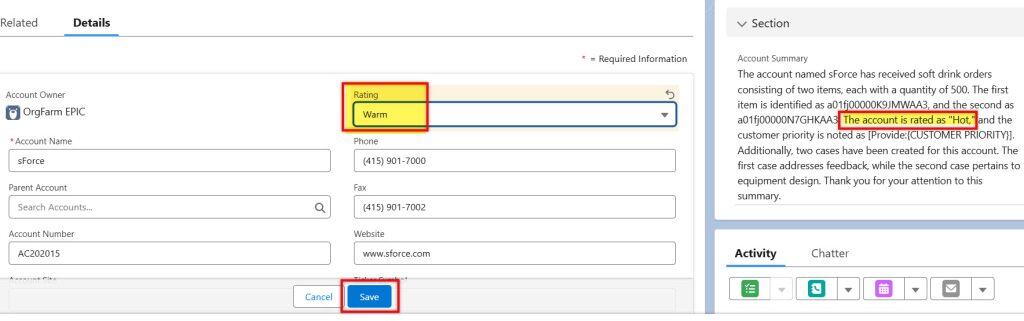
As I save the record, you can see that this time we don’t need to click the ‘Generate’ button manually. The Account Summary is automatically updated based on the changes made to the Account record.
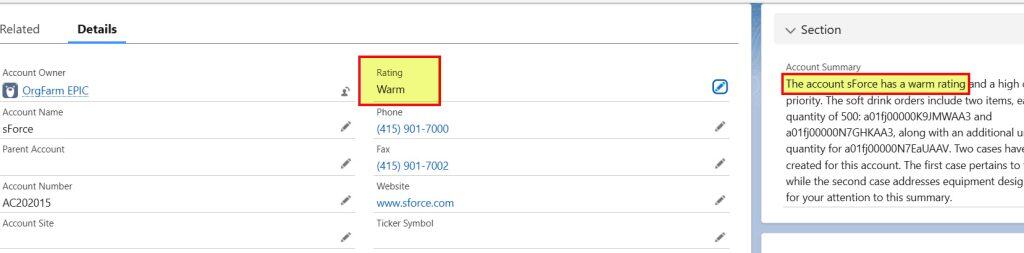
In this way, we can create the record trigger flow to invoke the Agentforce prompt template in Salesforce.
Conclusion
I hope you’ve got an idea of why we need to invoke the Prompt Template from Salesforce Flow. In this article, I’ve explained how, before invoking the Prompt Template through Flow, we had to manually update the Account Summary, and how, after using Flow, the entire process becomes automated.
You may like to read:
- Create Apex Class & LWC Component in Salesforce from Agentforce Vibe
- Record Summary Prompt Template in Salesforce Agentforce
- Call Apex Methods from LWC Using @AuraEnabled in Salesforce
- Assign Record Summary Prompt Template to AI Agent in Salesforce Agentforce

I am Bijay Kumar, the founder of SalesforceFAQs.com. Having over 10 years of experience working in salesforce technologies for clients across the world (Canada, Australia, United States, United Kingdom, New Zealand, etc.). I am a certified salesforce administrator and expert with experience in developing salesforce applications and projects. My goal is to make it easy for people to learn and use salesforce technologies by providing simple and easy-to-understand solutions. Check out the complete profile on About us.
