
In Salesforce Agentforce, a default Record Summary Prompt Template is already available, which helps the AI Agent summarize record information, such as account details, case information, or Opportunity data.
However, sometimes you may want to add custom functionality, for example, displaying only key details such as Account Priority, Last Interaction Date, and Open Opportunities.
To do this, you can create your own custom Record Summary Prompt Template.
But since a Record Summary Prompt Template can only be used by an AI Agent, you must assign your custom template to the Agent.
In this article, we will learn how to assign the Record Summary Prompt Template to the AI Agent in Salesforce Agentforce.
Record Summary Prompt Template in Salesforce Agentforce
In the Field Generation Prompt Template, we saw that it automatically generates information and fills it into a Long Text Area field in Salesforce.
This can happen either when a user clicks the Generate button on the record page or automatically when the field generation prompt template is invoked through a Flow.
This feature helps users save time by allowing the AI agent to create or update detailed field content, such as summaries, descriptions, or case notes, based on the record data.
The Sales Email Prompt Template generates email content based on the details we provide, such as customer information or deal stage.
Both the field generation and sales email prompt templates can be invoked directly from a field or a button on the record page.
However, the record summary prompt template works differently. It can only be invoked through an agent action in Salesforce Agentforce.
This means the AI agent uses this template when performing actions such as summarizing a record, not directly from a field or button.
Assign Record Summary Prompt Template to AI Agent in Salesforce Agentforce
In the steps below, I will explain how to assign the custom Record Summary Prompt Template you created to AI Agents, allowing the Agents to use your template to summarize record information according to your defined instructions.
Create a Custom Action For Using Prompt Template in Agentforce
Go to Setup. In the Quick Find, search for Agentforce Assets. Click on New Agent Action.
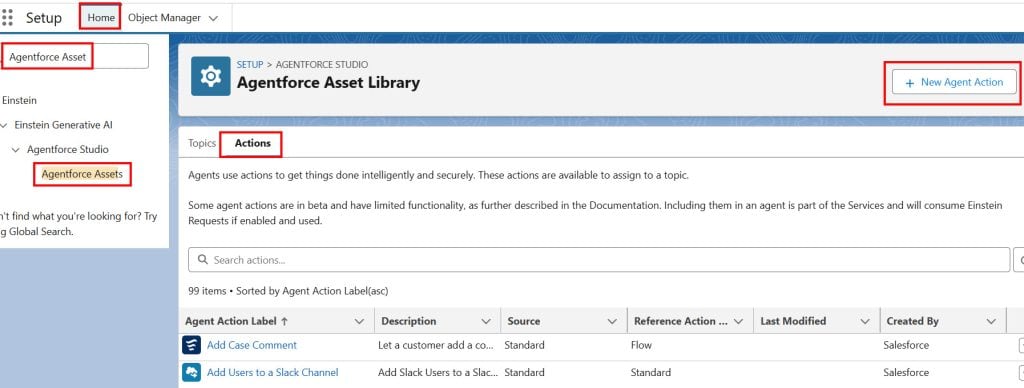
Fill in the details below:
- Referenced Action Type: Previously, we selected Apex; now, as we are creating actions using prompt templates, we need to choose a prompt template.
- Referenced Action: Here, select the label you provided in the record summary prompt template that we created.
- Then, the Agent Action Label and API Name will automatically populate.
Then click the Next button to proceed.

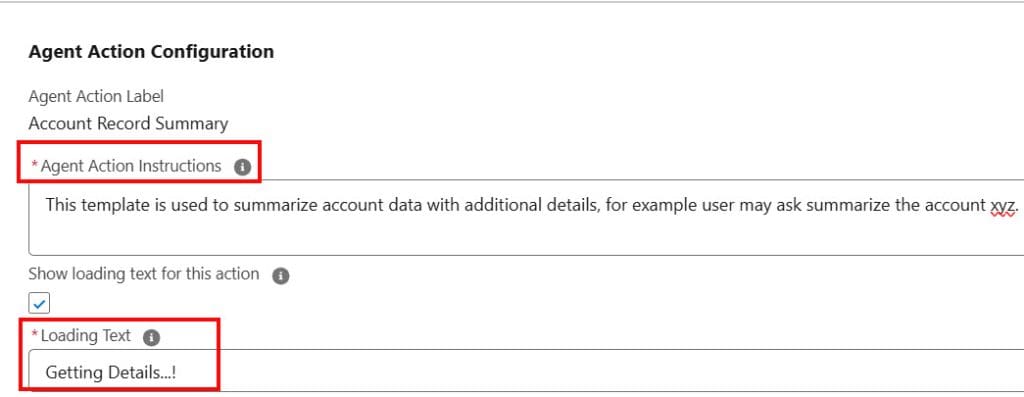
Here, we need to provide instructions to the agent. In Agent Action Instruction, I have provided instructions to the agent so that whenever the agent gets such a prompt, it will be easy for the agent to understand that this action will solve the exact same requirement.
The Loading Text will display while the agent is generating the response.
Again, we have an input field and an output field. Here, too, we must provide the instructions. Then click the Finish button.
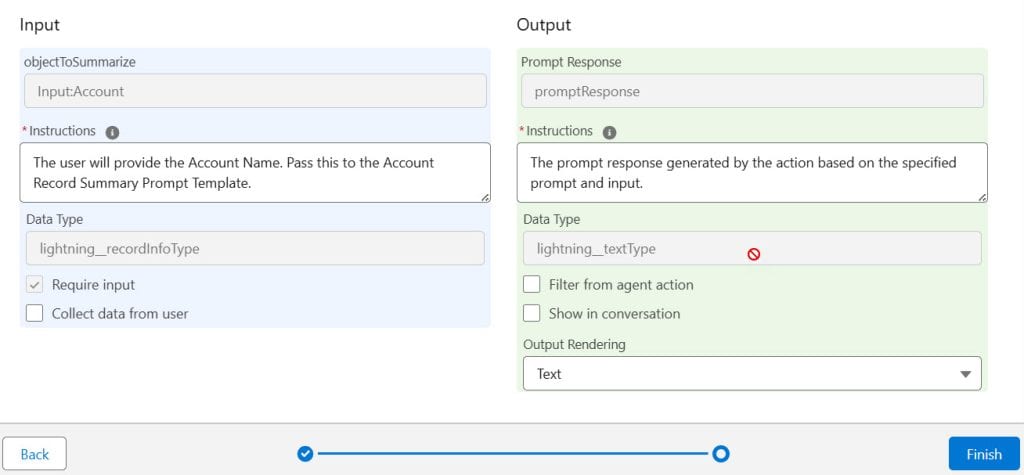
In this way, we can create an action using a prompt template in Salesforce Agentforce.
Assign Action to AI Agent in Salesforce Agentforce
Now, let’s assign the created custom action to an agent. For that, navigate to the Setup -> In Quick Find, search for the Agentforce Agents -> Select the Agent for which you want to assign a custom action.
Here, I have selected ‘Order Agent,’ which is an Agentforce Employee Agent. -> Then click on the Open in Builder button to add an action.

After that, select the Topic to which you want to add the custom action. If you want to create a New Topic for your action, you can create it. However, to create a new topic, you first need to deactivate the agent, and then you can make changes to your agent.
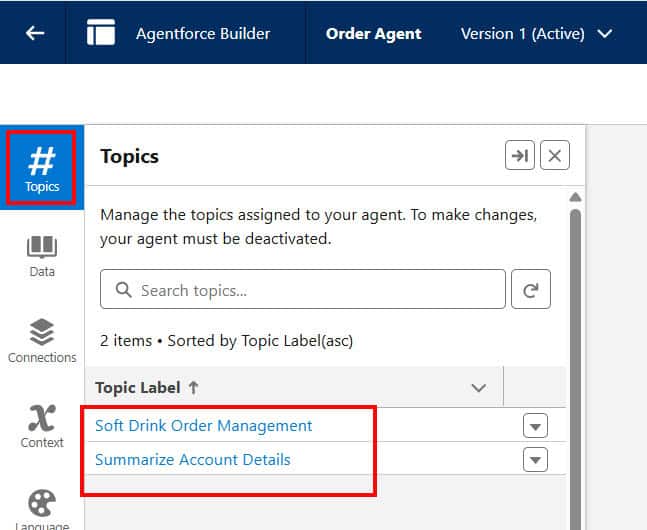
Here, I will add the record summary prompt template action that we created to the Summarize Account Details topic.
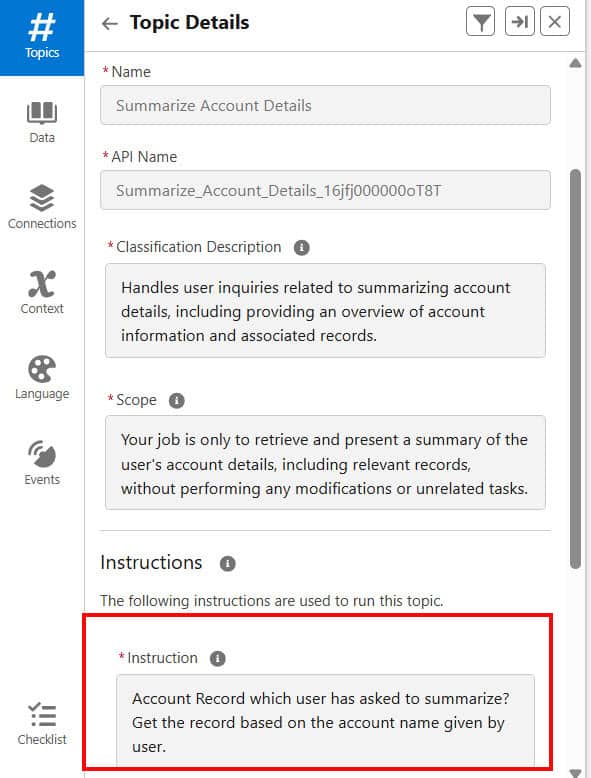
Then, in the instruction, you need to provide the agent with the necessary information so that they can follow the rules to generate the response.
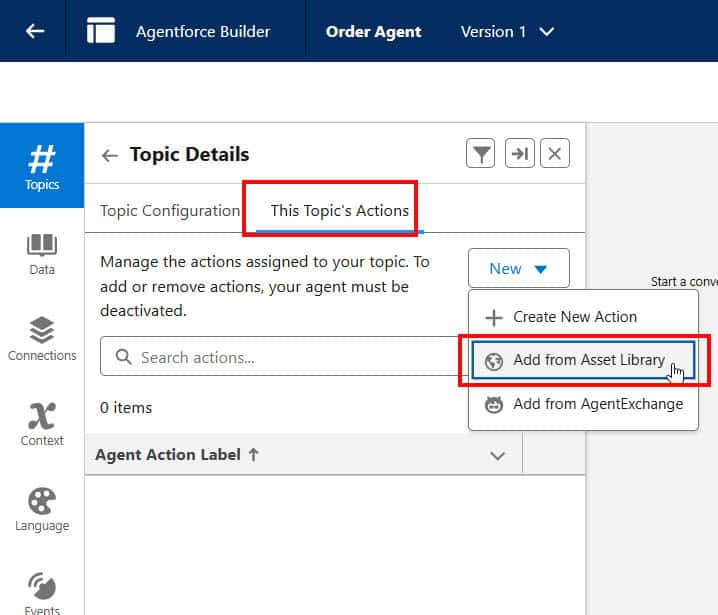
Then click This Topic’s Actions tab, click the New button, and select the Add from Asset Library option to choose the action that we created.
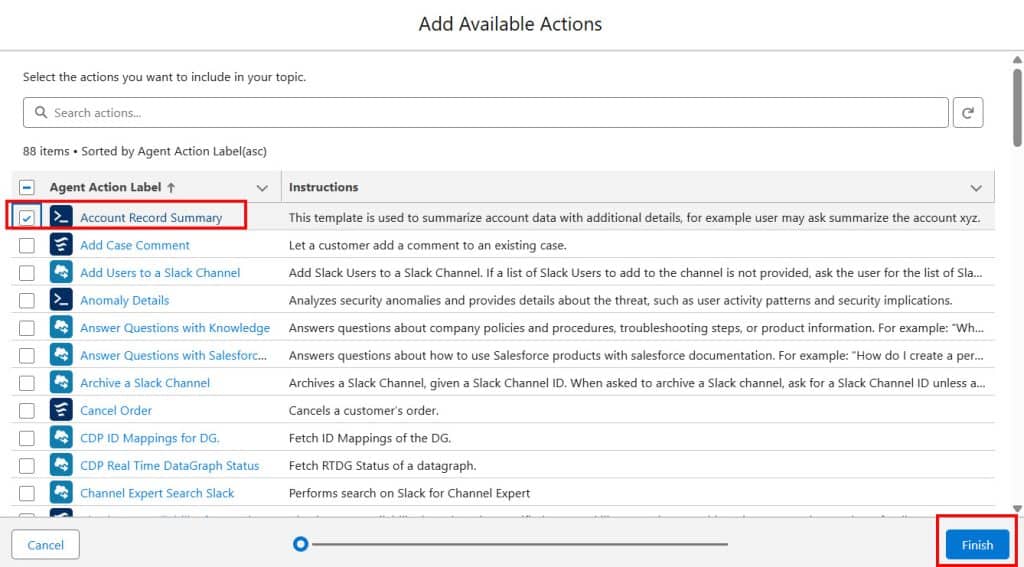
Then, select the action you want to assign to this agent. You can also select multiple actions, including both standard and custom options. Then click the Finish button.
Here, we have created an Account Record Summary action, which was generated from the Record Summary Prompt template in Salesforce Agentforce.
You can see that the action has been assigned to our agent, which means that his agent should now summarize the account record info when any Salesforce user raises a request.
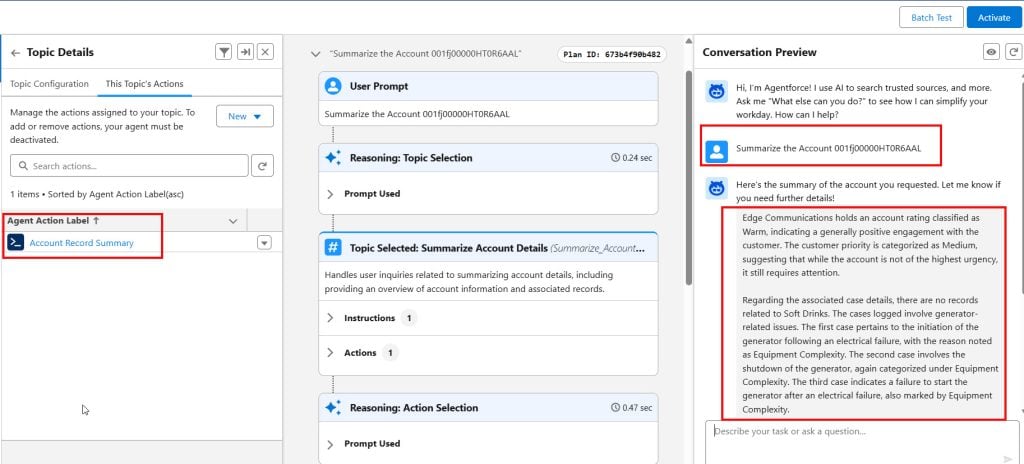
In this way, we can assign a record summary prompt template to an AI agent in Salesforce Agentforce.
Conclusion
I hope you have got an idea about how to assign the Record Summary Prompt Template to the AI Agent in Salesforce Agentforce. In this article, I have explained the Record Summary Prompt Template, creating a Custom Action for using the Prompt Template in Agentforce, and assigning an Action to an AI Agent in Salesforce Agentforce.
You may like to read:
- Deploy Agentforce Agent from Salesforce to Slack
- Create and Deploy Slack Agent From Salesforce to Slack
- Create Apex Class & LWC Component in Salesforce from Agentforce Vibe
- Record Summary Prompt Template in Salesforce Agentforce
- Call Apex Methods from LWC Using @AuraEnabled in Salesforce

I am Bijay Kumar, the founder of SalesforceFAQs.com. Having over 10 years of experience working in salesforce technologies for clients across the world (Canada, Australia, United States, United Kingdom, New Zealand, etc.). I am a certified salesforce administrator and expert with experience in developing salesforce applications and projects. My goal is to make it easy for people to learn and use salesforce technologies by providing simple and easy-to-understand solutions. Check out the complete profile on About us.