
Salesforce Claude Integration: How It Works Step by Step

Salesforce and Anthropic have announced a deeper partnership called Claudeforce. This partnership brings Claude AI and Salesforce closer together, allowing businesses to use Salesforce data and workflows with Claude.

One of the key offerings is Salesforce in Claude. It helps sales teams use their Salesforce data while working in Claude.

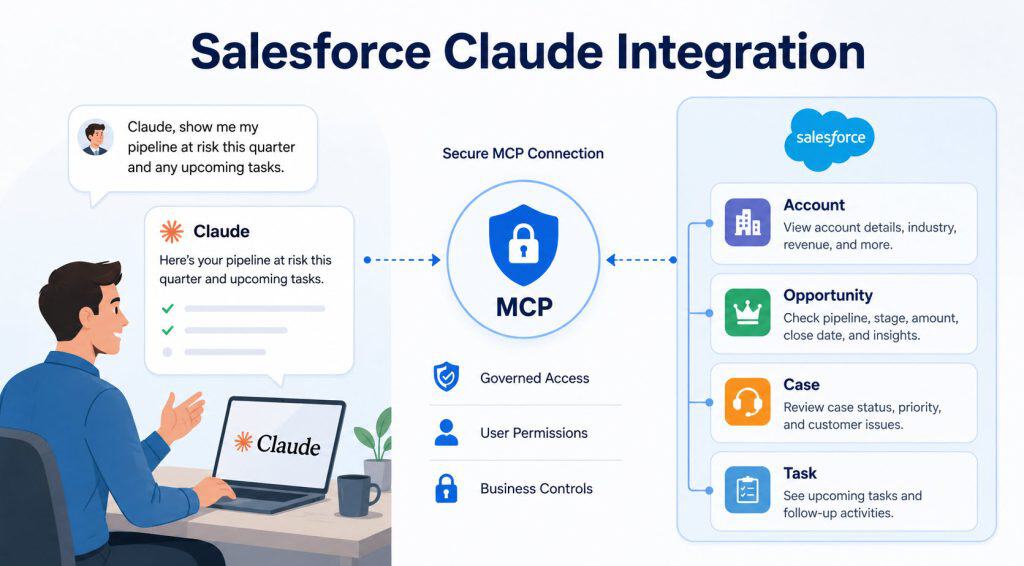
For example, sales reps can use Claude to prepare for customer meetings, review their sales pipeline, find opportunities that may be at risk, and plan follow-up activities.

The integration also focuses on security and user permissions. Claude should only access the Salesforce data that the user is allowed to see.

Salesforce permissions and business rules continue to control what users can access and what actions can be performed.

A sales rep has five minutes before an important customer call. They need to know the latest opportunity stage, open tasks, customer issues, meeting notes, and next steps.

Opening several Salesforce records takes time, especially when the information sits across Accounts, Contacts, Opportunities, Cases, and Activities.

That is where Salesforce Claude integration helps. Claude can understand a question written in normal English, then use an approved Salesforce connection to find permitted CRM information and return a useful answer.

I have seen the best results when teams start with simple read-only questions, confirm data security, and then add small automation actions over time. In this guide, you will learn what Salesforce Claude integration is, how it works with MCP, how to set it up, and how to use it safely.
Salesforce Claude Integration

What Is Salesforce Claude Integration?

Salesforce Claude integration connects Salesforce CRM with Claude, the AI assistant from Anthropic. It allows Claude to work with Salesforce data, tools, and approved business actions through a secure connection.

Simply put, Salesforce stores your company’s customer information. Claude helps users ask questions about that information in normal English.

For example, a sales rep can ask:

“Show my open opportunities above $25,000 that have no activity in the last 14 days.”

Claude can use the approved Salesforce connection to find relevant opportunities and present them in a clear summary. The rep does not need to search several reports or open every opportunity manually.

Salesforce and Anthropic have expanded this idea through Claudeforce and Salesforce in Claude, which bring Salesforce business context and selected CRM capabilities into Claude.

Salesforce announced that its Salesforce in Claude plugin includes 37 prebuilt sales skills for activities such as meeting preparation, deal review, pipeline updates, and governed actions.

Salesforce data and actions

Salesforce Claude integration in simple words

Think of the integration as a conversation between three parts:

  • User: The sales rep, support agent, manager, admin, or developer asking a question
  • Claude: The AI assistant that understands the question and decides which approved Salesforce tool it needs
  • Salesforce: The CRM that stores records, follows security rules, and completes approved actions

Claude does not need direct access to every Salesforce record. A Salesforce administrator chooses what data, fields, and actions the connection can use.

For a foundation on the CRM itself, read what Salesforce is used for and learn about Sales Cloud in Salesforce.

How Salesforce Claude Integration Works

The main technology behind Salesforce Claude integration is MCP.

MCP means Model Context Protocol. It is a standard that lets AI tools such as Claude connect with business systems such as Salesforce in a controlled way.

Think of MCP as a secure bridge. Claude sends a request through the bridge, Salesforce checks whether the user has permission, and Salesforce returns only the approved information.

Salesforce says its hosted MCP servers provide a secure, governed way for compatible AI clients, including Claude, to work with Salesforce data and automation on behalf of authorized users.

Salesforce records or Flow action

Salesforce Claude integration workflow

Here is what normally happens after a user asks Claude a Salesforce question:

  1. The user writes a question in Claude using simple English.
  2. Claude understands the request and identifies the Salesforce information it needs.
  3. Claude sends the request to an approved Salesforce Hosted MCP Server.
  4. Salesforce checks the user’s login, permissions, field access, and record access.
  5. Salesforce returns only the allowed data or runs an approved action.
  6. Claude turns the result into a clear answer for the user.

For example, a sales manager may ask:

“Which opportunities are expected to close this month but have no next step?”

Claude can search the relevant Salesforce Opportunity records and identify deals with a Close Date in the current month and a blank Next Step field. It can then present the results in a short list.

Screenshot placeholder — Salesforce Org: In your Salesforce sandbox, open an Opportunity record. Capture the record page showing fields such as Opportunity Name, Account Name, Amount, Stage, Close Date, Next Step, Owner, and Activity Timeline. Blur or replace all customer names, emails, and financial data.

Why Salesforce permissions matter

A secure Salesforce Claude integration must respect Salesforce access rules.

Salesforce uses several layers of security:

  • Profile: A profile gives users their basic permissions, such as whether they can read, create, edit, or delete records.
  • Permission Set: A permission set gives extra access to selected users without changing their profile.
  • Field-Level Security: Field-level security decides whether a user can view or edit a specific field.
  • Organization-Wide Defaults: These settings define the basic record access level across the company.
  • Sharing Rules: Sharing rules give extra record access to groups, roles, or users when needed.

For example, a sales rep may view only their own opportunities. Claude should return only that rep’s opportunities when the rep asks a question.

Before you connect Claude, review your Salesforce profiles and permission sets, organization-wide defaults, and field-level security settings.

What Is Salesforce MCP Server for Claude?

A Salesforce MCP server is the secure endpoint that allows Claude to communicate with Salesforce. It exposes only the approved Salesforce capabilities to Claude.

You can use an MCP server to let Claude read selected Salesforce records, work with Salesforce metadata, or call approved automation.

For example, an administrator can activate a read-only Salesforce MCP server for Opportunity and Account data. Claude can then help a rep answer questions about their pipeline without getting permission to update or delete records.

Salesforce explains that Claude calls the Salesforce Hosted MCP server through a configured connector instead of connecting directly to Salesforce data.

MCP Server in Salesforce to Connect with Claude AI

What can a Salesforce MCP server do?

The exact capabilities depend on the server you activate and the permissions you allow. A Salesforce MCP server can support use cases around:

  • Reading Salesforce SObjects such as Accounts, Contacts, Leads, Opportunities, Cases, and Tasks
  • Retrieving knowledge articles for support teams
  • Calling a controlled Flow
  • Calling an approved Apex action
  • Working with Salesforce metadata for developer tasks
  • Supporting Salesforce data lookups from Claude

An SObject is Salesforce’s name for an object that stores records. Opportunity is a standard SObject for sales deals. Case is a standard SObject for customer support issues. A custom object stores company-specific information that standard Salesforce objects do not cover.

If your organization tracks unique business data, learn how to create a custom object in Salesforce and select suitable Salesforce field types before exposing that data to AI.

Salesforce Claude Integration Use Cases

Do not connect Claude to Salesforce simply because it is possible. Start with a business problem where people lose time searching, reading, and summarizing CRM records.

Salesforce Claude Integration for Sales Teams

A Sales Cloud team can use Claude to understand pipeline data faster and prepare for customer conversations.

Here are useful sales use cases:

  • Summarize an Account’s open opportunities, contacts, recent activities, and next steps
  • Prepare a meeting brief before a customer call
  • Find high-value opportunities with no recent activity
  • Highlight opportunities with a close date that has passed
  • Identify deals with a missing Next Step
  • Create a follow-up task after a rep approves the details
  • Summarize pipeline by stage, owner, amount, or expected close date

Consider a sales team with 20 reps. The sales director asks every rep to inspect deals above $25,000 before the weekly forecast meeting.

A rep can ask Claude:

“Show my open opportunities above $25,000 with no activity in the last 14 days. Group them by stage and highlight deals with no next step.”

Claude can find the relevant records and organize the results. The rep can then decide which customers to contact.

To improve this use case, make sure your team maintains essential Opportunity fields. Learn more in this guide to the Opportunity object in Salesforce and create a matching pipeline report in Salesforce.

Use Salesforce with Claude AI

Salesforce Claude Integration for Support Teams

A Service Cloud team handles customer cases, service requests, escalations, and knowledge articles. Support agents often need a quick picture of the customer before they reply.

Claude can help a support agent:

  • Summarize all open Cases for an Account
  • Show high-priority Cases that need a response
  • Create an internal case handover summary
  • Find relevant knowledge content for an agent
  • Identify customers with repeated issues
  • Highlight Cases that may require escalation

For example, a support team receives 500 customer Cases each month. An agent opens a difficult Case and asks:

“Summarize this customer’s open support cases, recent case comments, and unresolved issues.”

Claude can collect the permitted information and write a clear internal summary. The agent can use that summary to decide the next action.

Start with read-only Case summaries. Add case updates or record creation only after thorough testing.

You can track support workload with an open cases by owner report and learn how to create a case report for support.

Salesforce Claude Integration for Admins and Developers

Salesforce admins and developers can use Claude to understand configuration, review automation logic, and work more efficiently.

Useful admin and developer scenarios include:

  • Explaining what a Flow does before you modify it
  • Checking which fields a Flow updates
  • Documenting a Flow or business process in plain English
  • Reviewing Apex code and explaining the logic
  • Searching approved metadata
  • Triggering a tightly controlled custom action
  • Helping developers work with Salesforce data and tools through MCP

Salesforce also describes using Agentforce Vibes with Claude and hosted MCP servers for development workflows.

Flow Action to create Record with Claude AI

How to Set Up Salesforce Claude Integration

Salesforce Claude integration needs thoughtful setup. The exact steps can vary by your Salesforce edition, enabled features, licenses, and Claude environment.

However, the basic setup process stays similar.

Step 1: Choose one Salesforce Claude use case

Start with one clear and low-risk use case.

Good first use case:

“Allow sales reps to ask Claude for summaries of opportunities they already own.”

Avoid broad requests such as:

“Let Claude access all Salesforce information.”

Write down these decisions before you configure anything:

  • What problem will Claude solve?
  • Which Salesforce objects does it need?
  • Which fields does it need?
  • Who can use the integration?
  • Does Claude need read-only access or an action?
  • How will you test the result?

A read-only Opportunity summary is much safer than allowing Claude to update every Opportunity field.

Step 2: Review Salesforce data access

Before you activate a Salesforce MCP server, check the Salesforce permissions for the users who will use it.

Review access for:

  • Accounts
  • Contacts
  • Leads
  • Opportunities
  • Cases
  • Tasks
  • Custom objects
  • Sensitive fields
  • Reports and dashboards

For example, do not expose a confidential Discount field to users who cannot already view it in Salesforce.

Use the principle of least privilege. This means you give only the minimum access needed to complete the job.

Step 3: Activate Salesforce Hosted MCP Servers

In Salesforce:

  1. Open Setup
  2. Search for MCP Servers
  3. Open the Salesforce Servers tab
  4. Select the server that matches your use case
  5. Click Activate
  6. Copy or note the API name and server details needed for the Claude connection

Salesforce’s developer guidance lists this activation process as the first part of connecting Claude with Salesforce Hosted MCP Servers.

Activate only the MCP servers you need. If you only need opportunity data summaries, do not activate servers for unrelated actions.

Step 4: Create a Salesforce External Client App

A Salesforce External Client App allows Claude to authenticate with Salesforce by using OAuth.

OAuth is a secure way for one application to receive approved access to another application. It avoids sharing a Salesforce username and password directly with Claude.

In Salesforce Setup:

  1. Search for External Client App Manager
  2. Click New External Client App
  3. Enter a clear name, such as Claude Salesforce Connector
  4. Configure the OAuth settings required for your environment
  5. Select only the OAuth scopes your use case needs
  6. Save the app
  7. Copy the Consumer Key, also called the OAuth Client ID

For a read-only project, do not add broad edit, delete, or administrative permissions unless your use case truly requires them.

Step 5: Add the Salesforce MCP Connector in Claude

In Claude, add a custom connector for the Salesforce Hosted MCP Server.

The high-level process is:

  1. Open Claude
  2. Select Customize
  3. Open Connectors
  4. Click the option to add a custom connector
  5. Enter a connector name, such as Salesforce Opportunity Reader
  6. Add the Salesforce MCP server URL
  7. Open the advanced settings
  8. Paste the Salesforce External Client App Consumer Key as the OAuth Client ID
  9. Add the connector
  10. Click Connect
  11. Sign in to Salesforce and approve the connection

Salesforce provides these Claude connector steps, including adding a custom connector, entering the hosted MCP server URL, adding the OAuth Client ID, and completing Salesforce authentication.

Step 6: Test Salesforce Claude integration with a limited user

Do not test the connection first with a System Administrator account. Administrators can access more records and fields than normal users.

Instead, use a test user with limited permissions.

Test questions such as:

  • “Show my open opportunities.”
  • “What is the next step on my largest opportunity?”
  • “Summarize my high-priority open cases.”
  • “Show accounts where I have open opportunities closing this month.”

Then confirm three things:

  • Claude returns only records that the user can view in Salesforce
  • Claude does not show hidden fields
  • Claude does not complete an unapproved action

Using Salesforce Flow With Claude AI

Salesforce Flow is Salesforce’s no-code automation tool. It can create records, update records, send emails, route work, and complete many business tasks.

You can use Flow with Salesforce Claude integration when you want Claude to start a safe, clearly defined business action.

For example, a sales rep asks Claude to create a follow-up task for an Opportunity. Claude sends the required information to a controlled Flow. The Flow validates the input and creates the Task.

Example Salesforce Flow for Claude

Let’s say your team needs Claude to create a follow-up task after a pipeline review.

The Flow should accept these inputs:

  • Opportunity ID
  • Task Subject
  • Due Date
  • Task Owner ID
  • Task Description

The Flow logic can follow this pattern:

  1. Get the Opportunity record using the Opportunity ID
  2. Check that the Opportunity exists
  3. Check that the user has permission to use the action
  4. Create a Task related to the Opportunity
  5. Return a success or error response

This approach is safer than giving Claude broad access to edit Opportunity records.

A record-triggered Flow runs when a record changes. An autolaunched Flow runs in the background after another tool or process calls it. For an AI action, I usually recommend an autolaunched Flow with clear inputs and one focused job.

Learn how to create a record-triggered Flow in Salesforce and create a task using Flow.

Pro Tip: In my experience, one focused Flow action works better than one large AI action that changes many objects. For example, “Create opportunity follow-up task” is easy to test, secure, and maintain. “Update anything in Salesforce” creates unnecessary risk and confusion.

Salesforce Claude Integration Security Best Practices

Security should guide every Salesforce Claude integration decision. Claude can make work faster, but your Salesforce data access model must stay in control.

1. Use Salesforce Permissions for Claude Access

Do not use AI integration as a shortcut around Salesforce security. Users should receive only the same access they need for their job.

Review:

  • Profiles for basic object permissions
  • Permission Sets for extra access
  • Field-Level Security for confidential fields
  • Sharing Rules for record visibility
  • Role Hierarchy for manager access
  • External Client App settings for OAuth access

For a detailed security foundation, see how to set field-level security in Salesforce and how to create a custom permission set in Salesforce.

2. Keep Salesforce Claude Actions Limited

When you allow Claude to take action, expose only the required action.

Good examples:

  • Create a follow-up Task
  • Create a draft Case note
  • Update a specific follow-up field
  • Start a defined approval process
  • Trigger a limited Flow

Risky examples:

  • Delete any record
  • Edit all Opportunity fields
  • Change users’ access levels
  • Access all confidential information
  • Run unrestricted Apex code

If you need an approval process before an action completes, learn about the Approval Process in Salesforce and how to call an approval process from Flow.

Things to Keep in Mind

  • Start with read-only questions: Allow Claude to search and summarize approved Salesforce data before you allow updates, record creation, or automation actions
  • Use the least privilege rule: Give the integration only the Salesforce objects, fields, MCP servers, OAuth scopes, and permissions required for one use case
  • Protect sensitive Salesforce fields: Review field-level security for customer data, internal notes, revenue, discounts, personal data, contracts, and other confidential information
  • Test with normal users: Test with restricted sales reps, support agents, and managers instead of only testing with a System Administrator account
  • Build small Flow actions: Create one Flow for one business task, such as creating a follow-up Task, instead of creating a broad action that can update many records
  • Use a Salesforce sandbox first: Test the MCP connection, prompts, security, and automation in a sandbox before you connect Claude to your production Salesforce org

Frequently Asked Questions

What is Salesforce Claude integration?

Salesforce Claude integration connects Claude AI with approved Salesforce data, tools, and automations. It helps users ask questions in simple English and get answers based on Salesforce records they have permission to access.

How does Claude connect to Salesforce?

Claude connects through a configured Salesforce connector and a Salesforce Hosted MCP Server. Claude sends a request to the MCP server, and Salesforce checks the user’s access before returning data or running an approved action.

What is MCP in Salesforce Claude integration?

MCP means Model Context Protocol. It is a connection standard that allows Claude and other compatible AI tools to securely use approved Salesforce data and automation.

Can Claude read Salesforce Opportunities and Cases?

Yes, Claude can read Opportunities, Cases, Accounts, Contacts, and other Salesforce objects when an administrator activates the correct MCP server and grants the required permissions. Claude should only return records and fields the signed-in user can access.

Can Claude update Salesforce records?

Claude can update records only when your organization configures an approved Salesforce action, such as a Flow or Apex action, and gives the connection the necessary permissions. Start with read-only access and add small, controlled actions after testing.

Conclusion

Salesforce Claude integration helps sales, support, admin, and developer teams use trusted CRM data through natural conversations, MCP connections, and controlled Salesforce actions.

Start with a small read-only use case, protect your data with Salesforce permissions, test in a sandbox, and add automation step by step.

You May Also Like

4 Hours Live Workshop

BUILD YOUR AI CRM ASSISTANT WITH AGENTFORCE

Build a Smart AI-Powered CRM Assistant with Agentforce in Just 4 Hours—Hands-On, Live, and Ready for Real-World Use!

27 August 2026 | 7 PM to 11 PM IST | 9:30 AM to 1:30 PM EST

Early Bird: $9 – First 15 Seats

Agentforce in Salesforce

DOWNLOAD FREE AGENTFORCE EBOOK

Start with AgentForce in Salesforce. Create your first agent and deploy to your Salesforce Org.