
Salesforce provides a default Employee Agent that we can set up and use. In our company, we also create custom Employee Agents and assign them to the right users based on their roles and needs.
Unlike the Default Employee Agent, Salesforce does not give an option to assign it to a specific profile, user, or group of users from different profiles.
However, for custom Employee Agents, Salesforce allows us to choose exactly who should get access.
In this article, we will learn how to assign Agentforce Employee Agents to individual users or user groups in Salesforce.
What is an Agentforce Employee Agent in Salesforce?
Earlier, Salesforce provided the default Employee Agent. When we enable this agent, all Salesforce users can access and use it according to the access granted in their profiles and the permission sets. However, that one will retire soon due to new system updates.
To replace the Default Employee Agent, Salesforce has introduced a new agent called Agentforce Employee Agent. The names of both agents look similar, but there is one main difference for the default agent: we only need to enable it to use.
For the Agentforce Employee Agent, we need to create it from scratch. Salesforce also allows us to create multiple Agentforce Employee Agents and control their usage by granting access through Profiles or Permission Sets as needed.
This means that only users who have been given access to the Agentforce Employee Agent will be able to use it within Salesforce.
For example, in your Salesforce org, you may have two Profiles: Sales Profile, used for the Sales application, and Service Profile, used for the Service application.
In this case, we can create two Agentforce Employee Agents, one named Sales Agent and another named Service Agent. Then, we can grant access to the Sales Agent only for the Sales Profile and access to the Service Agent only for the Service Profile.
This way, each team can use its own Employee Agent based on the application they are working on.
Assign Agentforce Employee Agents to User or User Groups in Salesforce
In the steps below, I will explain how to assign Agentforce Employee Agents to users or user groups in Salesforce so that the right users can easily access and use the agent.
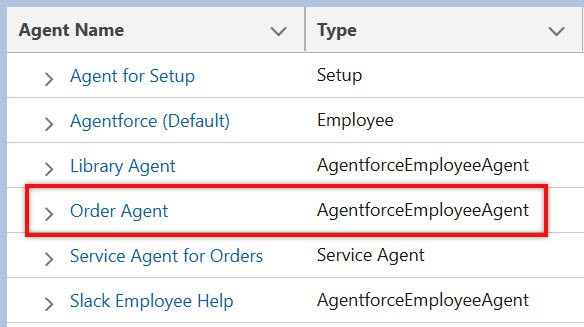
First, in the screenshot below, you can see that I have created an Agentforce Employee Agent named Order Agent in Salesforce.
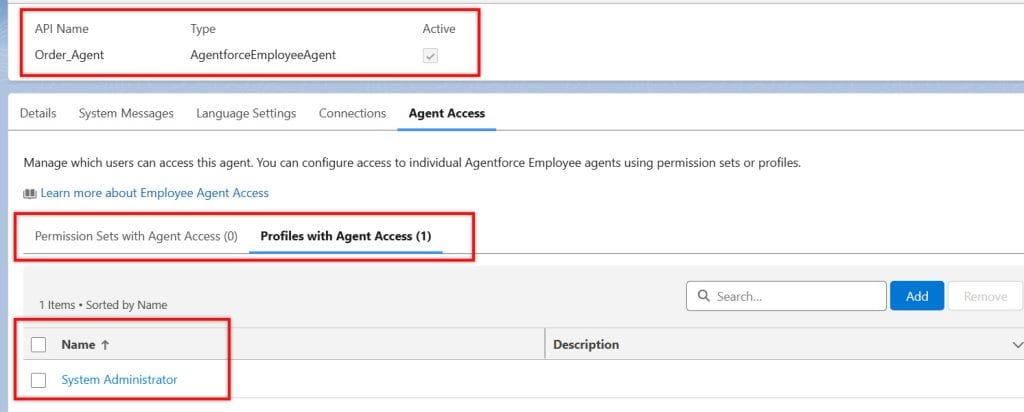
For this Order Agent (Agentforce Employee Agent), we have given access to the System Administrator profile. This means that all users assigned to this profile will be able to access the agent.
After logging in as a System Administrator, you can see that I’m able to access the Order Agent successfully.

Another user with the System Administrator profile can also access this agent because the profile has access enabled.

Below, you can see the users who are assigned the Sales profile. Now I will log in as both users to check whether they can see the Order Agent, since they do not have access to it.

When I logged in as John Wed and opened Agentforce, there was no option available to select the Order Agent, as this user does not have access.
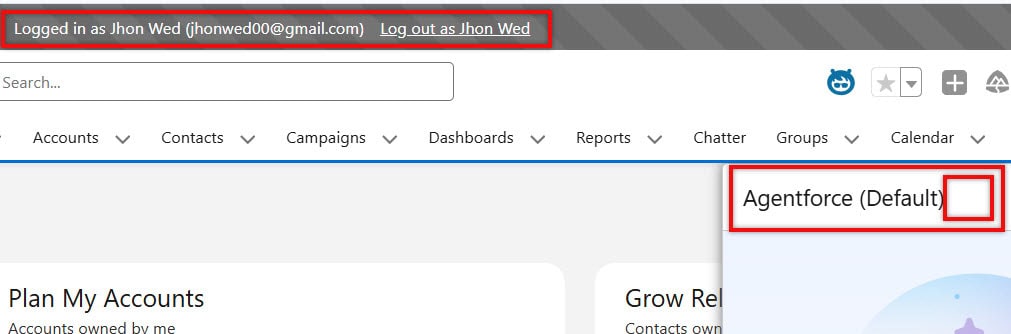
Same for the other user with the Sales profile, he also cannot access the Order Agent because this profile does not have permission to use it.
Now, when we grant access via a profile, the Agentforce Employee Agent becomes available to every user assigned to that profile.
This means access is not limited to a single user. Any user with that profile will automatically be able to see and use the agent.
But this time, I want to give access only to a single user, Joy Lobo, even though he is part of the Salesforce profile. Usually, everyone in that profile would get access, but in this case, I want only Joy to use the agent.
To do this, we need to create a Permission Set in Salesforce and add the Order Agent (Agentforce Employee Agent) to it. After that, we can assign this Permission Set to individual users or a group of users.
This way, only the selected users will get access to use the agent, instead of giving access to everyone in the profile.
For that, go to Setup -> Home, then type “Permission Sets” in the Quick Find box. Open it, and then click the New button to create a new Permission Set.

Provide a Name for the Permission Set, and the API Name will automatically be filled based on the name you enter. Then click the Save button.

After that, open the Permission Set, and you will see an Agent Access option. Click on it to give the user access to the Employee Agent.
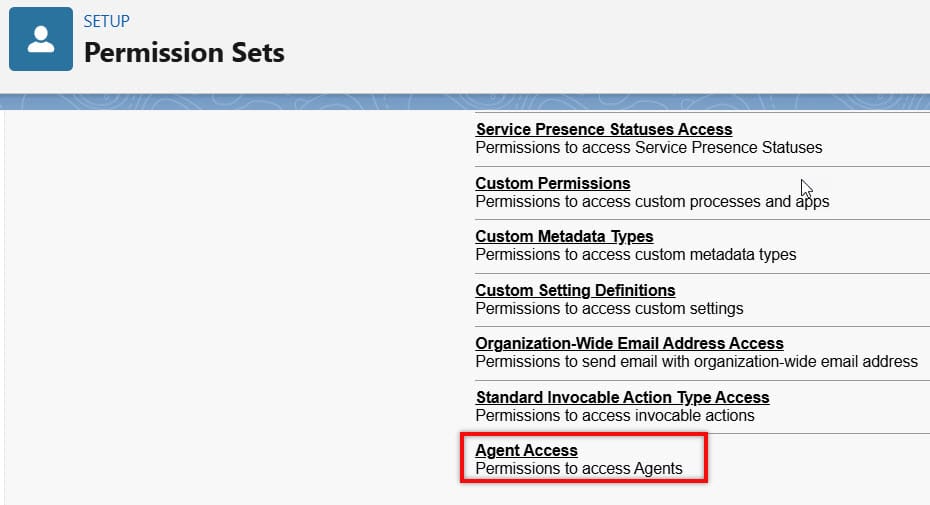
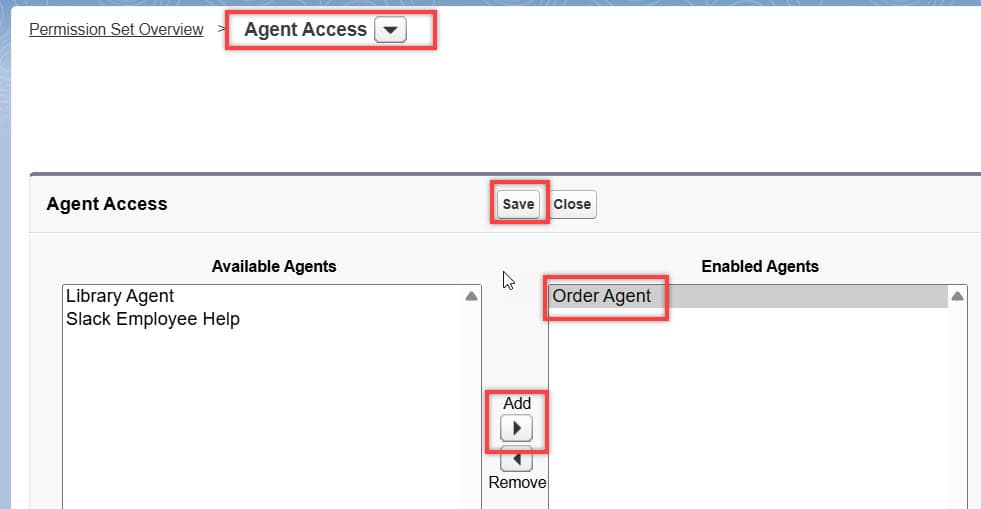
Then, in Agent Access, you will see a list of Available Agents. Select the agent you want to grant access to and click the Add button. This will move the agent to Enabled Agents, giving access to the selected users.
After selecting the agents, click the Save button.
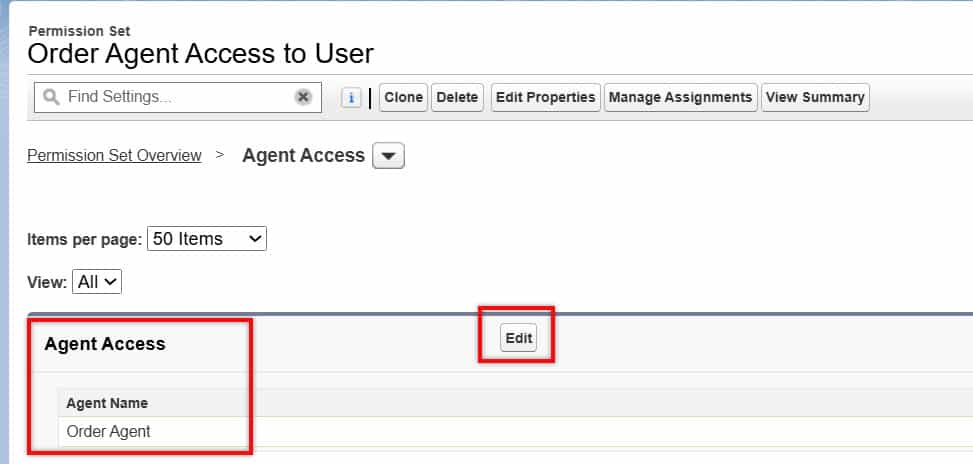
In the image below, you can see that access for the Order Agent has been enabled under Agent Access. If you want to make changes or add other agents, you can click the Edit button.
Next, we need to assign this Permission Set to the users who should have access to the agent. To do this, click Manage Assignments, and then click Add Assignments.
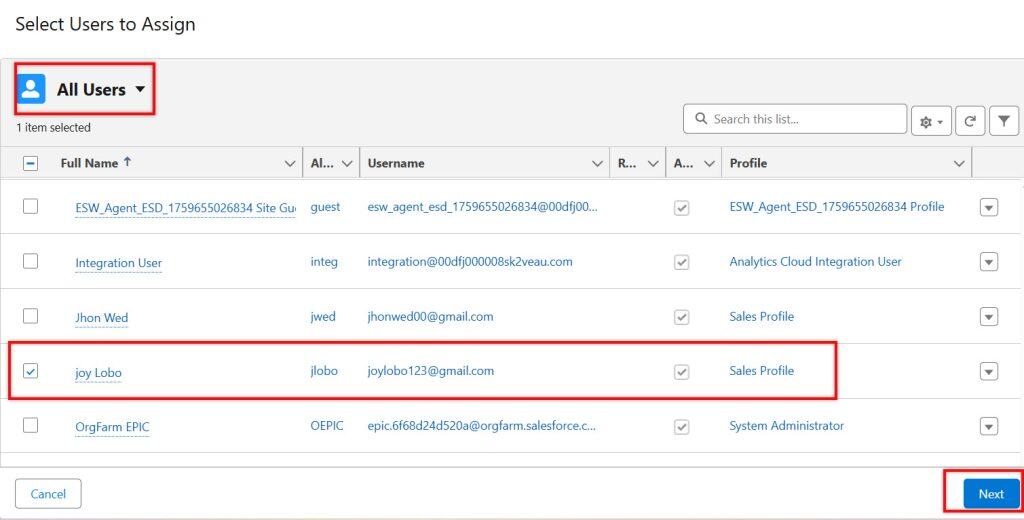
After that, you can select one or more users by checking the boxes next to their names.
In our case, we want to give access to Joy Lobo, who is assigned the Sales profile. Then click Next. The Permission Set has been created with agent access and successfully assigned to the user.
Now, if you navigate to the Order Agent and click Agent Access, you will see that the newly created Permission Set has been successfully added under Permission Sets with Agent Access.

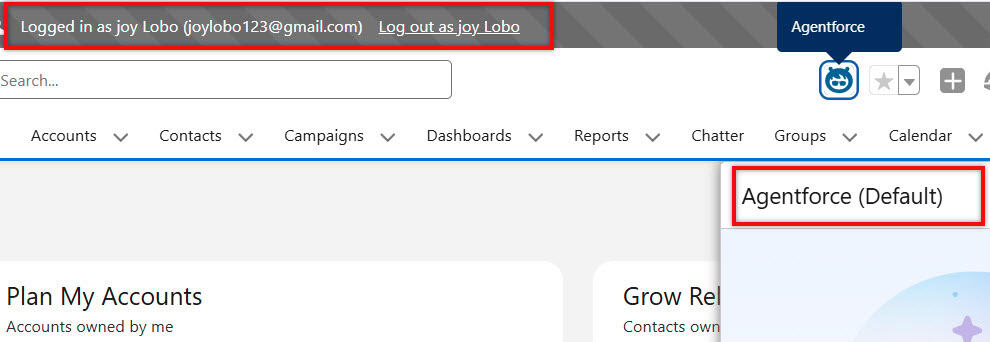
Also, when I logged in as Joy Lobo and opened Agentforce, you can see in the image below that this user now has access to the Order Agent due to the assigned Permission Set.
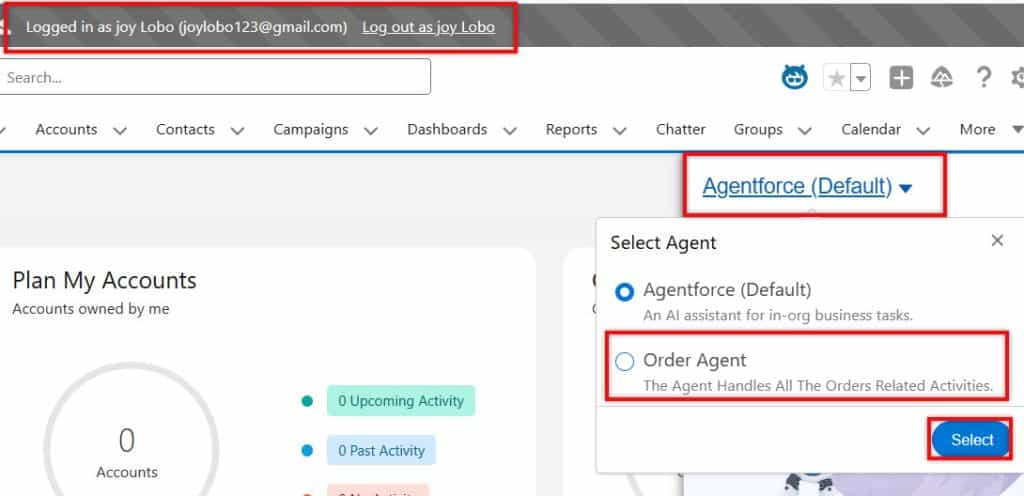
In this way, we can assign Agentforce Employee Agents to individual users or user groups using permission sets in Salesforce.
Conclusion
I hope this article has given you a clear idea of how to assign Agentforce Employee Agents to users or user groups using Permission Sets in Salesforce.
Here, I explained how to create a Permission Set with Agent Access and assign it to users so they can access the agents to which they have been granted access.
You may like to read:
- Assign Record Summary Prompt Template to AI Agent in Salesforce Agentforce
- Invoke Agentforce Prompt Template From Salesforce Flows
- Record Summary Prompt Template in Salesforce Agentforce
- Transfer Customer Request From AI Agent to Human Agent in Salesforce Agentforce

Shubham is a Certified Salesforce Developer with technical skills for Building applications using custom objects, approval processes, validation rules, Salesforce flows, and UI customization. He is proficient in writing Apex classes, triggers, controllers, Apex Batches, and bulk load APIs. I am also familiar with Visualforce Pages and Lightning Web Components. Read more about me.