
A support rep is busy, a customer wants a case closed fast, and nobody wants to click through multiple Salesforce screens just to update one field.
That is where an Agentforce AI Agent helps. The user can type a simple prompt like “Close the case no 001214,” and the agent can understand the request, find the case, and run an action to update it.
In simple terms, Agentforce AI Agent is an AI assistant in Salesforce that can use both standard and custom actions to work with your CRM data.
In this example, we will use an Autolaunched Flow (No Trigger) as the custom action so the AI agent can update the Case record and then reply back to the user with a success message.
In this article, I’ll show you 3 ways to update case status using Agentforce AI Agent in Salesforce.
What Are Agentforce Actions?
Agentforce actions are reusable tasks that an AI agent can execute when it decides how to respond to a user prompt.
- A topic/subagent specifies the kinds of problems it solves.
- An action is a concrete operation: updating a record, running a Flow, calling Apex, sending an email, summarizing a case, etc.
- When the user says “Close the case case no 001214”, the agent uses actions (like a Flow-based custom action) to find and update the Case record, then returns a natural‑language reply.
You manage actions centrally in Setup → Agentforce Assets → Actions, and then assign them to topics inside Agent Builder.
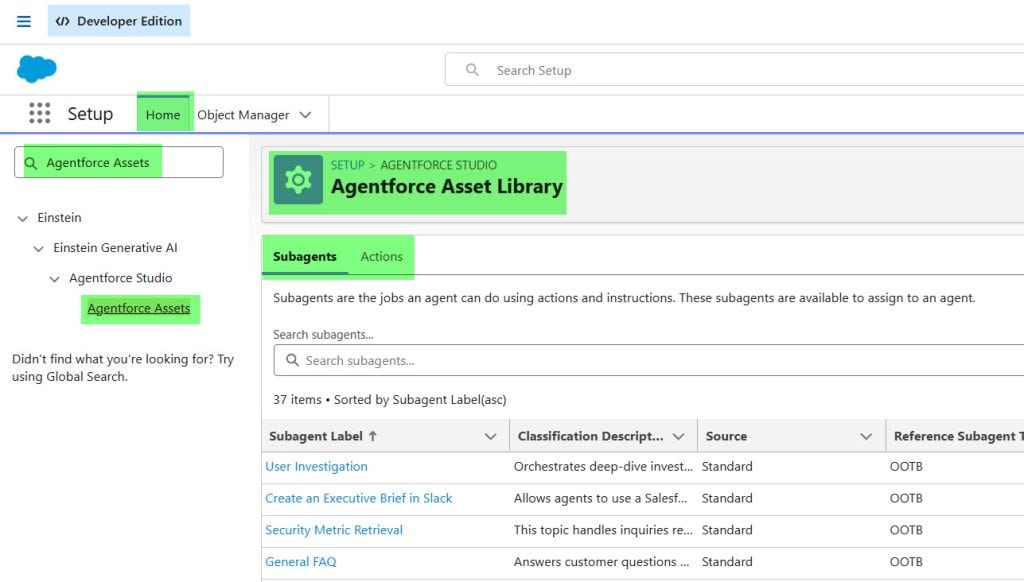
Standard Agentforce Agent Actions in Salesforce
Salesforce provides several standard actions out of the box.
Common examples:
- Update Record – Update one Salesforce record’s fields.
- Find Records – Search for records based on criteria.
- Summarize Record – Summarize an Opportunity, Case, Account, Contact, etc.
- Answer with Knowledge – Answer questions using Knowledge articles.
- Draft or Revise Email – Generate or improve emails for sales or service teams.
- Aggregate Data – Summarize or aggregate CRM data for reporting.
These actions are prebuilt. You just enable them in topics and set clear instructions so the agent knows when to use each one.
In your case example, the Update Record standard action can update a Case record’s Status directly if the agent has sufficient context (case number and status value).
Custom Agentforce Agents Actions in Salesforce
Custom actions are where Agentforce becomes powerful. You build them on top of your existing automations.
You can create custom actions using:
- Autolaunched Flow (No Trigger) – Best low‑code option, perfect for your “close case” scenario.
- Invocable Apex – For complex logic, external API calls, or heavy processing.
- Prompt templates – For generative tasks like summarizing records, drafting messages, or formatting content.
Method 1 – Update Case Status Using Agentforce AI Agent in Salesforce
Use this method when you want the cleanest and most practical setup. It works well because Agentforce can call a Flow custom action, and Salesforce supports creating agent custom actions from Autolaunched Flow (No Trigger) flows.
We’ll use the same scenario in all methods: a support team wants the AI agent to process the prompt “Close the case case no 001214” and update the Status field on the matching Case record.
Step 1: Create an Autolaunched Flow
First, create the Flow that will do the update.
- Go to Setup → Process Automation → Flows.
- Click New Flow.
- Select Autolaunched Flow (No Trigger).
- Click Create.
This Flow will run only when the AI agent calls it.
Step 2: Create the Input Variables
Your Flow needs input from the AI agent.
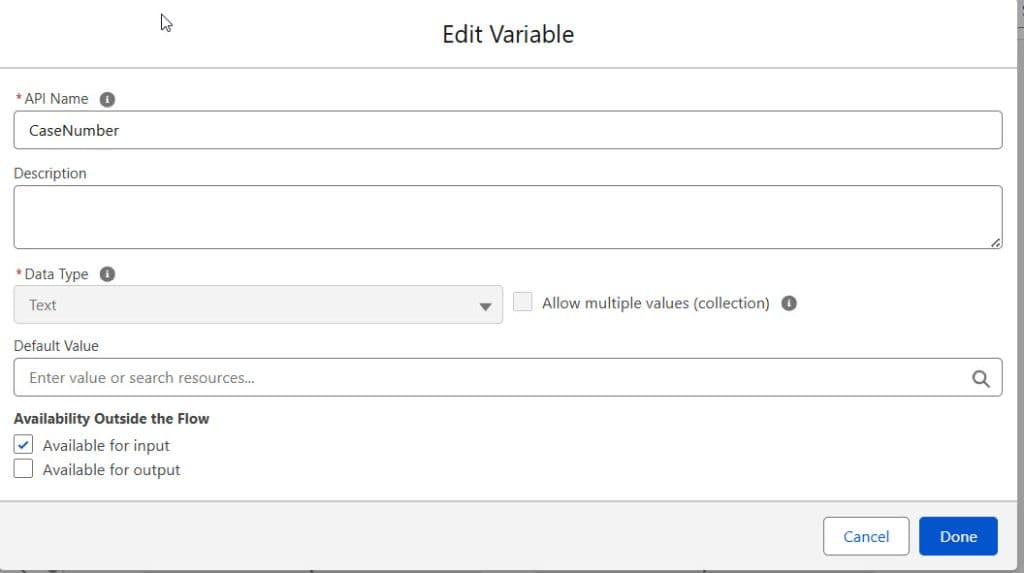
Create these Variables in the Manager tab:
- caseNumber
- Data Type: Text
- Available for input: Checked
- updatedMessage
- Data Type: Text
- Available for output: Checked
The caseNumber variable receives the case number from the prompt. The updatedMessage variable sends a response back to the AI agent.
Step 3: Get the Case Record
Now fetch the Case record using the case number.
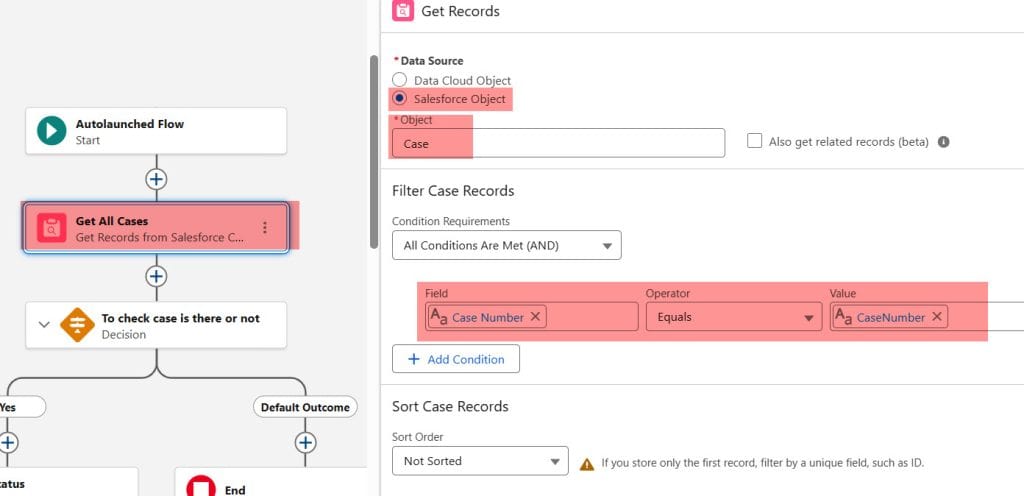
Add a Get Records element:
- Label: Get Case
- Object: Case
- Filter:
- CaseNumber Equals {!caseNumber}
- Store only the first record.
Step 4: Update the Case Status
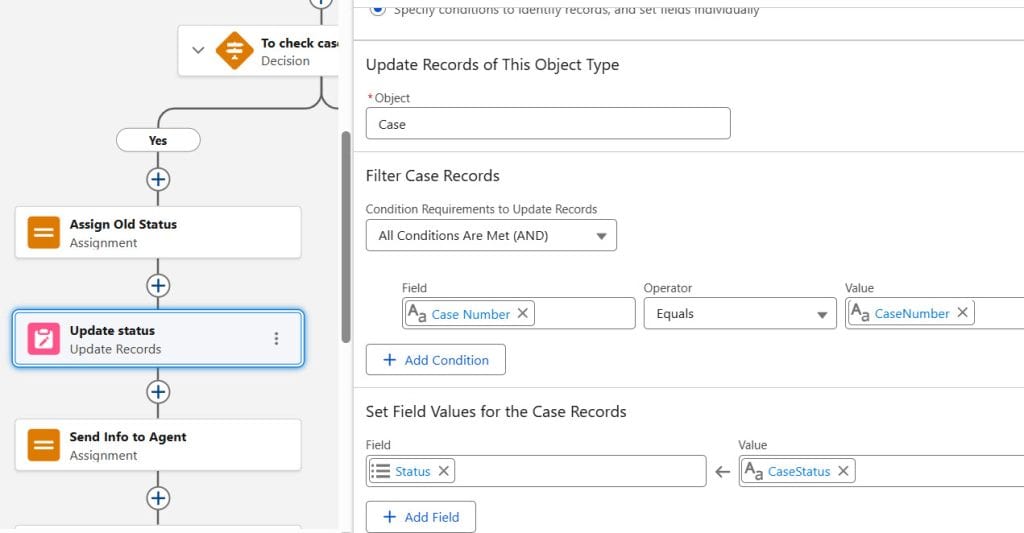
Add an Update Records element.
- Label: Close Case
- Update the record from Get Case
- Set field:
- Status = Closed
Example Flow logic:
Start
  ↓
Get Records: Case where CaseNumber = {!caseNumber}
  ↓
Update Records: Set Case.Status = "Closed"
  ↓
Assignment: updatedMessage = "Case " & {!caseNumber} & " has been updated successfully."
  ↓
End
How does this work?
The Flow receives the case number from the agent, finds the matching Case record, updates the Status field to Closed, and stores a confirmation message in the output variable. Because it is an Autolaunched Flow (No Trigger), it is ideal for use as an Agentforce custom action.Sample result:
If the user enters Close the case case no 001214, the Flow finds CaseNumber = 001214, updates Status = Closed, and returns:
Case 001214 has been updated successfully.Pro Tip: Make sure your case Status picklist really contains Closed. If your org uses values like Closed – Resolved or Closed Complete, use the exact picklist value in the Flow.
Step 5: Activate the Flow
- Click Save.
- Name it something like Update_Case_Status_By_Case_Number.
- Click Activate.
Step 6: Create an Agent Action from the Flow
Now let’s create an action using the flow and assign it to our AI agent.
- Go to Setup → Agentforce Assets → Actions.
- Click New Agent Action.
- Reference Action Type: Flow
- Reference Action: Update_Case_Status_By_Case_Number
- Keep the default label or set a better one like Close Case by Number
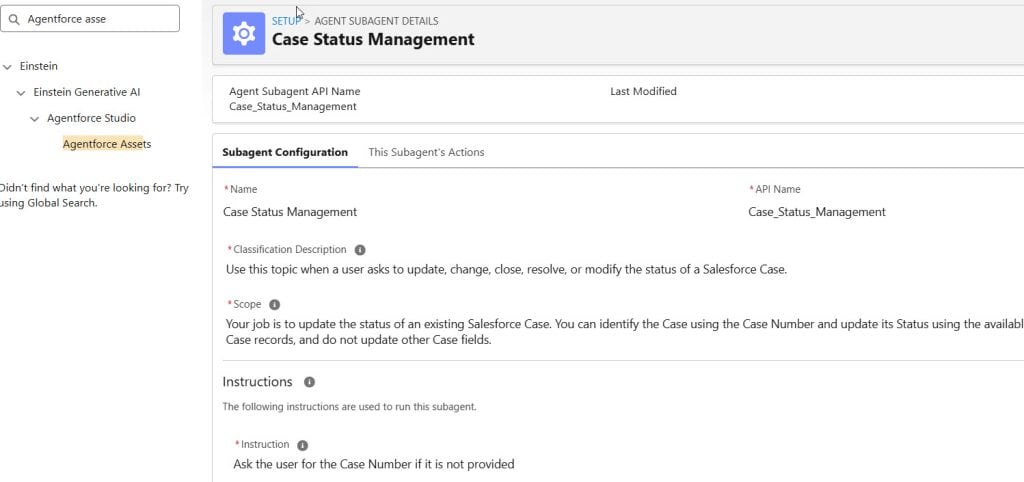
Configure the inputs and outputs:
- Mark caseNumber as Required Input
- Mark updatedMessage as Show in conversation
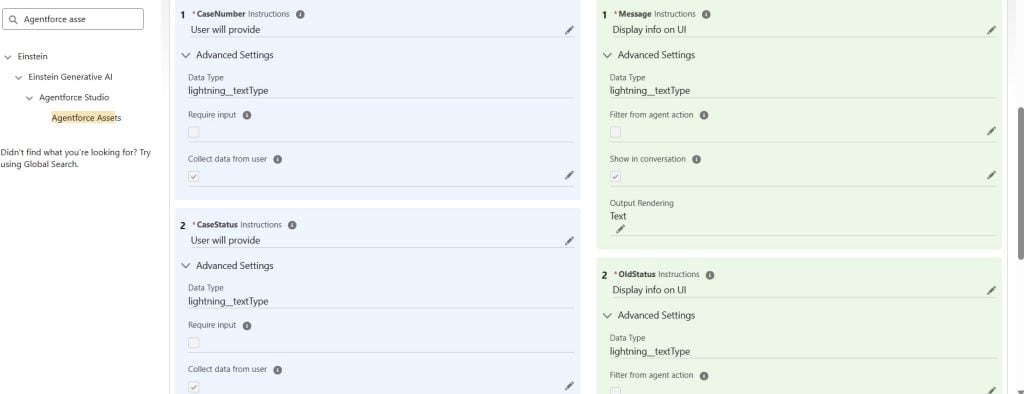
This lets the AI agent request the case number when needed and display the success message in chat.
Step 7: Add the Action to Your Agent Topic
- Go to Setup → Agentforce Agents
- Open your agent in Builder
- Open the topic that handles case management, for example Case Support
- Go to This Topic’s Actions
- Add the new action from the asset library
[Screenshot: Agent Builder showing custom action added to a Case Support topic]
Then add clear instructions like this:
1. If the user asks to close a case, collect the case number.
2. Use the Close Case by Number action.
3. After the action runs, confirm the case status update to the user.
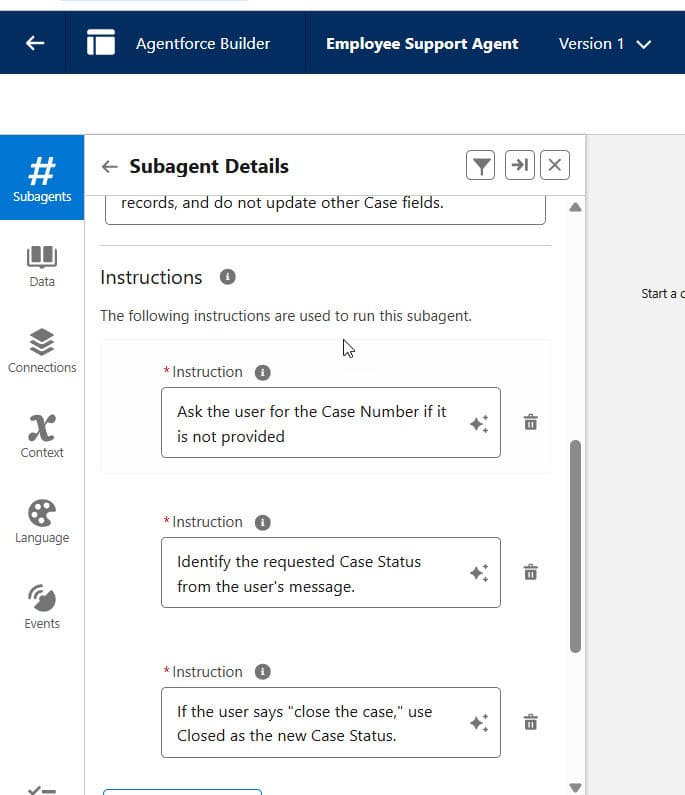
Step 8: Test It in Agent Builder
Test prompt:
Close the case case no 001214
Expected response:
Case 001214 has been updated successfully.
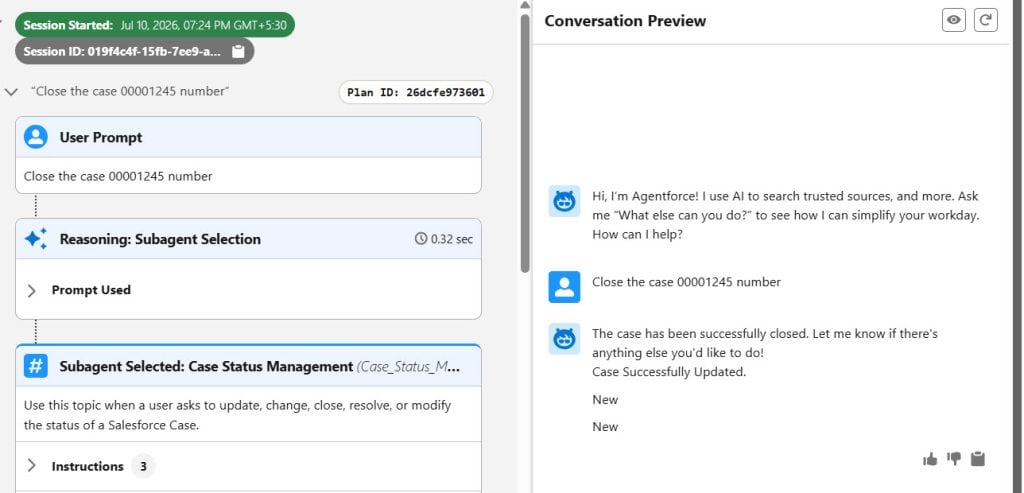
How does this work?
The AI agent reads the user prompt, extracts the case number, and decides to call the custom Flow action. The Flow performs the actual record update, then returns the confirmation text to the agent, which is shown in the conversation.Pro Tip: Write simple topic instructions with exact verbs like close case, update case status, and case number. Clear instructions help the agent choose the right action more reliably.
Method 2 – Use Agentforce Standard Update Record Action
Use this method when you want a faster setup with less custom configuration. Salesforce provides a standard Update Record action for Agentforce that updates one record at a time.
Step 1: Enable the Standard Action in the Agent
Open your agent in Agent Builder and confirm that the topic includes “Update Record“.
- Go to Setup → Agentforce Agents
- Open your agent
- Open the relevant topic
- Add or confirm that the Update Record action is available
[Screenshot: Agent Builder topic actions showing Update Record action]
Step 2: Define Topic Instructions
Add instructions that clearly guide the agent.
Example instruction:
When a user asks to close a case, identify the Case record from the case number, then use the Update Record action to change the Status field to Closed. After updating the record, confirm success.
Step 3: Test the Prompt
Prompt:
Close the case case no 001214
Possible result:
The status for case 001214 has been updated to Closed.
How does this work?
The standard Update Record action lets the AI agent update fields on one Salesforce record at a time. The agent still needs enough context to identify the correct record and field values, but this method avoids building a Flow for a simple update.Sample result:
The agent identifies the Case and updates Status = Closed directly, then replies with a confirmation.Pro Tip: This method is good for very simple updates. Use a custom Flow instead when you need validation, custom messages, extra logging, or fallback handling.
Things to Keep in Mind
- Autolaunched Flow only: For Agentforce Flow custom actions, use the Autolaunched Flow (No Trigger) option, not screen flows or record-triggered flows.
- One-record updates: The standard Update Record action updates one record at a time, so it is best for simple prompts, such as a single case update.
- User permissions matter: The running user must have access to Case, the Status field, and the Flow or agent action, or the update can fail.
- Use exact picklist values: Your Flow must use the real Case Status picklist value from your org, not a guessed label.
- Test in sandbox first: Always validate prompts, topic instructions, and action behavior in sandbox before moving to production.
- Clear topic instructions help accuracy: The more specific your instructions are, the more reliably the agent chooses the correct action.
Frequently Asked Questions
Q1. Can Agentforce AI Agent call an autolaunched Flow?
Q2. Can the agent update the case directly without a Flow?
Q3. What should the agent reply after the update?
Q4. What if the case number does not exist?
Q5. Which method should I use for a real project?
Conclusion
You should use an Autolaunched Flow (No Trigger) as a custom Agentforce action for your case-closing example, because it fits the prompt-driven AI agent pattern very well. Use the standard Update Record action only for simple one-record updates, and use a Flow with validation when you want a production-ready setup. I hope you found this article helpful.
You may like to read:
- Custom Actions using Apex for Agentforce
- Salesforce Agentforce Action Call External APIs
- Agentforce Fetch External Api Data Action
- Salesforce Create Agentforce Employee Agent

Shubham is a Certified Salesforce Developer with technical skills for Building applications using custom objects, approval processes, validation rules, Salesforce flows, and UI customization. He is proficient in writing Apex classes, triggers, controllers, Apex Batches, and bulk load APIs. I am also familiar with Visualforce Pages and Lightning Web Components. Read more about me.
