
Personalize your Agentforce Service Agent greeting with an Agent Script and a username variable. Follow these steps to create a better welcome.
A customer opens your Experience Cloud site and starts a support chat. Instead of a generic “Hello, how can I help?”, your Agentforce Service Agent says, “Hi Alex, how can I help with your order today?”
That small change makes the conversation feel more personal from the first message. In a recent Service Cloud implementation, I used Agent Script with a context variable to make the agent greet authenticated community users by name without asking for it again.
In this tutorial, I will show you how to configure an Agentforce Service Agent greet users by name using Agent Script, a Messaging Session field, and an inbound Omni-Channel Flow.
What You Will Build
You will build a personalized greeting for an Agentforce Service Agent deployed on an Experience Cloud site.
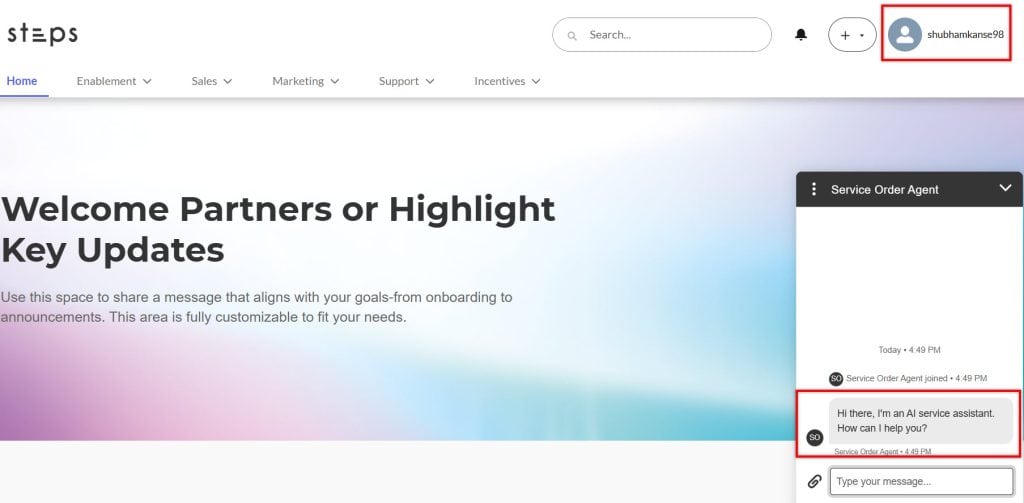
When a logged-in customer starts messaging:
- The site sends the current user ID through a hidden pre-chat field.
- The messaging channel passes that value into an inbound flow.
- The flow finds the user’s name and stores it on the Messaging Session record.
- The agent reads the name through a context variable.
- Agent Script uses that variable in the welcome message.
For this example, imagine a customer-support team handling 500 cases each month through an Experience Cloud portal.
Customers log in to check orders, raise support issues, and ask product questions. The business wants the AI agent to recognize signed-in customers and greet them naturally.
Pro Tip: I have found that the greeting itself is easy. The real work is ensuring the user ID travels correctly from the Experience Cloud page to the messaging flow. Test each handoff separately before testing the full conversation.
Prerequisites for Agentforce Service Agent Greeting
Before you configure the Agentforce Service Agent greet user by name setup, make sure you have these items ready:
- Agentforce is enabled in your Salesforce org.
- You have created and activated an Agentforce Service Agent.
- Your agent has an assigned agent user and the required permissions.
- You have configured a messaging channel and deployed the agent to an Experience Cloud site.
- You have an inbound Omni-Channel Flow for the messaging channel.
- Community users can log in to the Experience Cloud site.
- Your agent has a valid action, topic, or instruction configuration.
If you have not configured the routing layer yet, follow this guide to set up Omni-Channel in Salesforce. You can also review how to create and deploy an Agentforce Service Agent before starting this configuration.
A Messaging Session is the Salesforce record that stores details about a customer messaging conversation. We will use it to hold the customer’s name so the agent can access it during the chat.
How Agentforce Script Uses a Name Variable
Agent Script is a structured way to define an Agentforce agent’s behavior, prompts, actions, rules, and response logic. It gives you more control than adding a broad instruction such as “Greet the user by name.”
The important part is the variable. Your agent cannot greet a customer by name unless Salesforce provides a reliable value during the conversation.
For this setup, we will store the name in a custom field on the Messaging Session record:
User_Name__c
Then, we expose that field to the agent as a context variable and reference it inside the Agent Script welcome message.
The final greeting logic looks like this:
Hi {!@variables.User_Name}, welcome back. How can I help you today?For example, if the variable value is Alex, the customer sees:
Hi Alex, welcome back. How can I help you today?
Do not hard-code a customer name in your script. A hard-coded greeting only works for one test user and creates a poor customer experience in production.
Create the Messaging Session Name Field
First, create a custom field that stores the logged-in customer’s name for the current messaging session.
- Go to Setup.
- Open Object Manager.
- Search for and select Messaging Session.
- Select Fields & Relationships.
- Click New.
- Choose Text as the field type.
- Click Next.
- Enter the following values:
| Setting | Value |
|---|---|
| Field Label | User Name |
| Field Name | User_Name |
| Length | 255 |
| Description | Stores the authenticated customer name for the Agentforce greeting |
This field gives you a stable place to store the customer name before the conversation reaches the agent.
It also helps when you need to troubleshoot a session because admins can inspect the saved value on the Messaging Session record.
If you are new to custom fields, read this guide on Salesforce field types to understand where text fields fit in your data model.
Get the logged-in community user details
The recommended approach is to create a small Lightning Web Component (LWC) for the Experience Cloud page.
First, we need to create an LWC component that fetches the logged-in user’s details from the Experience Cloud (Community).
Using this component, we can capture the Community User ID and, if needed, retrieve additional user information.
This LWC component sends the logged-in Community User ID to the Embedded Service Pre-Chat form.
The component does not require an HTML file because its purpose is only to run in the background when the community page loads, fetch the logged-in user ID, and store or pass it further in the flow.
JS File – communityHome.js
import { LightningElement, api } from 'lwc';
import Id from '@salesforce/user/Id';
export default class CommunityHome extends LightningElement {

    connectedCallback() {
        console.log('CommunityHome connectedCallback');
        console.log('current logged in user id',Id);
        const selectedEvent = new CustomEvent('Current_User_Id', {
            detail: {
                id: Id
            },
            bubbles: true,
            composed: true
        });
        window.dispatchEvent(selectedEvent);
    }

}
XML File – communityHome.js-meta.xml
Since we need to use this component on the Community Home Page, we must expose it in the meta.xml file.
This allows the component to be added and configured directly within the community site Experience Builder.
<?xml version="1.0" encoding="UTF-8"?>
<LightningComponentBundle xmlns="http://soap.sforce.com/2006/04/metadata">
    <apiVersion>62.0</apiVersion>

    <isExposed>true</isExposed>
    <masterLabel>Community Home</masterLabel>

    <targets>
        <target>lightningCommunity__Page</target>
        <target>lightningCommunity__Default</target>
    </targets>
</LightningComponentBundle>
Place LWC Component on Community Home Page
Now, place the LWC component on the Community Home Page so it loads automatically when the page opens.
This ensures the component runs in the background, fetches the logged-in user’s details, and captures the User ID without any manual action.
Once the User ID is captured, it can be stored or passed to the Embedded Service Pre-Chat form.
This helps maintain the user context throughout the flow and allows the AI Agent to properly identify and greet the user.
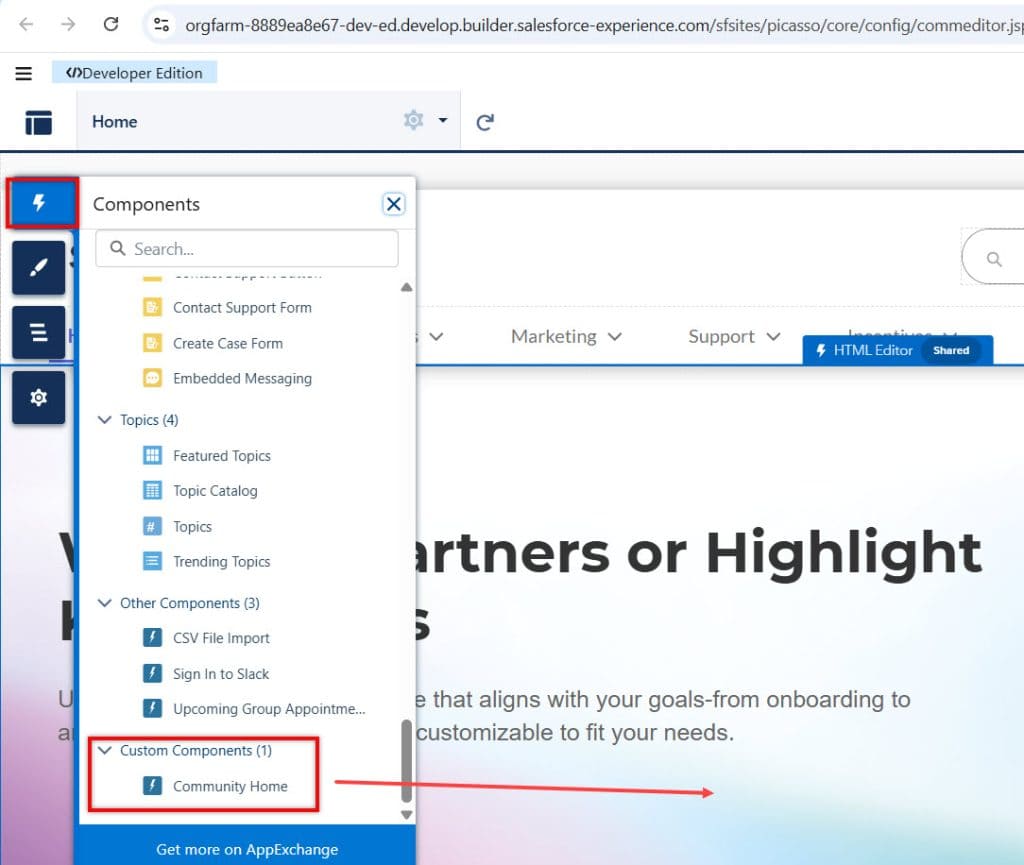
In the LWC JavaScript file, we have added the line:
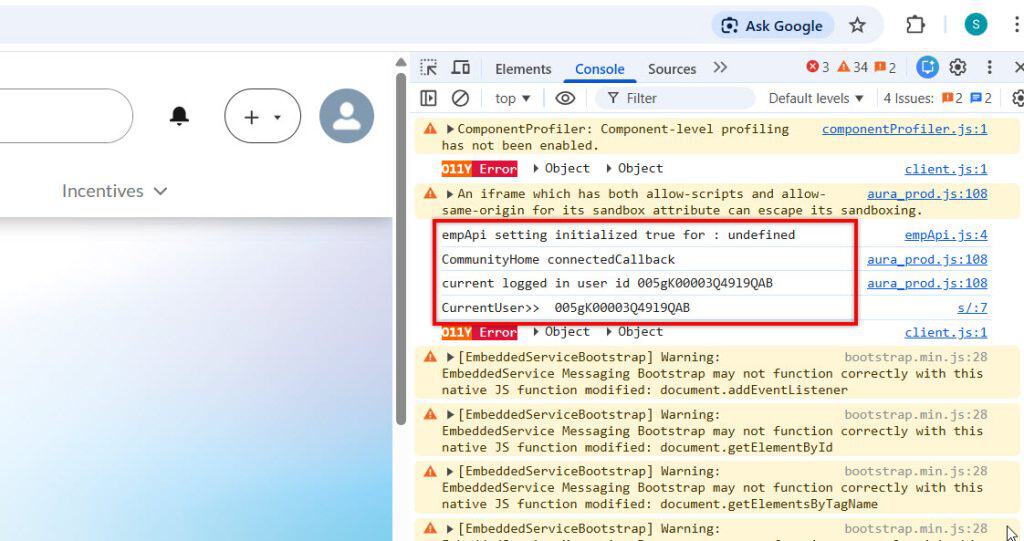
console.log('Current logged-in user ID:', Id);This will display the currently logged-in Community user’s ID in the browser’s Inspect → Console tab.
It helps us verify that the component is correctly fetching the user ID when the Community page loads.
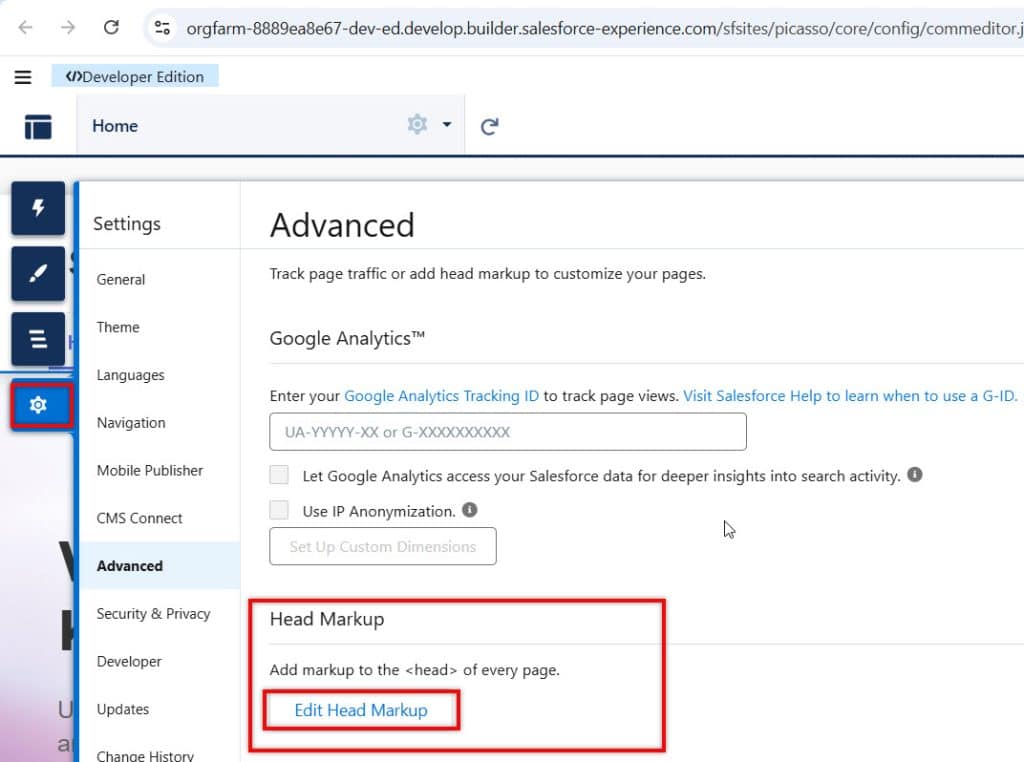
Add Head Markup in Experience Builder
After that, in Experience Builder, we need to add the Head Markup with the provided code.
<title>Welcome to Communities!</title>
<script type='text/javascript'>
    var currentUserId;
    window.addEventListener('Current_User_Id', function(e){
        currentUserId = e.detail.id;
        console.log('CurrentUser>> ',currentUserId);
    });
    window.addEventListener("onEmbeddedMessagingReady", () => {

        embeddedservice_bootstrap.prechatAPI.setHiddenPrechatFields({"Current_User_Id" : currentUserId});
        console.log('setting hidden prechat2  ',currentUserId);

    });

</script>
This code captures the logged-in Community User ID from the LWC component and stores it in a JavaScript variable (currentUserId).
It listens for a custom event (Current_User_Id) that is fired by the LWC, and once the event is received, it extracts and stores the user ID.
Next, when the Embedded Messaging is ready (onEmbeddedMessagingReady event), the script sets this user ID as a hidden field in the Pre-Chat form using setHiddenPrechatFields.
This ensures the logged-in user’s ID is automatically passed to the messaging flow without requiring the user to enter it manually.
Additionally, the console.log statements help in debugging by showing the captured and passed user ID in the browser’s console.
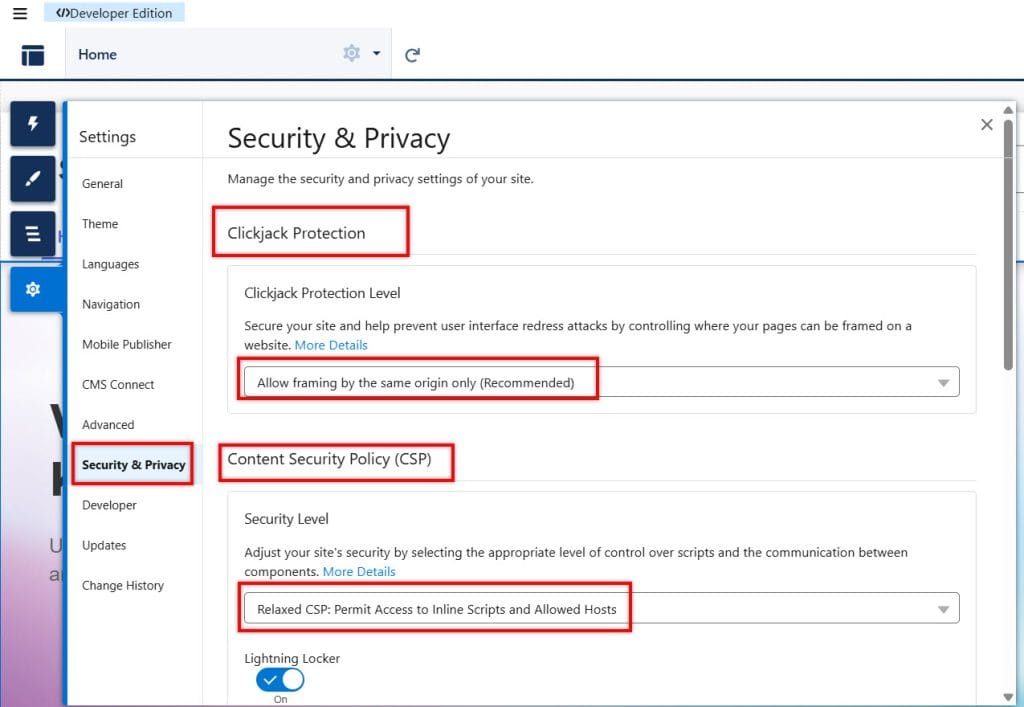
Then, in Security & Privacy settings inside Experience Builder, we need to configure a few important options to ensure the script and messaging work properly.
First, go to Clickjack Protection and set the level to “Allow framing by the same origin only (Recommended)”. This allows your site to operate securely while still supporting embedded components such as messaging.
Next, in the Content Security Policy (CSP) section, set the security level to “Relaxed CSP: Permit Access to Inline Scripts and Allowed Hosts”. Then, publish the site once.
This is required because we are using custom JavaScript in the Head Markup, and strict CSP settings may block it.
These settings ensure that:
- Your custom script in the Head Markup runs without issues
- Embedded Messaging works correctly
- The user ID is passed smoothly through the flow
Without these configurations, your script or messaging setup may not function as expected.
Pass the Logged-In User ID to Messaging
Next, pass the authenticated Experience Cloud user ID to the messaging configuration. The simplest approach uses a hidden pre-chat field.
Create a Messaging Custom Parameter
- From Setup, search for Messaging Settings.
- Open your messaging channel.
- Create a new Custom Parameter.
- Configure it with these values:
- Save the parameter.
| Setting | Value |
|---|---|
| Parameter Name | Current User ID |
| Parameter API Name | Current_User_Id |
| Channel Variable Name | Current_User_Id |
| Data Type | String |
| Maximum Length | 20 |
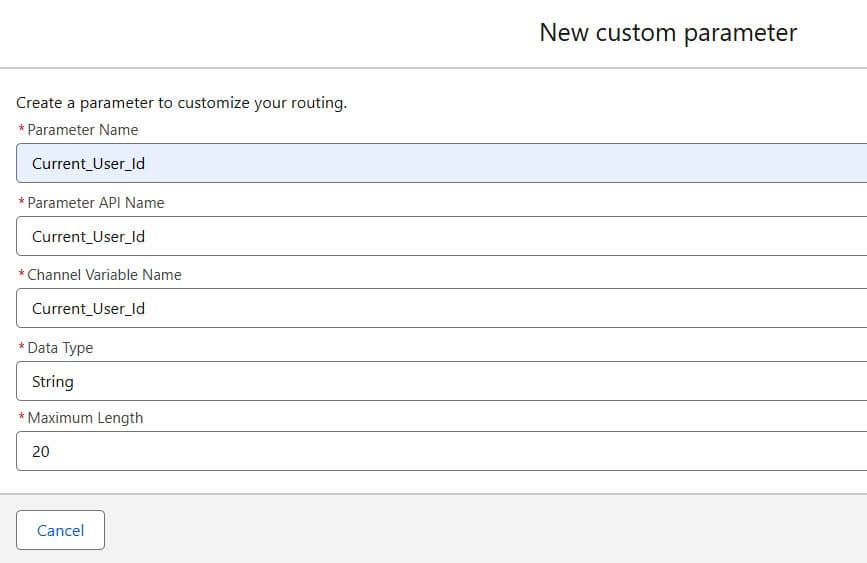
The parameter receives the current Experience Cloud user ID. Salesforce then makes that value available to the inbound Omni-Channel Flow.
Update the Inbound Omni-Channel Flow
Now configure the inbound Omni-Channel Flow to receive the ID, find the user, and save the customer’s name to the current Messaging Session.
An inbound Omni-Channel flow runs when Salesforce receives a messaging request. It is the right place to enrich the conversation before routing it to the Agentforce Service Agent.
If you have not built one yet, review how to create a Salesforce inbound Omni-Channel Flow.
Create an Input Variable
- Open the inbound Omni-Channel flow connected to your messaging channel.
- In Manager, click New Resource.
- Select Variable.
- Enter these values:
- Click Done.
| Setting | Value |
|---|---|
| API Name | var_Current_User_Id |
| Data Type | Text |
| Available for input | Selected |
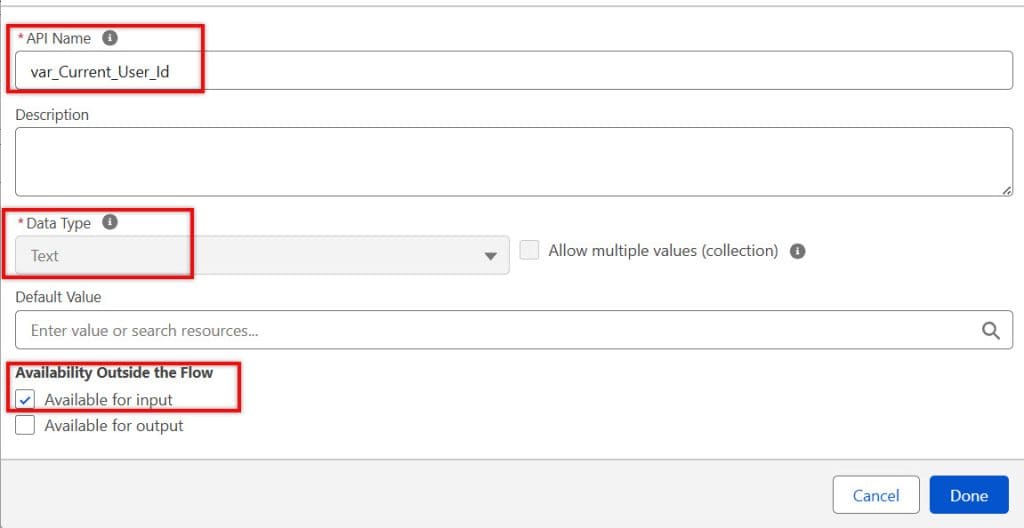
The variable API name must match the flow variable name in the messaging channel parameter mapping. If the names do not match, Salesforce will not pass the user ID into the flow.
Get the User Record in Flow
Add a Get Records element to the flow.
Configure the element like this:
| Setting | Value |
|---|---|
| Label | Get Logged-In User |
| Object | User |
| Condition | User Id Equals {!var_Current_User_Id} |
| How Many Records | Only the first record |
| Store Fields | Automatically store all fields |
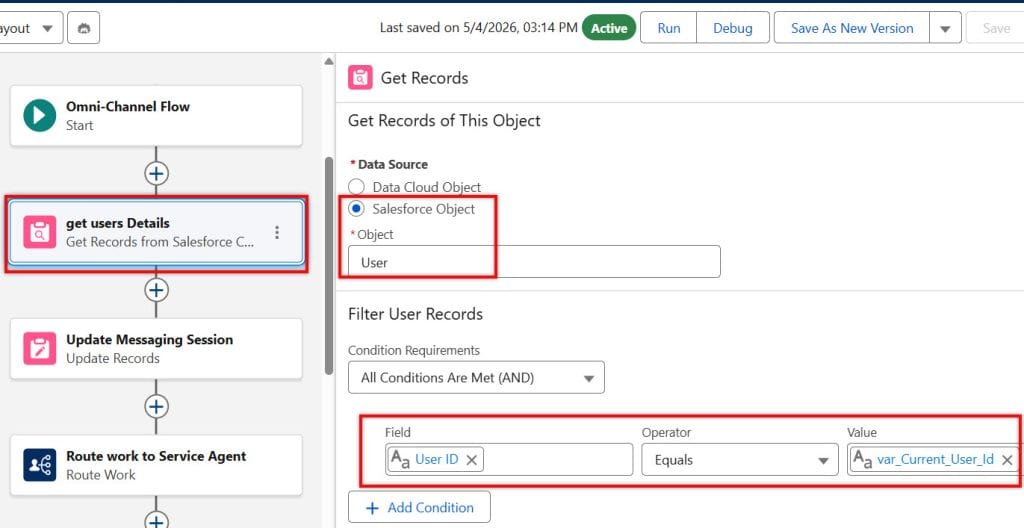
The Get Records element looks up the Salesforce user who started the chat. You can use the user’s FirstName, LastName, or Name field for the greeting.
For most support portals, I prefer FirstName. “Hi Alex” sounds more natural than “Hi Alex Joy,” especially for an automated first message.
Update the Messaging Session
Add an Update Records element after the User lookup.
- Choose the current Messaging Session record from the inbound flow context.
- Set User_Name__c to the logged-in user’s first name.
Use this value:
{!Get_Logged_In_User.FirstName}If your business wants to use the full name, use:
{!Get_Logged_In_User.Name}Connect the update step before the flow routes the conversation to the agent. The agent must receive the session after the flow writes the name.
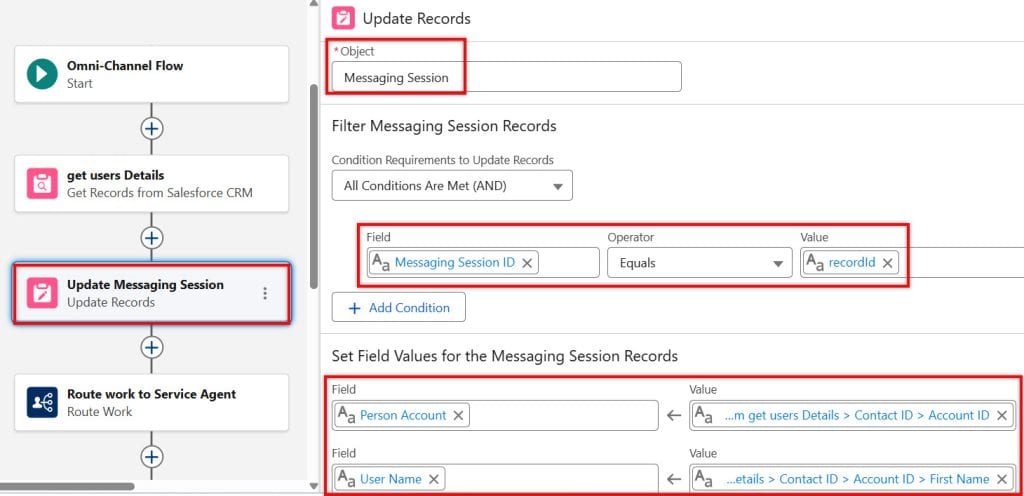
You can use Flow for many related Service Cloud tasks, including automatically closing cases with Salesforce Flow and sending emails with Salesforce Flows.
Add the Variable to Agentforce Service Agent
Now make the User_Name__c field available to the Agentforce Service Agent.
- Go to Agentforce Studio.
- Open Agentforce Service Agent.
- Go to Variables.
- Open the Messaging Session variable.
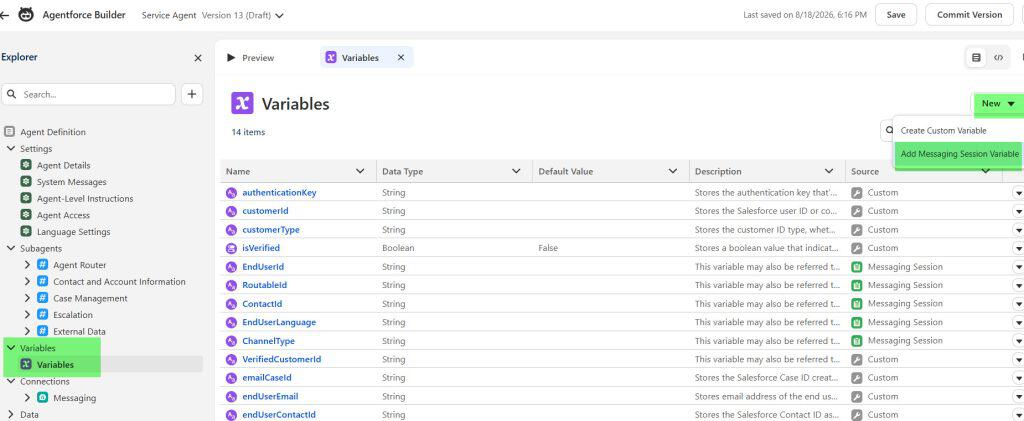
- Find and select User Name field.
- Click Add to Agent.
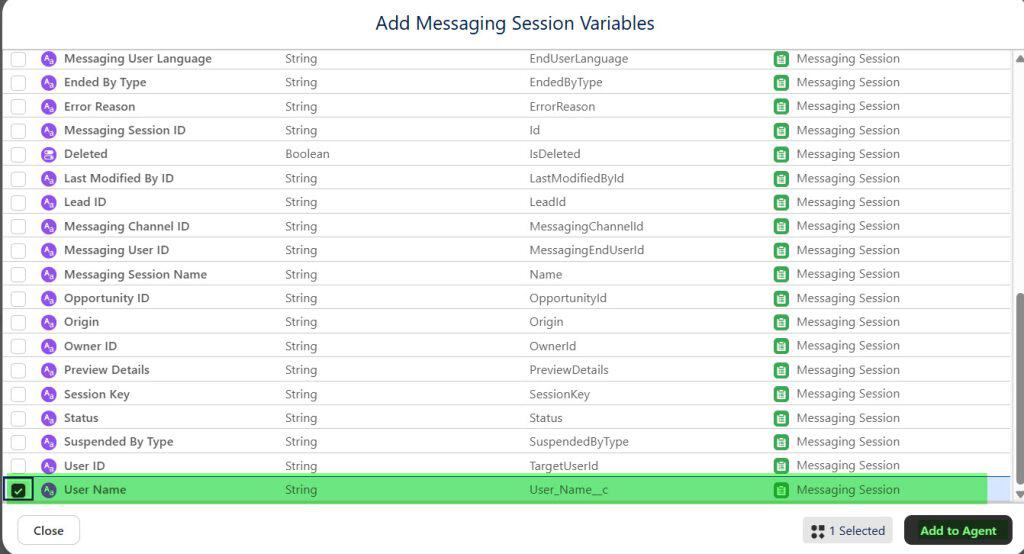
A variable gives the agent approved access to data from the current interaction. Including only the fields you need improves security and makes your agent instructions easier to manage.
Do not expose every Messaging Session field just because the agent might use it later. Start with the user name, then add fields only when a real use case requires them.
Configure Agent Script Welcome Message to Greet by Name
This is the final step. Add the greeting logic to your Agent Script.
- Click the System Messages block.
- Add a variable that references the Messaging Session user-name field.
- Save, Commit, and Activate the agent.
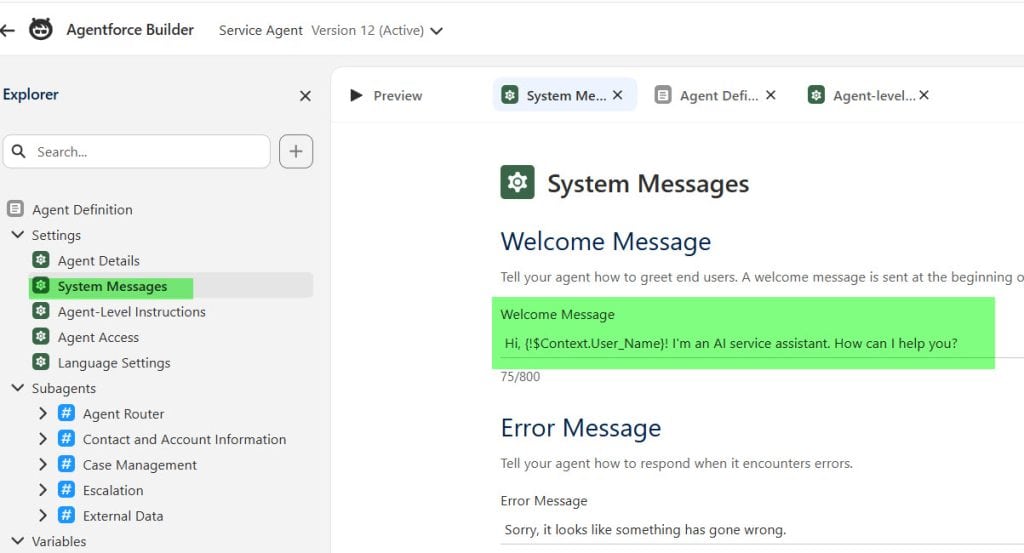
Use a clear variable definition in your welcome message:
{!$Context.User_Name}Your exact field syntax may differ based on the Agent Script editor and context variable name that Salesforce creates in your org.
Use the variable picker in the editor whenever possible. It prevents spelling mistakes and ensures the script uses the available context field.
Hi, {!$Context.User_Name}! I'm an AI service assistant. How can I help you?However, Agent Script gives you better control because you can define the variable and manage the greeting behavior in one place.
You can extend the agent later with custom actions for Agentforce or learn how to use Apex custom actions with Agentforce when your use case requires CRM updates or external integrations.
Test the Personalized Greeting
Do not test only in Agent Builder. The user name moves through several configurations, so you need an end-to-end test.
- Activate the inbound Omni-Channel flow.
- Activate the Agentforce Service Agent.
- Publish the Embedded Service Deployment.
- Publish the Experience Cloud site.
- Log in as a community user with a first name.
- Start a new messaging conversation.
- Confirm that the agent greets the customer by name.
- Open the related Messaging Session record.
- Confirm that User_Name__c contains the expected value.
Expected result:
Hi Shubham, welcome back. How can I help you today?
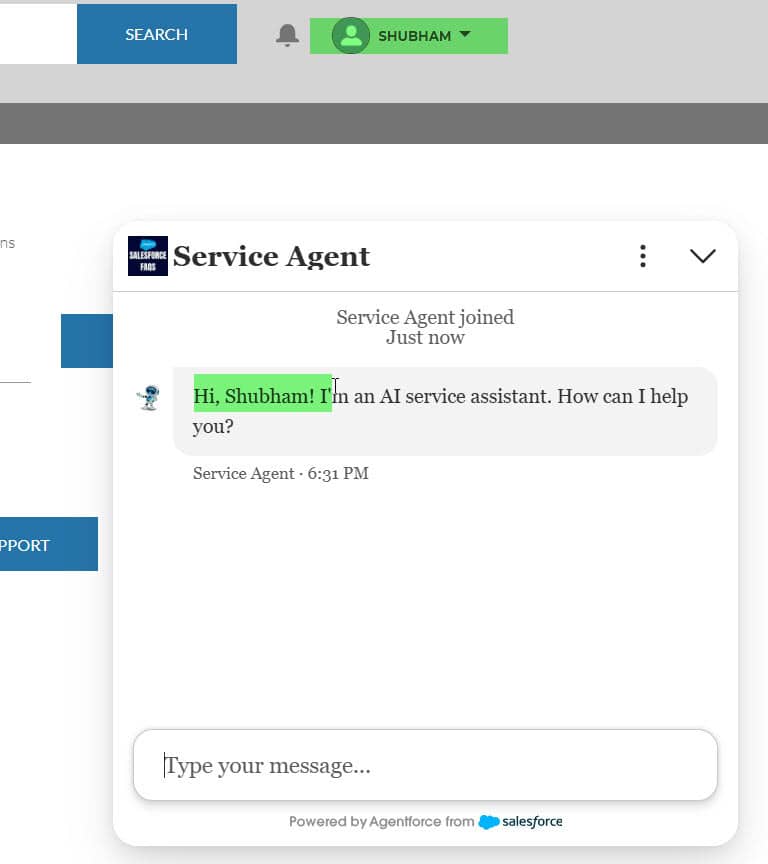
Also test these scenarios:
- An authenticated user with a first name.
- An authenticated user without a first name.
- A guest or unauthenticated website visitor.
- A user who starts a second conversation.
- A customer who transfers from the AI agent to a human support agent.
For handoff scenarios, review how to transfer an Agentforce chat from AI to a human agent.
Things to Keep in Mind
- Use first names carefully: A first-name greeting feels friendly, but confirm that your organization’s privacy policy allows this level of personalization.
- Keep the field secure: Give the flow and agent access only to User_Name__c. Do not expose email addresses, phone numbers, account balances, or other sensitive fields unless the agent truly needs them.
- Match API names exactly: The pre-chat field, messaging parameter, channel mapping, and flow input variable must use compatible API names. A small spelling mismatch breaks the data flow.
- Configure a fallback greeting: Guest users and incomplete user records can return a blank name. Always configure “Hi there” as a safe fallback.
- Update before routing: Your flow must write the name to the Messaging Session before it routes the conversation to the Agentforce Service Agent.
- Test with real community users: Agent Builder testing does not always reproduce the Experience Cloud login context, hidden pre-chat values, and messaging deployment behavior.
Frequently Asked Questions
How do I make an Agentforce Service Agent greet a user by name?
Create a field on the Messaging Session object, populate it with the logged-in user’s name through an inbound Omni-Channel flow, and expose it as an Agentforce context variable. Then reference that context variable in the Agent Script greeting.
Can Agentforce greet guest users by name?
Not automatically, unless you collect a name during pre-chat or identify the visitor through another approved process. For guest users, use a neutral greeting such as “Hi there, how can I help?”
Which field should I use for the Agentforce greeting?
For most customer-service chats, use the User FirstName field. It creates a friendly greeting and avoids exposing more personal information than necessary.
Why is my Agentforce agent not showing the user name?
Check each step in the data flow: the hidden pre-chat field, messaging custom parameter, parameter mapping, flow input variable, User lookup, Messaging Session update, and context-variable field inclusion. Also confirm that you activated the latest flow and agent versions.
Can I use Agent Script instead of a system message?
Yes. Agent Script is a strong option when you want explicit variables, greeting rules, fallback behavior, and reusable logic. A system message works for a simple setup, but it gives you less structure.
Can I use this approach for an employee agent?
Yes, the same pattern works for an employee-facing Agentforce agent if you can reliably identify the logged-in user and pass their details into the agent context. Keep the context limited to data the employee should access.
Conclusion
You now know how to configure an Agentforce Service Agent to greet the user by name with a Messaging Session field, inbound Omni-Channel Flow, context variable, and Agent Script.
Start with a simple first-name greeting, test every data handoff, and add more conversation personalization only after the base flow works reliably.
You may also like to read:
- How to configure Agentforce for customer service in Salesforce
- How to assign a data library to an Agentforce agent
- Agentforce best practices for Salesforce agents
- How to add branding to an Agentforce Service Agent
- Assign a Prompt Template Action to Agentforce Agents

Shubham is a Certified Salesforce Developer with technical skills for Building applications using custom objects, approval processes, validation rules, Salesforce flows, and UI customization. He is proficient in writing Apex classes, triggers, controllers, Apex Batches, and bulk load APIs. I am also familiar with Visualforce Pages and Lightning Web Components. Read more about me.
