
If you’ve ever needed to show an important message to all Salesforce users, such as a system maintenance update, compliance reminder, or deadline notification, you may have noticed that Salesforce does not provide a single button to display alerts across the entire UI.
Instead, Salesforce offers different notification options, each designed for a specific use case.
In this tutorial, I’ll explain how to display alerts and notifications in Salesforce. Whether you want to show a toast message in a Lightning Web Component (LWC), display an org-wide notification banner in the Salesforce header, or send bell notifications to users on desktop and mobile devices, this guide will walk you through everything step by step.
Display Alerts and Notifications in Salesforce
Before choosing a notification method, it’s important to understand the purpose of each option available in Salesforce. Every notification type is designed for a different use case and user experience.
| Notification Type | What It Looks Like | Best For |
|---|---|---|
| Toast Notification | A small pop-up that appears top-right and fades away | Confirming an action (save, delete, update) |
| Alert Banner | A persistent coloured bar at the top of the page | Org-wide announcements, maintenance windows |
| LightningAlert Modal | A blocking dialog box that the user must dismiss | Critical warnings that need acknowledgment |
| Custom Notification (Bell Icon) | A push notification in Salesforce’s bell icon tray | Background process completions, triggered alerts |
I’ll cover each one, starting with the quickest to implement.
Method 1: Toast Notifications in LWC (Quickest to Build)
A toast notification is a small pop-up message that appears in the top-right corner of the Salesforce screen.
It can automatically disappear after a few seconds or remain visible until the user closes it manually.
You have likely already seen toast messages in Salesforce, for example, the success message displayed after saving a record.
You can trigger your own toast from any Lightning Web Component using ShowToastEvent from the lightning/platformShowToastEvent module.
There are four toast variants, each color-coded:
- success — green, confirms something worked
- error — red, tells the user something failed
- warning — yellow, flags a potential issue
- info — blue, general information
HTML File — toastExample.html
<template>
    <lightning-card title="Notification Demo">
        <div class="slds-p-around_medium">
            <lightning-button label="Success Toast" onclick={showSuccessToast} class="slds-m-right_small"></lightning-button>
            <lightning-button label="Error Toast" onclick={showErrorToast} class="slds-m-right_small"></lightning-button>
            <lightning-button label="Warning Toast" onclick={showWarningToast} class="slds-m-right_small"></lightning-button>
            <lightning-button label="Info Toast" onclick={showInfoToast}></lightning-button>
        </div>
    </lightning-card>
</template>
JavaScript File — toastExample.js
import { LightningElement } from 'lwc';
import { ShowToastEvent } from 'lightning/platformShowToastEvent';

export default class ToastExample extends LightningElement {

    showSuccessToast() {
        this.dispatchEvent(new ShowToastEvent({
            title: 'Record Saved',
            message: 'Your changes have been saved successfully.',
            variant: 'success',
            mode: 'dismissable'
        }));
    }

    showErrorToast() {
        this.dispatchEvent(new ShowToastEvent({
            title: 'Something Went Wrong',
            message: 'Unable to save the record. Please try again.',
            variant: 'error',
            mode: 'sticky'   // stays until user dismisses it
        }));
    }

    showWarningToast() {
        this.dispatchEvent(new ShowToastEvent({
            title: 'Heads Up',
            message: 'This account has an overdue payment.',
            variant: 'warning',
            mode: 'dismissable'
        }));
    }

    showInfoToast() {
        this.dispatchEvent(new ShowToastEvent({
            title: 'Processing in Background',
            message: 'Your report is being generated. We\'ll notify you when it\'s ready.',
            variant: 'info',
            mode: 'dismissable'
        }));
    }
}
Meta XML — toastExample.js-meta.xml
<?xml version="1.0" encoding="UTF-8"?>
<LightningComponentBundle xmlns="http://soap.sforce.com/2006/04/metadata">
    <apiVersion>62.0</apiVersion>
    <isExposed>true</isExposed>
    <targets>
        <target>lightning__AppPage</target>
        <target>lightning__RecordPage</target>
        <target>lightning__HomePage</target>
    </targets>
</LightningComponentBundle>
Toast Mode Options Explained
The mode property controls how long the toast notification remains visible on the Salesforce screen and how the user can interact with it.
Different mode options determine whether the toast automatically disappears or stays until the user closes it manually.
This helps developers control the user experience based on the message’s importance.
| Mode | Behaviour |
|---|---|
| dismissable | Auto-dismisses after ~3 seconds; user can also close it manually |
| sticky | Stays on screen until the user clicks the close button |
| pester | Auto-dismisses but reappears if the user hovers over it (rarely used) |
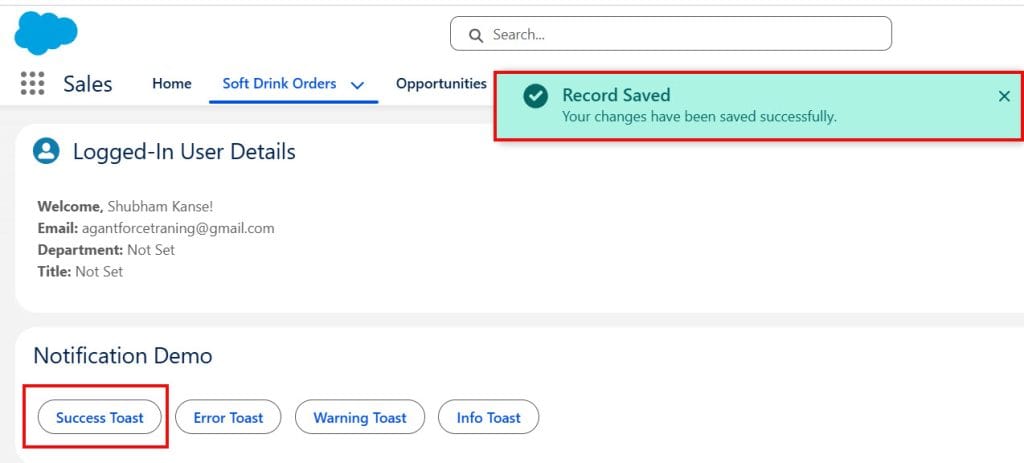
1. Display Success Alerts Using LWC in Salesforce
Success — A green toast notification indicating that an action was completed successfully in Salesforce.
It helps users quickly understand that the process worked without any issues.
For example, Salesforce displays a success toast message when a record is saved or updated.
These notifications improve the user experience by providing immediate confirmation feedback.
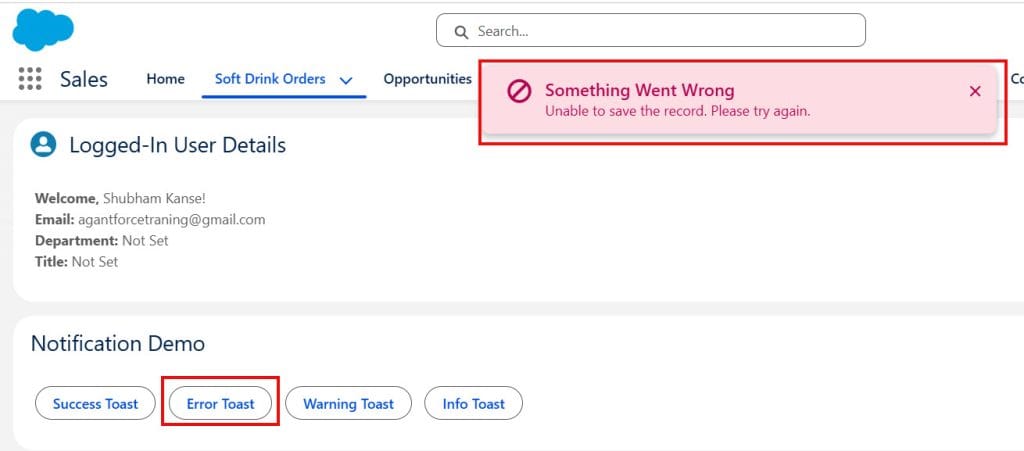
2. Display Error Alerts Using LWC in Salesforce
Error — A red toast notification indicates that an action or process has failed. It helps users quickly identify that something went wrong and may require attention or correction.
For example, Salesforce displays an error toast message when a required field is missing or when a record cannot be saved.
These notifications are important for guiding users to fix issues before continuing.
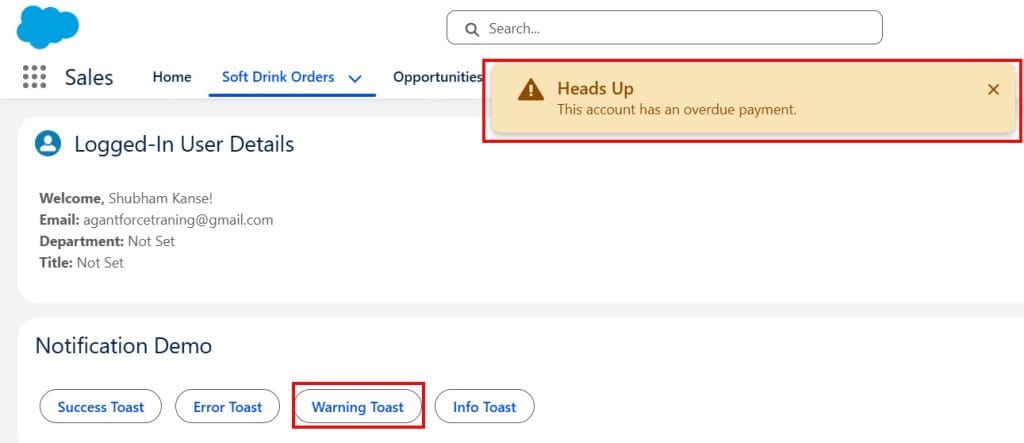
3. Display Warning Alerts Using LWC in Salesforce
Warning — A yellow toast notification alerts users to a potential issue or serious situation that requires attention.
It does not always mean the action failed, but it warns users to review something carefully.
For example, Salesforce may display a warning message before deleting important data or when limits are close to being reached.
These notifications help users avoid possible problems.
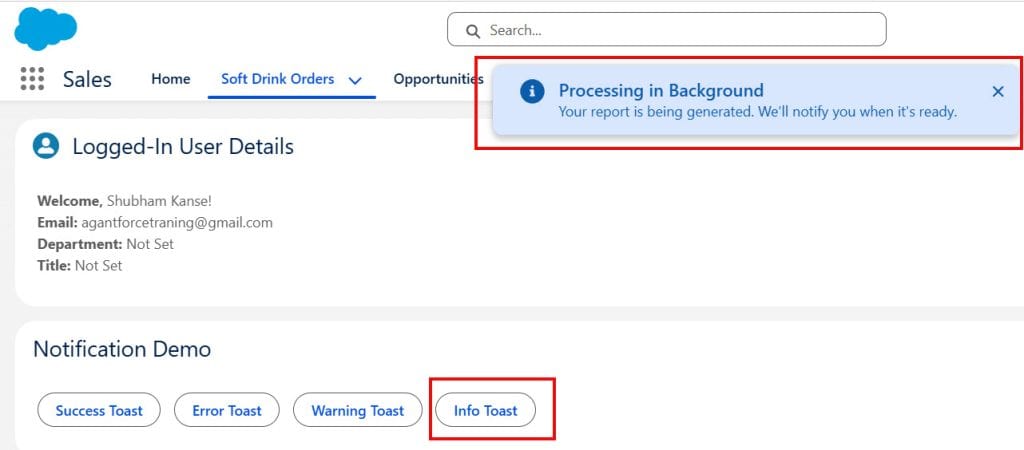
4. Display Info Alerts Using LWC in Salesforce
Info — A blue toast notification used to display general information to users. It is mainly used to share updates, tips, or non-critical messages in Salesforce.
For example, an info toast message may appear to inform users that a background process has started successfully.
These notifications help communicate useful information without showing errors or warnings.
Method 2: LightningAlert, LightningConfirm, and LightningPrompt Modals
Sometimes a toast notification is not enough. When you need users to respond before continuing — such as confirming a delete action or accepting an important compliance warning — you should use a modal dialog in Salesforce.
A modal dialog appears on the screen, blocking user interaction with the background page until they take an action, such as clicking Confirm or Cancel.
This makes modal dialogs useful for important actions that require user attention and confirmation.
Salesforce introduced three dedicated LWC modules for this:
- LightningAlert — shows a message that the user must click OK to dismiss.
- LightningConfirm — asks yes/no and returns true or false based on their answer
- LightningPrompt — asks for a text input and returns whatever the user typed.
Important: Don't use the browser's native window.alert(), window.confirm(), or window.prompt() in LWC.

Chrome and Safari are phasing out support for these in cross-origin iframes, which is the environment Salesforce Lightning runs in. Always use the Salesforce-provided modules instead.
Example: LightningAlert in Salesforce LWC
HTML File — alertExample.html
<template>
    <lightning-card title="Lightning Alert Example">
        <div class="slds-p-around_medium">
            <lightning-button
                label="Show Alert"
                onclick={handleAlertClick}>
            </lightning-button>
        </div>
    </lightning-card>
</template>
JS File — alertExample.js
import { LightningElement } from 'lwc';
import LightningAlert from 'lightning/alert';

export default class AlertExample extends LightningElement {

    async handleAlertClick() {
        await LightningAlert.open({
            message: 'This account is marked as high-risk. Please review before proceeding.',
            theme: 'warning',
            label: 'High-Risk Account Alert'
        });

        console.log('User acknowledged the alert');
    }
}
XML File — alertExample.meta.xml
<?xml version="1.0" encoding="UTF-8"?>
<LightningComponentBundle xmlns="http://soap.sforce.com/2006/04/metadata">
    <apiVersion>66.0</apiVersion>
 <isExposed>true</isExposed>
    <targets>
        <target>lightning__AppPage</target>
        <target>lightning__RecordPage</target>
        <target>lightning__HomePage</target>
    </targets></LightningComponentBundle>
Deploy the component to your Salesforce org using VS Code and SFDX. Then, open any Lightning App Page, Home Page, or Record Page.
Click the Gear Icon → Edit Page. Drag your LWC component onto the page. Click Save and Activate.
Click the Show Alert button to check how LightningAlert works in Salesforce.
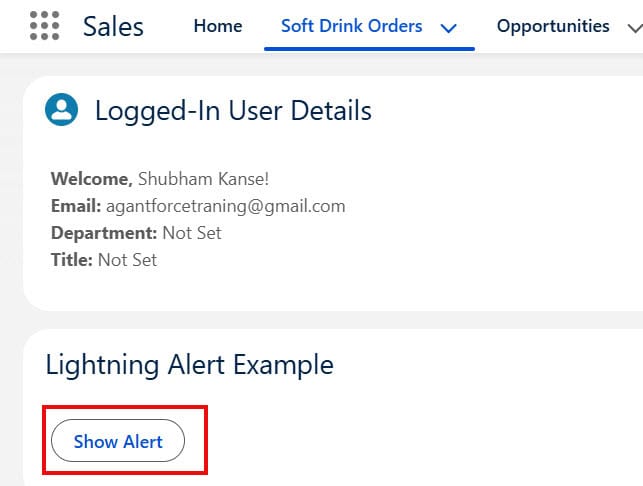
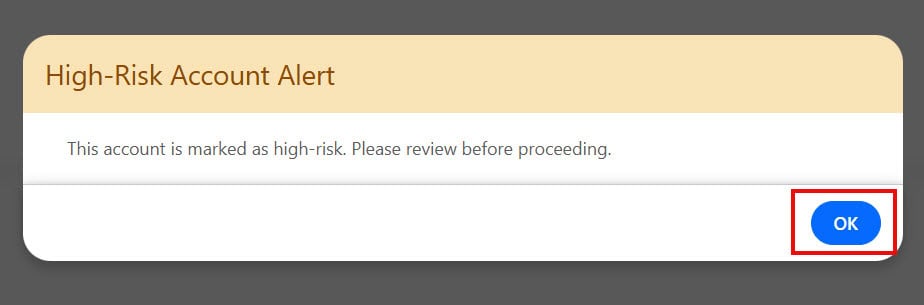
This alert notification remains visible until the user clicks the OK button. Users cannot interact with the background Salesforce page until they acknowledge and close the modal dialog.
LightningConfirm Example
import LightningConfirm from 'lightning/confirm';

async handleDeleteClick() {
    const result = await LightningConfirm.open({
        message: 'Are you sure you want to delete this record? This cannot be undone.',
        theme: 'error',
        label: 'Confirm Deletion'
    });

    if (result) {
        // User clicked Confirm — proceed with deletion
        this.deleteRecord();
    } else {
        // User clicked Cancel — do nothing
    }
}
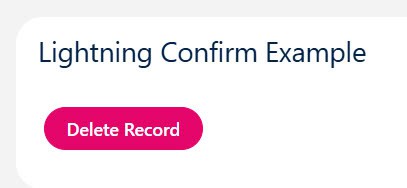
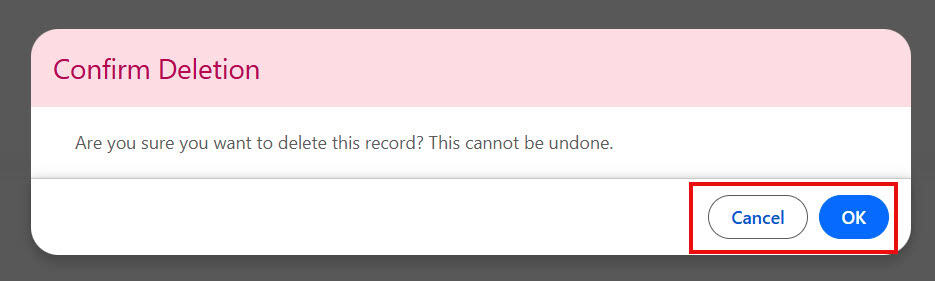
When the dialog appears, users can click either OK or Cancel. If the user clicks OK, the result value becomes true, and the deleteRecord() method executes to delete the record.
If the user clicks Cancel, the result value becomes false, and no action is performed.
Common Errors and How to Fix Them
❌ Toast notification isn’t showing in Experience Cloud (Community) pages
ShowToastEvent is only supported in Salesforce Lightning Experience and the Salesforce mobile app.
It does NOT work in Experience Cloud (Communities) or Visualforce pages. For community pages, use a custom LWC component with conditional rendering and SLDS alert styles instead.
❌ LightningAlert import isn’t resolving in VSCode
Make sure your apiVersion in the meta XML is 54.0 or higher. LightningAlert, LightningConfirm, and LightningPrompt were introduced in API version 54.0 (Summer ’22). If you’re on an older API version, these modules won’t be available.
❌ Custom Notification isn’t appearing for some users
Check two things: first, make sure the notification type is set to the correct channel (Desktop/Mobile) for those users.
Second, check that the recipient profile hasn’t turned off notifications in Setup → Notification Builder → Notification Settings. Admins can control which notification types are enabled per profile.
❌ Alert banner component is showing in App Builder but not visible on the live page
If you added the banner as a Utility Item, it appears in the utility bar at the bottom, not at the top.
For a top-of-page banner, add it as a component on the page layout itself (not as a utility item), and position it as the topmost component in App Builder.
❌ Custom Metadata banner update isn’t reflecting immediately
Because the Apex query uses cacheable=true, the wire adapter caches the result. Updates to Custom Metadata Type records may take a few minutes to be reflected due to cache refresh cycles.
For real-time updates, remove cacheable=true from the Apex method, but be aware that this will increase server calls slightly.
Key Takeaways
- Salesforce has four main notification mechanisms — toast messages, modal alerts, persistent banners, and bell-icon notifications — and each one is right for a different scenario
- Use toast notifications for immediate feedback after user actions — they’re the lightest and quickest to implement
- Use LightningAlert, LightningConfirm, and LightningPrompt instead of browser-native window.alert() — native browser dialogs don’t work reliably in Lightning’s iframe environment
- Build a persistent alert banner using LWC + Custom Metadata for org-wide announcements — this gives admins full control with zero code changes after initial setup
- Use Notification Builder for background and triggered alerts that appear in the bell icon tray, deliverable to both desktop and mobile
- ShowToastEvent does not work in Experience Cloud — for communities, use a custom LWC component with SLDS alert classes
- Always set error toasts to mode: ‘sticky’ so users actually have time to read them
You may like to read:
- Show Logged-In User Details in the Salesforce Header
- Customize the Salesforce Lightning Header Bar (Branding & Navigation)
- Create Custom Headers in Salesforce (Named Credentials & External Credentials)
- Agentforce Service Agent Greet by User Name in Salesforce

I am Bijay Kumar, the founder of SalesforceFAQs.com. Having over 10 years of experience working in salesforce technologies for clients across the world (Canada, Australia, United States, United Kingdom, New Zealand, etc.). I am a certified salesforce administrator and expert with experience in developing salesforce applications and projects. My goal is to make it easy for people to learn and use salesforce technologies by providing simple and easy-to-understand solutions. Check out the complete profile on About us.
