
While working as a Salesforce Developer, I received a client requirement. The client wanted a way to send a summary of a Salesforce record, such as Account details, invoice information, or other record data, to customers in PDF format.
They wanted this process to happen directly from the record page without any manual work.
Client Requirements:
The client asked for the following features:
- Add a button on the record detail page labeled “Generate PDF.”
- When the user clicks this button, a pop-up window should open.
- In the pop-up, the user should see a list of all fields available on that object.
- The user can select only the fields they want to include in the PDF using checkboxes.
- After clicking the Done button, a properly formatted PDF should be generated.
- The generated PDF should automatically get attached to the same record in the Files / Notes & Attachments section.
They also requested one more feature:
- Another button labeled “Send Email to Customer.”
- When the user clicks this button, the generated PDF should be sent to the email address stored on that record.
Salesforce does not provide any standard functionality to achieve this dynamic PDF generation and email process directly from a record page.
To fulfill this requirement, I designed a custom solution using:
- Lightning Web Component (LWC) for the user interface and field selection pop-up.
- Apex (Queueable) to generate the PDF and attach it to the record.
- Visualforce Page to properly design the PDF layout.
This solution automated the complete process of generating, attaching, and emailing record details as a PDF directly from Salesforce.
Have a look at a smart Salesforce dynamic PDF solution to generate a dynamic PDF from a Salesforce record, attach it to the record, and send it via email using LWC, Apex, and Visualforce.
I will explain the requirement, the functionality, and the customization done to achieve this solution.
A Smart Salesforce Dynamic PDF Solution
In many business scenarios, users need to share record details from Salesforce with customers as a PDF. This could be Account information, invoice details, or a summary of important data.
Normally, users copy the data manually, create a document, convert it to PDF, and then upload it back to Salesforce. This process takes time and can lead to mistakes.
To solve this problem, we can build a solution directly on the Salesforce record page. A Generate PDF button is added to the record.
When the user clicks this button, a pop-up window opens that shows a list of fields available for that object.
The user can select only the fields they want to include in the PDF using checkboxes.
After selecting the fields and clicking Done, Salesforce automatically generates a well-formatted PDF using the selected data.
This PDF is then attached to the same record in the Files section. The user does not need to do any manual work.
This approach saves time, reduces errors, and gives users a simple way to create professional PDFs directly from Salesforce records tailored to their needs.
How to Generate, Attach, and Email a Dynamic PDF from a Salesforce Record Using LWC, Apex, and Visualforce
In the steps below, I will explain how to generate a dynamic PDF, attach it to the record, and send it to the customer via email in Salesforce.
1. Create a Visualforce Page (PDF Design) in Salesforce
First, we will create the visualforce page. This page is responsible for the PDF layout and design, and displays only selected fields. The VF page works like a template for the PDF.
Sample VF Code
In this, we will receive the Record Id and Selected field API names, and display only those fields in PDF format. Below, I will explain the functionality of the VF page that we will use in this requirement.
- renderAs=”pdf” tells Salesforce to convert this page into a PDF.
- It calls an Apex controller.
- applyBodyTag=”false” → Removes extra margin in PDF.
- Why is table layout used (PDF supports tables best)?
- <apex: repeat> prints only selected fields dynamically.
- Why do we do simple HTML design (CSS support is limited in VF PDF)
- How VF receives values using URL parameters.
<apex:page renderAs="pdf" controller="AccountPDFController" applyBodyTag="false">

    <apex:outputPanel layout="block" style="font-family: Arial; font-size:12px;">

        <!-- HEADER WITH LOGO -->
        <table width="100%" cellpadding="8" cellspacing="0">
            <tr>
                <td width="20%">
                    <img src="{!URLFOR($Resource.CompanyLogo)}" width="150" height="60"/>
                </td>
                <td width="80%" align="right" style="font-size:22px; font-weight:bold;">
                    Account Details Report
                </td>
            </tr>
        </table>
        <hr/>......................................... // This is not full code.
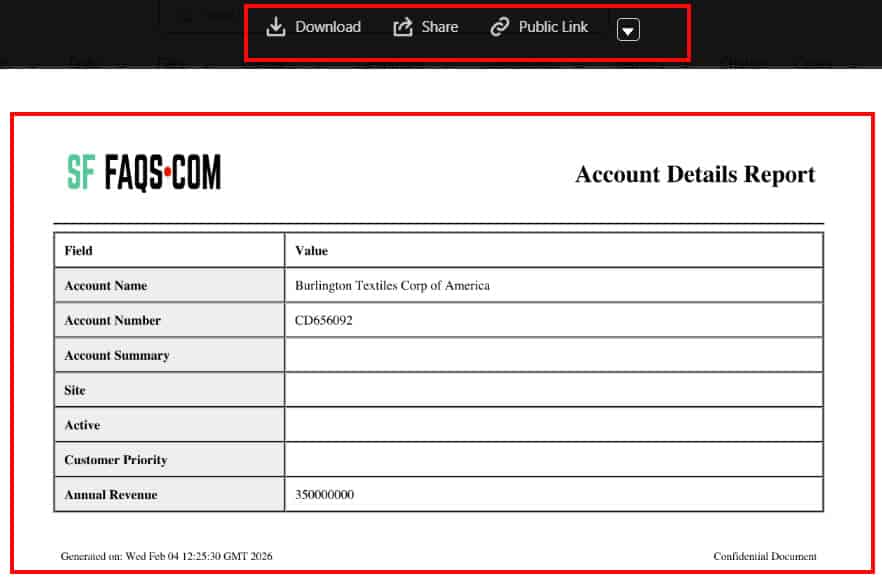
In the image below, you can see the generated pdf which we can download, share with other users, and also create a public link. According to the code you add in the VF page, the PDF will display.
2. Create an Apex Controller for the VF Page in Salesforce
This is the apex controller, which sends data to the VF page. This class does the following functionality:
- Reads recordId and selected fields from URL.
- Queries the Account record.
- Prepares the label and value for the PDF and sends the data to the VF page.
| Methods / Concept | Why is it used |
| ApexPages.currentPage().getParameters() | To read values from the VF URL |
| split(‘,’) | Convert the selected fields’ string into a list |
| sObject.get(fieldName) | Dynamically get field value |
| Custom wrapper class (FieldData) | To send label and value to VF |
| List<FieldData> | Used by <apex: repeat> |
Sample Apex Controller Code
public class AccountPDFController {

    public List<PDFField> fieldData {get;set;}

    public AccountPDFController() {

        String recordId = ApexPages.currentPage().getParameters().get('recordId');
        String fields = ApexPages.currentPage().getParameters().get('fields');
        List<String> fieldList = fields.split(',');

        Account acc = [
            SELECT Name, AccountNumber, Site, Account_Summary__c,
                   Active__c, AnnualRevenue, CustomerPriority__c,
                   Industry, Rating, Website
            FROM Account
            WHERE Id = :recordId
        ];

        fieldData = new List<PDFField>(); ......................................... // This is not full code.
3. Apex Class – Generate & Attach PDF (Queueable) in Salesforce
This class calls the VF page, converts it into a PDF, and attaches the created PDF to the record (To Notes & Attachments).
This class is called from LWC and runs in the background (Queueable) because getContentAsPDF() cannot run in a normal context.
Sample Apex Class – Generate & Attach PDF Code
| Method | Purpose |
| Queueable | Required because getContentAsPDF() cannot run in a normal context |
| System.enqueueJob() | Runs the job in the background |
| PageReference | Points to the VF page |
| getParameters().put() | Send data to VF |
| getContentAsPDF() | Converts VF to PDF Blob |
- ContentVersion: Actual file data (PDF stored here).
- ContentDocument: Parent record of the file.
- ContentDocumentLink: Links file to Account.
public with sharing class AccountPDFGenerator {

    // Called from LWC to Generate PDF (Async)

    @AuraEnabled
    public static void generateFromLWC(String recordId, String selectedFields){
        System.enqueueJob(new PDFQueueable(recordId, selectedFields));
    }

    // Queueable Class to Generate and Attach PDF

    public class PDFQueueable implements Queueable, Database.AllowsCallouts {

        String recordId;
        String selectedFields;

        public PDFQueueable(String rId, String fields){
            recordId = rId;
            selectedFields = fields;
        } ............................................................. // This is not full code.
4. Method to Send PDF via Email in Salesforce Apex
After generating the PDF and attaching it to the record for this method, it locates the generated PDF and sends it to the email address stored on that record.
Sample Method to Send PDF via Email Code
This method does the following functionality:
- Gets the customer email from the Account
- Fetches attached PDF
- Sends email with attachment
| Methods | Purpose |
| Messaging.SingleEmailMessage | To send an email |
| setToAddresses() | Customer email |
| setSubject() | Email subject |
| setFileAttachments() | Attach PDF |
| Messaging.EmailFileAttachment | To send an email |
@AuraEnabled
public static void sendLatestPDFToCustomer(Id recordId){

    // Get Account name and email

    Account acc = [
        SELECT Name, Email__c
        FROM Account
        WHERE Id = :recordId
        LIMIT 1
    ];

    if(String.isBlank(acc.Email__c)){
        throw new AuraHandledException('Account does not have an email address.');
    }

    // Get ContentDocumentId from link

    ContentDocumentLink link = [
        SELECT ContentDocumentId
        FROM ContentDocumentLink
        WHERE LinkedEntityId = :recordId
        LIMIT 1
    ];

    // Get latest version of ONLY our PDF

    ContentVersion cv = [
        SELECT VersionData, Title
        FROM ContentVersion
        WHERE ContentDocumentId = :link.ContentDocumentId
        AND Title = 'Account_Report'
        ORDER BY VersionNumber DESC
        LIMIT 1
    ];   .................................................................. // This is not full code.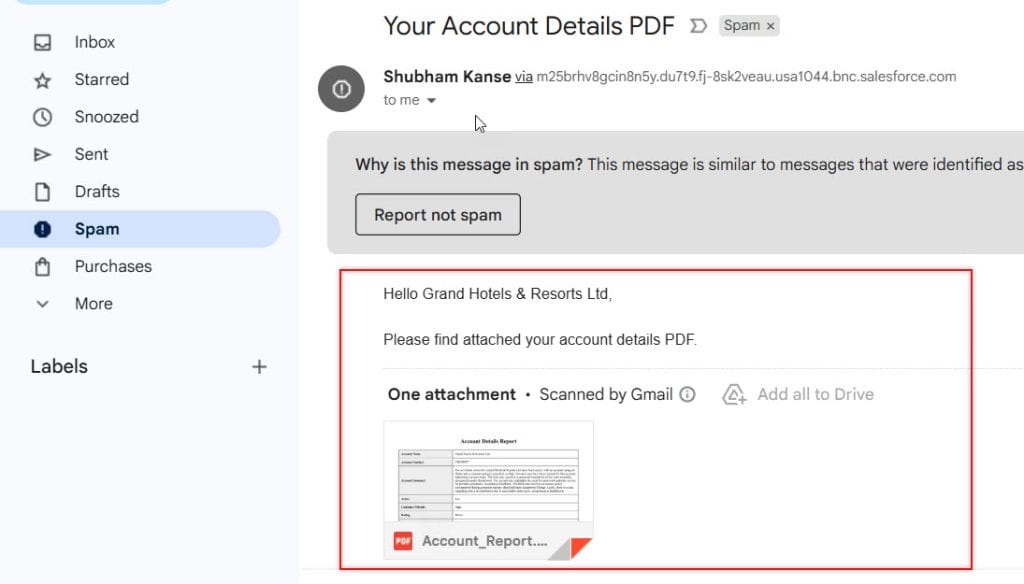
5. Create LWC Component in Salesforce
The LWC component creates the UI that lets the user view the pop-up and select the fields they want to add to the PDF.
Also, this component calls Apex methods that implement logic to create a PDF, attach it to the record, and send it via email to the customer.
In LWC, we also make this feature available on the record page.
Sample HTML File code
This HTML file does the following functionality:
- Shows “Generate PDF” and “Send Email” buttons on UI.
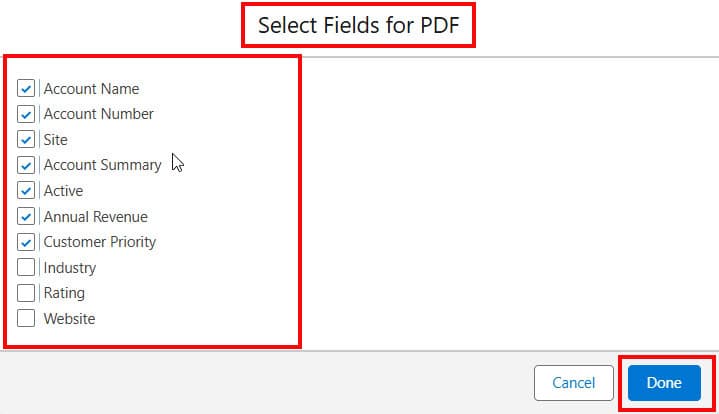
- Opens a pop-up with checkboxes that let the user select the fields.
- Calls Apex when the user clicks Done.
<template>

    <!-- Top Buttons -->
    <div class="slds-m-bottom_small">
        <lightning-button
            label="Generate PDF"
            onclick={openModal}>
        </lightning-button>

        <lightning-button
            class="slds-m-left_small"
            label="Send PDF to Customer"
            onclick={sendEmail}>
        </lightning-button>
    </div> .................................................................. // This is not full code.
Below is the UI developed using LWC and an HTML file. Whatever field the user selects will be added to the PDF.
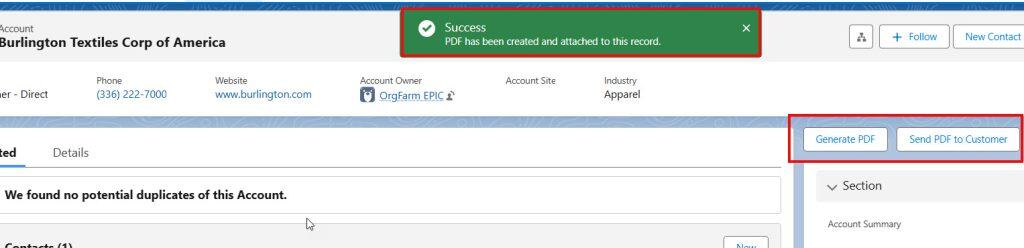
As the user clicks the Done button, a success message will appear on the UI. In the image below, you can see the buttons and message.
Sample Code LWC JavaScript (Calling Apex) in Salesforce
This file calls Apex methods. Sends selected fields to Apex and shows a success toast message.
import { LightningElement, api, track, wire } from 'lwc';
import { ShowToastEvent } from 'lightning/platformShowToastEvent';
import generatePDF from '@salesforce/apex/AccountPDFGenerator.generateFromLWC';
import sendPDF from '@salesforce/apex/AccountPDFGenerator.sendLatestPDFToCustomer';

import { getRecord } from 'lightning/uiRecordApi';
import NAME_FIELD from '@salesforce/schema/Account.Name';

export default class AccountPdfGenerator extends LightningElement {

    @api recordId;
    @track isOpen = false;
    selected = [];

    // Get Account Name for dynamic toast

    @wire(getRecord, { recordId: '$recordId', fields: [NAME_FIELD] })
    account;

    get accountName(){
        return this.account?.data?.fields?.Name?.value;
    }  .................................................................. // This is not full code.
Sample Code: Add LWC Component to Record Page in Salesforce
- Open Lightning App Builder
- Drag LWC to Account Record Page
- Save and Activate
 <isExposed>true</isExposed>
    <targets>
        <target>lightning__RecordPage</target>
    </targets>
    <targetConfigs>
        <targetConfig targets="lightning__RecordPage">
            <objects>
                <object>Account</object>
            </objects>
        </targetConfig>
    </targetConfigs>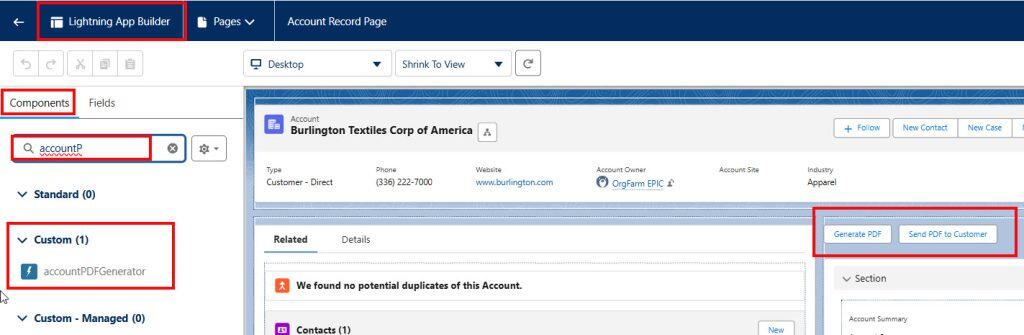
6. Proof of Concept
- The user clicks the Generate PDF button on the record page, and a pop-up window opens showing all available fields of that object.
- The user selects the fields they want to include in the PDF and clicks the Done button.
- Based on the selected fields, a dynamic PDF is generated using a Visualforce page in the background.
- The generated PDF is automatically attached to the same Salesforce record in the Files (Notes & Attachments) section.
- After the PDF is created, the user can click the Send PDF to Customer button available on the same record page.
- The system fetches the latest generated PDF attached to that record.
- The same PDF file is then sent to the customer’s email address stored on the record.
- A success message is displayed to the user confirming that the email was sent to the customer.
Conclusion
I hope you have got an idea about how to generate a dynamic PDF from a Salesforce record, attach it to the record, and send it via email using LWC, Apex, and Visualforce. I have explained the requirement, the functionality, and the customization done to achieve this solution.
You may like to read:
- Get Current Record ID in Salesforce Flows
- How to Pass a Record ID into Salesforce Flow
- Check Record Page Assignments in Salesforce

Shubham is a Certified Salesforce Developer with technical skills for Building applications using custom objects, approval processes, validation rules, Salesforce flows, and UI customization. He is proficient in writing Apex classes, triggers, controllers, Apex Batches, and bulk load APIs. I am also familiar with Visualforce Pages and Lightning Web Components. Read more about me.
