
Salesforce Lightning Experience provides a powerful and flexible user interface that helps users work more efficiently.
One important feature of Lightning pages is Tabs, which allow you to organize content in a clean, structured way.
While working for an organization that uses Salesforce as its primary CRM, we have created some Lightning pages to fulfill business requirements. To display these pages in the page layout, we need to add Lightning page tabs.
In this article, you will learn how to create Lightning Page Tabs in Salesforce step by step. In addition, we will cover real-time use cases, best practices, common mistakes, and tips to improve the user experience.
What are Lightning Page Tabs in Salesforce?
Lightning Page Tabs are used to organize different components into separate sections within a Lightning page.
In Salesforce, custom lightning page tabs help users display the custom lightning app pages in a user interface tab.
The Lightning pages can be created and added to the applications using the Lightning app builder, but to make the page visible to the users, we have to add a Lightning page tab in Salesforce.
Instead of showing everything in one long page, tabs help you:
- Divide content into sections
- Improve readability
- Enhance user experience
Example:
You can create tabs like:
- Details
- Related Records
- Activity
- Custom Information
Why Use Tabs in Lightning Pages?
Tabs are very useful in real-time projects. Here are some benefits:
- Better User Experience
- Users can easily navigate between sections
- Clean UI
- Avoid cluttered pages
- Organized Data
- Group related information together
- Faster Access
- Users can quickly find the required data
Create Lightning Page tabs in Salesforce
The Lightning page tabs are created using the Lightning app builder, which is available only for Lightning add-ons.
Navigate to the setup page of Salesforce and follow the steps below to create a Lightning page tab in Salesforce.
- Go to Setup
- Click on the Gear Icon
- Select Setup
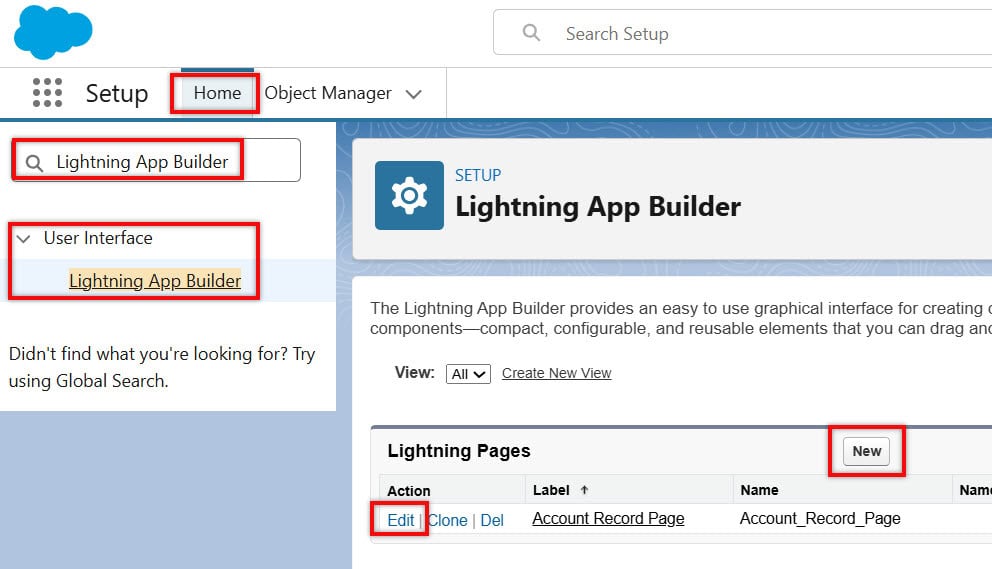
- Open Lightning App Builder
- Search for Lightning App Builder
- Click on it
- Create or Edit Page (You have 2 options)
- Create New Page OR Edit Existing Page
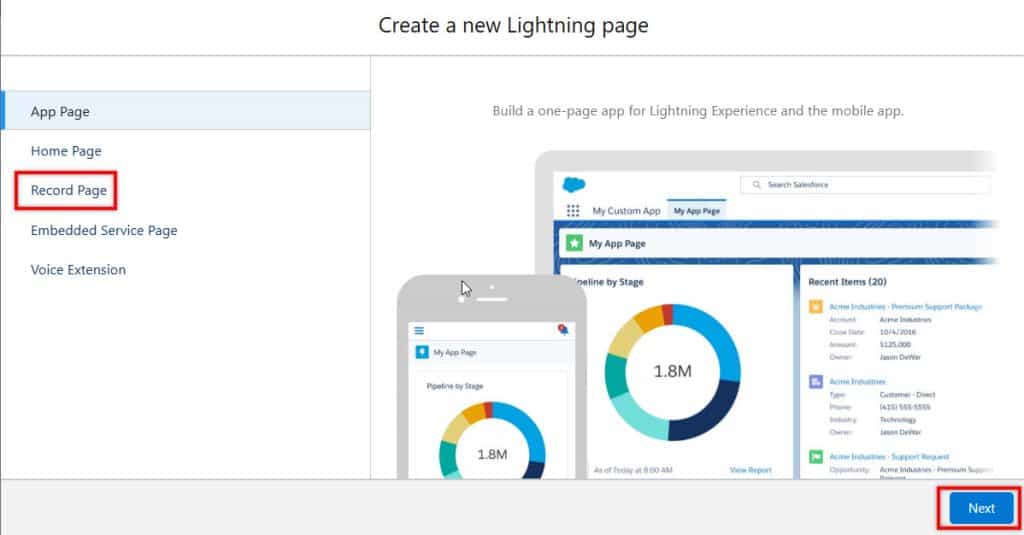
- Select Page Type (Choose one)
- App Page
- Home Page
- Record Page
Click Next
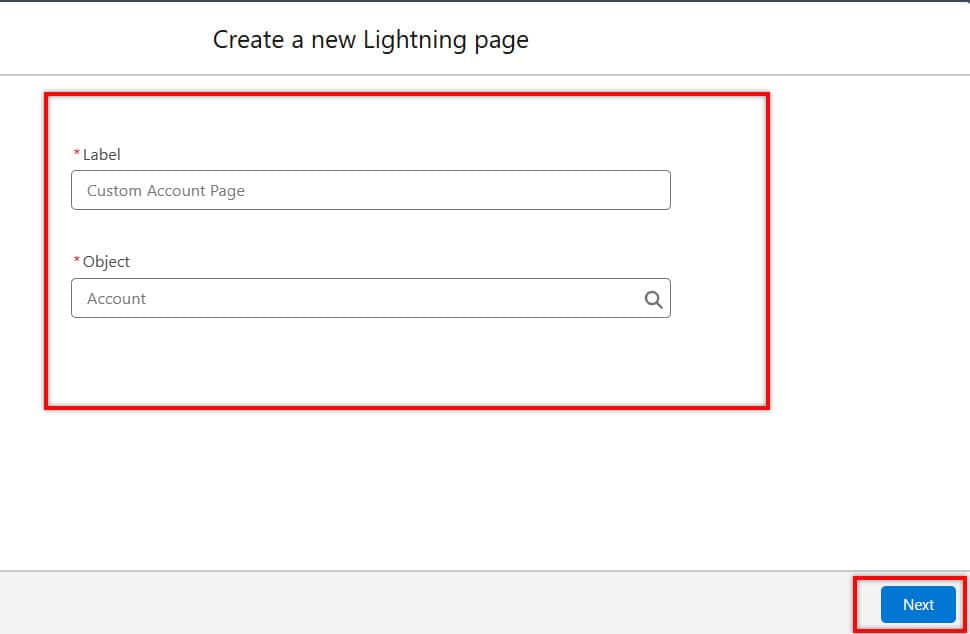
- Create New Page – Enter:
- Label: Custom Account Page
- Object: Account
- Click Next
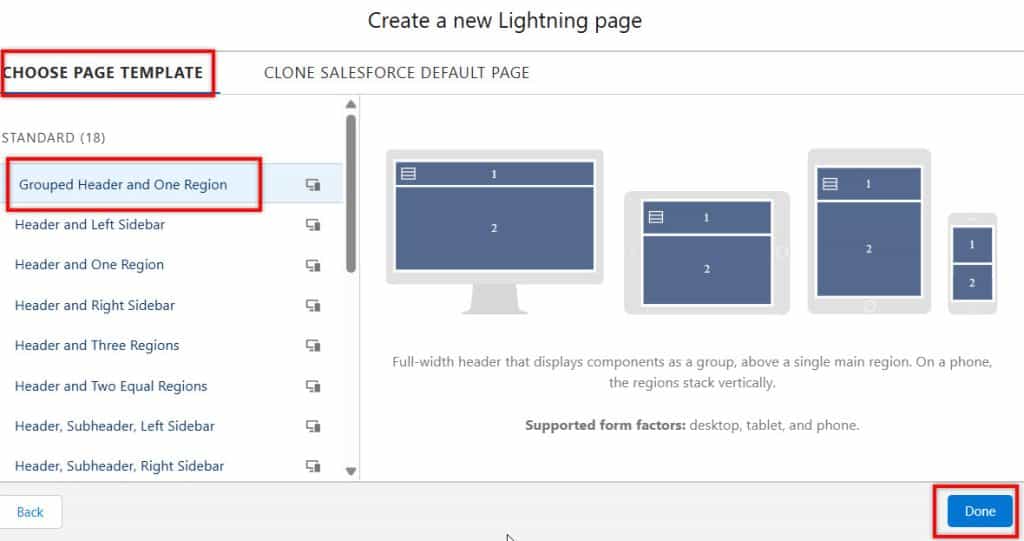
- Choose Layout
- Select a layout based on your requirements.
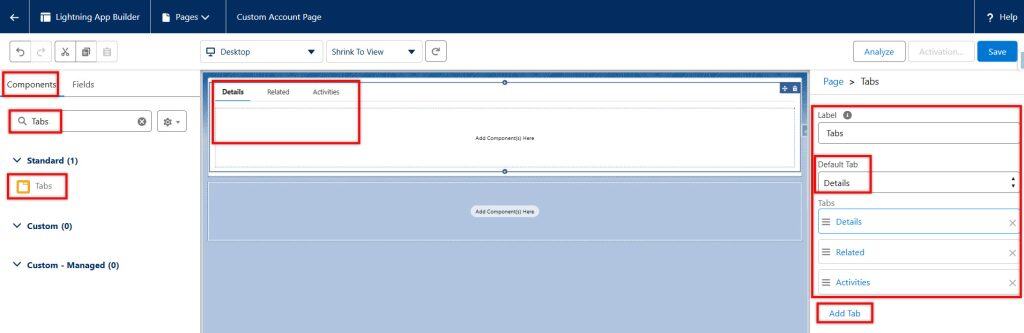
- Add Tabs Component
- From the left panel: Drag the Tabs component to the page.
- Configure Tabs – Click on the Tabs component → The right panel opens
- Add new tabs as per your requirements:
- Rename tabs (like Details, Activity)
- Set default tab (Details Tab Recommended)
- Add new tabs as per your requirements:
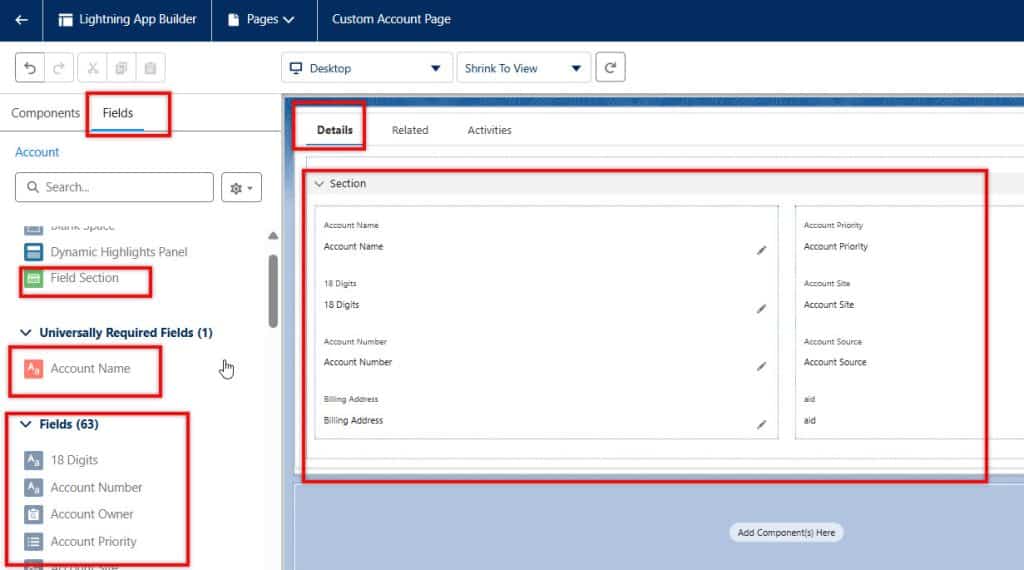
- Add Components Inside Tabs
- Add object’s fields
- Related lists
- Visualforce
- Custom components
- You can add components or fields as needed.
- Save and Activate
- Click Save, Click Activate
- Assign to:
- App
- Profile
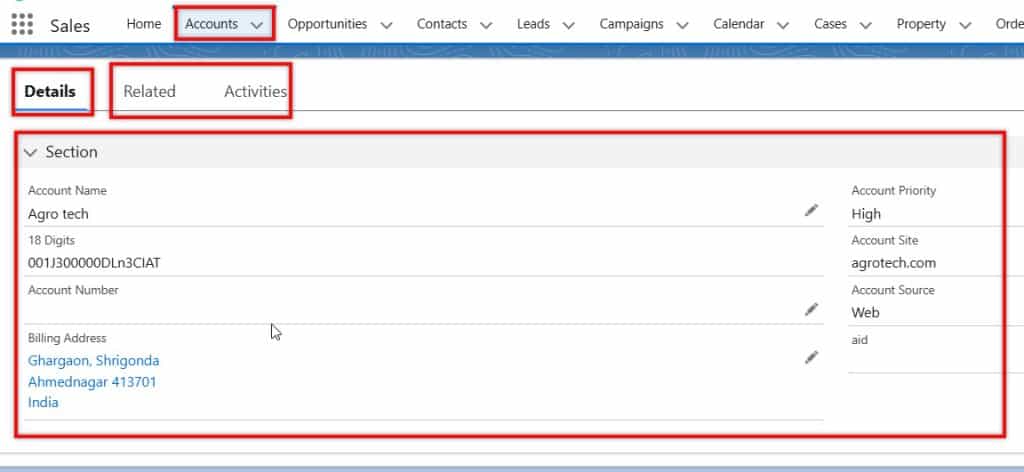
- Test the Page
- Go to the object record and verify:
- Tabs are visible
- Data is correctly displayed
- Go to the object record and verify:
Best Practices to Create Lightning Page tabs in Salesforce
- Use meaningful tab names
- Avoid generic names like Tab1, Tab2
- Limit the number of tabs
- Too many tabs = bad UX
- Recommended: 3–6 tabs
- Set the default tab wisely
- Keep the most important tab first
- Group-related data
- Don’t mix unrelated information
- Test for all profiles
- Different users may have different access
Frequently Asked Questions
Q1: Can we create custom tabs in Lightning pages?
Yes, using the Tabs component
Q2: How many tabs can we add?
No strict limit, but recommended 3–6
Q3: Can we control tab visibility?
Yes, using dynamic visibility
Q4: Do tabs work on mobile?
Yes, but the layout may change
Conclusion
Lightning Page Tabs are a powerful feature in Salesforce that help organize content and improve user experience. By using tabs properly, you can create clean, structured, and user-friendly pages.
I hope you have understood the Salesforce Lightning page tabs and how to create one in your Salesforce instance by now. By creating custom Lightning page tabs, you can efficiently manage the tabs in your Salesforce instance.
You may also like to read:
- Add Tabs on Lightning Record Pages in Salesforce
- Create Web Tabs in Salesforce
- Tabs Not Visible in Salesforce
- Create Custom Tabs in Salesforce
- Add Email to Activity Tab in Salesforce

I am Bijay Kumar, the founder of SalesforceFAQs.com. Having over 10 years of experience working in salesforce technologies for clients across the world (Canada, Australia, United States, United Kingdom, New Zealand, etc.). I am a certified salesforce administrator and expert with experience in developing salesforce applications and projects. My goal is to make it easy for people to learn and use salesforce technologies by providing simple and easy-to-understand solutions. Check out the complete profile on About us.