
When working with Salesforce objects, we often need to show how records are related within the same object.
In companies, every employee reports to a manager, who is also an employee of the same company.
This means we need to connect one Employee record to another Employee record. In Salesforce, both records are stored in the same Employee custom object.
To create this connection, we add a Lookup Relationship field on the Employee object and choose Employee again as the related object. This setup is called a Self Relationship because a record is linked to another record of the same object.
For example, Alex is a junior employee, and his manager is John. Both Alex and John are records in the Employee object.
In Alex’s record, we select John in the Manager lookup field. This creates a reporting structure, such as Employee > Manager, within a single object.
In this article, I will explain how to create self relationship in Salesforce.
Lookup Relationship in Salesforce
In Salesforce, a lookup relationship is loosely coupled. It establishes a relationship between two Salesforce objects, allowing us to access records of other objects in the relationship.
The lookup relationship is a one-to-many (parent-child) type of relationship, and the lookup field is always created on many sides (child).
In a lookup relationship, the child record does not depend on the parent record; it can exist without the parent.
What is a Self Relationship in Salesforce?
A Self Relationship is when a record in an object is related to another record in the same object. In simple words, the same object record > related to the same object record.
There is no special feature, no hidden setting to create self relationship in Salesforce. It creates using a normal lookup relationship field in Salesforce.
Usually, we create the lookup relationship between parent and child objects, which means two different objects are used in the lookup. But to make the lookup relationship a self-relationship, we use only one object.
Types of Relationships in Salesforce
The following are the five types of relationships in Salesforce:
- Lookup Relationship:
- Master-Detail Relationship:
- Self Relationship:
- External Lookup Relationship:
- Many-to-Many Relationship:
When Should We Use a Self Relationship in Salesforce?
For the following situations, we use self-relationship in Salesforce.
- You want a hierarchy inside a single object (for example, parent/child Accounts, main/child stores, main/child policies).
- You want to show links between records of the same type, such as similar positions, related products, or related policies.
- You want flexibility, and you are okay if the child record stays even when the parent record is deleted.
if both records are “the same kind of thing” and you just want to link them, a self relationship is usually a good choice.
How to Create Self Relationship in Salesforce
Let’s use the position example and create the self-relationship in Salesforce to show the employee manager on employee records.
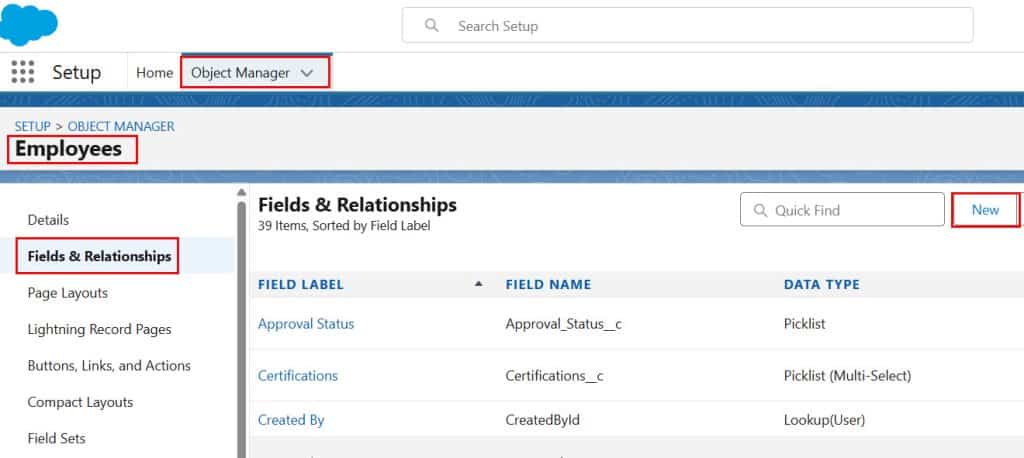
- Go to Setup and open Object Manager > Search for the object on which you want to create a Lookup Field. -> Click on it
- Select the object where you want the self relationship. Here, I selected the Employee object.
- Then click on Fields & Relationships, and to create a new field, click on the New button → New.
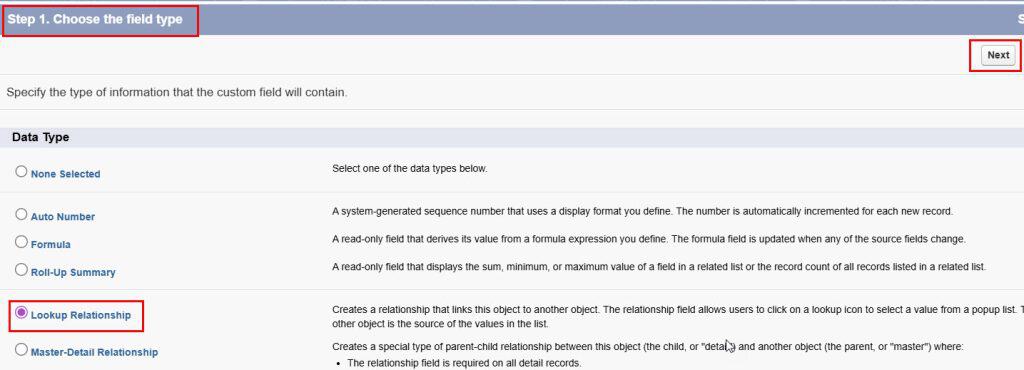
- Select Data Type as Lookup Relationship, then click Next.
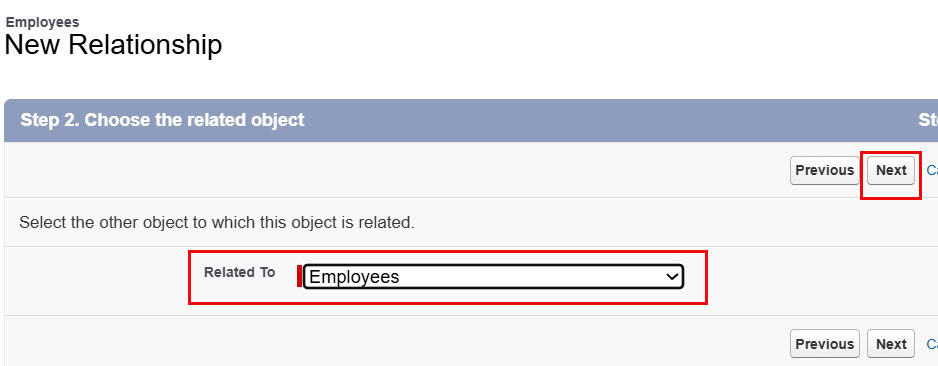
- For Related To, select the same object (Employees in this example).
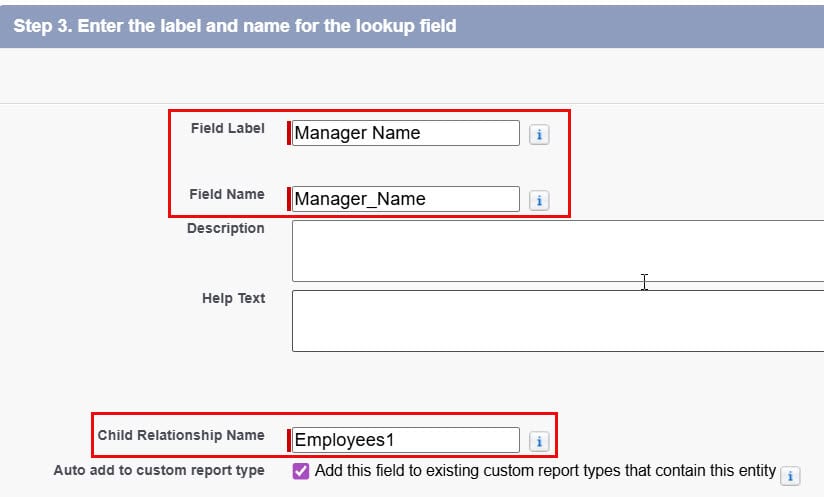
- Then provide the Label, which will appear on the Detail Page of the employee object. The Field Name is the API Name, which will automatically populate.
- Then enter the Child Relationship Name.
- Required: If you want to lookup a field that should not be empty, then you can make it required.
- Auto add to custom report type: If you don’t check this field, it will not be added to existing reports.
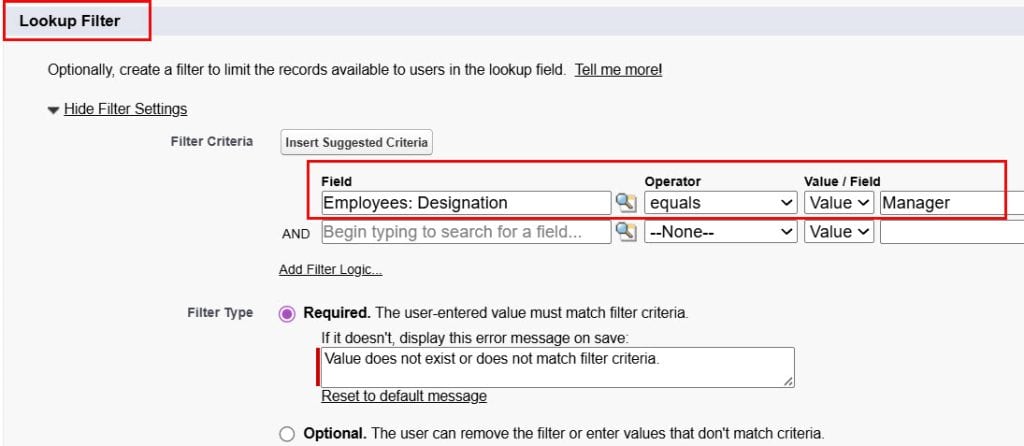
Lookup Filter in Salesforce
- Lookup Filter filters records based on the condition or formula you defined. You can also make the lookup field required.
- The Lookup Filter in Salesforce is used to filter records based on our needs. After applying the lookup filter, the lookup field will display only the records that meet our defined condition.
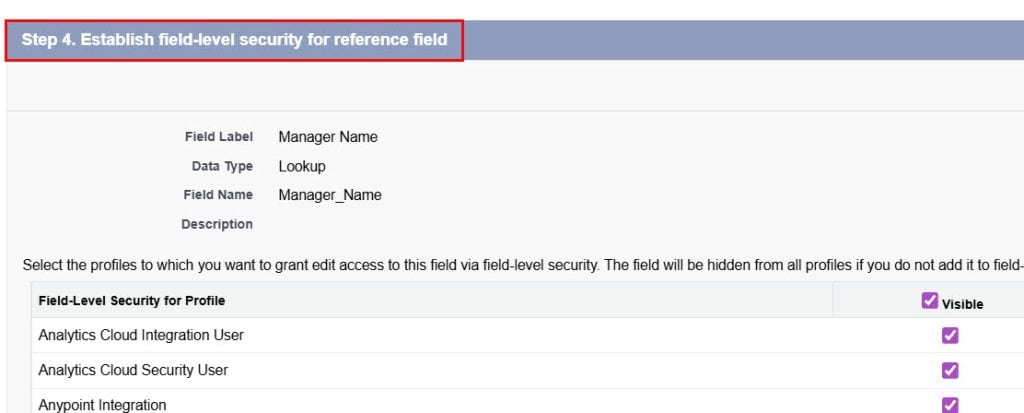
- In the Field Level Security, you can decide which profiles the lookup field will be visible to. Then click on the Next button.
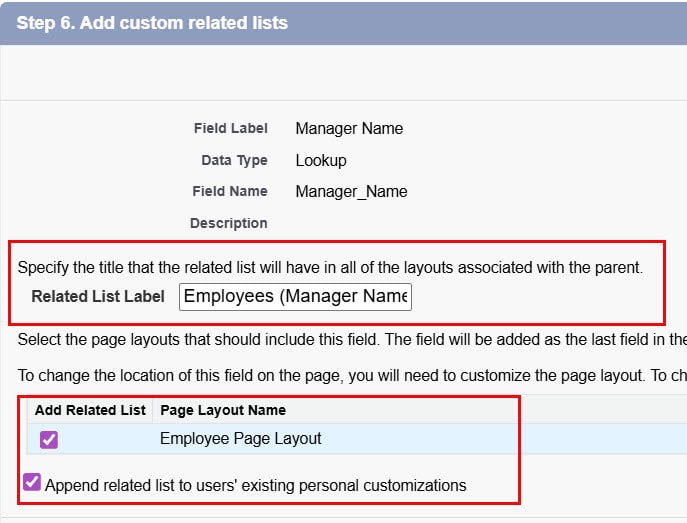
- Enter the Related List Label, which will display as a related list Parent Object(Bank Account). Then click on the Save button.
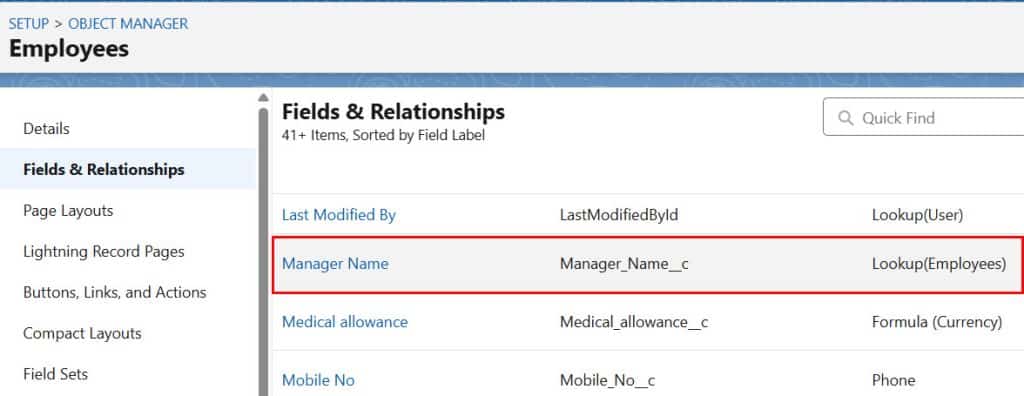
- Now, here you can see the Lookup Relationship, which is a self-relationship, has been successfully created.
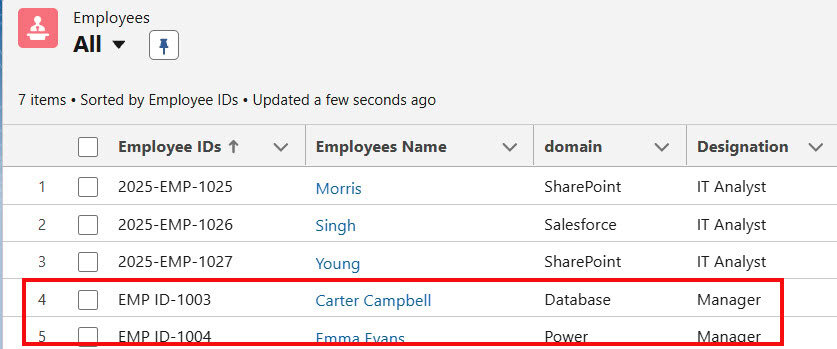
As I navigate to the employee object, you can see some employee records with IT analyst and Manager designations.
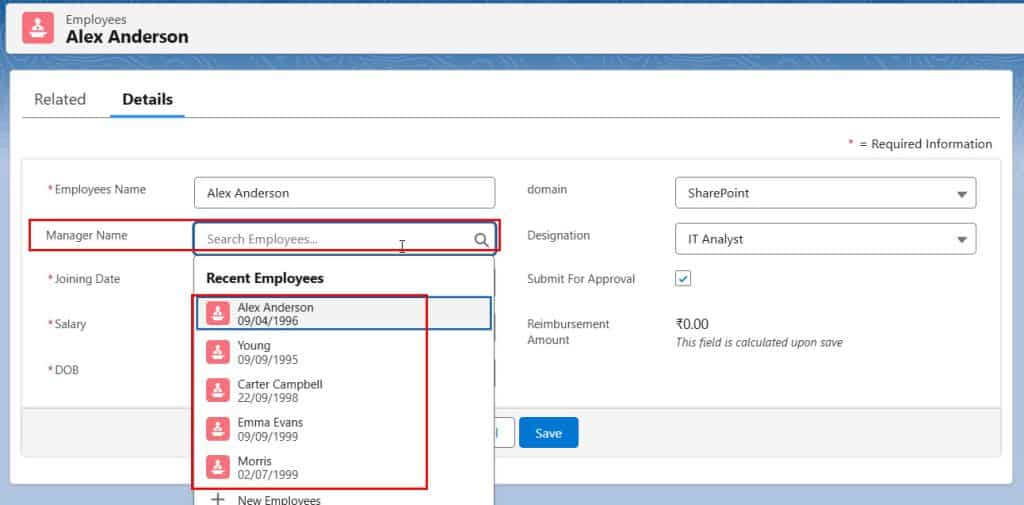
Now open any employee record who is an IT analyst so we can assign a manager to the employee. As you click the Manager Name lookup field, you will see employee records, and you can select a manager who is an employee from the same object.
Now you can see we have the employee record who is an IT Analyst, and we have assigned a manager to this employee, who is also in the employee object.
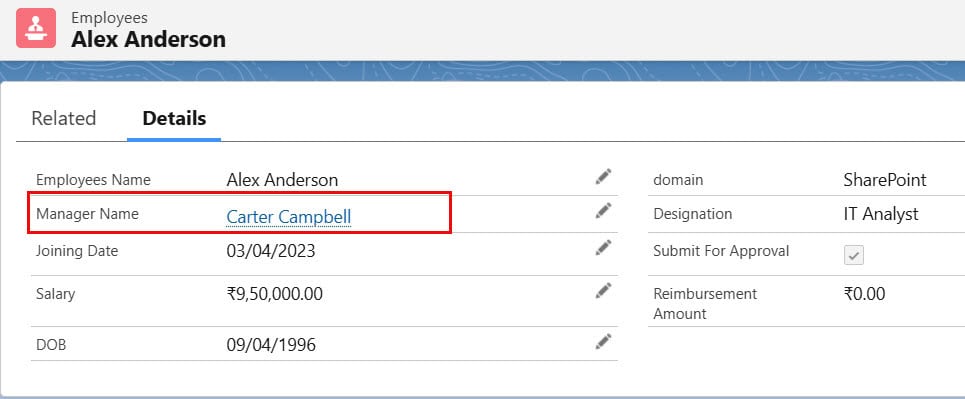
In this way, we can create the self-relationship in Salesforce using a lookup field to relate the same object record to itself.
Tips to Remember to Create Self-Relationships in Salesforce
A few practical tips to make this feature actually helpful for users:
- Use clear field labels: “Parent Account”, “Manager”, “Primary Policy”, “Similar Position” are easy to understand.
- Add the related list to the page layout so users can see the linked or child records at a glance.
- Use reports or hierarchy views (like the Account Hierarchy) to show the full structure.
- Add validation rules or automation if needed, for example, to prevent loops (A references B and B references A) or to copy a few fields from the parent.
Conclusion
I hope you now have an idea about the self relationship in Salesforce and how to create it. In that, we have seen the types of relationships in Salesforce: Lookup relationship and Lookup Filter.
We have also seen the difference between lookup and self relationship and how to create a self relationship in Salesforce with examples and explanations.
You may also like:
- Delete Master-Detail Relationship in Salesforce
- Roll-Up Summary Field in Salesforce
- Create Lookup Field in a Salesforce Flow
- Create Date Field Type in Salesforce

Shubham is a Certified Salesforce Developer with technical skills for Building applications using custom objects, approval processes, validation rules, Salesforce flows, and UI customization. He is proficient in writing Apex classes, triggers, controllers, Apex Batches, and bulk load APIs. I am also familiar with Visualforce Pages and Lightning Web Components. Read more about me.