
If you’ve worked in Salesforce Setup for a while, you’ve probably seen both Auto Number and Formula field types while creating a new field and wondered, “Which one should I use?”
At first glance, they may look similar. Both fields are system-generated, and users cannot manually enter values into them.
However, they work in completely different ways and are designed for different purposes. Choosing the wrong field type can create extra work later if you need to redesign your solution.
In this article, we’ll explore what Auto Number and Formula fields are, how they work, their key differences, and when you should use each one in Salesforce.
In simple words:
Use an Auto-Number field when you need Salesforce to automatically generate a unique sequential value for every new record, such as ACC-00001, ACC-00002, and so on.
Use a Formula field when you need Salesforce to calculate, combine, or display values based on information from other fields on the record.
That’s the main difference between the two. Once you understand this, choosing the right field type becomes much easier.
What Is an Auto-Number Field in Salesforce?
An Auto-Number field is a Salesforce field type that automatically generates a unique value whenever a new record is created.
Users and administrators do not need to enter any value manually because Salesforce creates it automatically based on the format you define.
For example, if you set the format as TICKET-{00000}, Salesforce will generate values such as:
- TICKET-00001
- TICKET-00002
- TICKET-00003
Each new record automatically receives the next available number in the sequence.
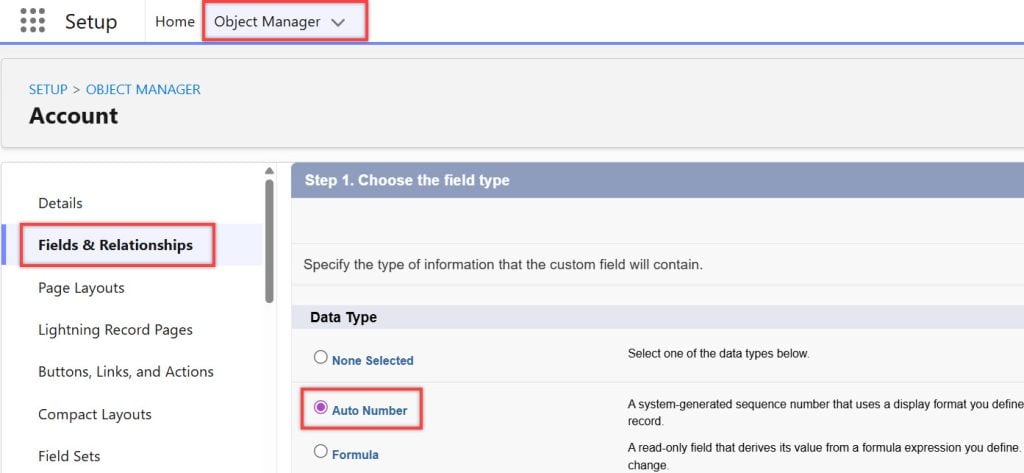
Key Characteristics of an Auto-Number Field
- Automatically generated by Salesforce when a record is created.
- Unique for each record, so duplicate values are not generated.
- Sequential, meaning numbers increase as new records are added.
- Read-only, so users cannot edit the value after it is generated.
- The value is assigned only once during record creation and does not change later.
- Supports custom prefixes, suffixes, and number formats to match business requirements.
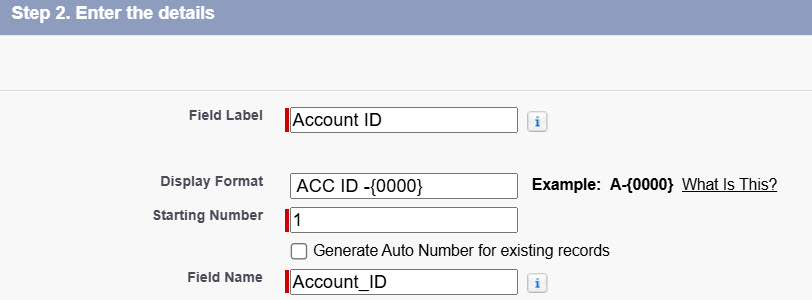
Common Examples
Organizations often use Auto-Number fields to generate record identifiers, such as:
- CASE-00482 for a Case record
- INV-000101 for an Invoice custom object
- SR-00033 for a Service Request custom object
Auto-Number fields are commonly used when you need a simple, unique record reference that is generated automatically and remains unchanged throughout the life of the record.
What Is a Formula Field in Salesforce?
A Formula field is a Salesforce field type that automatically calculates and displays a value based on a formula. Instead of storing user-entered data, it generates the result using values from other fields.
Whenever the data used in the formula changes, Salesforce automatically recalculates the result. This means the field always shows the latest value without any manual updates.
You can reference other fields, use Salesforce functions such as IF(), TEXT(), TODAY(), and DATEVALUE(), and create calculations that meet your business requirements.
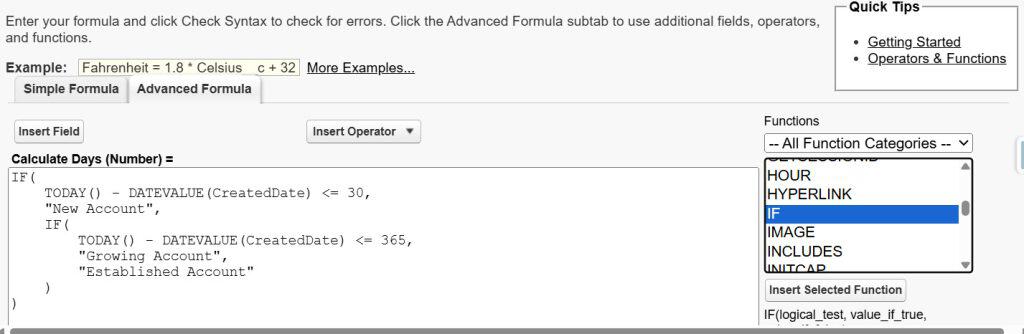
Key Characteristics of a Formula Field
- Calculates values automatically based on a formula.
- Read-only, so users cannot edit the result directly.
- Updates automatically whenever the referenced fields change.
- Can return different data types such as Text, Number, Currency, Date, Checkbox, and Percent.
- Does not require users or automation to keep the value updated.
- The value is generated by Salesforce when the record is viewed, queried, or used in reports.
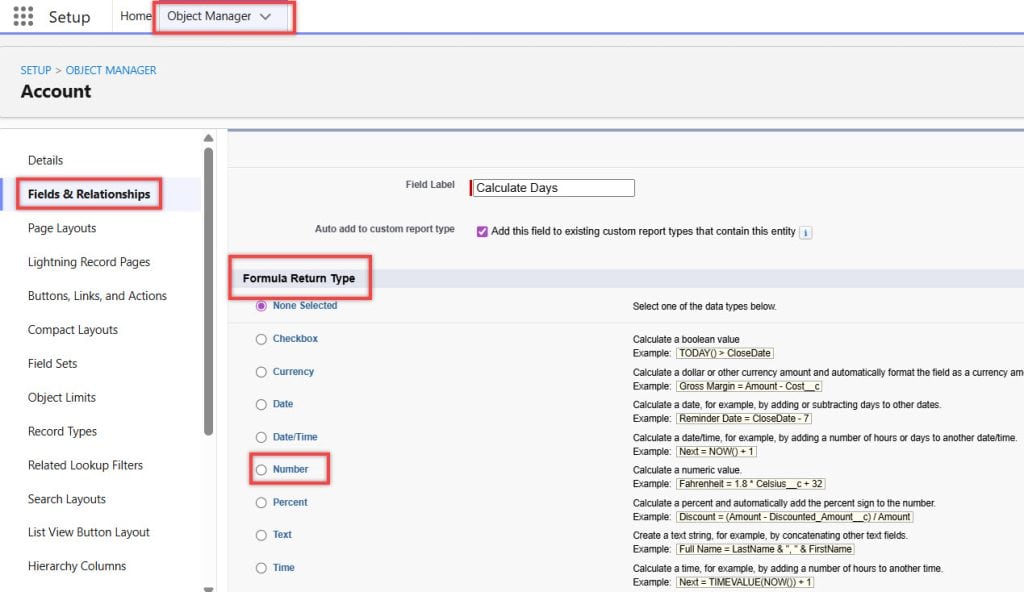
Common Examples
Here are some common Formula field use cases:
- A Full Name field that combines First Name and Last Name.
- A Day’s Open field that calculates how many days have passed since the record was created.
- A Discount Amount field that calculates the discount based on the Amount and Discount Percentage fields.
- A Status Label field that displays values such as “Won” or “In Progress” based on other field values.
Formula fields are ideal when you need a value to be calculated automatically and always stay up to date without storing or manually maintaining the data.
The Core Difference: Fixed vs Dynamic
This is the most important difference between Auto-Number and Formula fields.
An Auto-Number field gets its value only once when the record is created. After that, the value never changes, regardless of what happens to the record.
For example, if a Case receives the number CASE-00100, it will always remain CASE-00100.
A Formula field, on the other hand, is dynamic. Its value is calculated from other fields and automatically recalculated whenever those fields change.
For example, if a formula calculates the number of days since a record was created, the result will continue to change over time.
Auto-Number vs Formula Field
| Feature | Auto-Number Field | Formula Field |
|---|---|---|
| Value is generated when | Record is created | The record is viewed, queried, or recalculated |
| Does the value change over time? | No, it remains the same | Yes, it updates automatically |
| Depends on other fields? | No | Yes |
| Guarantees unique values? | Yes | No |
| Stores a value in the database? | Yes | No, Salesforce calculates it when needed |
| Supports business logic and calculations? | No | Yes |
| Can use Salesforce functions such as IF(), TODAY(), TEXT()? | No | Yes |
| Best use case | Creating unique record identifiers | Calculating or displaying dynamic values |
Simple Rule to Remember
If you need a value that should never change after record creation, use an Auto-Number field.
If you need a value that should automatically update based on other fields or calculations, use a Formula field.
When to Use an Auto-Number Field
Use an Auto-Number field when you need Salesforce to automatically generate a unique and permanent identifier for every record.
It is the best choice when:
- You need a ticket number, order number, invoice number, or request ID that users can easily reference in emails, conversations, and support cases.
- You are integrating Salesforce with an external system and need a user-friendly unique identifier instead of the Salesforce Record ID.
- You want a sequential numbering system that helps users quickly identify and track records.
- You need a value that should never change after the record is created.
- You are building applications such as Help Desk, Service Request, Order Management, or Asset Tracking systems, where each record requires a unique reference number.
Real-World Example
Suppose your IT team uses a custom object called Service Request to track employee issues.
Whenever a new request is created, Salesforce automatically generates a number such as:
- SR-00234
- SR-00235
- SR-00236
Employees can provide this number when contacting the IT team, and support agents can quickly locate the request using it.
Since the value must be unique, easy to read, and remain unchanged throughout the life of the record, an Auto-Number field is the perfect solution.
When to Use a Formula Field
Use a Formula field when you need Salesforce to automatically calculate, display, or derive a value from other fields on the record.
A Formula field is the right choice when:
- You need to perform calculations using values from other fields, such as total price, discount amount, or profit margin.
- You want to display different text or labels based on conditions, such as showing “Overdue” when a due date has passed or “High Value” when an amount exceeds a certain limit.
- You need to combine multiple fields into a single value, such as displaying the Account Name and Opportunity Name together.
- You want to convert or format data from another field, such as converting a number into text or adding a prefix to a value.
- You need to display information from a related record without creating and maintaining an additional field.
Real-World Examples
1. Days Since Last Activity
A Formula field can calculate the number of days since the last activity was completed.
Example:
TODAY() - DATEVALUE(LastActivityDate)This value updates automatically every day, helping users identify records that have not been touched recently.
2. Contract Value with Tax
A Formula field can calculate the final contract value, including tax.
Example:
Contract_Value__c * 1.18Whenever the contract value changes, the calculated amount is updated automatically.
3. Priority Label
A Formula field can assign a priority label based on SLA hours.
Example:
IF(SLA_Hours__c <= 4, "Critical", IF(SLA_Hours__c <= 24, "High", "Normal"))Instead of manually updating the priority, Salesforce calculates and displays the correct label based on the current SLA value.
Simple Rule
Choose a Formula field whenever the value should be calculated automatically and stay up to date as the underlying data changes.
Where People Get Confused
When choosing between Auto-Number and Formula fields, there are a few common questions that often cause confusion. Let’s clear them up.
1. Can a Formula Field Generate Sequential Numbers?
No, a Formula field cannot reliably generate sequential numbers.
Formula fields are designed to calculate values based on existing data. They do not maintain a counter or keep track of previously created records. Every time a formula is evaluated, Salesforce calculates the result from scratch using the current record data.
Because of this, a Formula field cannot determine which number was assigned to the previous record or generate the next number in a sequence.
If you need values such as:
- TICKET-00001
- TICKET-00002
- TICKET-00003
Then an Auto-Number field is the correct and only native Salesforce solution.
2. Can an Auto-Number Field Display Conditional Values?
No.
An Auto-Number field can only generate numbers based on the format you define. It cannot perform calculations, evaluate conditions, or display different values based on business logic.
For example, an Auto-Number field cannot display:
- “Critical” when Priority is High
- “Overdue” when the Due Date has passed
- “Approved” when a record meets certain conditions
For these types of requirements, you should use a Formula field.
3. A Common and Useful Approach
In many Salesforce implementations, Auto-Number and Formula fields are used together.
For example: Auto-Number Field
TICKET-00234This value is unique, permanent, and never changes.
Formula Field
Auto_Number__c & " | " & Status__cResult: TICKET-00234 | Open
In this setup:
- The Auto-Number field provides the unique record identifier.
- The Formula field creates a more user-friendly display value.
- The status updates automatically whenever the record changes.
This approach combines the strengths of both field types.
4. Can Auto-Number and Formula Fields Work Together?
Yes, and this is a very common design pattern in Salesforce. Imagine you are building a customer support application.
Every request needs:
- A unique reference number that never changes.
- A status that updates as the request moves through different stages.
Example
Auto-Number Field– Account_No__c
Generated value: ACC No - 0001Formula Field
Account_No__c & " - Created " & TEXT(YEAR(DATEVALUE(CreatedDate)))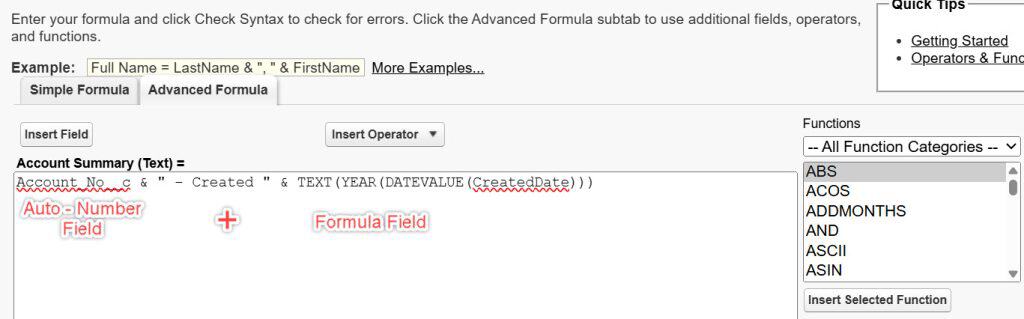
Result value: ACC No -0001 - Created 2026
Another Practical Example
You can also use a Formula field to add additional context to an Auto-Number value.
Auto-Number Field
TICKET-00234Formula Field
TEXT(YEAR(TODAY())) & "-" & Auto_Number__cDisplayed value:
2026-TICKET-00234This allows you to create more meaningful labels without changing the original Auto-Number value.
Key Takeaway
Think of an Auto-Number field as a permanent record identifier and a Formula field as a dynamic field that can calculate, format, or display information.
Many Salesforce solutions use both together because they solve different problems and complement each other perfectly.
Feature Comparison at a Glance
The following table summarizes the key differences between Auto-Number and Formula fields in Salesforce.
| Feature | Auto-Number Field | Formula Field |
|---|---|---|
| Generates unique values | ✅ Yes | ❌ No |
| Provides sequential numbering | ✅ Yes | ❌ No |
| References other fields | ❌ No | ✅ Yes |
| Supports calculations and formulas | ❌ No | ✅ Yes |
| Supports conditional logic (IF, CASE, etc.) | ❌ No | ✅ Yes |
| Value changes automatically over time | ❌ No, remains fixed after creation | ✅ Yes |
| Ideal for record identifiers | ✅ Yes | ❌ No |
| Ideal for calculations and derived values | ❌ No | ✅ Yes |
| Counts toward formula field limits | ❌ No | ✅ Yes |
| Can be marked as an External ID | ✅ Yes | ❌ No |
| Can be used in Flow conditions and decision logic | ✅ Yes | ✅ Yes |
| Can be updated through Data Loader or API | ❌ No (read-only) | ❌ No (calculated field) |
| Value is stored in the database | ✅ Yes | ❌ No |
| Can use Salesforce functions such as IF(), CASE(), TEXT(), TODAY() | ❌ No | ✅ Yes |
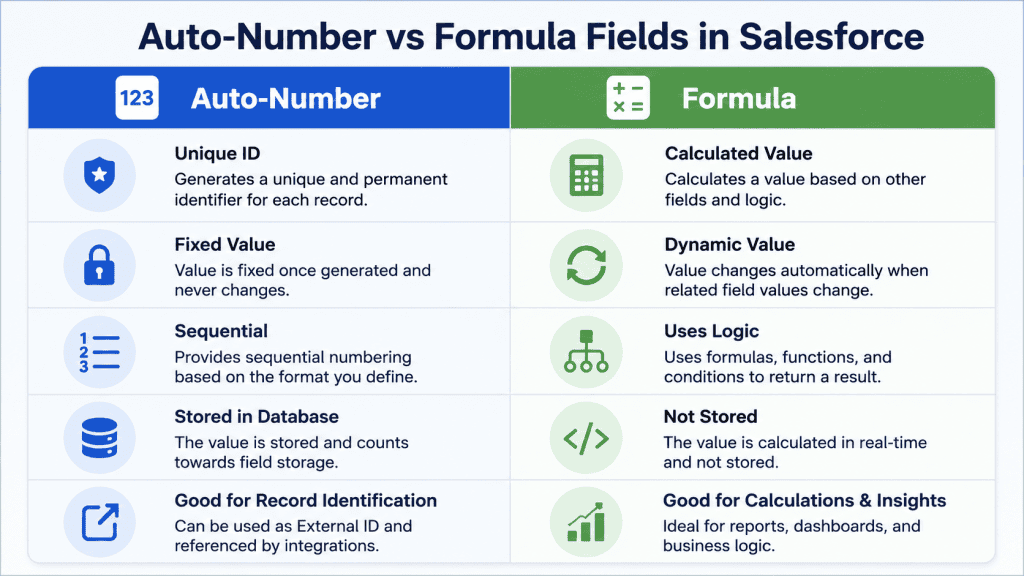
Quick Summary
Choose an Auto-Number field when you need a unique, permanent, and sequential identifier for each record.
Choose a Formula field when you need Salesforce to calculate, format, or display values automatically based on other fields and business logic.
A Quick Decision Guide
If you’re unsure whether to use an Auto-Number or Formula field, ask yourself the following questions:
- Does every record need a unique and permanent identifier?
→ Use an Auto-Number field
- Does the value need to be calculated from other fields?
→ Use a Formula field
- Should the value update automatically when related field values change?
→ Use a Formula field
- Will an external system use this field as a record reference or identifier?
→ Use an Auto-Number field
- Do you need business logic such as “If this happens, show this value”?
→ Use a Formula field
- Do you simply need a sequential number for each new record?
→ Use an Auto-Number field
Simple Rule
- Auto-Number = Unique Identifier
- Formula = Dynamic Calculation
If the value should remain fixed forever, choose Auto-Number. If the value should automatically change based on data, choose Formula.
Limitations to Know
Like every Salesforce feature, both field types have some limitations that you should be aware of before using them.
Auto-Number Field Limitations
- The numeric portion can contain up to 10 digits, allowing values up to 9,999,999,999.
- The complete Auto-Number value, including prefixes and suffixes, cannot exceed 30 characters.
- Auto-Number values are read-only and cannot be edited by users.
- Salesforce automatically generates the value during record creation, and it cannot be manually overridden.
- The numbering sequence does not automatically restart each year or month, nor is it based on business conditions.
- Auto-Number fields do not support calculations, formulas, or conditional logic.
Formula Field Limitations
- Formula fields are subject to Salesforce formula limits, including formula size and compile size limits.
- Cross-object formulas can reference related records, but Salesforce limits the number of relationship traversals (hops) they can use.
- Formula fields using functions such as TODAY(), NOW(), or other dynamic values may not always be ideal for filtering and performance-sensitive queries.
- Complex formulas with many references and functions can impact page load times and overall performance.
- Formula fields cannot be edited directly because Salesforce calculates their values automatically.
- Formula fields do not guarantee unique values and should not be used as record identifiers.
Frequently Asked Questions
Is an auto-number field the same as a Formula field that returns a number?
No. An auto-number field generates a unique, sequential number stored permanently on the record at creation time. A Formula field that returns a number calculates its value dynamically every time and has no guaranteed uniqueness or sequence.
Can a Formula field reference an Auto-Number field?
Yes. Auto-number fields are treated as Text in formulas. You can reference them using TEXT(Auto_Number_Field__c) if the field isn’t already a text-based auto-number. This is useful when you want to build a composite display value.
Do Formula fields count toward the org’s storage limits?
No. Because formula field values are computed on the fly and not stored in the database, they don’t consume record storage. Auto-number fields do store a value and count toward storage.
Can I convert an Auto-Number field to a Formula field?
Not directly. You cannot change a field from Auto-Number to Formula type in a single step. You’d need to create a new Formula field separately. However, you can convert an Auto-Number field to a Text field (which lets you edit values), but converting it directly to a Formula isn’t supported.
Which field type is better for Flows and automation?
Both work fine in Flows for reading values. Neither can be written to directly by a Flow, since both are read-only. If you need a field that a Flow can update, use a regular Text or Number field instead.
Wrapping Up
Choosing between Auto-Number and Formula fields becomes simple once you understand their main purpose.
An Auto-Number field generates a unique, permanent identifier for each record. Once the value is assigned, it never changes.
A Formula field is used to calculate, combine, or display information based on other fields. Its value updates automatically whenever the underlying data changes.
The key is to think about what the field is supposed to do.
If you’re building a ticketing system, service request application, order management solution, or any process that requires users to have a unique reference number, an Auto-Number field is the right choice.
You may like to read:
- Salesforce Picklist Default Value Formula
- Salesforce Checkbox Formula
- Salesforce Weekday Formula
- Salesforce Remove Comma From Number Field

I am Bijay Kumar, the founder of SalesforceFAQs.com. Having over 10 years of experience working in salesforce technologies for clients across the world (Canada, Australia, United States, United Kingdom, New Zealand, etc.). I am a certified salesforce administrator and expert with experience in developing salesforce applications and projects. My goal is to make it easy for people to learn and use salesforce technologies by providing simple and easy-to-understand solutions. Check out the complete profile on About us.