
Imagine you run a B2B sales team that sells subscription software to 500+ customers. Each region has its own discount rule, billing cycle, and follow-up schedule.
You keep them today in a spreadsheet or hard-coded in Apex, and every time a business rule changes, you ask a developer to deploy new code. It’s slow, risky, and hard to manage at scale.
Custom Metadata Types in Salesforce let you store configuration data inside the platform, similar to records, but deployable like metadata.
You can define your own “settings” objects, add fields such as Region, Discount_Percent__c, and Billing_Frequency__c, and then read those values directly in Apex, Flow, Validation Rules, and Formula Fields.
This means admins can change business rules without touching code, and you can keep logic clean and configurable. In this article, I’ll show you 4 ways to use custom metadata in Salesforce Apex.
Method 1 – Query Custom Metadata with SOQL in Apex
Use this method when you want the simplest way to read custom metadata records inside Apex and apply them to your logic.
It fits best when your rules are read-only, and you just need to fetch values and use them in triggers, classes, or batch jobs.
Step 1: Create a Custom Metadata Type
- Go to Setup → Custom Metadata Types in Lightning Experience.
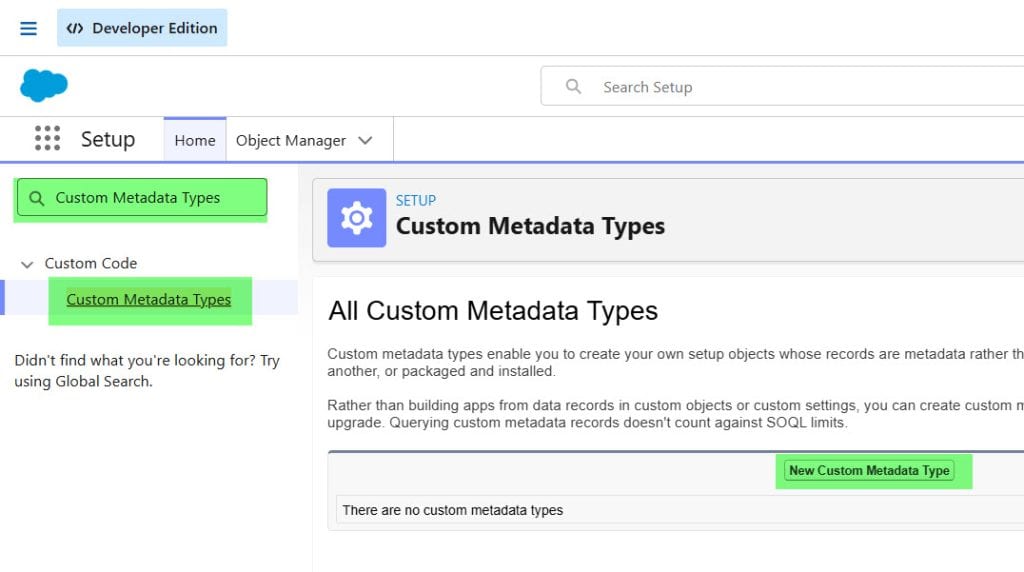
- Click New Custom Metadata Type.
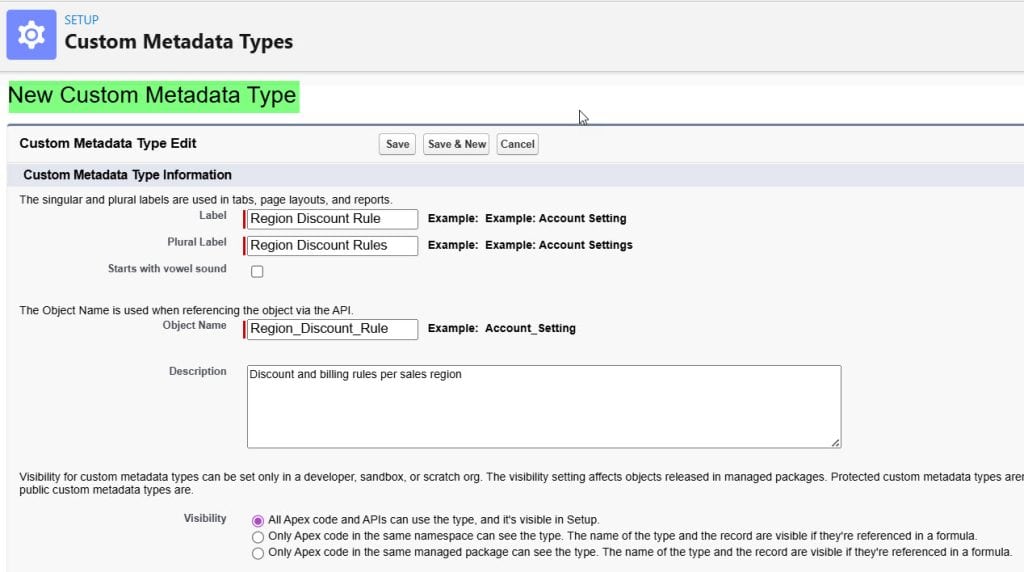
- Enter:
- Label: Region Discount Rule
- Object Name: Region_Discount_Rule
- Description: “Discount and billing rules per sales region”
- Set Visibility to Public so Apex and formulas can read it easily.
- Click Save.
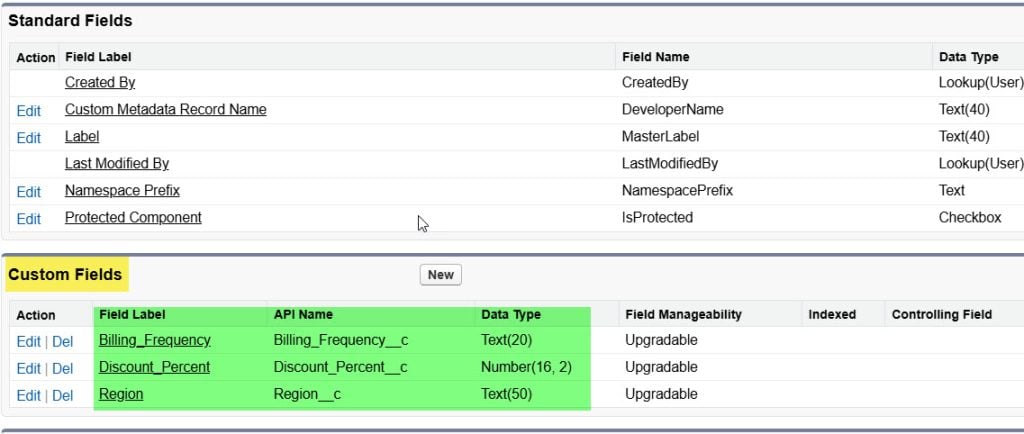
- On the new type detail page, under Custom Fields, click New and create fields:
- Field Type: Text, Field Label: Region, Length: 50
- Field Type: Number, Field Label: Discount_Percent, 2 decimal places
- Field Type: Text, Field Label: Billing_Frequency, Length: 20
Step 2: Add Custom Metadata Records
- Stay on the same type and click Manage Region Discount Rules.
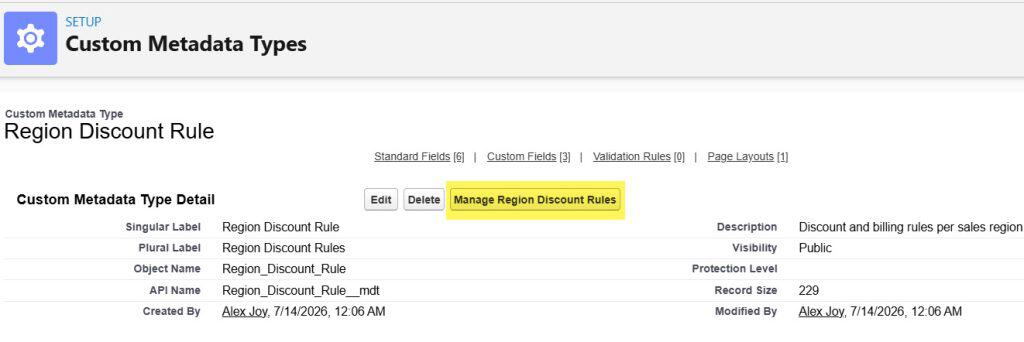
- Click New.
- For Label, enter “EMEA Discount Rule“; for Region_Discount_Rule__mdt Name, use “EMEA“.
- Set:
- Region__c: EMEA
- Discount_Percent__c: 10
- Billing_Frequency__c: Monthly
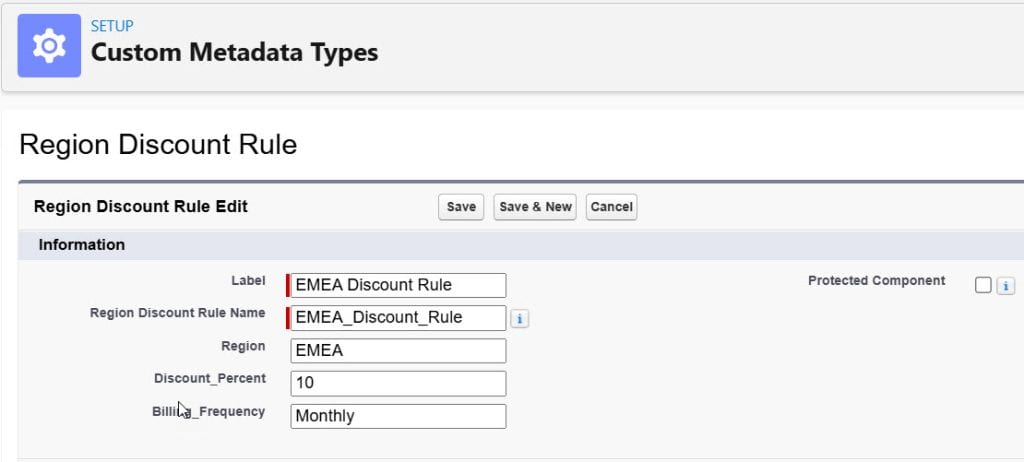
- Click Save.
- Create another record for APAC with:
- Region__c: APAC
- Discount_Percent__c: 15
- Billing_Frequency__c: Quarterly
Step 3: Query Custom Metadata in Apex
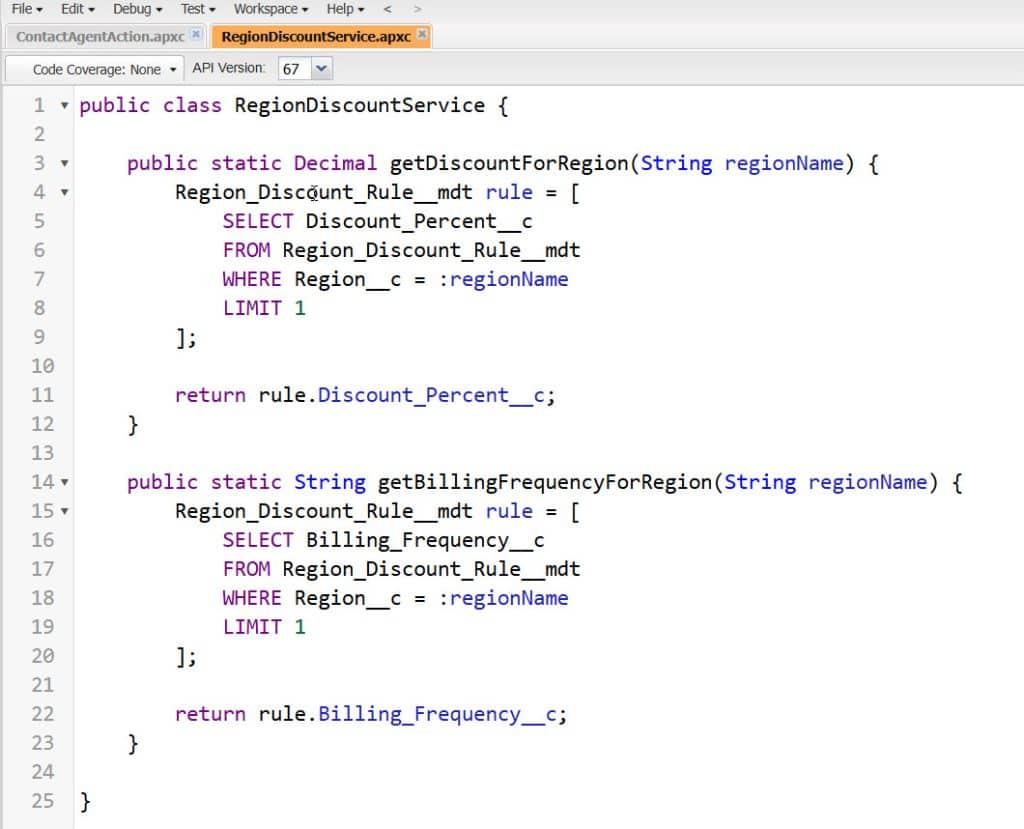
Now let’s read these records in a simple Apex class used by our sales team scenario.
public with sharing class RegionDiscountService {

    public static Decimal getDiscountForRegion(String regionName) {
        Region_Discount_Rule__mdt rule = [
            SELECT Discount_Percent__c
            FROM Region_Discount_Rule__mdt
            WHERE Region__c = :regionName
            LIMIT 1
        ];

        return rule.Discount_Percent__c;
    }

    public static String getBillingFrequencyForRegion(String regionName) {
        Region_Discount_Rule__mdt rule = [
            SELECT Billing_Frequency__c
            FROM Region_Discount_Rule__mdt
            WHERE Region__c = :regionName
            LIMIT 1
        ];

        return rule.Billing_Frequency__c;
    }
}
Sample output
If you call:
Decimal emeaDiscount = RegionDiscountService.getDiscountForRegion('EMEA');
String emeaBilling = RegionDiscountService.getBillingFrequencyForRegion('EMEA');
System.debug('EMEA Discount: ' + emeaDiscount);          // 10
System.debug('EMEA Billing: ' + emeaBilling);            // Monthly
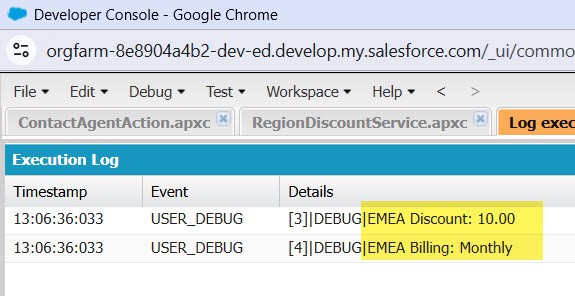
You’ll see:
- EMEA Discount: 10
- EMEA Billing: Monthly
How does this work?
The SOQL query reads from the Region_Discount_Rule__mdt object, which represents your custom metadata type. It filters records by Region__c so you get the rule for one region. The class then returns the specific field values so other Apex code can apply the right discount or billing rule.Pro Tip: Use selective filters like Region__c and LIMIT 1 to keep queries efficient. Avoid querying many custom metadata records inside loops to stay within SOQL governor limits.
Method 2 – Use Custom Metadata in Triggers and Services
Use this method when your discount or billing logic needs to run automatically whenever users create or update records, such as Opportunities.
This is perfect when you want your pricing rules to apply in real time, without users having to think about regions or discounts.
Step 1: Add a Region Field to Opportunity
- Go to Setup → Object Manager → Opportunity → Fields & Relationships.
- Click New.
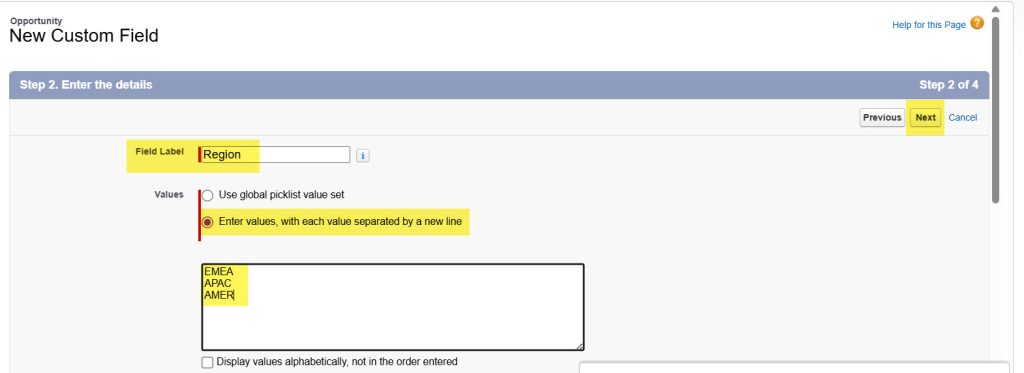
- Choose Picklist and click Next.
- Set:
- Field Label: Region
- Field Name: Region
- Picklist values: EMEA, APAC, AMER
- Click Next, add to layouts as needed, then Save.
Step 2: Create an Apex Helper Class
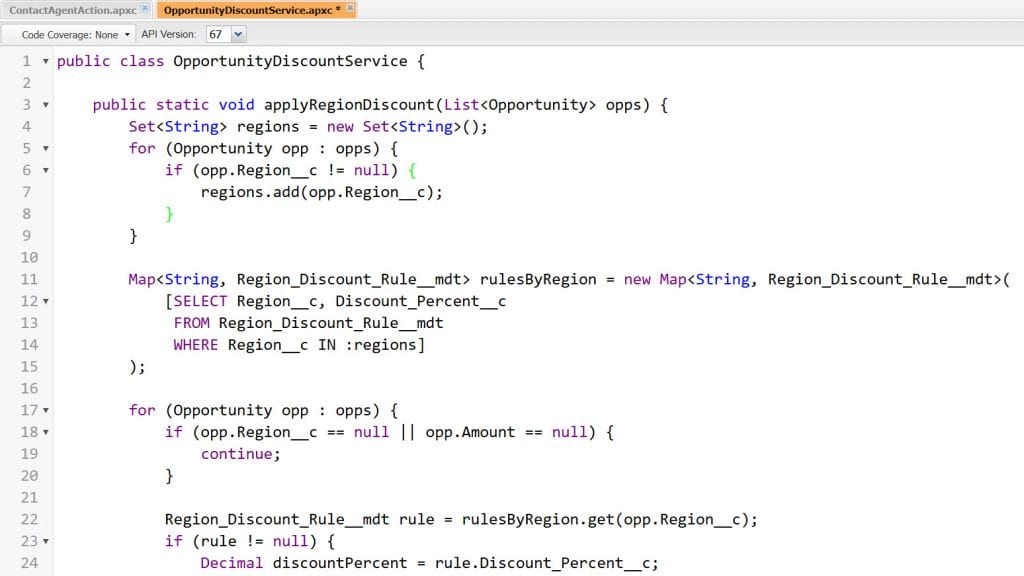
We’ll reuse our custom metadata logic and calculate discount amounts for an Opportunity.
public with sharing class OpportunityDiscountService {

    public static void applyRegionDiscount(List<Opportunity> opps) {
        Set<String> regions = new Set<String>();
        for (Opportunity opp : opps) {
            if (opp.Region__c != null) {
                regions.add(opp.Region__c);
            }
        }

        Map<String, Region_Discount_Rule__mdt> rulesByRegion = new Map<String, Region_Discount_Rule__mdt>(
            [SELECT Region__c, Discount_Percent__c
             FROM Region_Discount_Rule__mdt
             WHERE Region__c IN :regions]
        );

        for (Opportunity opp : opps) {
            if (opp.Region__c == null || opp.Amount == null) {
                continue;
            }

            Region_Discount_Rule__mdt rule = rulesByRegion.get(opp.Region__c);
            if (rule != null) {
                Decimal discountPercent = rule.Discount_Percent__c;
                Decimal discountAmount = (opp.Amount * discountPercent) / 100;
                opp.Discount__c = discountAmount;
            }
        }
    }
}
Sample result
If an Opportunity for EMEA with Amount = 100,000 has Region =EMEA, this service sets Discount__c to 10,000.How does this work?
The helper collects all regions from the incoming Opportunity records and queries for matching Region_Discount_Rule__mdt records in a single bulk SOQL call. Then it loops through each opportunity, finds the corresponding rule, and calculates the discount amount using the Discount_Percent__c field. This keeps your trigger bulk-safe and avoids extra queries.
Step 3: Use Custom Metadata in a Trigger
Now we plug the service into an Opportunity trigger.
trigger OpportunityDiscountTrigger on Opportunity (before insert, before update) {
    if (Trigger.isBefore && (Trigger.isInsert || Trigger.isUpdate)) {
        OpportunityDiscountService.applyRegionDiscount(Trigger.new);
    }
}
Sample output
When a user creates an Opportunity with:
- Region = APAC
- Amount = 50,000
and your APAC rule has Discount_Percent__c = 15, the trigger automatically sets Discount__c to 7,500.
How does this work?
The trigger runs before insert and before update, so it can modify Opportunity fields before they are saved. It calls the helper class, which calculates discounts based on your custom metadata rules. Users just pick the Region; the system automatically applies the correct discount.Pro Tip: Always keep heavy logic in Apex classes, not in triggers. Triggers should be thin and call services. This makes testing easier and reduces risk when you change logic.
Method 3 – Use Custom Metadata with Custom Metadata Type Methods in Apex
Use this method when you want cleaner, type-safe access to custom metadata records using built-in Custom Metadata Type Methods instead of raw SOQL.
It fits best when you read custom metadata frequently and want clearer, more maintainable code.
Step 1: Understand the Custom Metadata Type Methods
Salesforce provides static methods on the Custom Metadata Type API that let you fetch metadata by record ID or developer name.
For your Region_Discount_Rule__mdt type, you can use these methods instead of manual SOQL.
Step 2: Fetch Custom Metadata with Built-in Methods
Here’s how you use the methods in a utility class.
public with sharing class RegionMetadataUtil {

    public static Region_Discount_Rule__mdt getRuleByDeveloperName(String developerName) {
        return Region_Discount_Rule__mdt.getInstance(developerName);
    }

    public static Decimal getDiscountByDeveloperName(String developerName) {
        Region_Discount_Rule__mdt rule = Region_Discount_Rule__mdt.getInstance(developerName);
        if (rule == null) {
            return 0;
        }
        return rule.Discount_Percent__c;
    }
}
Sample output
If you call:
Decimal emeaDiscount = RegionMetadataUtil.getDiscountByDeveloperName('EMEA');
System.debug('EMEA Discount: ' + emeaDiscount);   // 10
You get the Discount_Percent__c stored in the EMEA metadata record.
How does this work?
The getInstance method looks up a custom metadata record using its Developer Name, which you set when you created the record. This avoids writing SOQL and makes code easier to read. If the record doesn’t exist, the method returns null, so you can handle missing configuration gracefully.Pro Tip: Use consistent, meaningful Developer Names for custom metadata records, such as region codes or configuration keys. This makes getInstance calls safe and predictable.
Method 4 – Manage Custom Metadata with Apex Deployments (Advanced)
Use this method when you need to create or update custom metadata records programmatically, such as seeding configuration from a setup wizard, syncing with another system, or maintaining rules across sandboxes. This is advanced and should be used carefully, usually by developers.
Step 1: Enable Metadata API for Your Org
- Make sure you have the Modify All Data permission and appropriate API access.
- Use an Apex class that leverages the Metadata API to deploy custom metadata. This is typically done in Enterprise and higher editions.
Step 2: Create an Apex Class to Insert Custom Metadata
We’ll create an Apex class that deploys a new Region_Discount_Rule__mdt record using Metadata.Operations.enqueueDeployment.
public with sharing class RegionMetadataDeployer {

    public static void createRegionRule(String developerName, String regionName,
                                        Decimal discountPercent, String billingFrequency) {

        Metadata.CustomMetadata customMD = new Metadata.CustomMetadata();
        customMD.fullName = 'Region_Discount_Rule__mdt.' + developerName;

        Metadata.CustomMetadataValue regionField = new Metadata.CustomMetadataValue();
        regionField.field = 'Region__c';
        regionField.value = regionName;

        Metadata.CustomMetadataValue discountField = new Metadata.CustomMetadataValue();
        discountField.field = 'Discount_Percent__c';
        discountField.value = discountPercent;

        Metadata.CustomMetadataValue billingField = new Metadata.CustomMetadataValue();
        billingField.field = 'Billing_Frequency__c';
        billingField.value = billingFrequency;

        customMD.values.add(regionField);
        customMD.values.add(discountField);
        customMD.values.add(billingField);

        Metadata.DeployContainer container = new Metadata.DeployContainer();
        container.addMetadata(customMD);

        Id asyncDeployId = Metadata.Operations.enqueueDeployment(container, null);
        System.debug('Deployment queued with Id: ' + asyncDeployId);
    }
}
Sample output
If you execute:
RegionMetadataDeployer.createRegionRule('LATAM', 'LATAM', 8, 'Monthly');Salesforce queues a metadata deployment. After it completes, a new Region_Discount_Rule__mdt record exists with:
- Developer Name: LATAM
- Region__c: LATAM
- Discount_Percent__c: 8
- Billing_Frequency__c: Monthly
How does this work?
The class uses Metadata.CustomMetadata and Metadata.CustomMetadataValue to describe a new custom metadata record. It adds the record to a Metadata.DeployContainer, then calls Metadata.Operations.enqueueDeployment. This queues an asynchronous metadata deployment, which creates the record. You typically implement a Metadata.DeployCallback class to track completion if you need downstream actions.Pro Tip: Use this approach mainly for admin tools or setup utilities. Don’t call metadata deployments inside high-volume triggers or batch jobs—metadata deployments have longer execution times and aren’t meant for transactional logic.
Things to Keep in Mind
- Public visibility and data sensitivity – Custom metadata records are readable by all profiles, including guest users, when marked Public, so never store secrets, API keys, or personal data in them.
- Governor limits for Apex – Custom metadata queries still count against SOQL limits; always bulkify queries and avoid one-record-per-query patterns inside loops.
- Edition and API availability – Advanced metadata deployment via Apex needs Metadata API access and is best in Enterprise or higher editions; Essentials and some Professional setups may be limited.
- Sandbox vs. production behavior – Custom metadata is metadata, so changes can be deployed via change sets or packages; always test new rules in the sandbox first and plan deployments as with any other metadata change.
- Profile vs. permission sets – Reading custom metadata in Apex doesn’t require special object permissions, but related fields on Opportunity, Account, or other objects still follow profile and permission set access rules.
- API version differences – Some Custom Metadata Type Methods and Metadata API behaviors depend on the API version of your Apex class; always set a modern version and review release notes before using new features.
Frequently Asked Questions
Custom metadata is deployable, packageable, and upgradeable like other metadata, and it can be used directly in formula fields, validation rules, and flows.
Custom settings are more like organization- or user-level data and aren’t as easy to move between environments. For configuration you want to deploy with your app, custom metadata is usually the better choice.
No. Direct DML on custom metadata isn’t allowed. You must use the Metadata API and Metadata.Operations.enqueueDeployment to create or update records via Apex, which is asynchronous.
Yes. Admins can create and edit custom metadata records directly from Setup → Custom Metadata Types → [Manage Records]. Developers usually define the type and fields; admins maintain the actual rules.
Yes. Custom metadata is available to formula fields, validation rules, and flows using specific functions and references. This lets you centralize configuration and reuse it across code and declarative tools.
Use clear Developer Names that match business keys, such as EMEA, APAC, or STANDARD_DISCOUNT_RULE. This naming makes getInstance and metadata deployments easier to understand and maintain.
Conclusion
You learned four practical ways to use custom metadata in Apex: basic SOQL queries, trigger-based logic, built-in custom metadata methods, and advanced Apex-based deployments.
Use simple SOQL for most read scenarios, trigger plus service classes for record automation, type methods for cleaner lookups, and Apex deployments only for controlled configuration management. I hope you found this article helpful.
You may like to read:
- Difference Between Salesforce Custom Settings and Custom Metadata
- What is Metadata in Salesforce
- Assign Data Library to Agentforce Agents in Salesforce

Shubham is a Certified Salesforce Developer with technical skills for Building applications using custom objects, approval processes, validation rules, Salesforce flows, and UI customization. He is proficient in writing Apex classes, triggers, controllers, Apex Batches, and bulk load APIs. I am also familiar with Visualforce Pages and Lightning Web Components. Read more about me.
