
Imagine your AI agent is live, but it keeps giving your customers wrong answers about your return policy or product pricing. You’ve spent hours setting up Agentforce, but without the right data, it’s basically guessing. That’s a frustrating situation, and it happens more often than you’d think.
In today’s business world, customers expect fast and accurate answers. If your AI agent lacks the necessary information, it cannot properly help users.
That is why assigning a Data Library to your Agentforce agents is very important.
The Agentforce Data Library stores unstructured data, such as documents, PDFs, FAQs, and knowledge content.
When you connect this library to your agent, it allows the agent to understand and respond to user queries more intelligently. Without this connection, your agent may give incomplete or incorrect answers.
In this article, I will explain how to assign the Data Library to Agentforce agents in Salesforce, so your AI agent becomes smarter, faster, and more useful. It improves customer experience, reduces manual work, and ensures consistent responses across your
What is Data Cloud in Salesforce?
Data Cloud in Salesforce is a platform that collects, connects, and unifies data from various sources into a single place. It helps businesses get a complete view of their customers and operations.
Data Cloud can handle both structured data (such as records and fields) and unstructured data (such as documents and emails). It processes this data in real-time and makes it available for AI, automation, and analytics.
Key Features of Data Cloud
- It brings data from multiple systems into Salesforce.
- It creates a unified customer profile.
- It supports real-time data processing.
- It helps AI tools like Agentforce to use data effectively.
In simple terms, Data Cloud acts as the brain, storing and organizing all your business data so other tools can use it.
What is Agentforce Data Library?
The Agentforce Data Library is a Salesforce feature that lets you store unstructured content — like PDF files, Word documents, HTML pages, and FAQs — and connect it directly to your AI agent. When a user asks a question, the agent searches this library and uses the content to generate a relevant, grounded answer.
This works through a process called Retrieval Augmented Generation (RAG). Instead of relying only on the AI model’s general knowledge, your agent pulls real content from your Data Library. That means fewer hallucinations, more accurate answers, and a smarter agent overall.
Important: Agentforce Data Library requires Data 360 (formerly Data Cloud) to be set up and enabled in your Salesforce org. The library consumes Data 360 credits with each use.
Why Use Agentforce Data Library?
- It helps AI agents understand business knowledge.
- It improves response accuracy.
- It reduces dependency on manual support.
- It allows easy management of content.
Example
If you upload a return policy document into the Data Library, your agent can answer questions like:
- “What is the return policy?”
- “How many days to return a product?”
Difference Between Data Cloud and Agentforce Data Library
| Feature | Data Cloud | Agentforce Data Library |
|---|---|---|
| Purpose | Store and unify data | Provide knowledge to agents |
| Data Type | Structured + Unstructured | Mostly Unstructured |
| Usage | Backend data platform | Used directly by agents |
| Role | Data storage and processing | Knowledge source for AI |
Before You Start: Prerequisites
Before jumping into any method, confirm these are in place in your Salesforce org:
- Data 360 (Data Cloud) is enabled — Go to Setup → Data Cloud Setup and confirm the instance is live and connected.
- Agentforce is enabled — Go to Setup → Agents and verify you can see the Agents list.
- You have System Administrator or equivalent permissions — Standard user profiles won’t have access to Setup menus.
- At least one AI agent exists in your org — If not, build one first via Setup → Agents → New Agent.
- Permission Set Group assigned — The Agentforce running user must have the AgentforceServiceAgentUserPsg Permission Set Group assigned.
Assign Data Library to Agentforce Agents in Salesforce
Below, we will explain each and every step to assign the Data Library to AI agents in Salesforce Agentforce.
Before you assign the Data Library, make sure Agentforce and the Data Cloud are enabled in your Salesforce org.
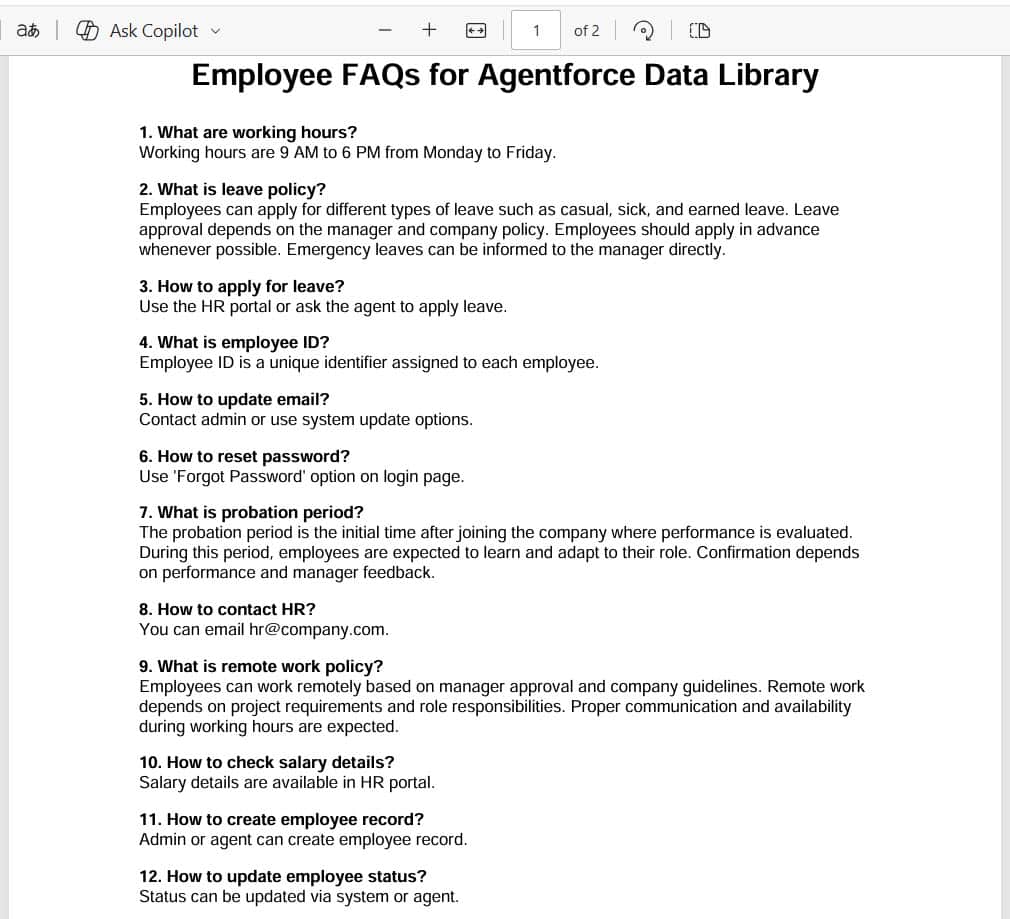
Below is the information from the company policy document. We will upload this document to the Agentforce data library so the AI agent can retrieve it and respond to the user.
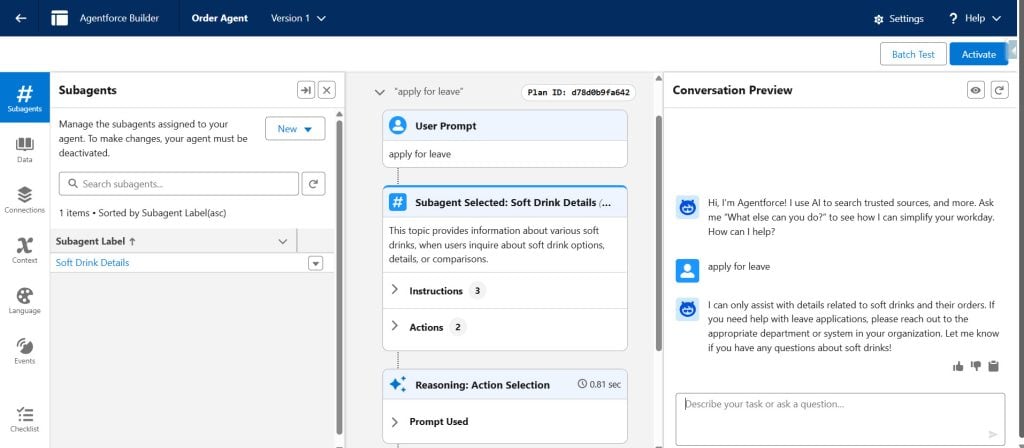
Before creating and assigning the data library to the Agentforce agents below, note that whenever a user asks a question for which an answer is available in the document above, the agent is unable to respond correctly.
Method 1 – Assign a File-Based Data Library via Setup
Use this method when you want to upload your own documents, like PDFs, policy guides, or FAQ sheets, and connect them directly to your agent. This is the most common approach and works great for support teams, HR bots, and customer-facing agents.
1. Create Agentforce Data Library in Salesforce
After setting up the data cloud, we can upload the documents to the data library. For that, navigate to Setup -> Quick Find, and search for Agentforce Data Library.
Click the New Library + button to create the data library.

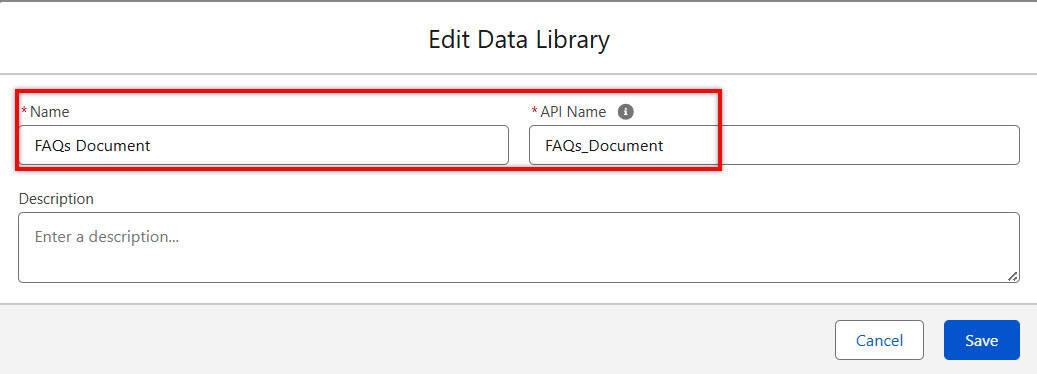
After that, provide the Name for the data library, and the API Name will be automatically populated. Then click the Save button to create a library.
2. Upload Documents to the Data Library
After creating the data library, we can add the Files, Web, and Customer Retriever to it. Below you can see these options:
- Files: You can upload your own files directly, including PDF, DOCX, TXT, and CSV. The AI agent will use this file to answer questions or give information related to its content.
- Web: You can add a website link (URL). The AI agent will read and use the content from that website as a knowledge source.
- Customer Retriever: This connects to your Salesforce data, including Accounts, Cases, and custom objects. The AI agent can then retrieve and use real-time customer data from Salesforce to answer user queries.
Here, we need to select Files as the data type.

Above, I have selected Files to upload to the data cloud. Then click the Upload File button, select the document you want to upload, and click Done.

After that, you will see the document you uploaded, and in the 1st image, you can see the Status is In Progress, which means you can use this data library until it gets Ready.
When you see the status is Ready, you can assign this data library to your agent.

3. Assign Agentforce Data Library to AI Agents
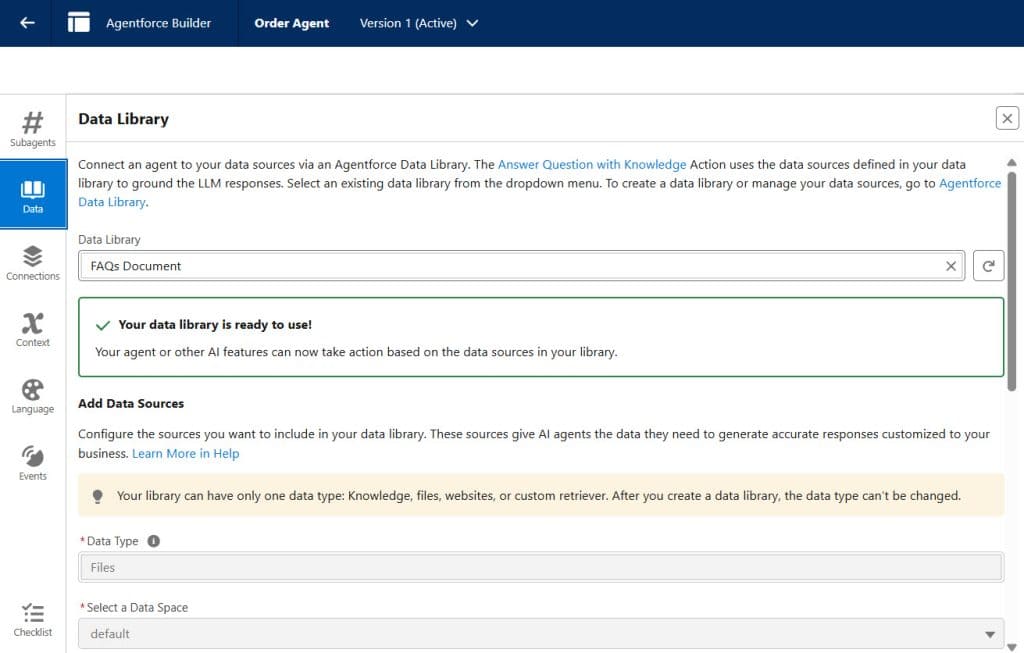
After that, open the AI agent in the builder to grant it access to the data library. Then select the Data option.
As you click the Data Library, you will see all the libraries you created. Select the one you want to assign, then scroll down and click Save.
This way, we assign the Data Library to Agentforce agents in Salesforce.
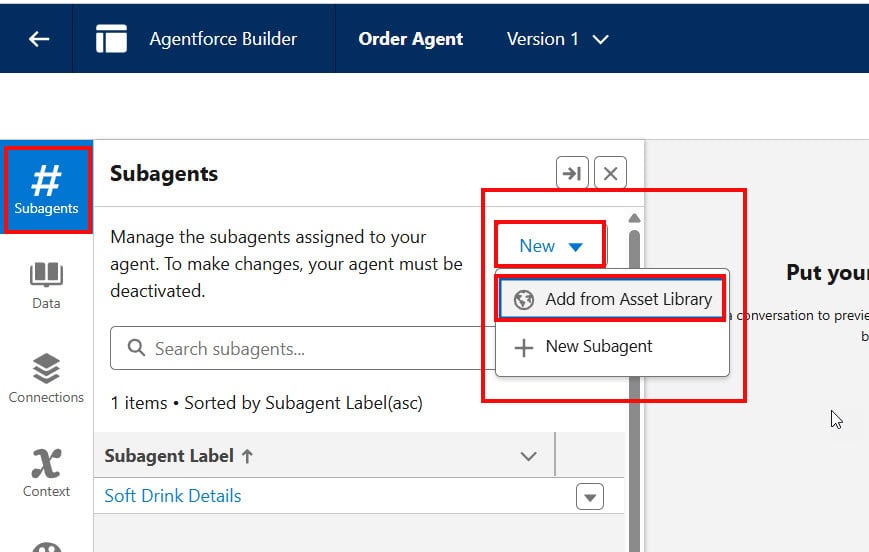
After that, to search for information in the document and display it to the user, Salesforce provided a standard topic and action for AI agents. We need to add the topic.
Click New -> Add from Asset Library.
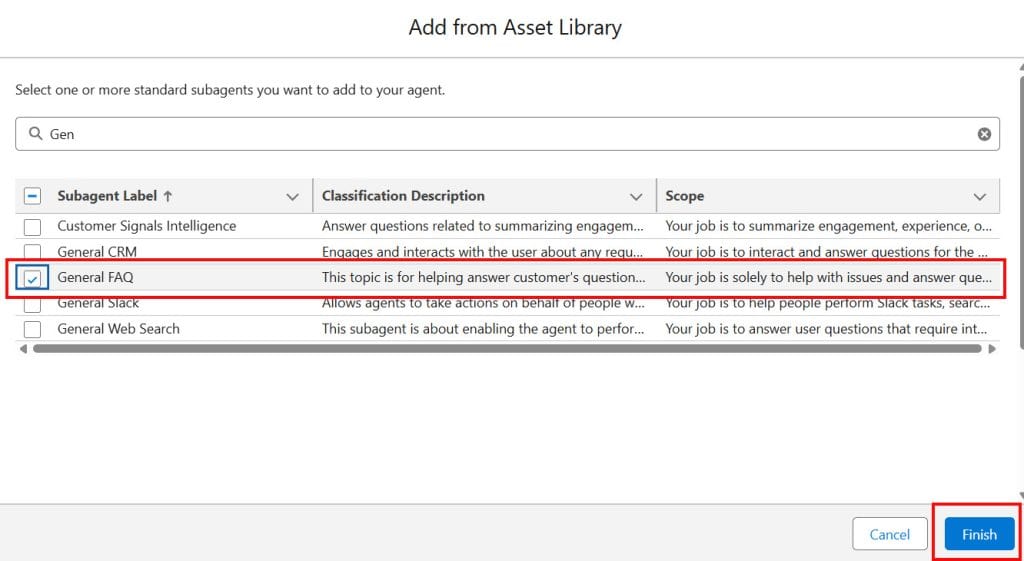
Select the General FAQ topic, and the Answer Questions with Knowledge action will get added under that topic. Click Finish.
4. Proof of Concept
The topic will be added to the agent, then refresh the page once, and as you ask the question, the agent will retrieve the data from the uploaded document and display it to the user.
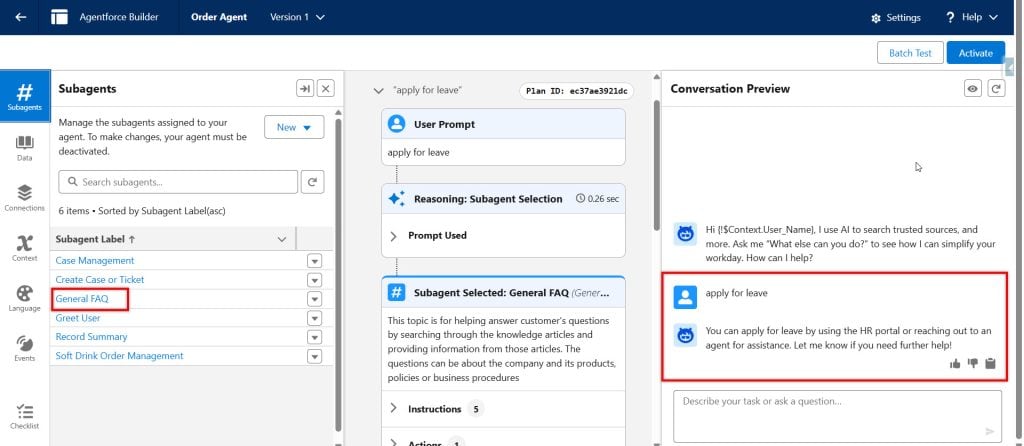
In this way, we can create an Agentforce data library with Web as the data type and assign it to agents so they can search for and display the information to users.
5. How Data Library Works with Agentforce
Once assigned, the Data Library works in the background:
- User asks a question
- The agent identifies the topic
- Agent searches the Data Library
- Relevant content is fetched
- The agent generates a response
This process happens in seconds and improves accuracy.
Method 2 – Assign a Web-Based Data Library to an Agent
Use this method when your knowledge source is a website, a help center URL, or an external documentation page. You don’t need to manage file uploads — the agent reads content directly from the web.
Scenario: The same support team has a public help center at support.company.com. Instead of downloading and uploading those pages as PDFs, they want the agent to read the live web content directly.
1. Enable Web Search in Your Org
Before using the Web data type, you must enable Web Search in Salesforce. Go to Setup → Einstein Search → Web Search and toggle it on.
2. Create a New Data Library in Setup
Follow the same steps as Method 1 (Setup → Agentforce Data Library → New Library +), but when choosing the data source, select Web instead of Files.
3. Enter the Website URL
Type the full URL of the website or documentation page you want the agent to reference (e.g., https://support.yourcompany.com/help).
Click Save and wait for the status to show Ready.
4. Assign to Agent via Agent Builder
Open your agent in Agent Builder → Data tab, select the web-based library from the dropdown, and click Save.
Pro Tip: Web-based libraries work best for content that updates frequently — like a live knowledge base or changelog. However, if the website is behind a login or uses JavaScript rendering heavily, Salesforce may not be able to index it properly. Test your agent’s responses after assigning a web library to confirm accurate retrieval.
Things to Keep in Mind
- Data 360 is required — and costs credits. Data Libraries won’t work without Data Cloud (Data 360) enabled. Each query your agent makes against a library consumes Data 360 credits. Monitor your org’s credit usage in Setup → Data Cloud → Usage.
- Wait for “Ready” status before assigning. If you assign a library while it still shows In Progress, your agent won’t be able to retrieve content. Always wait for the Ready status before connecting the library to an agent.
- Each agent can use one library per assignment slot. You can add multiple libraries, but keep them organized by use case. Assigning too many unrelated libraries can slow retrieval and reduce answer accuracy.
- Knowledge base updates don’t sync instantly. If you update documents or add new files to a library, the search index refreshes on a daily schedule. To force a refresh, go to the library in Setup and manually Rebuild the Search Index. This is critical before demos or launches.
- Permission Set Group must be assigned to the agent running user. The AgentforceServiceAgentUserPsg Permission Set Group must be assigned to the agent’s user. Without this, the agent cannot access the Data Library at runtime — even if it’s correctly configured in Agent Builder.
- File size limits apply strictly. Text and HTML files cap at 4 MB, and PDFs cap at 100 MB. Files above these limits will fail to upload silently in some org versions. Break large documents into smaller, topic-focused files for better indexing and more precise retrieval.
- Salesforce Edition matters. Agentforce Data Library and Data 360 are available in Enterprise Edition and above. If your org is on Professional Edition, you’ll need an upgrade or an add-on license before these features are accessible.
Frequently Asked Questions
1. What is Agentforce Data Library?
It is a storage system for unstructured data like documents and FAQs used by AI agents to answer questions.
2. Why is the Data Library important?
It helps agents provide accurate and relevant responses by using real business data.
3. Can I use multiple Data Libraries?
Yes, you can use multiple libraries based on different topics or use cases.
4. What type of files can I upload?
You can upload PDFs, Word documents, and other supported file formats.
5. Do I need Data Cloud for Data Library?
Yes, Data Library works with Data Cloud to store and process data.
6. How do I test whether the Data Library is working?
Ask the agent questions and check whether the answers are correct based on the uploaded documents.
Conclusion
Assigning a Data Library to your Agentforce agent is a crucial step in building a powerful AI solution in Salesforce. It allows your agent to understand real business data and provide accurate answers to users.
By combining Data Cloud, Data Library, Topics, and Actions, you can create a smart and efficient AI agent. This not only improves customer experience but also reduces manual work and increases productivity.
If you follow the steps and best practices mentioned in this guide, you can easily set up and optimize your Agentforce Data Library for better performance.
You may like to read:
- Transfer Chat from Agentforce AI to Human Agent in Salesforce
- Salesforce Agentforce: Give the ability to the AI Agent to Search on the Web
- Headless 360 in Salesforce [Complete Guide]
- Agent for Admin in Salesforce Agentforce
- How Agentforce Service Agent Greet by User Name in Salesforce
- Create a Custom Retriever in Salesforce Agentforce

Shubham is a Certified Salesforce Developer with technical skills for Building applications using custom objects, approval processes, validation rules, Salesforce flows, and UI customization. He is proficient in writing Apex classes, triggers, controllers, Apex Batches, and bulk load APIs. I am also familiar with Visualforce Pages and Lightning Web Components. Read more about me.
