
So, you created an Auto-Number field in Salesforce some time ago, but now the format no longer matches your current business needs.
Maybe the prefix has changed, maybe you need more digits, or your organization has introduced a new naming convention.
Because of this, you want to update the Auto-Number field’s display format and understand how that change affects existing records.
This is one of the most important things to understand about Auto-Number fields in Salesforce, because changing the format affects new and existing records differently.
Updating the display format for future records is simple and can be done directly from the field settings. However, existing records do not automatically update with the new format.
If you want older records to follow the new numbering pattern, you need to update them individually using a different approach.
In this article, I’ll explain how changing the Auto-Number display format affects new and existing records, and show you exactly how to handle each situation correctly in Salesforce.
First, Understand What Changing the Format Actually Does
Before making any changes in Salesforce Setup, it’s important to understand how Auto-Number fields work.
When you change the display format of an Auto-Number field, Salesforce applies the new format only to records created after the change. Existing records keep their original auto-number values.
For example, suppose your current record numbers are displayed like this:
- TKT-0001
- TKT-0002
If you change the format to TICKET-00001, your old records will still display:
- TKT-0001
- TKT-0002
Only newly created records will use the updated format, such as:
- TICKET-00003
- TICKET-00004
This happens because Salesforce does not automatically update existing Auto-Number values when the display format is changed. The number is generated and stored when the record is created.
So, if you only want new records to follow the new format, the process is very simple. However, if you want both old and new records to display in the updated format, you’ll need to take additional steps. In this article, I’ll explain both approaches step by step.
1. Change Auto-Number Fields Format for New Records in Salesforce
This is the easiest scenario. In this case, you don’t need to update existing records — you only want newly created records to use the new Auto-Number format going forward.
Change Format for Custom Auto-Number Fields in Salesforce
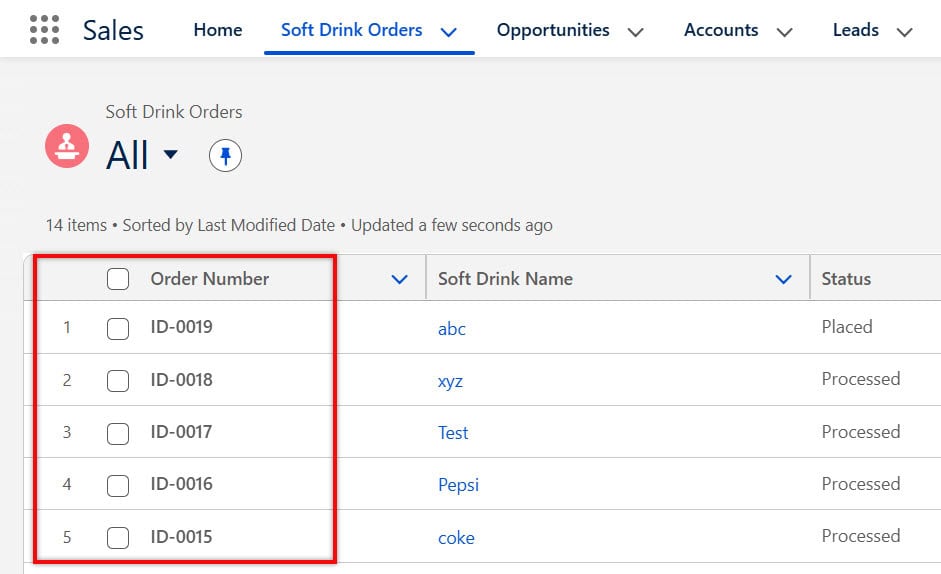
In the image below, you can see that the existing records are using the Auto-Number field format ID-{0000}.
Now, suppose you want newly created records to use a different format, such as Order-{0000}.
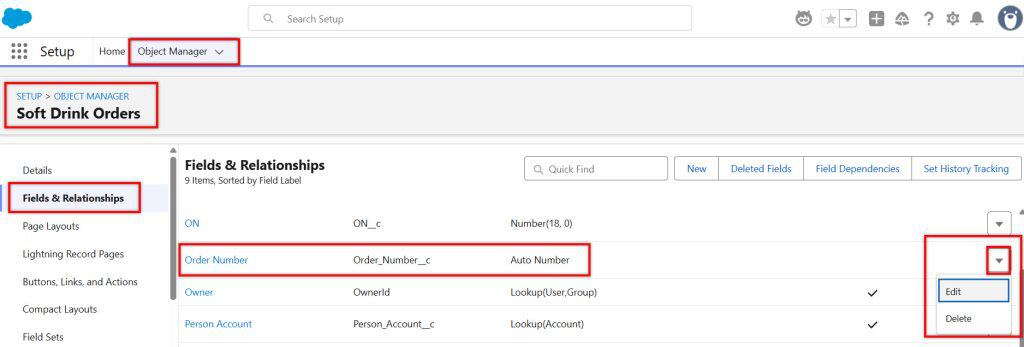
- Click the gear icon and go to Setup
- Open Object Manager and select your object
- Click Fields & Relationships in the left sidebar
- Find your auto-number field and click on the field label to open it
- Click the Edit button
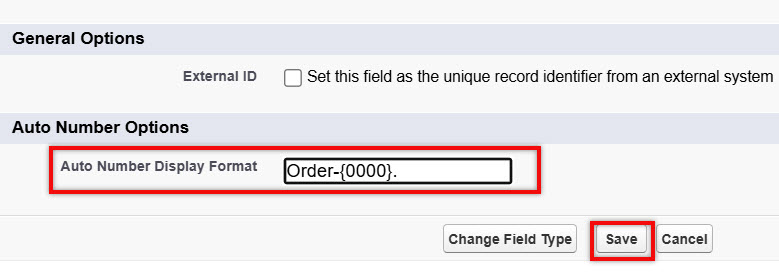
- Scroll down to the Auto Number Options section
- Update the Display Format field with your new format (e.g., change ID-{0000} to Order-{0000})
- Click Save
Notice that when you update only the display format of an Auto-Number field, Salesforce does not show the Starting Number option. This is expected behavior because Salesforce automatically continues the existing number sequence.
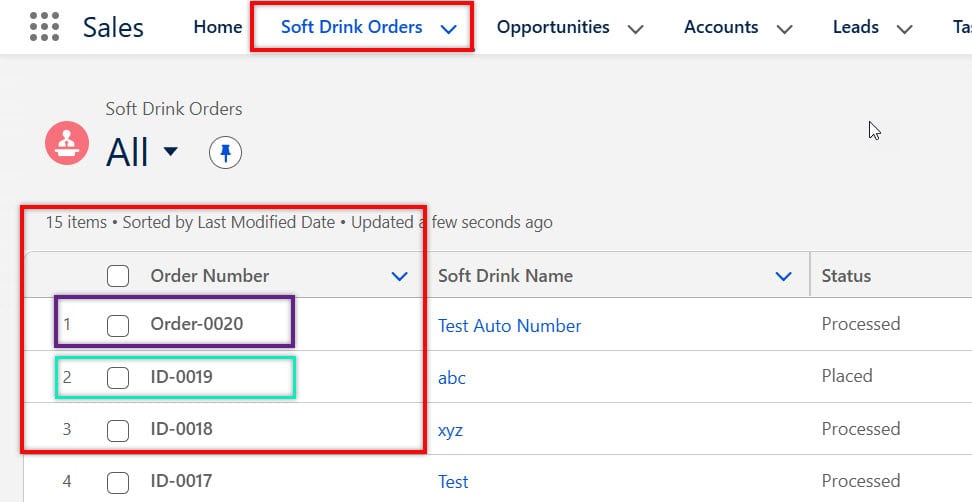
In the image below, you can see that the last generated record number was ID-0019. After changing the Auto-Number format to Order-{0000}, the next newly created record is generated as Order-0020.
Salesforce changes only the format, not the actual sequence number.
That’s all you need to do if you only want future records to use the new Auto-Number format.
Change Format for Standard Auto-Number Fields (e.g., Case Number)
For standard Auto-Number fields like Case Number, Salesforce allows you to modify the display format only in Salesforce Classic.
In Lightning Experience, the display format field is read-only, so you won’t be able to edit it there.
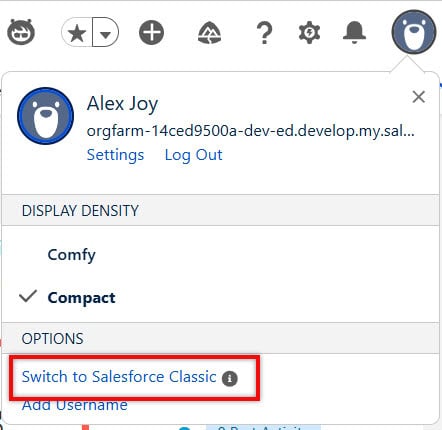
- Switch to Salesforce Classic (click your avatar/profile photo → Switch to Salesforce Classic)
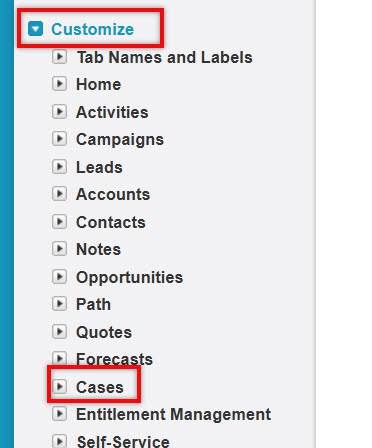
- Go to Setup → in the left sidebar, navigate to Customize → select your object (e.g., Cases) → click Fields
- Click Edit next to the auto-number field (e.g., Case Number)
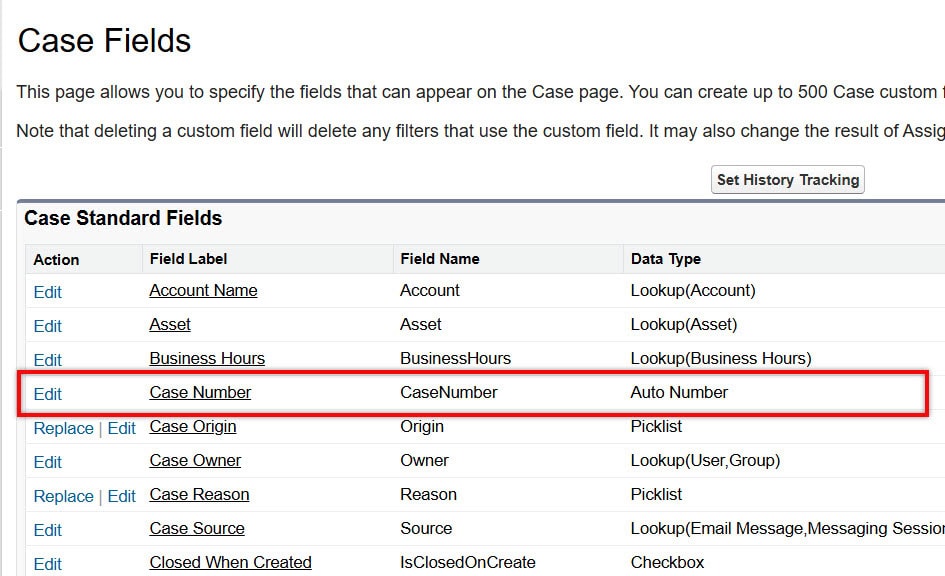
- Existing Case Number Field Format in Salesforce
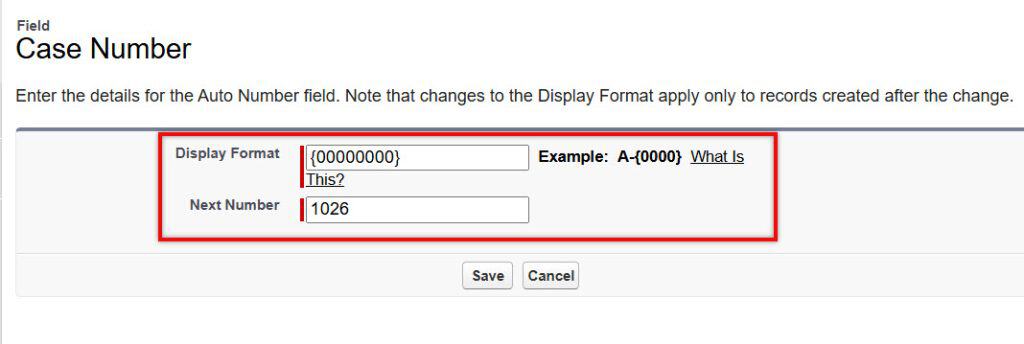
- Update Case Number Field Format in Salesforce
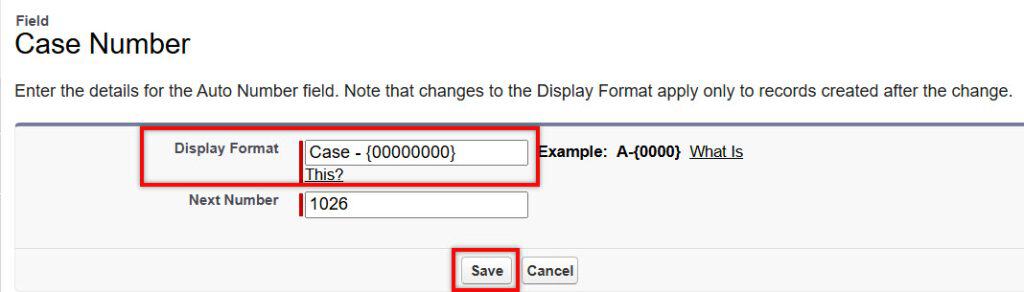
- Click Save
- Confirm the warning message that appears
- Switch back to Lightning
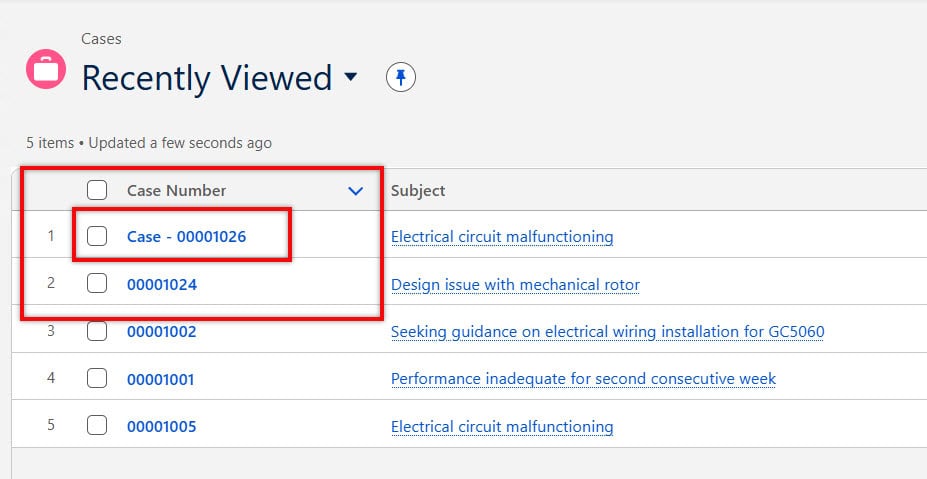
Again, this change only affects new records going forward.
Change Auto-Number Fields Format For Existing Records in Salesforce
This scenario requires a few additional steps. If you want existing records to also display the updated Auto-Number format, Salesforce does not automatically update the values of old records after you change the display format.
To update existing records, you’ll need to use a different solution depending on your requirements and the amount of data you have.
Below, I’ll explain the available methods and when to use each.
Option A: Use a Flow to Update Existing Records Auto-Number Field Format
This approach can be done entirely within Salesforce without any external tools. In this method, you create a helper Text field, store the new formatted value in that field, and then use that field in page layouts, reports, and list views instead of the original Auto-Number field.
You might be wondering whether we can update the Auto-Number field directly using Flow?
The answer is no. Auto-Number fields in Salesforce are always read-only. You cannot update them using Flow, Formula fields, Data Loader, or even Apex in a normal update operation.
Salesforce automatically controls and generates these values using its internal numbering sequence.
Here’s how to do it:
Step 1 — Change the format on the auto-number field (follow Scenario 1 above). New records will now use the new format.
Step 2 — Create a Formula field to display the reformatted value for existing records. For example, if your existing auto-numbers are stored as plain numbers and you want to show them with the new prefix and padding:
"TICKET-" & TEXT(LPAD(Auto_Number__c, 5, "0"))
This creates a calculated display of the number in your new format and consistently works for both old and new records.
Step 3 — Update page layouts and reports to show the Formula field instead of the original auto-number field. From the user’s perspective, everything now looks consistent.
This is the cleanest approach because it’s non-destructive — your original auto-number field stays intact, and the formula field bridges the visual gap.
Option B: Convert Field Type to Text, Update Records via Data Loader, Then Convert Back
This is the most thorough approach. It actually changes the stored value on existing records so that the auto-number field itself reflects the new format.
This is the right choice if you need the auto-number field itself — not a formula proxy — to show the correct format on all records.
It involves more steps and carries more risk, so read through the whole process before starting.
Step 1 — Export your existing records
Before changing anything, export all records on this object using Data Loader. Download the auto-number field values along with the Record IDs. You’ll need this file to update the records later.
Save this export somewhere safe. It’s also your backup.
Step 2 — Note the highest existing auto-number value
Open the exported file and find the highest number currently assigned. You’ll need this in Step 6. For example, if your highest record is TKT-0487, your highest number is 487.
Step 3 — Convert the auto-number field to Text
- Go to Setup → Object Manager → [Your Object] → Fields & Relationships
- Click on your auto-number field
- Click Edit → Change Field Type
- Select Text
- Set the field length to at least 30 characters to accommodate all format lengths
- Click Save
Your existing records now have their auto-number values stored as plain text. Nothing is lost — the values are still there, just in a text field now.
Step 4 — Update the existing records in Data Loader
Open your exported CSV file. Add a new column for the field (use the API field name, which is the same — it’s now a Text field). For each record, enter the new formatted value you want it to display.
For example, if the old value was TKT-0001 and the new format should be TICKET-00001, update that row to show TICKET-00001.
You can do this quickly in Excel using a formula like:
"TICKET-" & TEXT(A2, "00000")
…where column A contains the old sequence numbers.
Once your CSV is updated, use Data Loader → Update to push the new values to Salesforce.
Step 5 — Verify the updates
Open a few records in Salesforce and confirm the field now shows the new format. Spot-check both early records and recent ones.
Step 6 — Convert the field back to Auto-Number
- Go back to the field in Setup
- Click Edit → Change Field Type
- Select Auto Number
- Enter the new Display Format (your updated format)
- Set the Starting Number to one higher than your highest existing number (e.g., if your highest record is TICKET-00487, set the starting number to 488)
- Decide whether to check Generate Auto Number for Existing Records — in this case, leave it unchecked, since you’ve already manually set the values on existing records
- Click Save
From this point on, new records will use the new format and continue the sequence correctly from where your existing records left off.
Side-by-Side: Which Approach Should You Use?
| Your Situation | Best Approach |
|---|---|
| Only want new records to use the new format | Edit the field directly in Setup (Scenario 1) |
| Want consistent visual display for old + new records, non-destructive | Create a Formula field (Option A) |
| Want the auto-number field itself to store the new format on all records | Data Loader conversion method (Option B) |
| Large org, restricted Data Loader access, admin-only tools | Scheduled Flow + Text proxy field (Option C) |
| Standard field like Case Number (format change only) | Edit in Salesforce Classic (Scenario 1) |
What Happens to Reports, Flows, and Integrations After a Format Change?
This is something people often forget to check. Once you change the format, things that reference the auto-number field by its value — not just its label — may behave differently.
Here’s a quick checklist of things to review after changing the format:
- Reports and list views — If you have filters that match specific auto-number values (like start with TKT-), those filters may no longer return results correctly after the format change. Update them to match the new prefix.
- Flows and validation rules — If any automation checks the value of the auto-number field using a text comparison, update those references to match the new format.
- External integrations — If an ERP, middleware, or third-party app receives auto-number values from Salesforce, let your integration team know the format has changed. String-length changes in particular can cause silent failures.
- SOQL queries in Apex — If a developer has hardcoded the old prefix in a SOQL WHERE clause, that query will stop returning the right records. Review with your dev team.
Frequently Asked Questions
If I change the display format, will my existing records automatically update?
No. Existing records retain the format they were assigned when created. Only records created after the format change will use the new format.
To update existing records, you’ll need to use the Data Loader method or a Formula/Text field workaround.
Can I change just the prefix without changing the number sequence?
Yes. When you edit the display format in Setup, the sequence counter keeps running from its current value.
You’re only changing how the number is displayed — the underlying counter is unaffected. So if you’re at record 500 and you change the prefix from TKT– to TICKET-, the next record will be TICKET-00501.
Does changing the display format affect the field’s API name?
No. The API name (e.g., Ticket_Number__c) is set when the field is created and cannot be changed through display format edits. The format change only affects the visible value on records.
Can I update the value of an auto-number field directly using Data Loader?
Not while it’s in auto-number format — the field is read-only. You need to first convert it to Text, update the values, then convert back to Auto-Number.
Does the format change apply to records in the Recycle Bin?
No. Records in the Recycle Bin retain the format they had when they were active. If you restore a deleted record, it will still show the old format.
Can I change the format of a standard auto-number field in Lightning?
No. Standard auto-number fields, such as Case Number, can only have their format modified in Salesforce Classic. The option isn’t available through the Lightning Object Manager interface.
Conclusion
Changing the display format on an auto-number field is easy if you only care about new records — it’s literally just editing one field in Setup. The complexity only kicks in when you want existing records to look consistent with the new format.
For most situations, the Formula field approach (Option A) is the safest and quickest. It leaves the original auto-number field untouched and creates a clean, consistent display across all records without any risk of data loss.
Save the Data Loader method for cases where you specifically need the auto-number field itself to hold the new format value.
You may like to read:
- Calculate Number of Weekdays Between Dates in Tableau
- Hide Default Row Number Column From Lightning Datatable in Salesforce
- Salesforce Remove Comma From Number Field
- Validation Rule for Phone Number in Salesforce

I am Bijay Kumar, the founder of SalesforceFAQs.com. Having over 10 years of experience working in salesforce technologies for clients across the world (Canada, Australia, United States, United Kingdom, New Zealand, etc.). I am a certified salesforce administrator and expert with experience in developing salesforce applications and projects. My goal is to make it easy for people to learn and use salesforce technologies by providing simple and easy-to-understand solutions. Check out the complete profile on About us.