

Artificial Intelligence is changing customer service faster than ever. With Salesforce Agentforce, organizations can deploy AI-powered service agents that answer customer questions, resolve issues, and perform actions around the clock.
However, creating an intelligent AI agent is only half the job. The other half is making sure the agent represents your brand.
Imagine visiting a company’s website and opening a chat window. Instead of seeing the company’s colors, logo, and branding, you see a generic chatbot interface. It feels disconnected from the brand experience.
This is where Agentforce branding becomes important.
A properly branded Agentforce Service Agent helps customers feel comfortable, increases trust, improves engagement, and creates a consistent customer experience across all channels.
In this Salesforce Agentforce tutorial, we will learn:
- What Agentforce branding is
- Why branding your service agent matters
- How to add a logo
- How to customize colors
- How to configure fonts
- Common mistakes to avoid
By the end of this article, you’ll know exactly how to design an Agentforce Service Agent that looks professional and aligns with your organization’s identity.
What Is Agentforce Service Agent Branding?
Agentforce allows businesses to deploy AI-powered agents across websites, customer portals, mobile apps, and support channels. These agents interact with customers using conversational AI and can access Salesforce data to perform actions.
Branding refers to customizing the agent’s visual appearance to reflect your company’s identity.
Branding typically includes:
- Company logo
- Agent avatar
- Brand colors
- Font styles
- Chat window appearance
- Button styling
- Header design
The goal is to ensure customers instantly recognize the agent as part of your business ecosystem.
According to Salesforce documentation, Agentforce supports theming and branding capabilities that allow organizations to customize colors and visual elements to match their brand experience.
Why Branding Your Agentforce Service Agent Is Important
Many Salesforce administrators focus heavily on AI configuration, topics, actions, and knowledge articles.
However, visual branding has a significant impact on customer perception.
1. Builds Customer Trust
Customers are more likely to interact with a chatbot when it appears to be an official part of the company website.
Adding your company logo and brand colors reassures users that they are communicating with a trusted source.
2. Creates a Consistent Customer Experience
Modern customers interact with brands across multiple touchpoints:
- Website
- Mobile App
- Customer Portal
- Social Media
Your Agentforce Service Agent should appear to be an extension of these channels rather than a separate tool.
3. Improves Brand Recognition
When customers repeatedly see your:
- Logo
- Brand colors
- Typography
They begin associating those elements with positive support experiences. This strengthens brand recall.
4. Makes AI Feel More Human
A customized avatar and welcoming design can make the interaction feel more personal and approachable.
Customers often respond better to agents with a recognizable identity than to generic chat widgets.
5. Enhances Professionalism
A branded Agentforce implementation simply looks more polished. This is especially important for:
- Enterprise organizations
- Financial institutions
- Healthcare providers
- E-commerce businesses
- Technology companies
Add Branding to Agentforce Service Agent – Logo, Color, & Font
In the steps below, I will explain how to transform your Agentforce service agent to match your brand by adding your logo, colors, and fonts.
Before You Start
Before customizing your Agentforce Service Agent, gather the following branding assets:
- Company Logo
- Recommended formats:
- PNG
- SVG
- High-resolution image
- Use a transparent background whenever possible.
- Recommended formats:
- Brand Colors: Obtain your official brand color codes.
- Example:
| Element | HEX Color |
|---|---|
| Primary Color | #005FB2 |
| Secondary Color | #00A1E0 |
| Accent Color | #FF6B00 |
| Background Color | #FFFFFF |
- Brand Fonts: Identify approved fonts from your brand guidelines.
- Examples:
- Salesforce Sans
- Arial
- Roboto
- Open Sans
- Inter
- Examples:
The logo is usually the first thing customers notice. It immediately identifies the chatbot as belonging to your organization.
Step 1: Open Embedded Service Deployment
Setup → Quick Find → Embedded Service Deployment → then click Agent_Channel, the deployment created for your Agentforce Service Agent.

Step 2: Open Branding Settings
After opening the Agent_Channel deployment, click Select Branding under the Branding section.
Here, you can customize the appearance of your Agentforce chat experience by configuring:
- Chat colors and theme
- Agent avatar
- Chat header logo
- Fonts and styling
- Branding elements that match your company’s identity

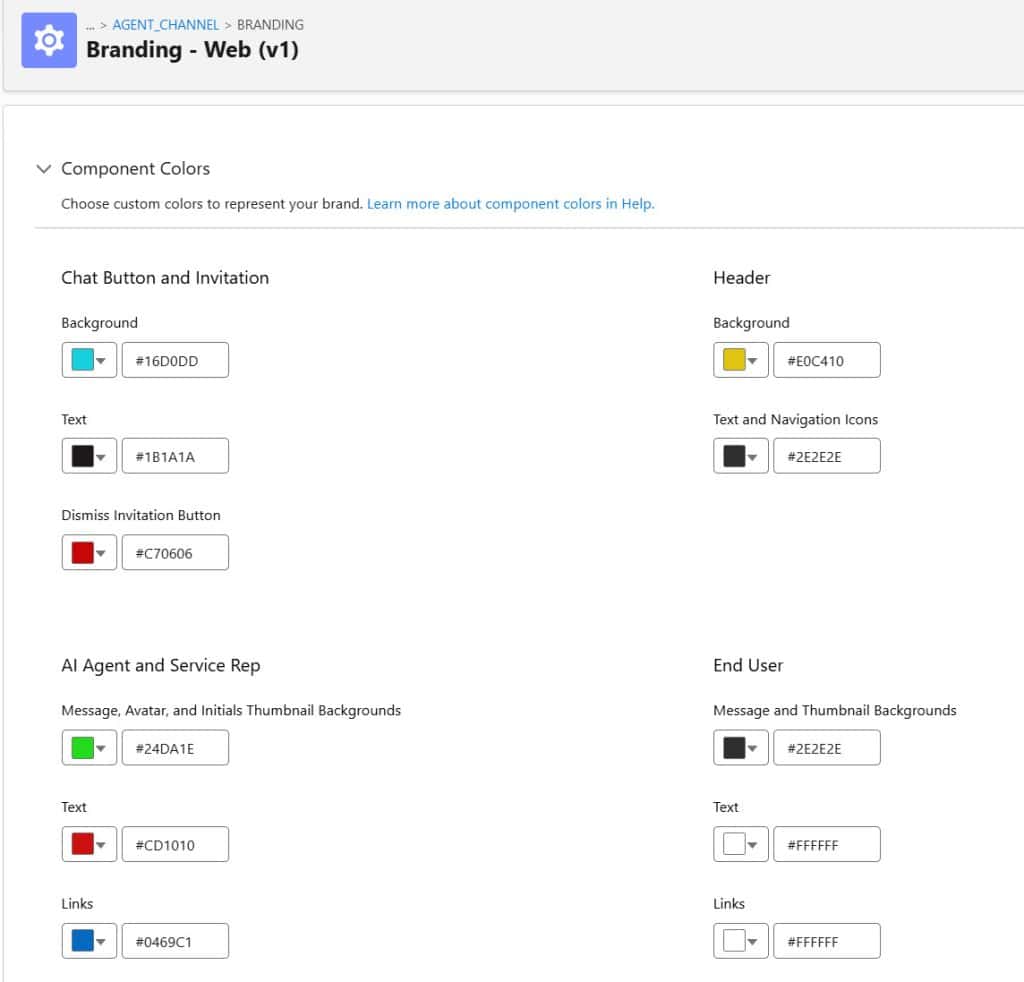
Step 3: Customize the Agentforce Service Agent Chat Colors
On the Branding – Web (v1) page, configure the colors that will be displayed in the Agentforce conversation panel. These colors control how the chat widget, agent messages, and customer messages appear to users.
- Chat Button and Invitation: These colors are used for the chat launcher button and invitation popup displayed on your website.
- Background (#16D0DD) – Background color of the chat button.
- Text (#1B1A1A) – Text color displayed on the chat button and invitation.
- Dismiss Invitation Button (#C70606) – Color of the close (X) button used to dismiss chat invitations.
- Header: These colors control the chat window header.
- Background (#E0C410) – Background color of the chat header.
- Text and Navigation Icons (#2E2E2E) – Color of the header text and navigation icons.
- AI Agent and Service Rep: These colors are applied to messages sent by the Agentforce Service Agent or human support agents.
- Message, Avatar, and Initials Thumbnail Backgrounds (#24DA1E) – Background color for agent message bubbles and avatars.
- Text (#CD1010) – Text color used inside agent messages.
- Links (#0469C1) – Color of hyperlinks displayed in agent messages.
- End User: These colors control messages sent by customers.
- Links (#FFFFFF) – Color of hyperlinks displayed in customer messages.
- Message and Thumbnail Backgrounds (#2E2E2E) – Background color of customer message bubbles.
- Text (#FFFFFF) – Text color displayed inside customer messages.
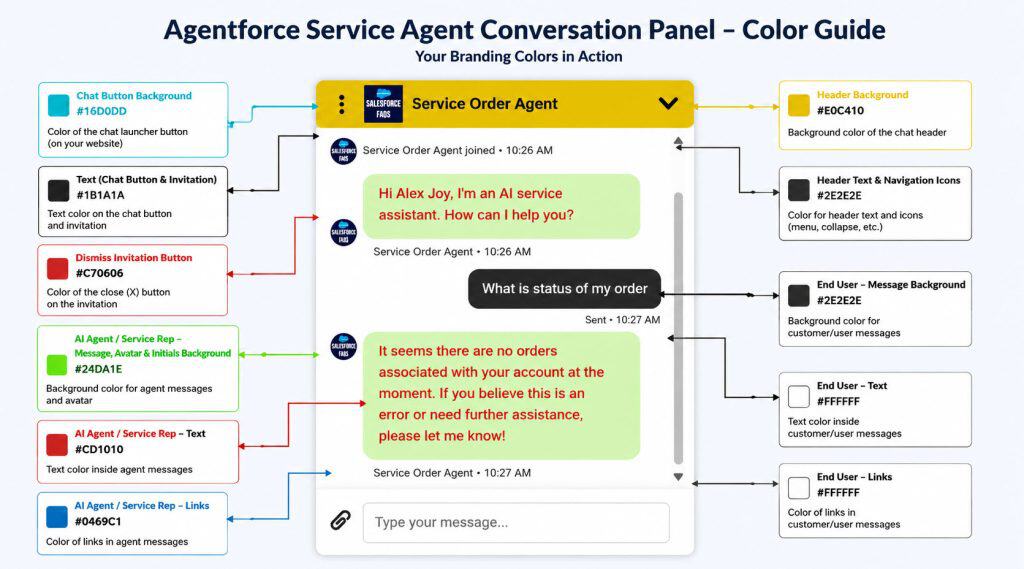
The following image highlights how each branding color is applied within the Agentforce Service Agent conversation panel.
Step 4: Upload Logo and Avatar Images as Static Resources
Before configuring branding images in the Embedded Service Deployment, you must first upload the required images as Static Resources in Salesforce.
- Navigate to Setup → Static Resources.
- Click New Static Resource.
- Enter a meaningful name (for example, ChannelLogo, AgentAvatar, or ChatButtonIcon).
- Click Choose File and select the image you want to use.
- Set Cache Control to Public. Click Save.
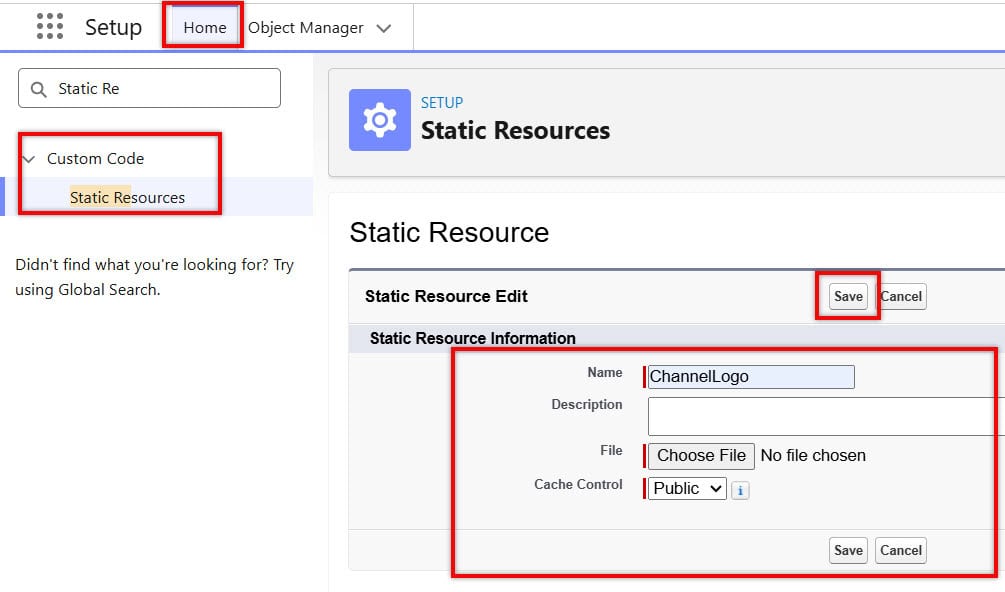
After saving the static resource, Salesforce generates a URL that can be used in the Branding section for the Service Rep Avatar, AI Agent Avatar, Logo, and Chat Button images.
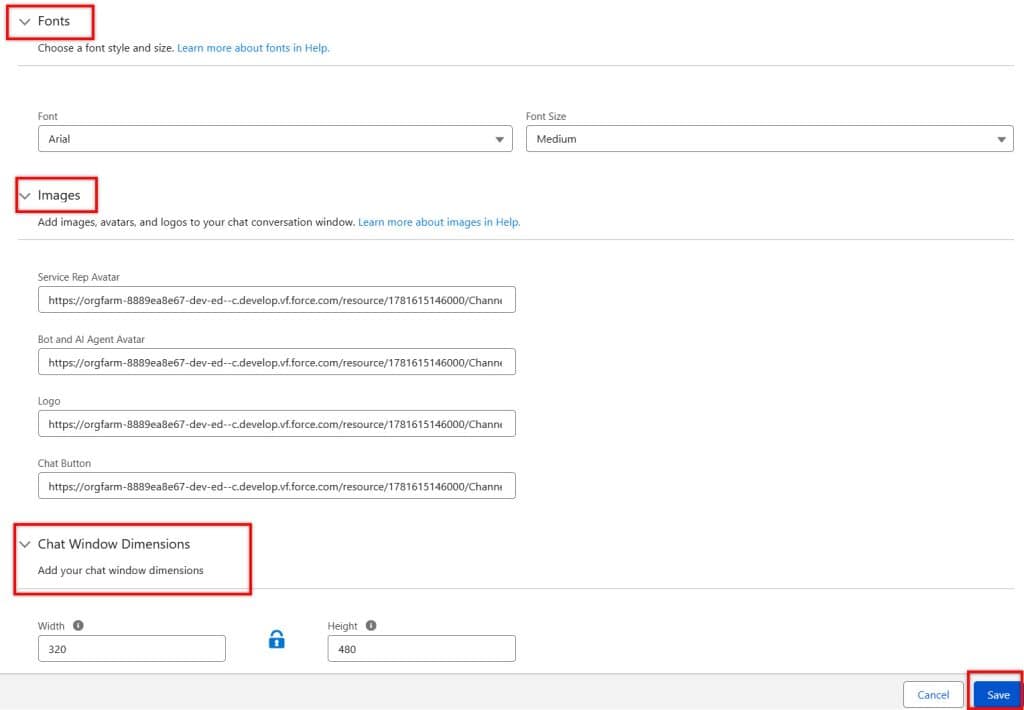
Step 5: Customize Fonts, Images, and Chat Window Dimensions
On the Branding page, scroll down to configure the fonts, images, and chat window size for your Agentforce Service Agent.
- Fonts: Use the Fonts section to customize the appearance of text in the chat window.
- Font – Select the font family to be used throughout the conversation panel (for example, Arial).
- Font Size – Choose the text size to display in the chat interface.
- Images: Use the Images section to upload branding assets for different parts of the chat experience.
- Service Rep Avatar – Image displayed for human support agents.
- Bot and AI Agent Avatar – Image displayed for the Agentforce Service Agent.
- Logo – Logo displayed in the chat header.
- Chat Button – Image displayed on the chat launcher button.
Note: In this example, the same image has been used for all avatar and logo fields. However, you can upload different images for each field to provide a more personalized and professional chat experience.
- Chat Window Dimensions: Use the Chat Window Dimensions section to define the size of the conversation panel displayed on your website.
- Width (320 px) – Controls the width of the chat window.
- Height (480 px) – Controls the height of the chat window.
After completing the configuration, click Save to store your changes, then click Publish the Embedded Service to make the updates available to website visitors.
Step 6: Preview the Customized Agentforce Service Agent
After configuring the branding colors, fonts, avatars, logos, and chat window dimensions, the Agentforce Service Agent conversation panel will reflect your customizations.
The following image shows how the chat window appears after applying the branding settings, including the customized header, agent avatar, message colors, and chat interface styling.


Common Agentforce Branding Mistakes
- Using Low-Quality Logos
- Blurry logos damage credibility.
- Always use high-resolution images.
- Too Many Colors
- Stick to:
- Primary color
- Secondary color
- Accent color
- Avoid rainbow-style interfaces.
- Stick to:
- Ignoring Mobile Users
- A design that looks good on a desktop may break on mobile devices.
- Always test both.
- Poor Contrast
- Users must be able to read messages easily.
- Accessibility should always be a priority.
- Inconsistent Branding
- Do not use:
- Different logos
- Different fonts
- Random colors
- Consistency builds trust.
- Do not use:
Frequently Asked Questions (FAQs)
Can I add my company logo to Agentforce?
Yes. Agentforce deployments support branding and appearance customization, allowing organizations to use logos and visual elements that align with their brand identity.
Why should I customize Agentforce colors?
Custom colors help create a consistent customer experience and improve brand recognition.
Which font is best for Agentforce?
Salesforce Sans, Roboto, Open Sans, and Inter are commonly used for their high readability and professional appearance.
Does branding affect customer trust?
Yes. Consistent branding makes customers feel they are interacting with an official company service rather than a third-party chatbot.
Should I use dark mode?
If your website supports dark mode, matching the Agentforce experience can improve consistency and user satisfaction.
Conclusion
Building an intelligent Agentforce Service Agent is important, but creating a branded customer experience is equally critical.
Customers judge your digital support experience within seconds. A professionally branded agent with the right logo, colors, fonts, and visual identity can significantly improve trust, engagement, and customer satisfaction.
By customizing your Agentforce Service Agent to reflect your organization’s brand, you create a seamless experience across websites, portals, mobile apps, and support channels.
As Agentforce adoption continues to grow, businesses that invest in both AI capabilities and user experience will stand out from the competition.
You may like to read:
- Assign Custom Actions Agents in Agentforce
- Custom Actions using Apex for Agentforce
- Salesforce Agentforce Action Call External Apis
- Agentforce Fetch External Api Data Action
- Salesforce Create Agentforce Employee Agent

Shubham is a Certified Salesforce Developer with technical skills for Building applications using custom objects, approval processes, validation rules, Salesforce flows, and UI customization. He is proficient in writing Apex classes, triggers, controllers, Apex Batches, and bulk load APIs. I am also familiar with Visualforce Pages and Lightning Web Components. Read more about me.
