
Calculating business days in Salesforce using Flow is a great option when you want to keep the solution declarative and avoid using Apex code.
It is useful for scenarios like calculating due dates, follow-up dates, SLA timelines, or any business process where weekends and holidays should not be counted.
In this tutorial, I will show you how to build a Salesforce Flow that adds business days to a date.
I will also explain a more flexible approach to calculating the number of business days between two dates, because this requirement is very common in real-world Salesforce projects.
We are going to create a flow that:
- Takes a start date.
- Takes the number of business days to add.
- Skips Saturdays and Sundays.
- Skips holidays from Salesforce Setup.
- Returns the final date.
This is useful when we need Salesforce to calculate a follow-up date, contract deadline, or task due date without writing any Apex code.
When Flow is the Right Choice to Calculate Business Days in Salesforce
I usually choose Flow when:
- The team prefers no-code or low-code.
- The logic is simple enough to handle with loops and decisions.
- I want admins to maintain the solution later.
- I don’t want to create and deploy Apex just for date math.
If I need advanced logic, complex holiday calendars, or heavy reuse across many objects, Apex may still be better. But for many business apps, Flow is enough.
Before you start
You’ll need:
- A Salesforce org with Flow access.
- Permission to create flows.
- Optional: holidays configured in Salesforce Setup.
- A custom object or record where you want to store the result.
Basic idea to Calculate Business Days Using Salesforce Flow
The logic is simple:
- Start with the given date.
- Move forward one day at a time.
- Check whether the date is a weekday.
- Check whether the date is a holiday.
- If both checks pass, count it as a business day.
- Stop when the required number of business days has been added.
That is the same logic I would use in Apex, but here I’ll build it in Flow.
Different Ways to Calculate Business Days
There are multiple ways to calculate business days in Salesforce:
| Method | Difficulty | Recommended |
|---|---|---|
| Formula Field | Medium | Small logic |
| Apex | Advanced | Complex requirements |
| Flow | Easy | Best for Admins |
| Business Hours Apex | Advanced | Enterprise logic |
Calculate Business Days Using Salesforce Flow
Below, I will explain, in very simple terms, the steps to create a Salesforce flow to calculate business days.
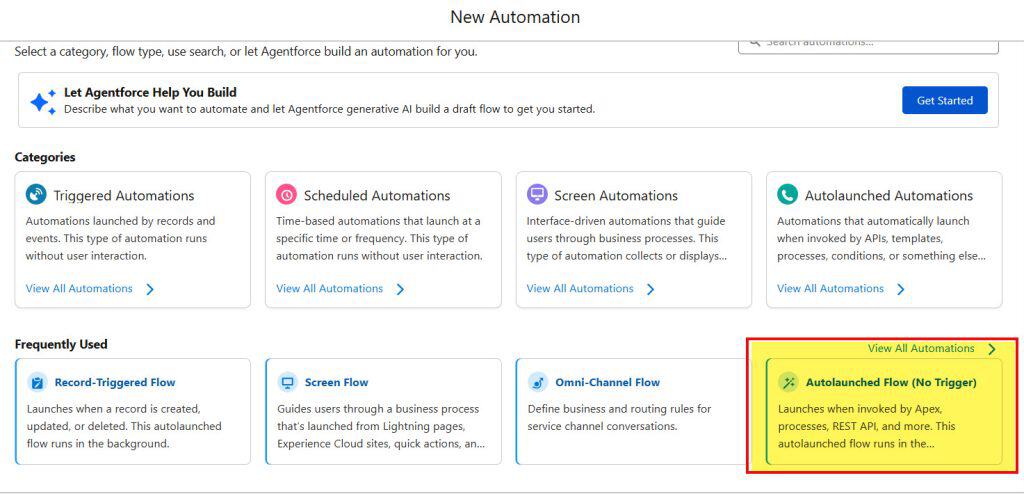
Step 1: Create an Autolaunched Flow in Salesforce
I usually create an autolaunched flow for this kind of calculation.
- Go to Setup.
- Search for Flows.
- Click New Flow.
- Choose Autolaunched Flow.
- Click Create.
Why autolaunched? Because it’s easier to reuse. I can call it from another flow, a record-triggered flow, or even a screen flow later.
Step 2: Create input and Output Variables in Salesforce Flows
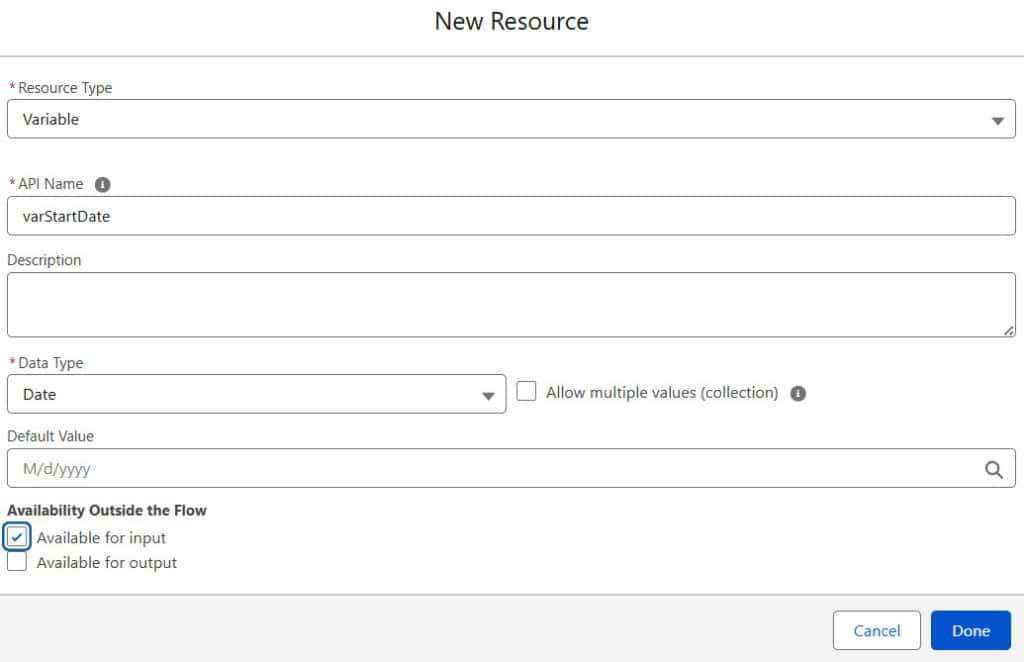
Now, create the variables that will be used in the Flow. Create the following variables:
- varStartDate
- Data Type: Date
- Available for input: Yes
- varBusinessDaysToAdd
- Data Type: Number
- Decimal Places: 0
- Available for input: Yes
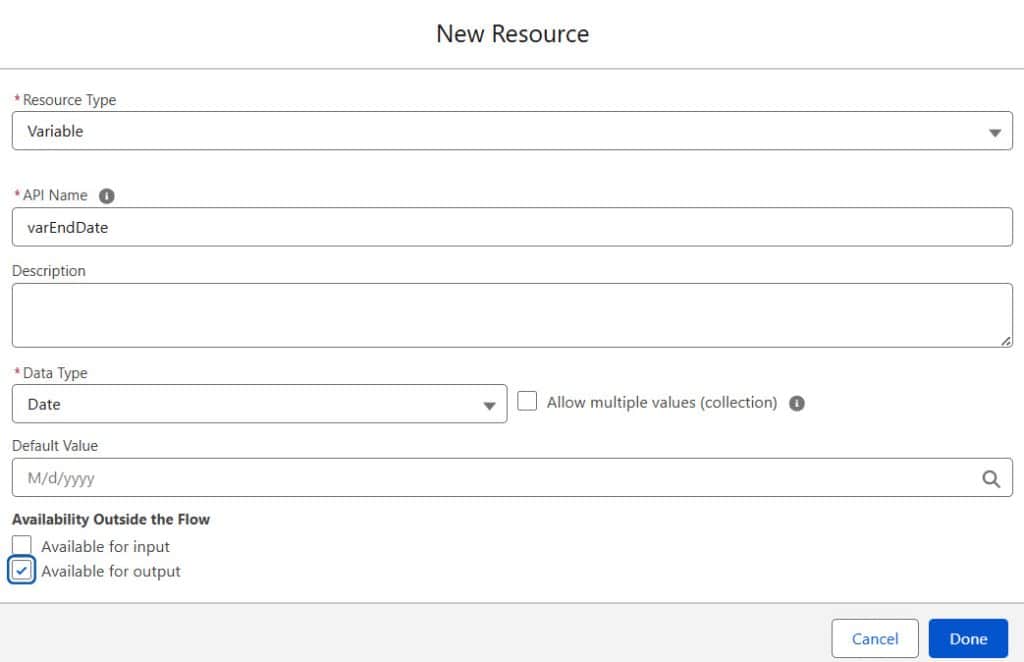
- varEndDate
- Data Type: Date
- Available for output: Yes
If you want the Flow to return the total number of business days instead, you can create another output variable for that purpose. However, in this tutorial, I am focusing only on adding business days to a date.
Step 3: Create a Working Date Variable in Flow
Next, create a helper variable to store and update the working date during Flow execution.
- varCurrentDate
- Data Type: Date
- Default Value: Leave blank
This variable increments the date by 1 day within the loop.
In the first Assignment element, set this variable equal to the start date so the Flow can begin calculating business days from that date.
Step 4: Create a counter variable
Next, create the following variable:
- varDaysAdded
- Data Type: Number
- Decimal Places: 0
- Default Value: 0
This variable stores the total number of valid business days counted by the Flow. Each time the Flow finds a valid business day, the value of this variable increases by 1.
Step 5: Add a Loop to Check the Business Days
Now, you need to create the logic that iterates through the dates until the required number of business days is reached.
In Salesforce Flow, there is no direct “while loop” or “do until loop” like in Apex. Because of that, this logic is usually built using Assignment and Decision elements together.
The Flow will follow this process:
- Initialize the current date using the start date.
- Increase the current date by 1 day.
- Check whether the date is a business day.
- If it is a business day, increment the business-day counter.
- Repeat the process until the counter reaches the target number of business days.
You do not need a standard Loop element here because you are not looping through a collection. Instead, this approach uses a date-based looping pattern with Decision elements and Assignments.
The exact Flow structure may vary depending on your design, but the overall business logic remains the same.
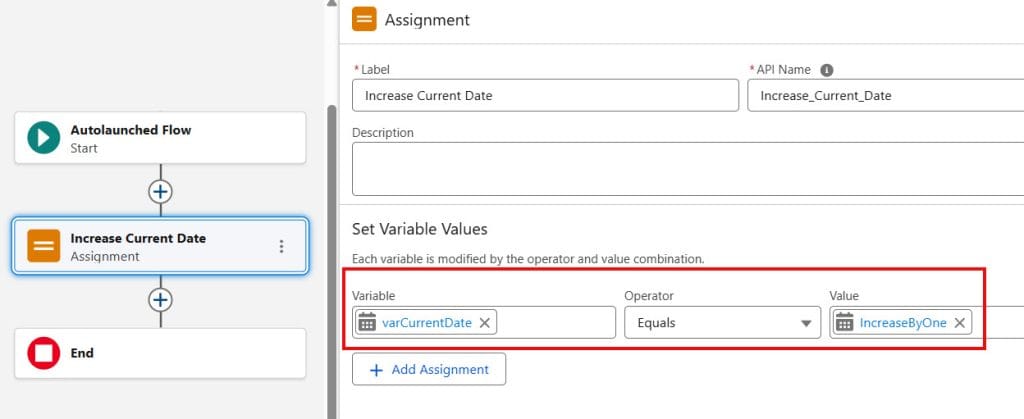
Step 6: Increment the Current Date
Next, use an Assignment element to advance the current date by 1 day. Set the value as:
varCurrentDate = IncreaseByOne //Formula Resourse - varCurrentDate + 1In Salesforce Flow, you can do this using an Assignment element with an addition operator or by using a Formula resource, depending on your Flow design.
For example, if the start date is 1 June 2026, after the first iteration, varCurrentDate becomes 2 June 2026.
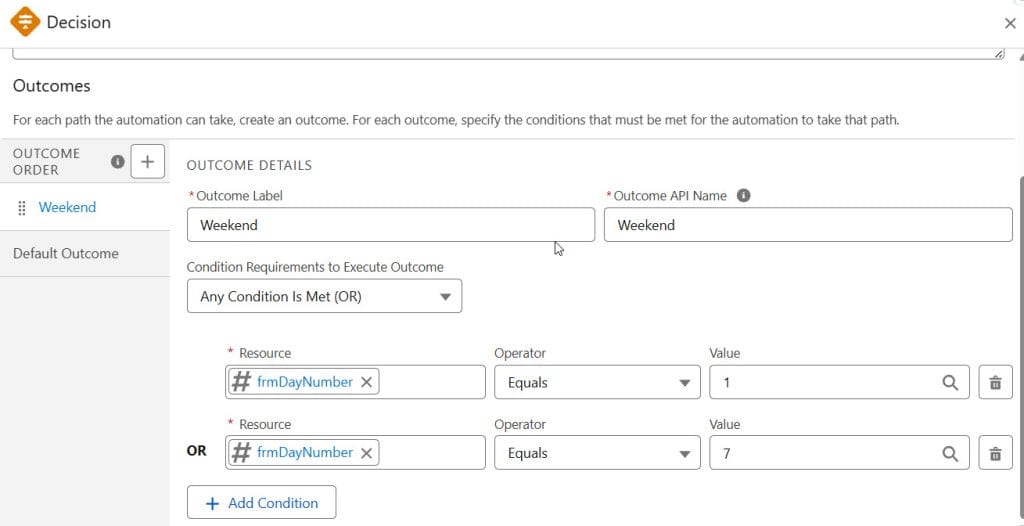
Step 7: Check if it is a Weekend
Now, check whether the current date falls on a weekend. A common approach in Salesforce Flow is to create a Formula Resource that returns the day number from the date.
The formula concept works like this:
- Sunday = 1
- Monday = 2
- Tuesday = 3
- Wednesday = 4
- Thursday = 5
- Friday = 6
- Saturday = 7
After getting the day number, use a Decision element to check whether it equals 1 (Sunday) or 7 (Saturday).
- If the value is 1 or 7, the date falls on a weekend, so the Flow skips it.
- Otherwise, the date is treated as a business day.
The exact formula implementation may vary depending on your Salesforce org and Flow design, but the main goal is to perform a weekend check before increasing the business day count.
Step 8: Check for Holidays
This is the part that makes the solution more practical for real business scenarios. In addition to weekends, you may also need to skip company holidays while calculating business days.
If your Salesforce org already uses Holidays, you can use those dates in the Flow logic. There are two common approaches for this:
- Create a custom object such as Holiday__c
- Use Salesforce’s standard Holiday setup if it matches your business requirements
For most declarative Flow solutions, using a custom holiday object is usually easier to manage and customize.
Example: Create a Custom Holiday Object
Create a custom object named: Holiday__c
Then add fields such as:
- Holiday Name
- Holiday Date
Next, use a Get Records element in the Flow to check whether the value of varCurrentDate matches any holiday record.
If no holiday record exists, the date can be counted as a business day. If a matching holiday record is found, the Flow skips that date.
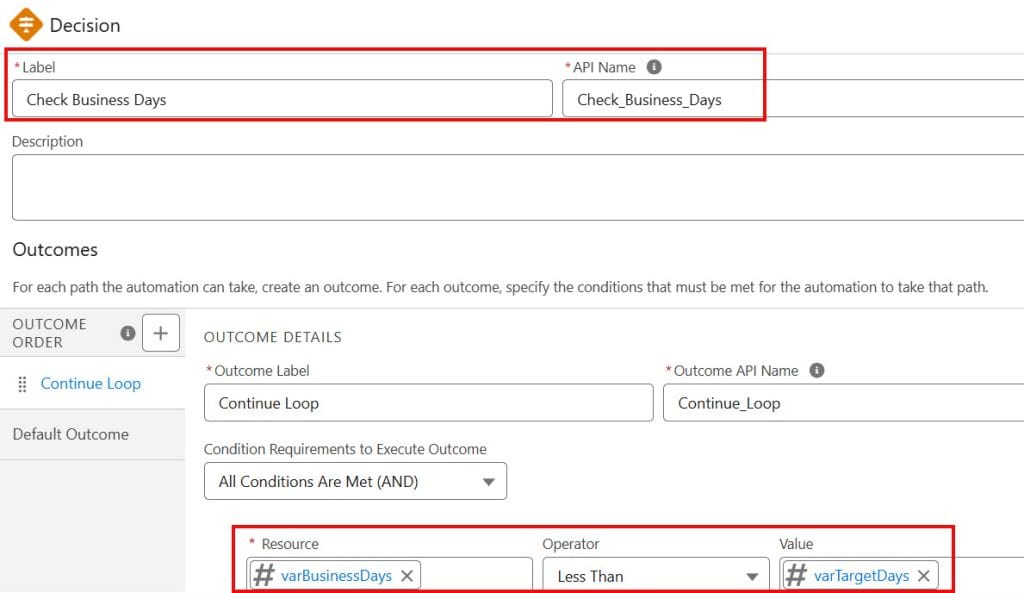
Step 9: Use a Decision Element to Check Holidays
Now, add a Decision element after the weekend and holiday checks. This Decision element will determine whether the current date is a valid business day.
The Decision should check:
- Is the current date a weekday?
- Is the current date not a holiday?
If Both Conditions Are True:
Use an Assignment element to increase the value of varDaysAdded by 1.
Example:
varDaysAdded = varDaysAdded + 1If Any Condition Fails
Do not increase the counter. Simply continue the Flow loop and move to the next date.
This is the core logic of the entire business-day calculation process, as it determines which dates are valid business days.
Step 10: Stop when the target is reached
I need the flow to stop once the requested number of business days has been added.
So I compare:
- varDaysAdded
- varBusinessDaysToAdd
When they are equal, I exit the loop and set:
- varEndDate = varCurrentDate
That becomes the result.
How the flow looks in practice
The flow logic usually follows this pattern:
- Set varCurrentDate = varStartDate.
- Set varDaysAdded = 0.
- Move to the next date.
- Check the weekend.
- Check the holiday.
- If valid, increment varDaysAdded by 1.
- Repeat until count matches target.
- Return varCurrentDate.
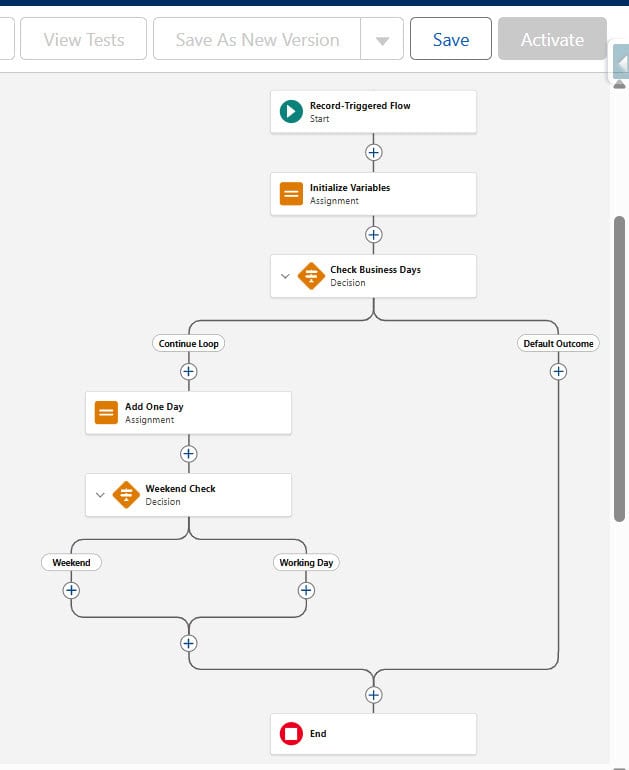
That is the easiest way to think about it.
Example
Let’s say:
- Start Date = Monday, 20 May 2026.
- Business Days to Add = 5.
- Holiday = Thursday, 23 May 2026.
The flow should count:
- Tuesday 21 May = 1
- Wednesday 22 May = 2
- Thursday 23 May = holiday, skip
- Friday 24 May = 3
- Saturday 25 May = skip
- Sunday 26 May = skip
- Monday 27 May = 4
- Tuesday 28 May = 5
Final date = 28 May 2026
That example is useful because it shows why business-day logic is different from simple date addition.
When to use Apex instead
Flow is great, but I would switch to Apex if:
- The logic gets very complex.
- I need heavy date calculations in bulk.
- I need better performance.
- I want a shared utility class for many automations.
- I need country-specific rules with several holiday calendars.
For a simple and maintainable setup, Flow is usually enough. For more advanced logic, Apex gives me more control.
Final thoughts
If I want to calculate business days in Salesforce without code, Flow is a solid choice. I can build a reusable date calculator that skips weekends and holidays and use it across the org.
The key is to think in small steps:
- Move one day at a time.
- Check if it is a business day.
- Count only valid days.
- Stop when the target is reached.
That simple pattern is easy to maintain and works well for many real-world business processes.
You may like to read:
- Send An Email with Dynamic Attachments in Salesforce Flow
- Salesforce Flows: Before-Save and After-Save
- Freeze User Accounts Using Salesforce Flow
- Send Email Alerts For Overdue Tasks Using Salesforce Flows
- Create and Send PDF Via Email Using Salesforce Flow

I am Bijay Kumar, the founder of SalesforceFAQs.com. Having over 10 years of experience working in salesforce technologies for clients across the world (Canada, Australia, United States, United Kingdom, New Zealand, etc.). I am a certified salesforce administrator and expert with experience in developing salesforce applications and projects. My goal is to make it easy for people to learn and use salesforce technologies by providing simple and easy-to-understand solutions. Check out the complete profile on About us.
