
Sending emails from Salesforce Flow has become one of the most common automation requirements for Salesforce Admins and Developers.
Whether it is sending case updates, welcome emails, or order confirmations, Email Templates help ensure consistent and professional communication.
However, using Email Templates in Flow was not always straightforward. In previous releases, administrators often had to rely on Email Alerts or manually provide the Email Template ID when configuring the Send Email action.
With the latest Salesforce release, this process has become much simpler. Salesforce now allows you to directly use Email Templates in the Send Email action by providing the Email Template Developer Name (API Name).
This removes unnecessary complexity and makes configuring email automation in Flow much easier.
In this article, I will explain how to use Email Templates directly in Salesforce Flow. How this feature works, how it differs from the previous approach, and how to implement it step by step in Salesforce Flow.
What is an Email Template in Salesforce?
An Email Template in Salesforce is a reusable email format that helps you send consistent, professional emails without retyping the same content.
It contains predefined elements such as the subject, body, and merge fields that automatically pull data from Salesforce records.
It contains:
- Subject
- Email Body
- Merge Fields (like Name, Account, etc.)
Email templates are commonly used in business processes like sending welcome emails, case updates, order confirmations, and notifications.
They are very useful for automation and help maintain a standard communication format across the organization.
Example:
Instead of typing: Hello John, your case has been resolved…
You can create a template with merge fields: Hello {!Contact.Name}, your case has been resolved…
Before Summer ’26 – How Send Email Worked in Salesforce Flows
Before this update, sending an email using a template in Flow required multiple steps. You cannot use the template directly in the Send Email action.
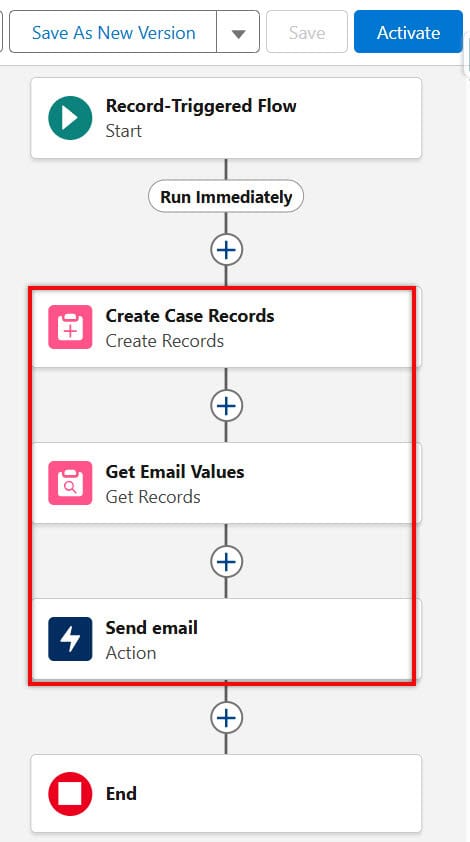
1. Old Process (Complex)
- Use Get Records Element
- You had to use this element to fetch required data or sometimes the email template indirectly. This added extra complexity and was not always necessary.
- Create an Email Alert
- You needed to create an Email Alert in Setup and configure it with the email template and recipients. This meant switching between Flow Builder and Setup, slowing development.
- Use Send Email Action
- Finally, you had to call the Email Alert from the Flow using the Send Email action. This made the process indirect and harder to debug.
2. Problems in the Old Approach
- It required multiple elements for a simple task, which made the flows longer and harder to read.
- Beginners found it confusing because they had to understand Email Alerts separately.
- Maintenance was difficult because changes had to be made in multiple places.
- It increased development time for even small automations.
This was one of the most frustrating parts of Flow development.
How It Worked Before Summer ’26
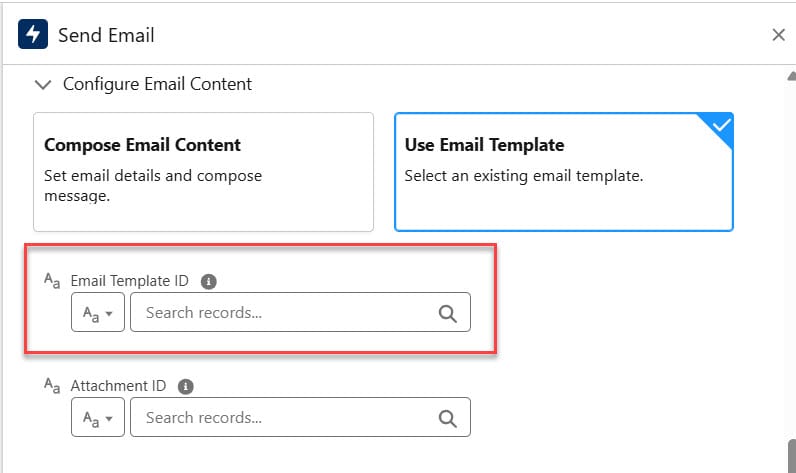
Before the Summer ’26 release, the Send Email action in Salesforce Flow did not allow you to directly select an Email Template by name. Instead, administrators had to provide the Email Template ID manually.
To get the Email Template ID, you typically had to:
- Open the Email Template record.
- Copy the Template ID from the URL or use a Get Records element to retrieve it.
- Pass that ID to the Email Template ID field in the Send Email action.
This process was less user-friendly because administrators needed to find and manage template IDs rather than simply selecting an Email Template from a list.
What’s New in Summer ’26 Release for Using Email Template in Salesforce Flows?
The new feature introduced in the Summer ’26 release allows you to directly use Email Templates inside the Send Email element in Flow.
You just need to provide the Developer Name (API Name) of the email template, and Salesforce will automatically use that template to send the email.
- Add Send Email element
- Enter Recipient Email Address
- Provide Email Template Developer Name
- (Optional) Add Related Record ID for merge fields
That’s it. No extra steps required.
This new approach reduces complexity and makes your flow much cleaner. It also helps beginners understand email automation more easily.
Why Salesforce Introduced Direct Email Template Support in Flow
Before Summer ’26, administrators had to use Email Alerts or manually provide Email Template IDs when sending emails from Flow. This made email automation more complex than necessary.
Salesforce introduced direct Email Template support in the Send Email action to:
- Reduce Flow complexity
- Eliminate dependency on Email Alerts
- Simplify email automation
- Improve Flow maintainability
- Help admins build automations faster
This enhancement aligns with Salesforce’s goal of making Flow the primary automation tool on the platform.
After Summer 26′ Release – How to Use Email Templates Directly in Salesforce Flow
Below, I will explain how to use the Email Template directly in Salesforce Flows after the Summer ’26 release, including a step-by-step implementation guide.
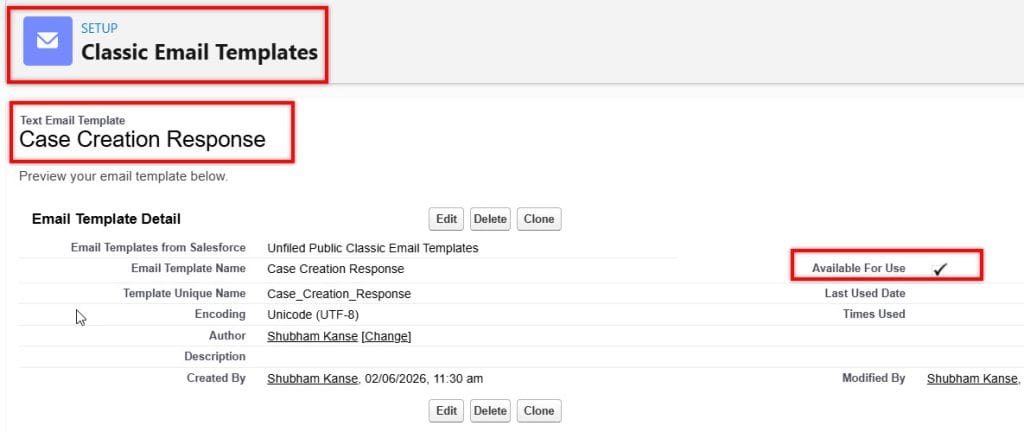
Step 1: Create an Email Template
- Go to Setup.
- Search for Email Templates in the Quick Find box.
- Click New Email Template.
- Enter the template details:
- Email Template Name: Case Creation Response
- Subject: Provide as per your requirement
- Write the email body and use merge fields if required.
- Save the template.
The Developer Name is what you will use inside Flow, so make sure it is correct and easy to remember.
Step 2: Create a Record-Triggered Flow
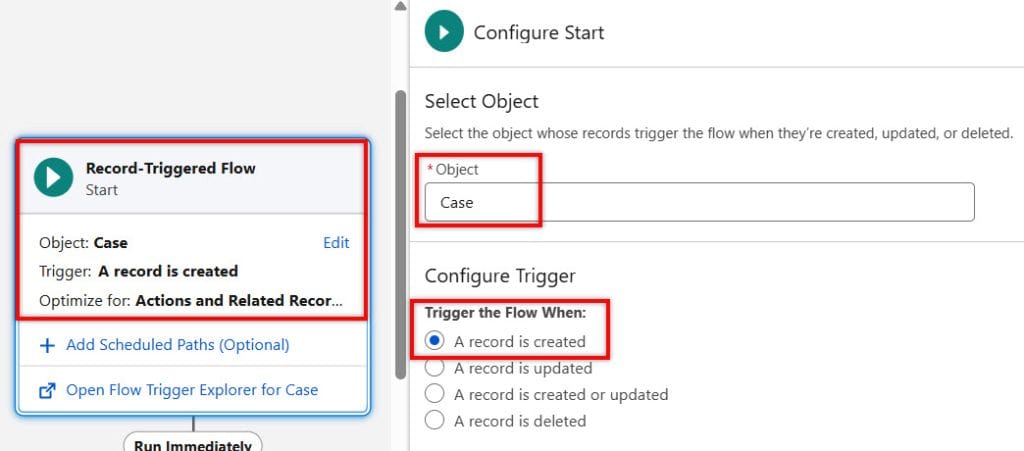
- Go to Setup → Flows.
- Click New Flow.
- Select Record-Triggered Flow.
- Choose the Case object.
- Configure the trigger:
- Trigger the flow when: A record is created
- Condition Requirements: As per your business requirement (optional)
- Optimize the Flow For: Actions and Related Records
- Click Done.
Step 3: Add the Send Email Action
- Click the + icon in the flow.
- Search for and select Send Email.
- Enter an Action Label, such as “Send Case Creation Email”.
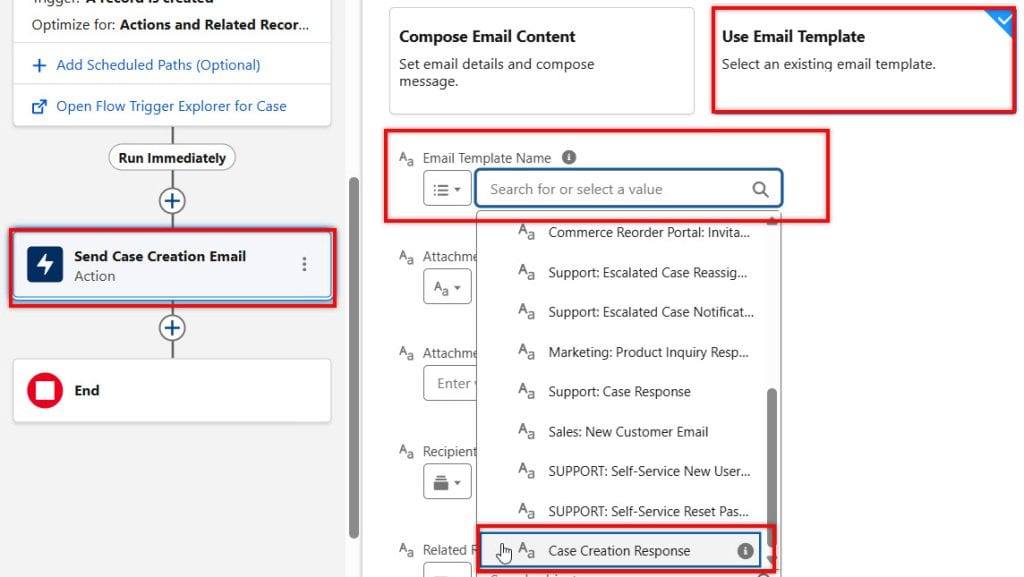
Step 4: Select the Email Template
With the Summer ’26 release, you can directly select an Email Template in the Send Email action.
Step 5: Save and Activate the Flow
- Click Save.
- Enter a Flow Name.
- Click Activate.
Step 6: Test the Flow
- Create a new Case record.
- Ensure the Case is associated with a Contact that has an email address.
- After the Case is created, Salesforce automatically sends an email using the selected Email Template.
Whenever a new Case is created, the flow automatically sends a professional email to the customer using the selected Email Template, without requiring manual entry of the email content in the flow.
This makes email management easier because any future changes can be made directly in the Email Template.
Real-World Use Cases
You can use Email Templates directly in Flow for:
- Case Creation Acknowledgment
- Automatically send a confirmation email when a customer creates a support case.
- Opportunity Won Notification
- Send a thank-you email when an Opportunity is marked as Closed Won.
- Welcome Email for New Customers
- Automatically welcome new customers after Account or Contact creation.
- Order Confirmation
- Send order details after an order is created.
- Event Registration Confirmation
- Notify attendees when they register for an event.
Before vs After Comparison Summer ’26 Release
| Feature | Before Summer ’26 | After Summer ’26 |
|---|---|---|
| Email Template Usage | Indirect | Direct |
| Need Email Alert | Yes | No |
| Need Get Records | Yes (sometimes) | No |
| Complexity | High | Low |
| Time Required | More | Less |
| Beginner Friendly | No | Yes |
| Maintenance | Difficult | Easy |
Frequently Asked Questions
What is the Developer Name in the Email Template?
The Developer Name is the unique API name of the email template.
It is used by Salesforce internally and is required when referencing the template in Flow.
Unlike the label, it does not change easily, ensuring consistency.
2. Can I still use Email Alerts?
Yes, Email Alerts are still available and can be used in other automation tools, such as Workflow or Process Builder.
However, for Flow, they are no longer required, which significantly simplifies the process.
3. What happens if I enter the wrong Developer Name?
If the Developer Name is incorrect, the Flow will fail to send the email. Salesforce cannot find the template, so it is important to double-check the API name before saving.
4. Can I use merge fields in the template?
Yes, merge fields are fully supported. You just need to provide the Related Record ID so Salesforce knows from where to fetch the data.
5. Is this feature available for all Flow types?
Yes, this feature works with Record-triggered, Screen, and Autolaunched Flows. This provides flexibility for use in different automation scenarios.
Conclusion
The Salesforce Summer ’26 update has significantly improved how emails are sent via Flow. What was once a complex and frustrating process is now simple, direct, and efficient.
By allowing the use of Email Template Developer Name directly in the Send Email element, Salesforce has reduced complexity and improved productivity. This feature is especially helpful for beginners and admins who want to build powerful automations without unnecessary steps.
If you are working with Salesforce Flow, you should start using this feature immediately. It will save time, improve your flow design, and make your automation much easier to manage.
You may like to read:
- Send Email with Flows in Salesforce
- How to Send Reminder Email to Approver in Salesforce
- Display Toast Messages Using Salesforce Flow (Native Show Toast Action)
- Send Email with Dynamic Attachments in Salesforce Flow
- Create & Send HTML Emails Using Rich Text Template in Salesforce Flow

Shubham is a Certified Salesforce Developer with technical skills for Building applications using custom objects, approval processes, validation rules, Salesforce flows, and UI customization. He is proficient in writing Apex classes, triggers, controllers, Apex Batches, and bulk load APIs. I am also familiar with Visualforce Pages and Lightning Web Components. Read more about me.