
If you’ve worked in a busy Sales Cloud org, you’ve probably seen users type numbers into text fields, things like “10000” in a “Budget (Text)” field or “15” in a “Number of Seats” text field.
Then someone asks for a report that sums those values, and you realize you can’t do math on text.
That’s exactly where the Salesforce VALUE function becomes useful. On one of my client projects, we had a legacy text field storing revenue as text.
Instead of rebuilding the data model immediately, we used VALUE in formula fields and Validation Rules to convert and control the data until we could clean it up.
In this guide, I’ll walk you through what the Salesforce VALUE() function is, how it works, and how to use it safely in real-world formulas, with examples and best practices from real implementations.
What Is the Salesforce VALUE() Function?
The Salesforce VALUE function is a formula function that converts a text value into a number so you can use it in calculations.
- Text field: A field type that stores characters like letters, numbers, and special symbols, but you cannot perform arithmetic on it.
- Number field: A field type that stores numeric values and supports calculations like addition, subtraction, and reporting summaries.
When a user or integration sends numeric data as text (for example, "1000" instead of 1000), VALUE helps you convert that text into a number inside a formula.
Basic VALUE Function Syntax
The syntax is simple:
VALUE(text)
- text is any expression or field that returns text, such as “100”, Text_Field__c, or a combination using other functions.
If the text contains a valid number, VALUE returns a number. If not, your formula can fail with an error, so you always want to guard it with checks like ISNUMBER or ISBLANK.
You’ll often combine VALUE with other text functions like TRIM, LEFT, or MID to clean the text before converting it. For example, to get the left part of a text, you can use the LEFT function as described in the LEFT function in Salesforce guide.
When Should You Use the VALUE Function?
In real orgs, VALUE shows up in several common scenarios:
- Migrating from a text field to a number field.
- Integrations that pass numeric values as text.
- Parsing numbers out of strings like “USD 1000” or “Seats: 20”.
- Doing calculations on text fields where you can’t change the field type yet.
Here are some practical examples.
Example 1: Convert a Text Budget Field to a Number
Suppose your Opportunity object has a custom text field Customer_Budget__c where users enter numbers, but the field type is text.
You want a formula field Customer_Budget_Number__c (Number) that converts this text to a number for reporting.
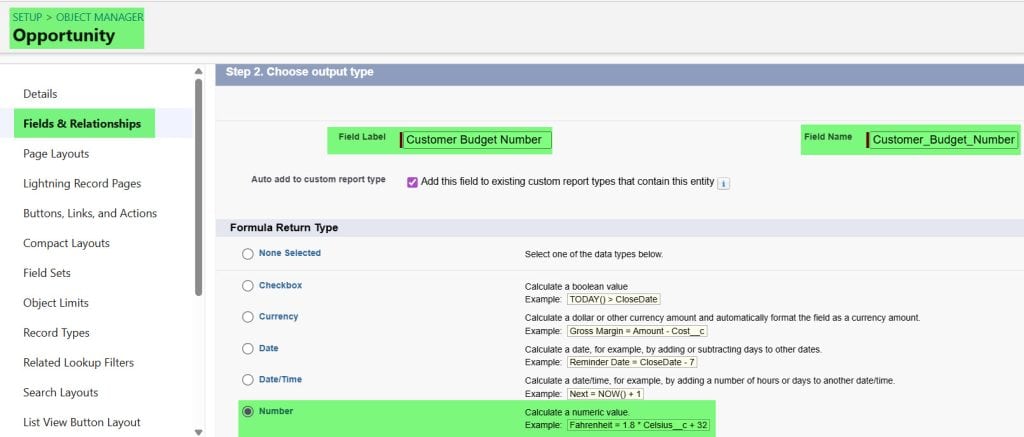
Formula (Number, 0 decimal places):
IF(
    AND(
        NOT(ISBLANK(Customer_Budget__c)),
        ISNUMBER(Customer_Budget__c)
    ),
    VALUE(Customer_Budget__c),
    0
)
What this does:
- Checks that the text field isn’t blank and is a valid number.
- Uses VALUE to convert the text to a numeric value.
- Returns
0if the text is blank or not numeric, so your formula doesn’t throw errors.

Now you can sum Customer_Budget_Number__c in Reports and Dashboards, or use it in other formulas. If you’re interested in building better reports after adding such fields, check out the guide on creating reports in Salesforce.
Example 2: Extract a Number from a Text Value
Let’s say you have a field Seat_Info__c that stores values like “Seats – 25“. You want to extract the number 25 as a numeric value.
Formula (Number):
IF(
    ISNUMBER(
        VALUE(
            TRIM(
                RIGHT(Seat_Info__c, LEN(Seat_Info__c) - 7)
            )
        )
    ),
    VALUE(
        TRIM(
            RIGHT(Seat_Info__c, LEN(Seat_Info__c) - 7)
        )
    ),
    0
)
Explanation:
- “Seats: ” is 7 characters, so RIGHT(Seat_Info__c, LEN(…) – 7) takes everything after that.
- TRIM removes extra spaces.
- VALUE converts the remaining text to a number.
- ISNUMBER checks if conversion is valid; otherwise you return 0.

This pattern is helpful when you cannot change the source format but still need numbers for Sales Cloud reporting or Validation Rules.
Using VALUE in Formula Fields
You’ll use VALUE a lot in Formula Field definitions. Here’s how to set it up step-by-step in a typical Sales Cloud org.
Step 1: Decide Where You Need Numbers
Start by identifying text fields that hold numeric data:
- Budget text on Opportunities.
- Quantity text on Quotes or Orders.
- Custom text fields used for metrics on Cases in Service Cloud.
If you are designing new fields, consider using proper Number, Currency, or Percent field types as shown in the guides like create number field type in Salesforce and create currency field type in Salesforce. VALUE is more of a workaround for existing text data.
Step 2: Create a Formula Field
- Go to Setup.
- Navigate to Object Manager and select the object (e.g., Opportunity).
- Go to Fields & Relationships.
- Click New.
- Choose Formula as the field type and click Next.
- Enter a field label, pick Number (or Currency/Percent) as the formula return type, and click Next.
This is where you’ll write the formula using VALUE.
Step 3: Write a Safe VALUE Formula
Always protect VALUE with checks:
- ISBLANK checks if the text is empty.
- ISNUMBER checks if the text represents a number.
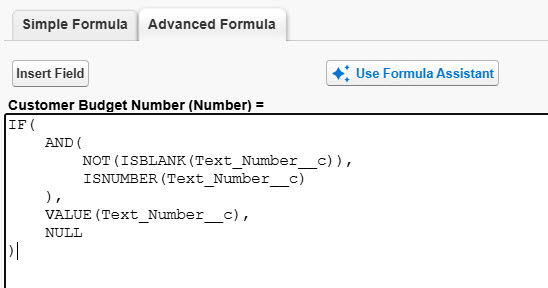
Example formula:
IF(
    AND(
        NOT(ISBLANK(Text_Number__c)),
        ISNUMBER(Text_Number__c)
    ),
    VALUE(Text_Number__c),
    NULL
)
Here, the formula:
- Converts valid text to a number.
- Returns
NULLfor invalid/blank values so you don’t pollute your data with zeros.
To learn more about numeric formulas, it’s helpful to also understand functions like the SALESFORCE DATE formula covered in the Salesforce formula date to text and Salesforce formula date greater than specific date articles.
Step 4: Add the Formula Field to Page Layouts
After saving the formula:
- Go to Page Layouts for the object.
- Edit the main layout used by your users.
- Drag your formula field (e.g., Text_Number_Converted__c) onto the layout.
- Save the layout.
Now users can see the converted numeric value right next to the original text field.
Using VALUE in Validation Rules
Validation Rules are conditions that stop users from saving bad data. They’re perfect for enforcing numeric input in text fields before you use VALUE.
For example, suppose you want to ensure that Customer_Budget__c always contains a number.
Validation Rule formula:
AND(
    NOT(ISBLANK(Customer_Budget__c)),
    NOT(ISNUMBER(Customer_Budget__c))
)
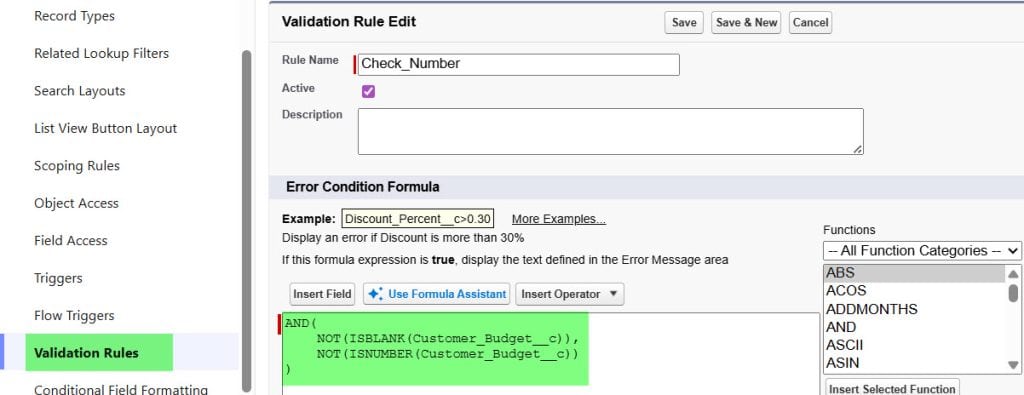
If this evaluates to true, the record won’t save, and you can show an error message like:
“Customer Budget must be a numeric value (no commas or special characters).”
Why this is important:
- VALUE will fail if the text isn’t a valid number.
- Validation Rules help you catch bad input early.
- You keep your formulas and reports clean and predictable.
If you’re new to Validation Rules, the detailed guide on Validation Rules in Salesforce is a good next step.
Combining VALUE with Other Functions
In real projects, VALUE rarely lives alone. You’ll combine it with other Text and Logical functions to solve more complex scenarios.
Here are a few common combinations:
VALUE + TRIM
Sometimes users add spaces before or after numbers, like ” 5000 “. TRIM removes those spaces.
IF(
    ISNUMBER(TRIM(Text_Number__c)),
    VALUE(TRIM(Text_Number__c)),
    0
)
VALUE + SUBSTITUTE
If your integration sends numbers with commas (e.g., “10,000”), you can strip commas before conversion using the SUBSTITUTE function described in the Substitute function in Salesforce.
IF(
    ISNUMBER(SUBSTITUTE(Text_Number__c, ",", "")),
    VALUE(SUBSTITUTE(Text_Number__c, ",", "")),
    0
)
VALUE + CASE / IF
You may want different behavior based on text content. For example, if a field contains "N/A", you might treat it as 0.
IF(
    OR(
        ISBLANK(Text_Number__c),
        Text_Number__c = "N/A"
    ),
    0,
    VALUE(Text_Number__c)
)
Using CASE can also help for more complex branching, and you can learn more in the Case function in Salesforce article.
Pro Tip:
I’ve found that VALUE-related formula errors usually come from unexpected characters like commas, spaces, or labels mixed with numbers. Before using VALUE in production formulas, I always build a quick test report listing sample records and verify that every text pattern is handled correctly by the formula.
Real-World Example: Sales Team Budget Tracking
Imagine a mid-sized Sales Cloud org with 20 sales reps. They track “Estimated Customer Budget” on Opportunities, but the field was created as a text field because it seemed simpler.
Pain points:
- Managers want to see total estimated budget in opportunities pipeline reports.
- They also want to build a Dashboard with total potential budget across stages.
Instead of forcing an immediate field-type change (which risks losing data), we:
- Created a number formula field Estimated_Budget_Number__c using VALUE and ISNUMBER.
- Added a Validation Rule to enforce numeric-only input going forward.
- Updated the opportunity pipeline report to summarize Estimated_Budget_Number__c.
- Built a Dashboard with components that show total estimated budget by stage.
This improved reporting without disrupting users and gave us time to plan a proper data model change later.
If you’re interested in improving your reporting, you can follow the step-by-step tutorials on creating a report in Salesforce, creating a dashboard, and adding it to the home page in Salesforce.
Things to Keep in Mind
- Always validate input first. Use ISNUMBER and ISBLANK in formulas or Validation Rules to ensure VALUE doesn’t crash on bad data.
- Beware of formatting characters. Commas, currency symbols, and text labels (like “Seats:”) must be removed or parsed with functions like SUBSTITUTE, LEFT, and MID before conversion.
- Prefer proper field types. Use Number, Currency, or Percent fields when designing new objects; VALUE is more of a rescue tool for legacy text data.
- Handle nulls carefully. Decide if you want to treat blank values as 0 or NULL; this affects reports, rollups, and Roll-Up Summary fields.
- Test formulas on sample data. Build a test report with multiple data patterns (valid numbers, blanks, invalid strings) to verify your VALUE logic before deploying to production.
- Document your patterns. Add help text on fields and internal documentation, so admins and developers know how VALUE is being used and what inputs are expected.
Frequently Asked Questions
How does the Salesforce VALUE function work?
The Salesforce VALUE function converts a text expression into a numeric value. If the text represents a valid number (like “100”), VALUE returns 100 as a Number type that you can use in formulas and reports. If the text is not numeric, the formula can fail unless you guard it with checks like ISNUMBER.
When should I use VALUE instead of changing the field type?
Use VALUE when you have existing text fields with numeric data that you can’t change immediately because of dependencies, integrations, or user processes. VALUE lets you create formula fields and do reporting while you plan a longer-term data model cleanup. For new fields, always choose the proper numeric types rather than relying on VALUE.
What happens if the text is not a number?
If the text cannot be converted to a number (for example, “ABC”, “10,000 USD”, or “Seats: 15” without parsing), VALUE will cause the formula to throw an error. That’s why you should wrap VALUE in IF/ISNUMBER/ISBLANK logic to handle invalid values gracefully and avoid broken formulas.
Can I use VALUE in Validation Rules?
Yes, but it’s more common to use ISNUMBER without VALUE in Validation Rules to check whether a text field contains a numeric value. You might write a rule that prevents saving when a required text field is not numeric, then use VALUE in formula fields to convert it to numeric. This keeps Validation Rules focused on data quality and formulas focused on calculations.
Does VALUE work with decimals and negative numbers?
VALUE supports standard numeric formats, including decimals (like “100.50”) and negative numbers (“-50”). However, you must still ensure the text doesn’t include currency symbols, commas, or other characters that break conversion. Use SUBSTITUTE and TRIM to clean the text before passing it to VALUE when necessary.
Can I use VALUE on fields like picklists?
You can’t apply VALUE directly to Picklist fields, since they aren’t text by default. First convert the picklist value to text using TEXT(Picklist_Field__c), and then apply VALUE to that text if it contains numeric data. Always confirm the picklist values are strictly numeric before using this approach.
Conclusion
The Salesforce VALUE function is a simple tool that solves a very real problem: making sense of numeric data stored as text so you can report and calculate properly.
Start with safe, well-tested formulas, combine VALUE with ISNUMBER and TRIM, and then gradually refactor your data model as your org matures. I hope you found this article helpful.
You May Also Like
- ISNUMBER function in Salesforce
- Salesforce formula for text field
- Salesforce DATEVALUE function
- Create formula field type in Salesforce
- Salesforce REGEX function

I am Bijay Kumar, the founder of SalesforceFAQs.com. Having over 10 years of experience working in salesforce technologies for clients across the world (Canada, Australia, United States, United Kingdom, New Zealand, etc.). I am a certified salesforce administrator and expert with experience in developing salesforce applications and projects. My goal is to make it easy for people to learn and use salesforce technologies by providing simple and easy-to-understand solutions. Check out the complete profile on About us.