
A sales manager hires three new representatives and asks you to create their Salesforce users before Monday.
You open Setup, start creating the first user, and then realize you do not know whether the org has any available Salesforce licenses left.
I have seen this happen often in Sales Cloud projects. A quick license check prevents failed user creation, helps admins plan onboarding, and avoids assigning a license type that does not match someone’s job.
In this guide, I will show you how to check user licenses in Salesforce, understand the numbers, and identify which users use each license.
What Is a User License in Salesforce?
A user license is like the entry pass for a person in Salesforce. It defines the baseline set of features that the user can access in your Salesforce org.
Every active user needs one user license. When you create a user, Salesforce asks you to select a value in the User License field.
That choice determines the maximum level of functionality you can give that user later through a Profile or Permission Set.
For example, a sales representative who manages leads, accounts, contacts, and opportunities usually needs a Salesforce user license. A back-office employee who only uses a custom app built with custom objects may only need a Salesforce Platform license.
Think of access in three layers:
| Access layer | Purpose | Example |
|---|---|---|
| User License | Defines the broad features the user is eligible to access | Salesforce or Salesforce Platform |
| Profile | Sets the user’s baseline permissions, object access, and app visibility | Standard User or a custom Sales User profile |
| Permission Set | Adds specific permissions without changing the profile | Access to a custom app, report folder, or feature |
A profile or permission set cannot grant access beyond the limits of the user license.
For example, if a user has a Salesforce Platform license, assigning a profile does not automatically give them access to every standard CRM feature available to a full Salesforce license user.
How to Check User Licenses in Salesforce
The fastest way to check user licenses in Salesforce is through the Company Information page. This page shows every license type available in your org, along with the total quantity, used quantity, and remaining quantity.
You need administrator access, or a profile and permission set that gives you access to Setup and company information.
Step 1: Open Setup
- Log in to your Salesforce org.
- Click the Gear icon in the top-right corner.
- Select Setup.
Salesforce opens Setup in a new workspace. This is where administrators manage users, security, automation, objects, and company-level settings.
Step 2: Search for Company Information
- In the left-side Quick Find box, type
Company Information. - Click Company Information from the search results.
The Company Information page contains important details about your Salesforce org, including edition details, organization ID, storage, and license usage.
Step 3: Find the User Licenses Section
Scroll down until you find the User Licenses section.
You will see a table with columns similar to these:
| Column | What it means |
|---|---|
| License Type | The Salesforce product or access level assigned to users |
| Total | The number of licenses your company owns |
| Used | The number of licenses currently assigned to users |
| Remaining | The number of licenses still available for assignment |
| Expiration Date | The date the license entitlement ends, where applicable |
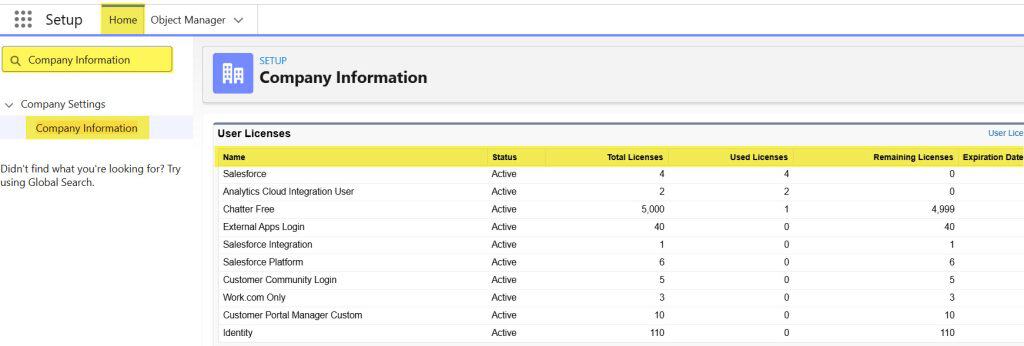
For example, your sales team may have the following license details:
| License Type | Total | Used | Remaining |
|---|---|---|---|
| Salesforce | 25 | 22 | 3 |
| Salesforce Platform | 10 | 7 | 3 |
| Identity | 100 | 35 | 65 |
In this example, you can create three more users with the full Salesforce user license. If you need to add a fourth sales representative, you must first deactivate an existing user, reassign access, or purchase another license.
Step 4: Review Available License Types
A user license controls the baseline features a person can access in Salesforce. Every active Salesforce user needs a user license.
For a typical sales organization with 20 sales representatives, five managers, and a small operations team, you may see several license types.
- Salesforce license: Provides broad access to standard Salesforce capabilities, including accounts, contacts, leads, opportunities, reports, dashboards, and many Sales Cloud features.
- Salesforce Platform license: Supports custom apps, custom objects, automation, and reporting, but has limits on access to certain standard CRM objects.
- Identity license: Supports identity and login use cases. It does not provide full CRM access.
- Chatter Free license: Provides collaboration access without full Salesforce CRM access.
- Chatter Only license: Supports Chatter collaboration with more access than Chatter Free, depending on your org setup.
Do not choose a license based only on the number of available seats. First confirm what the person must do in Salesforce.
For example, a sales representative who works with leads and opportunities will usually need a Salesforce license. A back-office employee who only uses a custom onboarding app built with custom objects may work with a Salesforce Platform license.
If your team uses custom apps heavily, review how to create custom objects in Salesforce before deciding which users need access to those objects.
Pro Tip: I always review the user’s actual job tasks before assigning a license. In my experience, assigning a full Salesforce license to every employee creates unnecessary cost and makes access reviews harder later.
How to Check a Specific User’s License in Salesforce
The Company Information page shows license counts. However, when you need to know which license a particular employee uses, check the user record.
Step 1: Open the Users Page
- From Setup, type
Usersin the Quick Find box. - Select Users.
- Click the user’s name.
The Users page lists active and inactive people who have access to your Salesforce org.
Step 2: Review the User License Field
On the user detail page, locate the User License field.
Salesforce shows the license assigned to that person, such as:
- Salesforce
- Salesforce Platform
- Identity
- Chatter Free
- Chatter Only
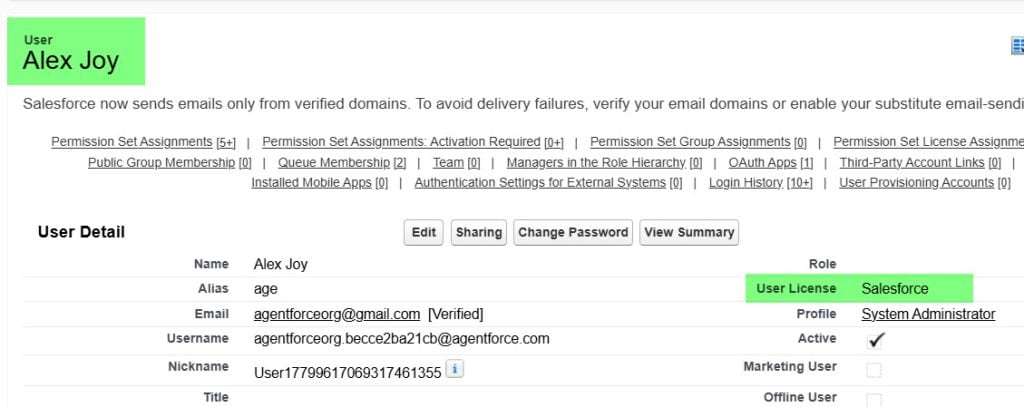
You will also see the user’s Profile. A profile controls the default permissions, object access, field access, app visibility, and tab visibility for that user.
A user license and a profile work together:
- The user license sets the broad range of available Salesforce features.
- The profile defines the user’s baseline access within the available features.
- A permission set adds extra permissions without changing the user’s profile.
For example, your sales representative may have a Salesforce user license, the Standard User profile, and a permission set that grants access to a custom discount approval process.
Learn more about setting up access properly by reviewing how to create a permission set in Salesforce.
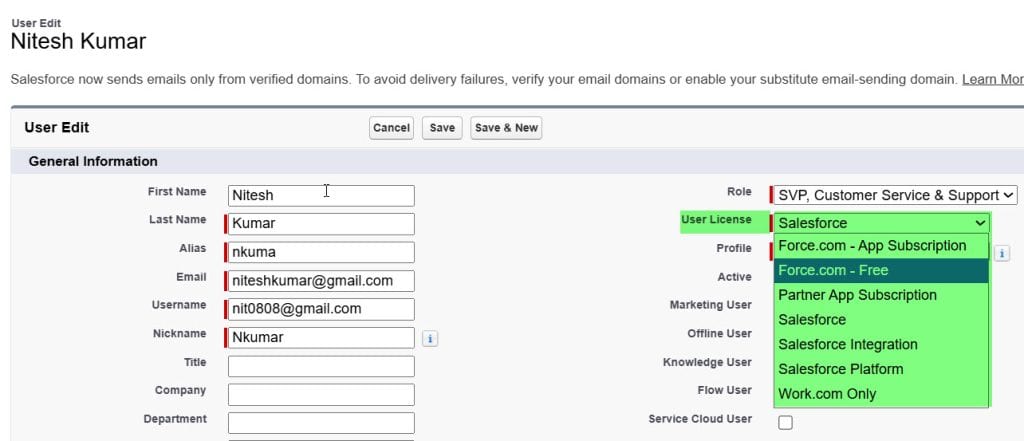
Step 3: Check Whether You Can Change the License
Click Edit on the user record and review the User License picklist.
Salesforce only shows license choices that are available in your org and compatible with the user’s profile. If a license type does not appear, your org may not own that license or it may not support the selected profile.
When you change a user license, Salesforce may require you to change the user’s profile too. That happens because profiles only work with compatible license types.
For example, if you change a user from Salesforce to Salesforce Platform, you may need to assign a platform-compatible profile. Review the user’s access to accounts, leads, opportunities, reports, custom objects, and apps before saving the change.
How to Find Users Assigned to a License
Checking the remaining count is useful, but you may also need to identify the people using a specific license. This helps during offboarding, annual renewals, license audits, and cost reviews.
Use the Users List View
- Go to Setup.
- Search for and open Users.
- Select the All Active Users list view.
- Click the list view controls icon.
- Select Select Fields to Display.
- Add the User License field if it is not already visible.
- Save the list view.
Now you can review each active user and their assigned license in one place.
For a sales team with 20 representatives, filter the list to identify users with the Salesforce license. You can then compare the list with the active employee roster and look for former employees, temporary users, duplicate accounts, or people who no longer need full CRM access.
Create a User License Report in Salesforce
You can also build a Report for regular license reviews.
A report is a structured list of Salesforce data that you can filter, group, and summarize. In this case, you create a report that shows active users by license type.
By default, the User License field may not be directly available when creating or filtering certain Salesforce reports. You can make the User License information available by creating a Formula Field on the User object.
Salesforce has the following relationship:
User → Profile → User License
- The User object has a lookup relationship to Profile.
- The Profile object has a lookup relationship to User License.
- Therefore, we can retrieve the User License Name through the Profile relationship.
Create a Text Formula Field on the User object to retrieve the User License Name using the Profile relationship.
Use the following formula:
Profile.UserLicense.Name
Then add this field to your Salesforce Report or use it as a filter.
Create a Report with User License in Salesforce
- Open the Reports tab.
- Click New Report.
- Search for the Users report type.
- Select the report type and click Start Report.
- Add filters such as:
- Active equals True
- User License equals Salesforce
- Add columns such as:
- Full Name
- Username
- Profile
- User License
- Last Login
- Group the report by User License.
- Save the report with a name such as Active Users by License Type.
The Last Login field helps you identify accounts that may no longer need a license. However, do not deactivate a user only because they have not logged in recently. First confirm with the user’s manager, check integrations, and review ownership of records.
If your team needs better visibility, you can also create a report in Salesforce and add it to a dashboard for Salesforce administrators.
User Licenses vs Permission Set Licenses
New administrators often confuse user licenses with permission set licenses.
A user license gives a person their foundational Salesforce access. A permission set license gives extra access to a specific Salesforce feature or managed package.
For example, a sales representative may have:
- A Salesforce user license for core CRM access.
- A Sales Console User feature license for console functionality.
- A permission set license for an add-on product.
- A permission set that gives access to a custom object or a specific app.
You can view related counts on the same Company Information page. Look for sections such as Permission Set Licenses and Feature Licenses.
Always check these sections when a user cannot access a feature despite having the correct profile. The person may need a feature license or permission set license in addition to their user license.
When you need to assign extra access, use permission sets instead of creating many profiles. This keeps access management simpler and makes audits easier. You can also assign permission sets to users in Salesforce to grant targeted access without changing their baseline profile.
Things to Keep in Mind
- License availability: Check the Remaining column before creating users. Salesforce will not let you assign a license that has no available seats.
- Active users consume licenses: An active user normally consumes a user license. Deactivating an unused account releases that seat for another user.
- Profiles must match licenses: A profile must be compatible with the selected user license. Review profiles whenever you change a license type.
- Permission sets do not replace user licenses: Permission sets add permissions, but they do not give a user fundamental Salesforce access.
- Review inactive accounts carefully: Check record ownership, scheduled jobs, integrations, queues, and approval assignments before deactivating a user.
- Audit licenses regularly: I recommend reviewing user, feature, and permission set licenses at least once each quarter and before contract renewal.
Frequently Asked Questions
How do I check how many Salesforce licenses are available?
Go to Setup and search for Company Information. Scroll to the User Licenses section and check the Remaining column. This number shows how many unused licenses are available for each license type.
Where can I see a user’s license in Salesforce?
Open Setup, go to Users, and click the user’s name. The user detail page shows the assigned User License and Profile. Click Edit if you need to review compatible license options.
Can I assign the same Salesforce license to multiple users?
Yes, but each active user consumes one seat from the available quantity. For example, if your org owns 25 Salesforce licenses, you can assign that license to up to 25 active users. Salesforce shows the used and remaining counts in Company Information.
What happens when Salesforce licenses are full?
You cannot create or activate another user with that license type until a seat becomes available. You can deactivate an unused user, change another user to a suitable lower license, or obtain more licenses through your Salesforce account team.
Does deactivating a Salesforce user free up a license?
Yes, deactivating a user generally releases their user license for reassignment. Before you deactivate them, transfer ownership of records where needed and check automation, integrations, and approval assignments linked to that user.
What is the difference between a Salesforce license and a permission set license?
A Salesforce user license gives a person their main access to Salesforce. A permission set license gives additional access to specific products or features. Many users need both when an org uses add-on products or specialized features.
Conclusion
Checking user licenses in Salesforce starts with the Company Information page, then continues with reviewing individual user records and license usage reports.
Start with available license counts, assign access based on real job requirements, and review users regularly before your organization needs more seats
You May Also Like
- How to create a profile in Salesforce
- How to create users in Salesforce
- How to deactivate a user in Salesforce
- How to create a role hierarchy in Salesforce
- How to create a dashboard in Salesforce

I am Bijay Kumar, the founder of SalesforceFAQs.com. Having over 10 years of experience working in salesforce technologies for clients across the world (Canada, Australia, United States, United Kingdom, New Zealand, etc.). I am a certified salesforce administrator and expert with experience in developing salesforce applications and projects. My goal is to make it easy for people to learn and use salesforce technologies by providing simple and easy-to-understand solutions. Check out the complete profile on About us.