
Artificial Intelligence is rapidly transforming how users interact with business applications. Instead of manually navigating Salesforce records, users can now ask natural-language questions and perform actions directly via AI assistants like Claude.
With the introduction of the Model Context Protocol (MCP), connecting AI models to enterprise systems has become significantly easier.
MCP acts as a universal bridge between AI assistants and external applications, enabling Claude to securely access Salesforce data and perform authorized operations.
Salesforce now provides MCP capabilities that allow organizations to expose CRM data, metadata, and business processes to AI clients through a standardized protocol.
In this tutorial, we will learn how to integrate Salesforce with Claude AI using MCP Server.
What is MCP (Model Context Protocol)?
Model Context Protocol (MCP) is an open standard that enables AI models to communicate with external systems, tools, databases, and applications through a common protocol.
Instead of creating custom integrations for every AI model and every application, MCP provides a standardized client-server architecture where:
- Claude acts as the MCP Client
- Salesforce acts as the MCP Server
- MCP handles communication between them
This approach reduces development complexity and enables AI assistants to securely access business data and execute approved actions.
Why Integrate Salesforce with Claude AI?
By integrating Salesforce with Claude AI, users can:
- Retrieve Accounts, Contacts, Leads, Opportunities, and Cases using natural language
- Create and update Salesforce records directly from Claude
- Query real-time CRM data
- Generate account summaries
- Analyze sales pipelines
- Automate repetitive business tasks
- Improve employee productivity
Example Prompts
After integration, users can ask:
- Show my open opportunities above $50,000
- Create a new case for customer ABC Corporation
- Summarize recent activities for Acme Inc.
- List leads created this month
- Show top opportunities closing this quarter
Salesforce Claude AI MCP Server Integration Architecture
The integration follows the architecture below:

Workflow:
- User sends a request to Claude.
- Claude forwards the request to the MCP Server.
- MCP Server authenticates with Salesforce.
- Salesforce returns data.
- Claude converts the response into a natural language answer.
Integrate Salesforce with Claude AI Using MCP Server
Below, I will explain each step and configuration we need for the Salesforce Claude AI Integration.
Prerequisites
Before starting, ensure you have:
- Salesforce Developer Edition or Sandbox
- System Administrator access
- API Enabled permission
- Connected App or External Client App configured
- Claude Desktop or Claude AI Web
Step 1: Enable MCP Support in Salesforce
Salesforce now offers Hosted MCP Server capabilities that enable AI clients, such as Claude, to connect securely to Salesforce resources.
Administrators can enable MCP functionality and expose approved Salesforce capabilities to external AI systems.
Salesforce Standard MCP Servers and Their Uses
Salesforce provides several standard MCP (Model Context Protocol) servers that allow AI assistants such as Claude, ChatGPT, or Agentforce to securely access Salesforce data, metadata, and business processes.
- Setup → Quick Find → Under Integration → MCP Servers → Salesforce Servers → Click the Server that you want to use.
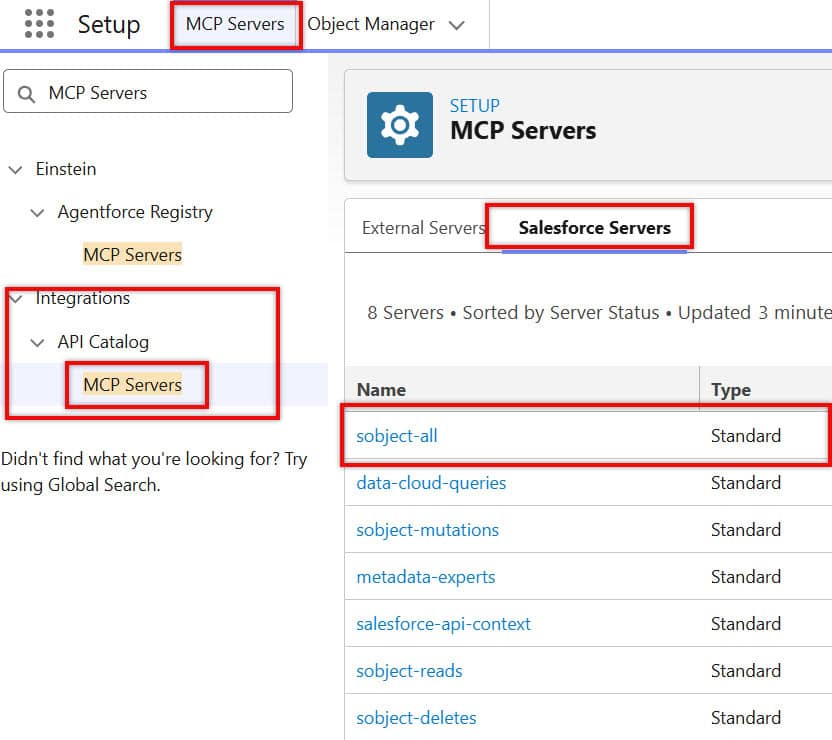
| SalesforceMCP Server | Purpose |
|---|---|
| sobject-all | Provides unified access to Salesforce objects to read, create, update, and delete records. Useful when an AI agent needs complete CRUD operations across multiple objects. |
| data-cloud-queries | Enables querying Salesforce Data Cloud data using SQL-like queries. Ideal for retrieving customer profiles, segments, and unified customer data for analytics and AI insights. |
| sobject-mutations | Handles record creation, updates, and modifications in Salesforce objects. Used when an AI agent needs to perform actions such as creating Cases, updating Opportunities, or modifying Accounts. |
| metadata-experts | Gives access to Salesforce metadata such as objects, fields, flows, Apex classes, validation rules, and page layouts. Useful for administrators, developers, and AI assistants that need org structure information. |
| salesforce-api-context | Provides context on available Salesforce APIs, endpoints, capabilities, and authentication details. Helps AI agents understand how to interact with Salesforce services. |
| sobject-reads | Provides read-only access to Salesforce records. Commonly used for retrieving Accounts, Contacts, Opportunities, Cases, and other object data without making any changes. |
| sobject-deletes | Allows deletion of Salesforce records from supported objects. Useful when AI agents need to remove obsolete or unwanted records while following security permissions. |
| engagement-interaction | Enables access to engagement and interaction data, such as customer activities, communications, and engagement history. Often used for customer service, marketing, and personalization scenarios. |
Open the Details tab to view the MCP server information. The Server URL will be required when configuring the MCP connection in Claude AI. Before using the server, click Activate to enable it.
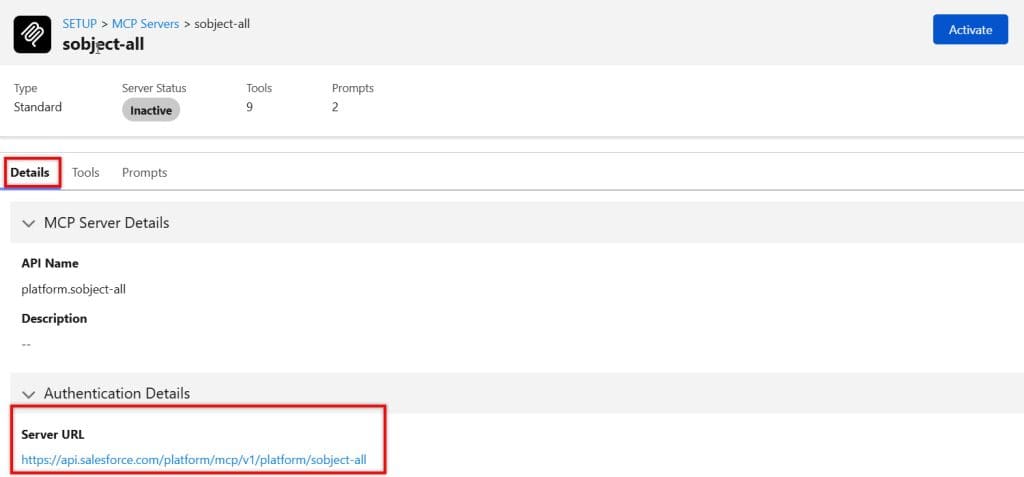
Salesforce sObject-All MCP Server Tools and Their Uses
The sObject-All MCP Server provides a complete set of tools for reading, searching, creating, updating, and managing Salesforce records.
| Tool | Purpose |
|---|---|
| Get Related Records (getRelatedRecords) | Retrieves child records associated with a parent record through Salesforce relationships. Useful for fetching related Contacts, Opportunities, Cases, or custom object records. |
| Get Recently Viewed Records (listRecentSobjectRecords) | Returns records that the current user recently viewed or modified. Helpful when users refer to recent Accounts, Opportunities, or Cases without providing record IDs. |
| Query Records (SOQL) (soqlQuery) | Executes a SOQL query to retrieve Salesforce data. Use it when you know the object, fields, and filter criteria needed to fetch records. |
| Search Across Objects (SOSL) (find) | Searches text across multiple Salesforce objects simultaneously. Ideal when you know a keyword but are unsure which object contains the information. |
| Get Current User Info (getUserInfo) | Returns details about the logged-in user, including identity, role, locale, and preferences. Useful for personalization and context-aware responses. |
| Get Object Schema (Enhanced) (getObjectSchema) | Retrieves Salesforce object metadata, including fields, relationships, and data types. Helps AI agents understand Salesforce data structure before querying it. |
| Create Record (createSobjectRecord) | Creates a new Salesforce record in a specified object. Commonly used for creating Accounts, Contacts, Leads, Cases, Opportunities, and custom object records. |
| Update Record (updateSobjectRecord) | Modifies an existing Salesforce record using its record ID. Useful for updating field values, statuses, ownership, and other record details. |
In this step, we activated the sObject-All MCP Server, which will later be used to connect Salesforce to Claude AI. Once activated, the server becomes available for MCP-based integrations.
Step 2: Create an External Client App in Salesforce
Authentication is a critical part of the integration. Salesforce recommends configuring an External Client App (ECA) so that Claude can authenticate using OAuth 2.0.
User permissions and Salesforce security controls continue to apply after authentication.
- Setup → Quick Find → External Client Apps → New External Client App
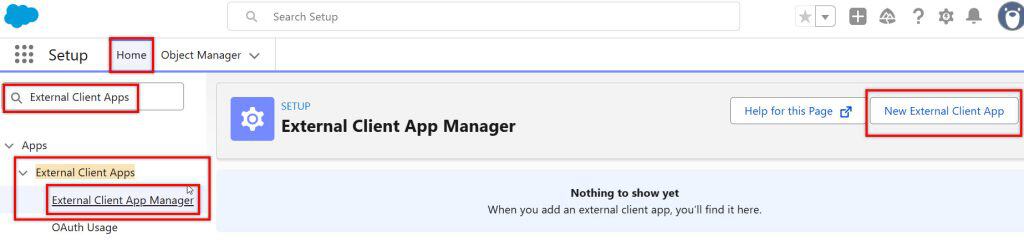
Configure the External Client App:
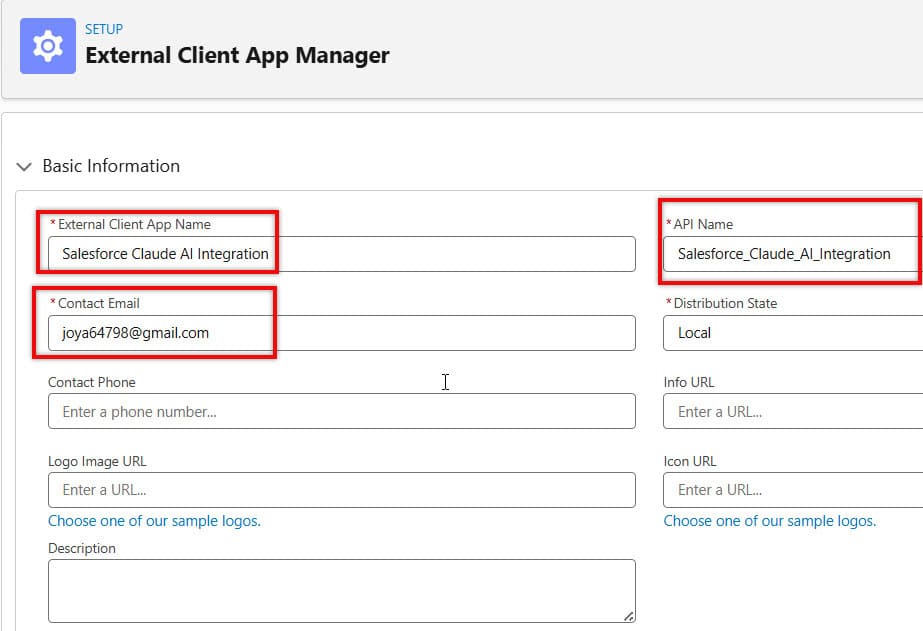
Enter the following details:
- External Client App Name – Specify a user-friendly name for the integration, such as Salesforce Claude AI Integration.
- API Name – Salesforce automatically generates this value based on the app name, but you can modify it if needed.
- Contact Email – Enter a valid email address that will be used for notifications and communication related to the client application.
After filling in these fields, proceed with the remaining configuration settings.
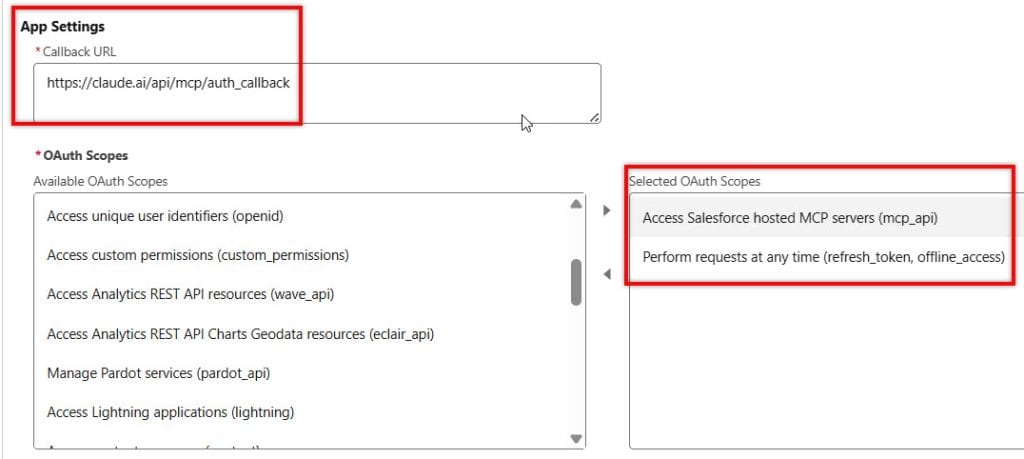
In this step, configure the OAuth settings required for the Claude AI integration.
- Callback URL – Enter https://claude.ai/api/mcp/auth_callback. This is the URL where Salesforce sends the authorization response after Claude AI successfully authenticates.
- Access Salesforce-hosted MCP servers (mcp_api) – Grants Claude AI permission to access Salesforce MCP servers and use the tools exposed through them.
- Perform requests at any time (refresh_token, offline_access) – Allows Claude AI to obtain a refresh token and maintain access without requiring the user to sign in again for every request.
After adding the Callback URL and selecting these OAuth scopes, save the configuration and continue with the setup.
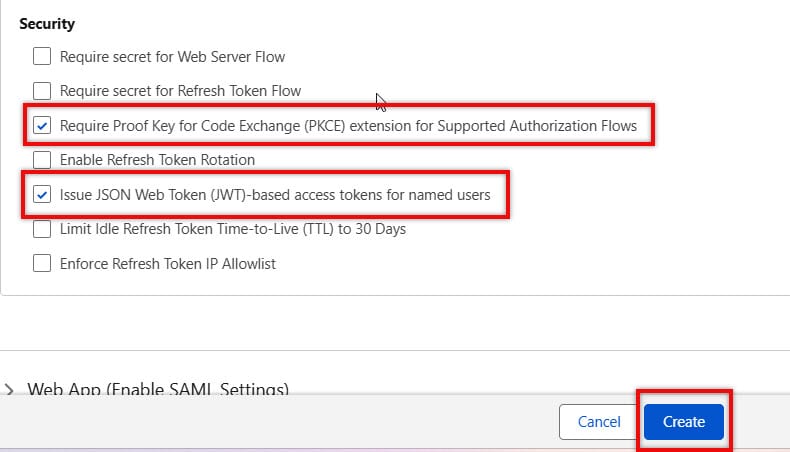
For the Claude AI and Salesforce MCP integration, enable the following security options:
- Require Proof Key for Code Exchange (PKCE) extension for Supported Authorization Flows – Adds an extra layer of security to the OAuth authorization process by protecting authorization codes from interception. This is recommended for modern OAuth integrations, including Claude AI.
- Issue JSON Web Token (JWT)-based access tokens for named users – Configures Salesforce to issue JWT-based access tokens, enabling secure, standardized authentication when Claude AI accesses Salesforce resources.
After selecting these options, click Create to create the External Client App.
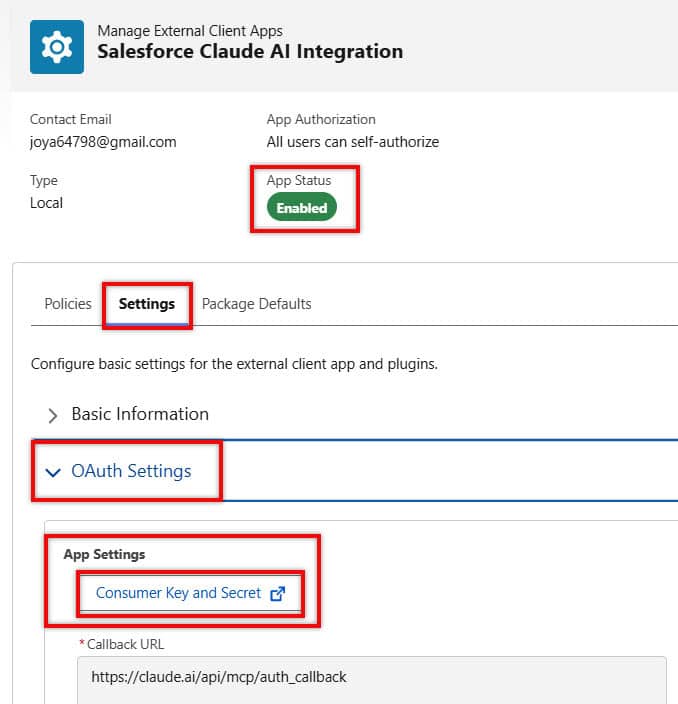
The External Client App has now been created successfully. Next, navigate to the Settings tab and expand OAuth Settings. Then click Consumer Key and Secret to view the credentials generated by Salesforce.
When you click Consumer Key and Secret, Salesforce sends a verification code to the email address specified during the External Client App configuration. Enter the verification code to verify your identity.
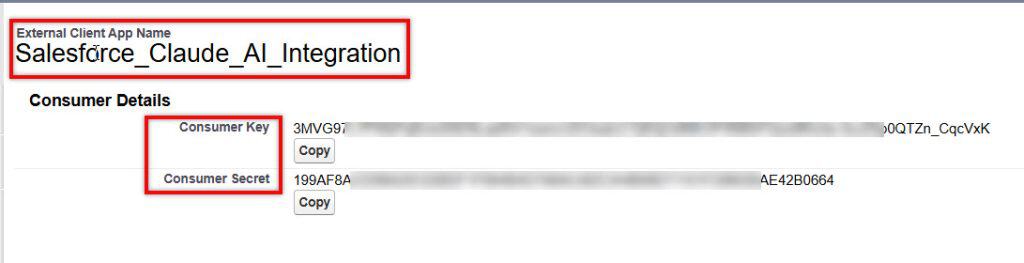
After successful verification, you will be redirected to the Consumer Key and Secret page. These credentials will be required when configuring the Salesforce MCP connection in Claude AI:
- Consumer Secret – Acts as the Client Secret used to securely authenticate the application with Salesforce.
- Consumer Key – the Client ID used by Claude AI to identify the application.
Step 3: Connect Claude to Salesforce MCP Server
Now, in the steps below, I will explain how we will connect Claude with Salesforce.
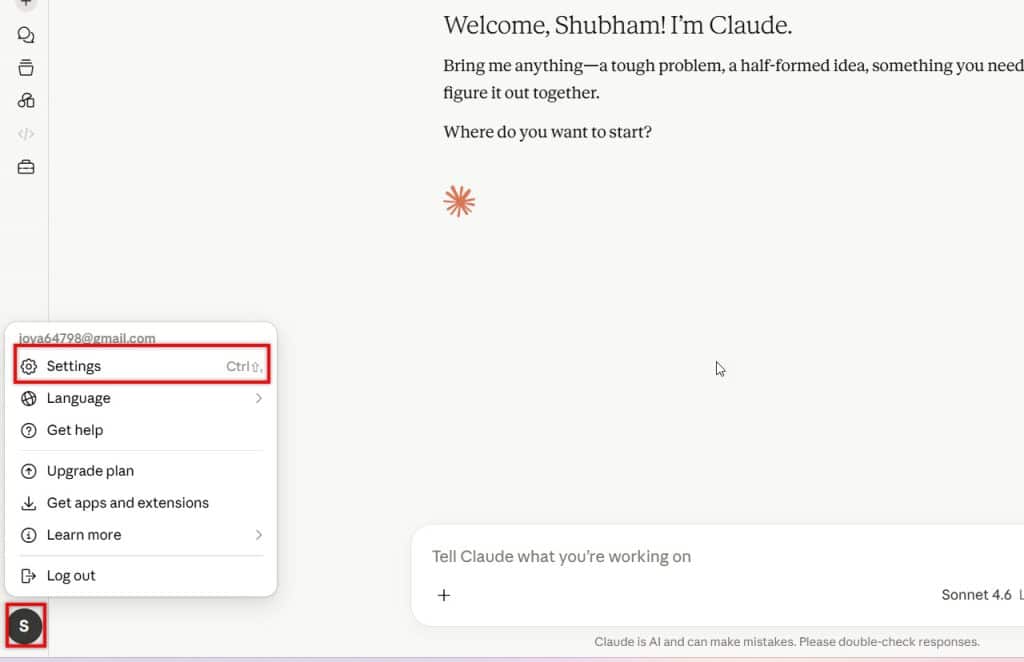
- Open Claude → Click Profile → Settings → Connector → Customize
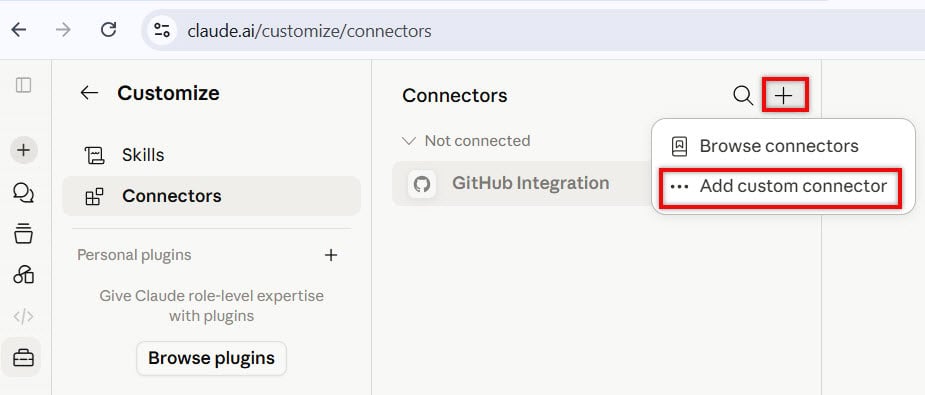
- On Customize page → Click ‘+’ icon→ Add Custom Connector
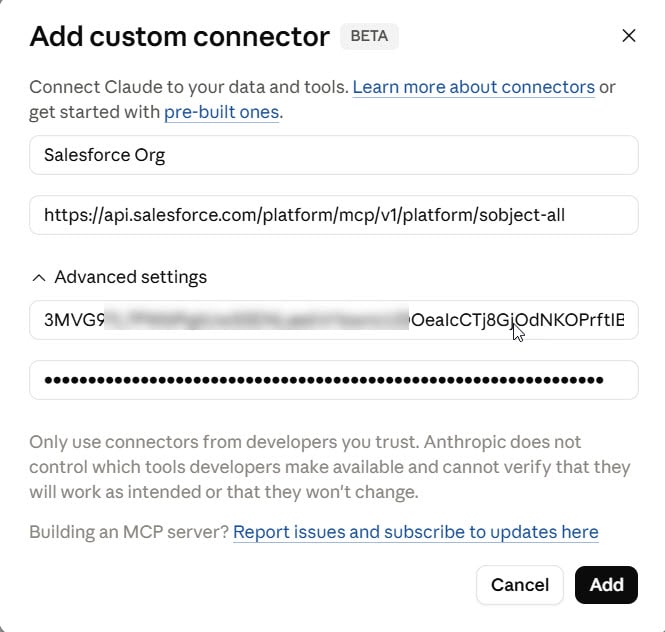
Configure the Custom Connector in Claude AI
Fill in the following fields:
- Connector Name – Enter a descriptive name for the connection, such as Salesforce Org.
- Server URL – Paste the MCP Server URL copied from Salesforce (for example, the sObject-All MCP Server URL).
- Client ID – Enter the Consumer Key obtained from the Salesforce External Client App.
- Client Secret – Enter the Consumer Secret obtained from the Salesforce External Client App.
After entering these details, click Add to create the Salesforce MCP connector in Claude AI.
In the above step, we just added the connector. Now we need to connect Salesforce with Clude AI. For that, click the Connect button.
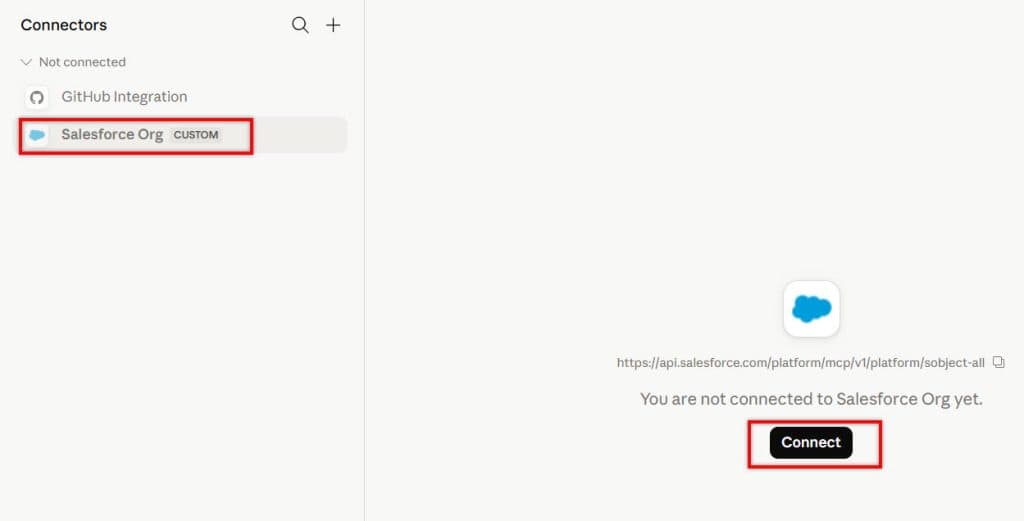
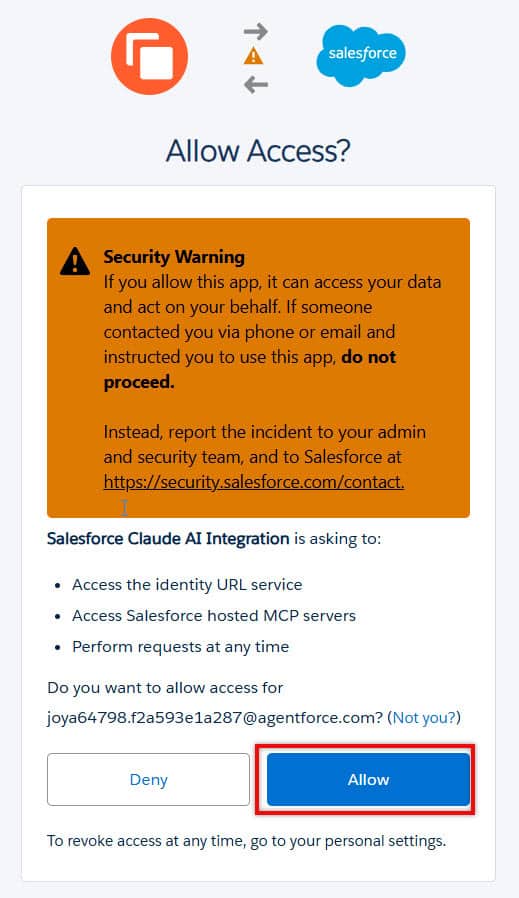
As you click Connect, we need to allow access for that click, and then click the Allow button.
Claude AI lets you control how each MCP tool is used. You can choose one of the following permission levels:
- Always allow – Claude can use the tool automatically without asking for confirmation each time. This is useful for trusted read-only operations.
- Needs approval – Claude asks for your permission before executing the tool. This is the recommended option for most scenarios, especially when tools can access or modify Salesforce data.
- Blocked – Claude cannot use the tool. Select this option for tools that you do not want available to the AI assistant.
For write and delete operations, it is generally recommended to use Needs approval so that you can review actions before records are created, updated, or deleted.
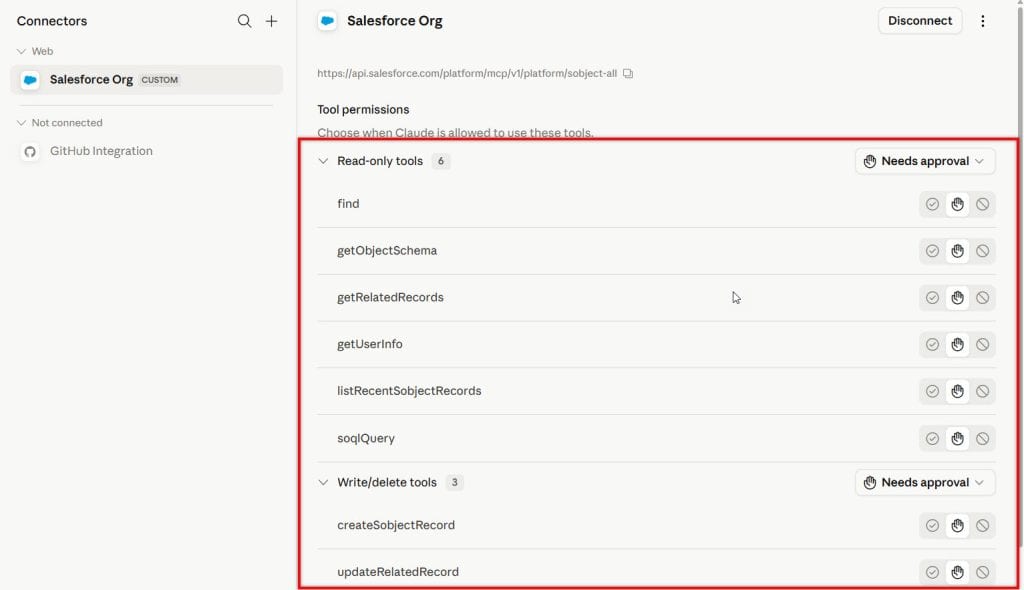
The setup is now complete. We are ready to use Claude AI with Salesforce MCP servers to access Salesforce data and perform supported operations directly from Claude.
Step 4: Test the Integration in Claude
Now, start a new chat in Claude AI and enter a prompt related to your Salesforce data.
Using the tools available on the connected MCP server, Claude AI can retrieve, create, update, and query records, access metadata, and perform other permitted operations.
For example, you can ask:
Show my top 10 open opportunities.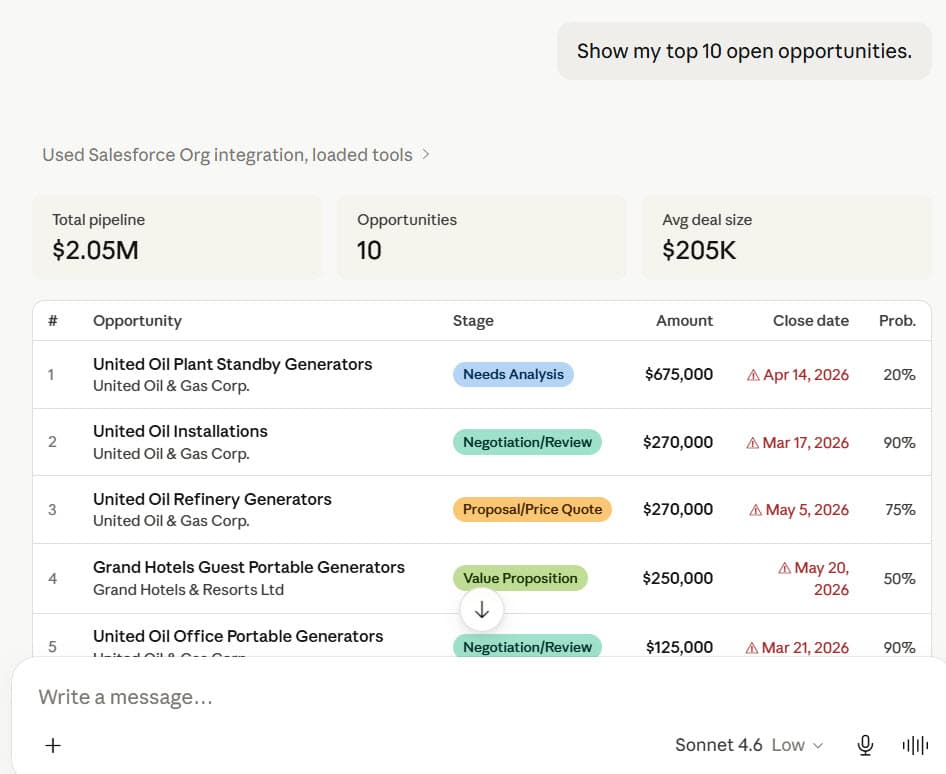
List all accounts created this month.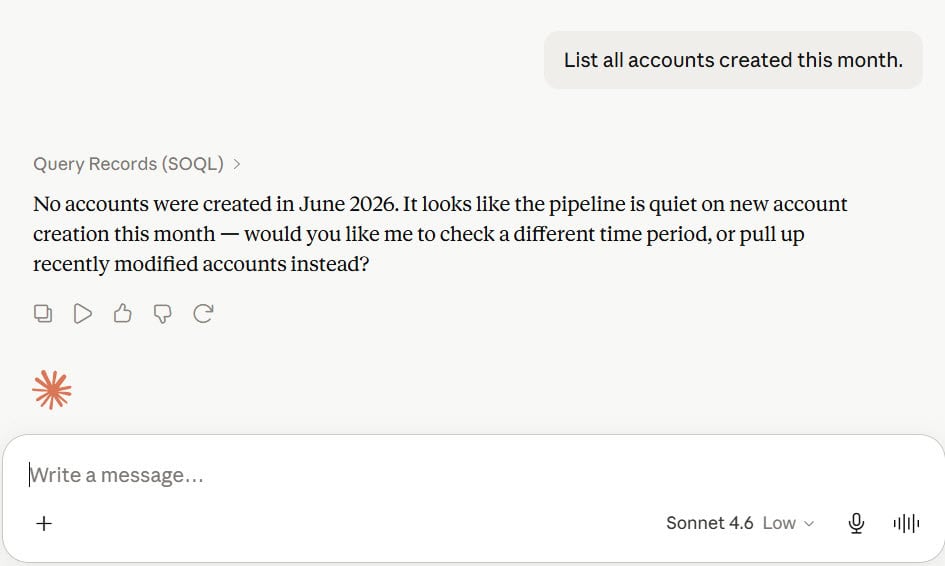
In this way, we successfully connected Salesforce MCP Servers with Claude AI. Claude can now use the MCP tools to access Salesforce data and perform actions in response to user prompts.
AI-Powered CRM Assistant
Organizations can build internal assistants that:
- Query CRM data
- Create records
- Update opportunities
- Retrieve account information
- Execute business workflows
Security Considerations
When implementing Salesforce MCP integrations:
- Use OAuth 2.0 authentication
- Apply least-privilege access
- Restrict tool permissions
- Audit AI-generated actions
- Monitor API usage
- Validate MCP server configurations
Because MCP enables AI systems to interact with business systems, organizations should establish governance and security controls before production deployment.
Benefits of Using MCP Instead of Traditional APIs
| Traditional APIs | MCP Integration |
|---|---|
| Custom coding required | Standardized protocol |
| Separate integrations | Single integration model |
| Higher maintenance | Easier management |
| Limited AI support | AI-native architecture |
| Complex orchestration | Built for AI agents |
Common Issues and Troubleshooting
- Authentication Failed – Verify:
- Client ID
- Client Secret
- OAuth Scopes
- Callback URL
- Claude cannot Discover Tools – Check:
- MCP Server is running
- Connector configuration is correct
- Firewall access is allowed
- Salesforce Permission Errors – Ensure:
- API Enabled permission
- Object permissions
- Field-level security access
Best Practices
- Use Sandbox before Production
- Restrict permissions by role
- Log AI actions
- Monitor API consumption
- Regularly review OAuth connections
- Test prompts thoroughly
- Apply governance policies
Frequently Asked Questions (FAQs)
1. What is MCP in Salesforce?
MCP (Model Context Protocol) is a standardized protocol that enables AI systems such as Claude to securely access Salesforce data, tools, and actions.
2. Can Claude AI access Salesforce records?
Yes. Through an MCP Server, Claude can retrieve and update Salesforce data based on user permissions and approved access.
3. Is Salesforce MCP officially supported?
Yes. Salesforce provides Hosted MCP Server capabilities and documentation for connecting AI clients such as Claude.
4. Does MCP require coding?
Basic configuration can be completed with minimal coding. Advanced implementations may require custom MCP tools and workflows.
5. Is Salesforce MCP secure?
When implemented using OAuth authentication, role-based access controls, and governance policies, MCP can be deployed securely in enterprise environments.
Conclusion
Integrating Salesforce with Claude AI using the MCP Server enables organizations to transform Salesforce into an AI-powered conversational platform.
Instead of navigating multiple screens, users can interact with Salesforce using natural language while maintaining enterprise-grade security and governance.
With Salesforce’s growing support for MCP and Claude’s native compatibility with the protocol, organizations can build intelligent CRM assistants that access real-time business data, automate processes, and improve productivity across sales, service, and operations teams.
You may like to read:
- Create Integration User in Salesforce (Complete Guide with Real-Time Use Cases)
- What Is Salesforce Connect?
- Salesforce Agentforce Integration: Create Custom Action to Call External APIs
- Salesforce and Slack Integration | Features, Setup & Tips
- Activate Data Integration Rules in Salesforce

Shubham is a Certified Salesforce Developer with technical skills for Building applications using custom objects, approval processes, validation rules, Salesforce flows, and UI customization. He is proficient in writing Apex classes, triggers, controllers, Apex Batches, and bulk load APIs. I am also familiar with Visualforce Pages and Lightning Web Components. Read more about me.
