
For many years, Salesforce administrators and developers had to rely on Lightning Web Components (LWC), Aura components, or third-party solutions to display toast notifications in Salesforce Flows.
While these approaches worked, they added extra complexity and required custom development.
The good news is that Salesforce has introduced the Show Toast action for Flows, allowing admins to display toast notifications directly from Flow Builder without creating Lightning Web Components (LWC).
This enhancement makes Screen Flows more interactive and provides immediate feedback to users after important actions are completed.
Recent Salesforce community discussions highlight this newer native approach compared to older custom implementations.
In this tutorial, we will learn what toast messages are, why they are useful, how to configure the Show Toast action in Salesforce Flow, and several real-world examples that you can implement in your organization.
What Is a Toast Message in Salesforce?
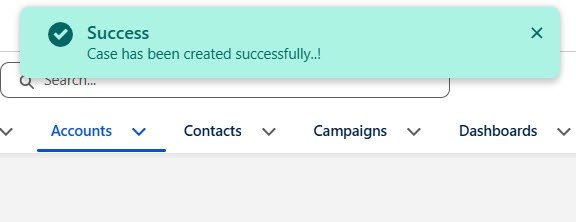
A toast message is a small notification that appears on the screen to inform users about the result of an action.
These messages typically appear in the upper-right corner of the Salesforce interface and automatically disappear after a few seconds.
Toast messages are commonly used to display:
- Success messages
- Error notifications
- Warning alerts
- Informational messages
Example Success Message
Success!
Case created successfully.
Example Error Message
Error!
Unable to create the record.
Instead of redirecting users to another screen or displaying a large pop-up, toast messages provide quick feedback without interrupting the user’s workflow.
Why Use Toast Messages in Salesforce Flow?
Screen Flows are widely used to create guided business processes in Salesforce. Users may create records, update information, submit approvals, or trigger automations.
Without feedback, users may not know whether their action was completed successfully.
Toast messages solve this problem by providing immediate confirmation.
Benefits include:
- Better User Experience
- Users instantly know whether the process was successful.
- Faster Feedback
- No need to navigate to another page to verify the result.
- Reduced Confusion
- Users receive a clear message after submitting information.
- No Custom Development
- The native Show Toast action eliminates the need for custom LWC or Aura components.
Prerequisites
Before using the Show Toast action, ensure that:
- You are working with a Screen Flow.
- The Flow is running in Lightning Experience.
- The Flow is activated.
Since toast messages are displayed to users, they are designed for user-facing flows rather than background automations.
Understanding the Show Toast Action
The Show Toast action is a standard Flow action that lets you display a toast notification directly in Flow Builder.
With this action, you can configure:
- Label
- Message
- Variant
- Display behavior
This means administrators can create professional notifications without writing a single line of code.
Types of Toast Messages
The Show Toast action supports different variants depending on the scenario.
Success
Used when an operation completes successfully. Example:
Account created successfully.Common Use Cases
- Record creation
- Record updates
- Approval submission
- Request completion
Error
Used when something fails. Example:
Unable to save the record.Common Use Cases
- Validation failures
- Integration errors
- Missing required data
Warning
Used when users should review information. Example:
Please verify the entered details.Info
Used for informational messages. Example:
Your request is being processed.How to Display Toast Messages Using Salesforce Flow
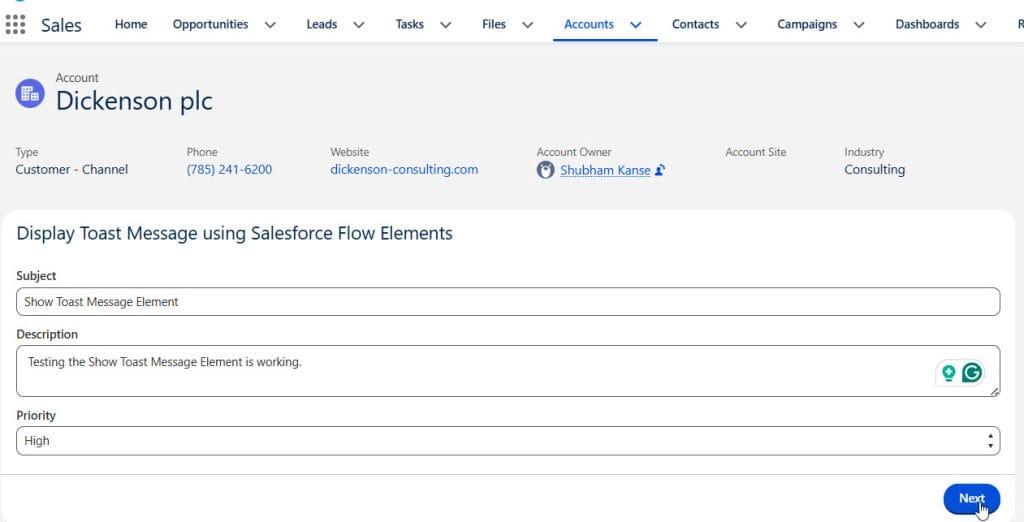
Let’s create a simple Screen Flow that displays a success notification after a Case record is created.
Note: At the time of writing this article, the native Show Toast Message action is available in Salesforce preview/release orgs. If you do not see the action in your Flow Builder, your Salesforce org may not have received the release yet

Pre Release Org - https://www.salesforce.com/form/signup/prerelease-summer26/
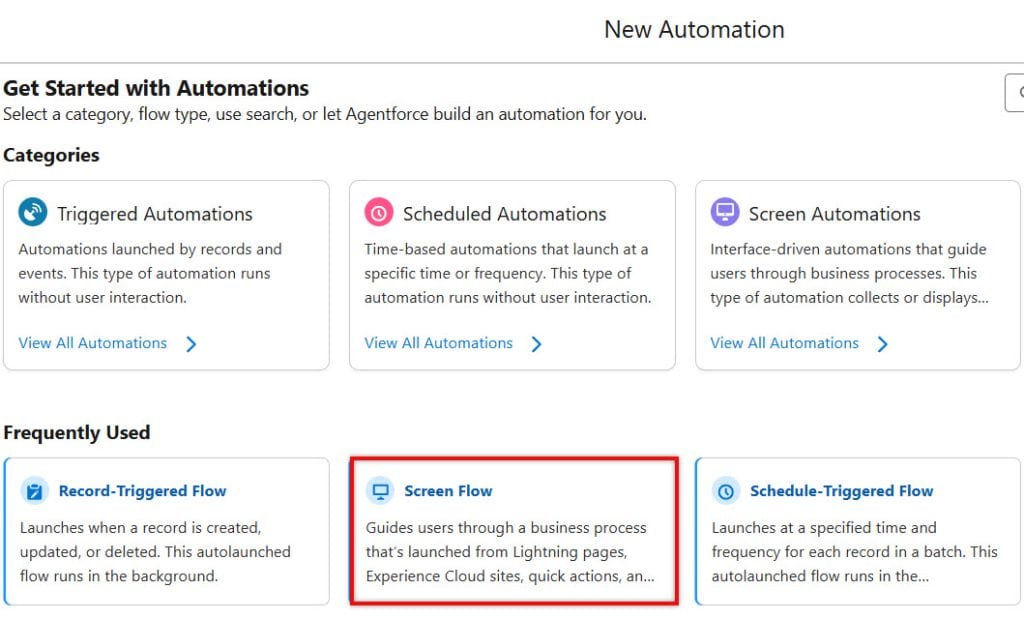
Step 1: Create a New Flow
- Navigate to Setup → In Quick Find → Flows
- New Flow → Screen Flow
Step 2: Add a Screen
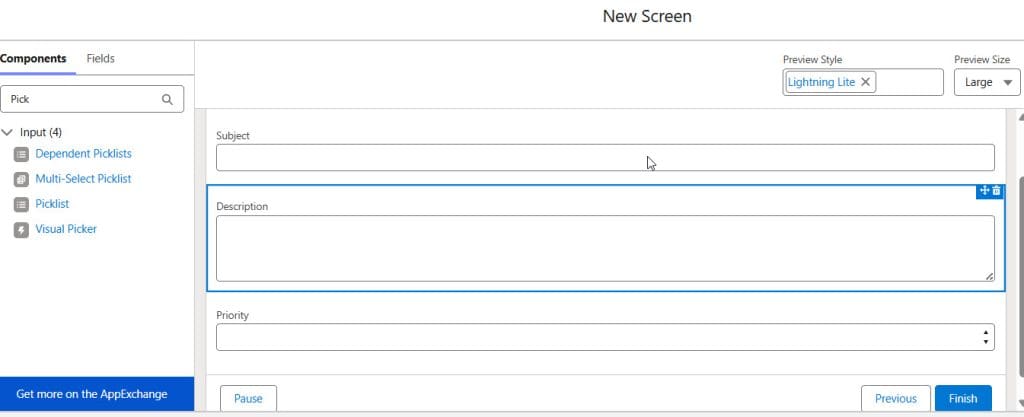
- Add a Screen element.
- Include fields such as:
- Subject
- Description
- Priority
These fields will collect information from the user.
Step 3: Create the Case Record
- Drag the Create Records element onto the canvas.
- Configure:
- Object = Case
- Subject
- Description
- Priority
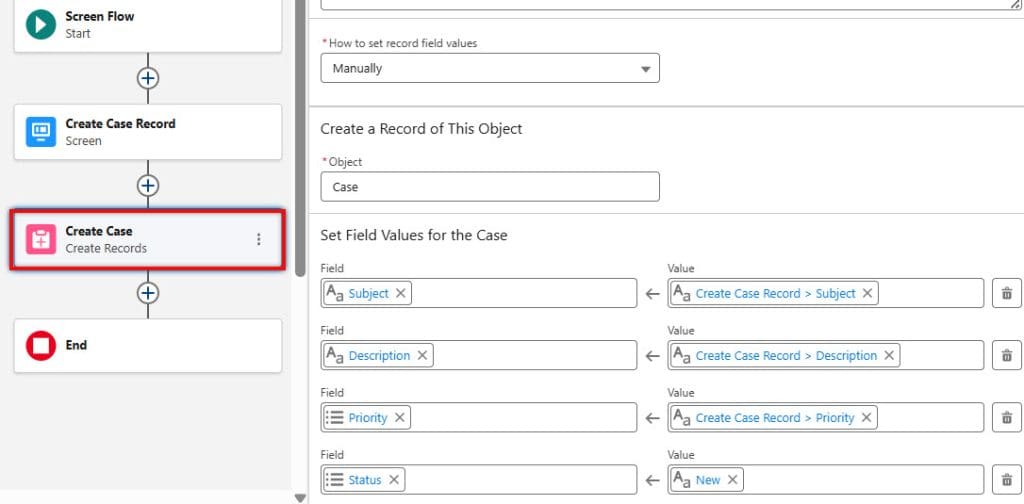
Save the record using Flow variables.
Step 4: Add the Show Toast Action
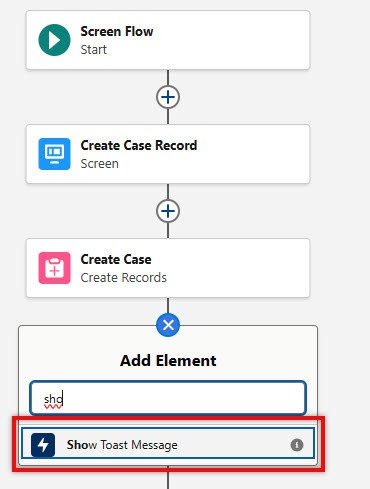
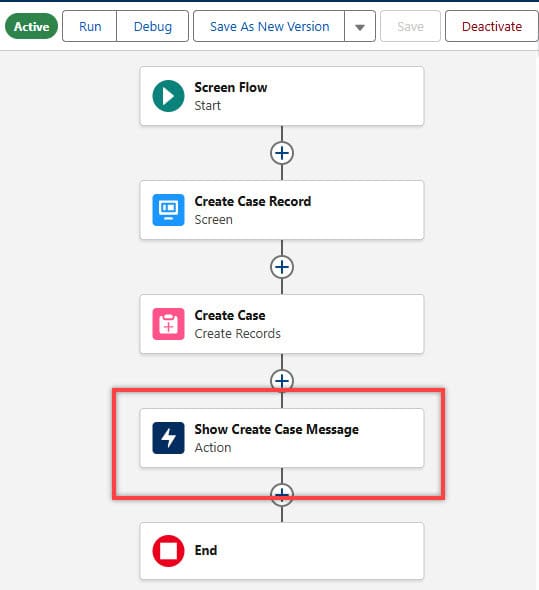
After the Create Records element, drag an Action element onto the Flow canvas.
Search for:
Show ToastSelect the Show Toast action. Salesforce will display the configuration screen.
Step 5: Configure the Toast Message
After adding the Show Toast Message action to the Flow, configure its input values according to your requirements.
In this example, the Flow creates a Case record and then displays a success notification to the user.
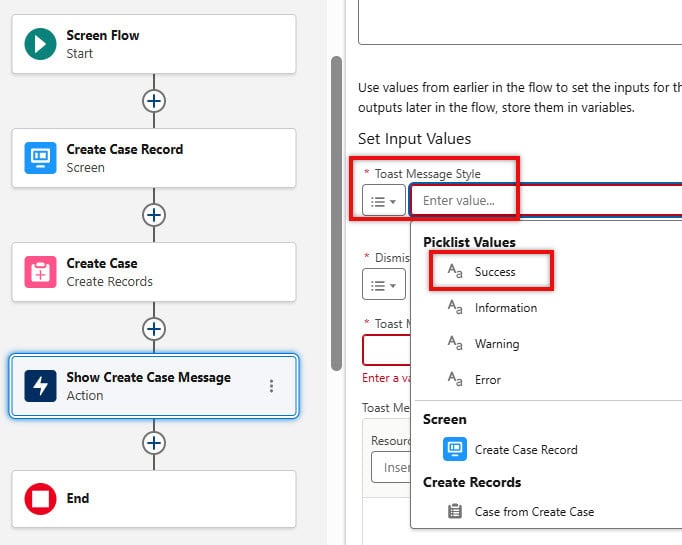
Toast Message Style: Determines the notification’s appearance. Salesforce provides four options:
- Success – Displays a green success message.
- Information – Displays a blue informational message.
- Warning – Displays a yellow warning message.
- Error – Displays a red error message.
Since the Case record was created successfully, select Success as the Toast Message Style.
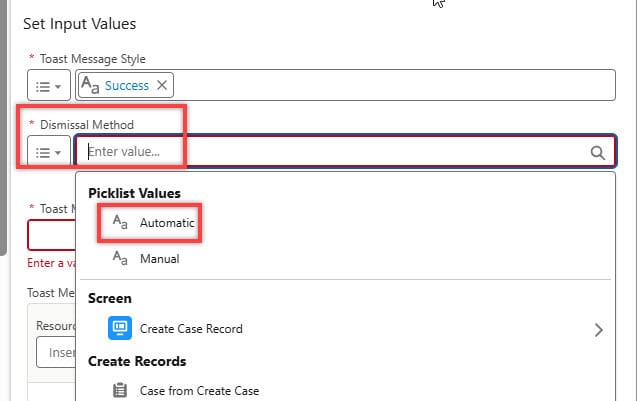
Dismissibility: The Dismissibility setting controls how the toast message behaves on the screen.
- Dismissible – Users can manually close the message.
- Sticky – The message remains visible until the user dismisses it.
- Pester – The message automatically disappears after a few seconds.
For success notifications, Dismissible is typically recommended because it lets users close the message when needed.
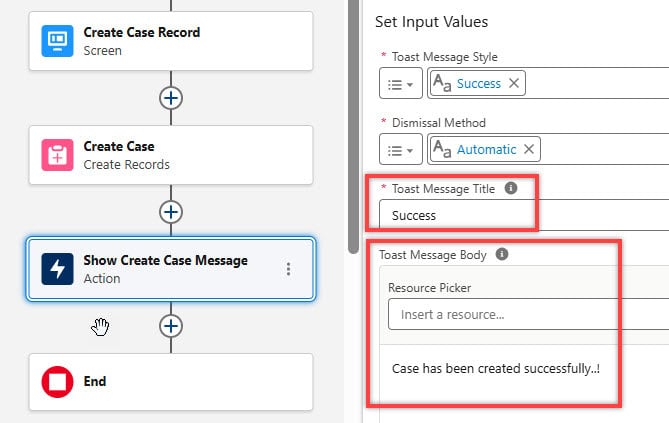
Toast Message Title: Enter a meaningful title for the notification. This title appears at the top of the toast message.
Toast Message Body: Specify the message that users will see after the action is completed.
Step 6: Save and Activate
- Save the Flow.
- Activate
Now test the Flow.
After the record is created, Salesforce displays a toast notification confirming success.
Real-World Example: Leave Request Flow
Consider an HR department that uses Salesforce for employee leave management.
User Process
- Employee submits leave request.
- Flow creates a Leave Request record.
- Approval process begins.
- Toast message appears.
Toast Configuration
Variant:
SuccessMessage:
Your leave request has been submitted successfully.This provides immediate confirmation to employees.
Real-World Example: Opportunity Approval
Sales managers often require approval before discounts are applied. After a user submits an approval request, display:
Approval request submitted successfully.Users immediately know the request has entered the approval process.
Display Dynamic Messages in Toast Notifications
One of Flow’s best features is the ability to use variables. Instead of hardcoded messages, you can display dynamic information.
Example:
Case {!CaseNumber} created successfully.Output:
Case 00012345 created successfully.Dynamic messages make notifications more meaningful and professional.
Best Practices for Show Toast Messages
Keep Messages Short
Good:
Contact updated successfully.Bad:
The contact information has been updated successfully and all related automation processes have been executed.Use the Correct Variant
Always match the variant to the scenario.
| Scenario | Variant |
|---|---|
| Record Created | Success |
| Validation Failure | Error |
| Missing Information | Warning |
| General Update | Info |
Make Messages Action-Oriented
Instead of:
SuccessUse:
Opportunity created successfully.Users should immediately understand what happened.
Use Dynamic Values
Whenever possible, include:
- Record names
- Case numbers
- Opportunity names
- Request IDs
This provides better context.
Common Mistakes to Avoid
- Using Long Messages
- Toast notifications should be concise.
- Users should understand the message in a few seconds.
- Showing Too Many Toasts
- Avoid displaying multiple notifications one after another.
- Users may miss important information.
- Using Success for Errors
- Choose the correct variant to avoid confusing users.
- Ignoring Error Handling
- Always create fault paths in your Flow.
- Display appropriate error messages when something fails.
Limitations of Show Toast Messages
Although the Show Toast action is extremely useful, there are some considerations.
- Works Best in Screen Flows
- Toast notifications are designed for user-facing experiences.
- Requires User Interaction
- Background flows do not have a user interface to display notifications.
- Lightning Experience
- Toast notifications are intended for Lightning experiences where users can see the Flow UI.
Frequently Asked Questions
What is the Show Toast action in Salesforce Flow?
The Show Toast action is a native Flow action that allows administrators to display toast notifications directly from Flow Builder without custom development.
Do I need an LWC to display toast messages?
No. The native Show Toast action removes the need for custom Lightning Web Components in many common Screen Flow scenarios.
Can I display success and error messages?
Yes. The action supports Success, Error, Warning, and Info variants.
Can I use Flow variables in the message?
Yes. Dynamic values can be included in the toast message.
Is Show Toast available in Screen Flows?
Yes. The feature is designed for Screen Flows where users can interact with the Flow interface.
Conclusion
The native Show Toast action is one of the most useful usability enhancements introduced for Salesforce Flow. Previously, administrators had to depend on custom LWCs, Aura components, or third-party solutions to display toast notifications.
Today, Salesforce allows Flow builders to display professional toast messages directly from Flow Builder with minimal configuration.
By using the Show Toast action, you can provide instant feedback after record creation, approval submissions, updates, and other business processes.
The result is a more interactive, modern, and user-friendly experience that improves adoption and reduces user confusion.
You may like to read:
- Create & Send HTML Emails Using Rich Text Template in Salesforce Flow
- Avoid Validation Rules Using Salesforce Flow
- Automatically Delete Records Using Salesforce Flows
- How to Use Email Templates Directly in Salesforce Flow (Release Update)

Shubham is a Certified Salesforce Developer with technical skills for Building applications using custom objects, approval processes, validation rules, Salesforce flows, and UI customization. He is proficient in writing Apex classes, triggers, controllers, Apex Batches, and bulk load APIs. I am also familiar with Visualforce Pages and Lightning Web Components. Read more about me.