
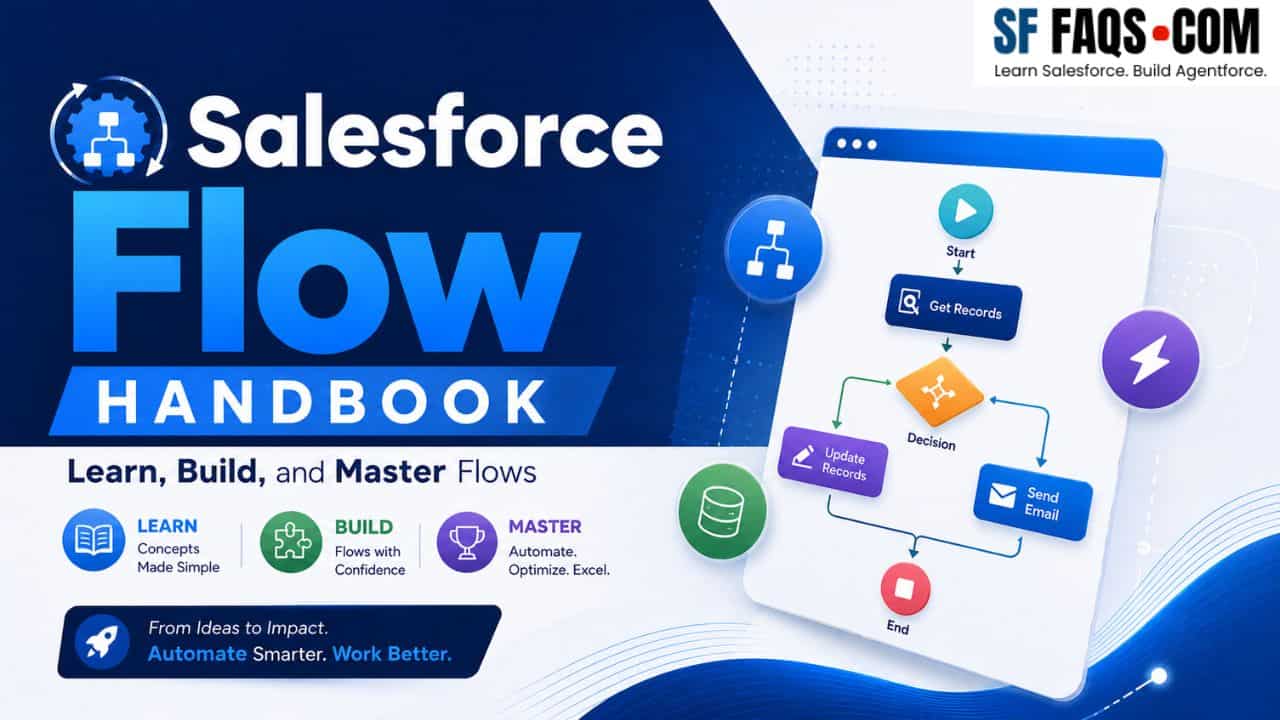
In this Salesforce Flow handbook, I have brought together all my Flow tutorials, patterns, and real‑world examples in one place so that you can learn Salesforce Flow step by step — from absolute basics to complex, production‑ready automations.
Instead of jumping between random blog posts, you can use this page as your main guide. Start with the fundamentals, then move into practical use cases, integrations, approval processes, Agentforce, Omni‑Channel, and migration from Workflow Rules and Process Builder — all using Salesforce Flow.
Who this Salesforce Flow handbook is for
This handbook is for you if:
- You are a Salesforce Admin or Developer who wants to move away from Workflow Rules and Process Builder and fully adopt Flow.
- You are preparing for Salesforce certifications and want strong hands-on knowledge of Flow.
- You already know the basics of Salesforce, but you are not sure how to design, build, and troubleshoot Flows in real business scenarios.
You can follow this page top‑to‑bottom as a learning path or jump directly into the sections that match your current project.
What is Salesforce Flow, and why does it matter
Salesforce Flow is the primary automation tool in Salesforce. It lets you automate business processes with clicks rather than complex code, while still offering powerful options such as record‑triggered automation, screen‑based interactions, loops, integrations, and orchestrations.
Salesforce is actively retiring Workflow Rules and Process Builder, so learning Flow is no longer optional. If you are responsible for automation in your org, you must know how to design, build, and maintain Flows that are scalable and easy to debug.
In the sections below, I will start with Flow fundamentals and then walk through real‑world patterns I use in projects and training.
Start Here: Salesforce Flow Fundamentals
If you are new to Flow, start with the fundamentals. These posts explain what Salesforce Flow is, how different Flow types work, and how Flow compares to other automation tools.
Recommended articles:
- Salesforce Workflow Rules vs Process Builder vs Flow Builder
- Salesforce Process Builder vs Flow Builder
- Auto Launched Flow in Salesforce
- Create Record Trigger Flow in Salesforce
- Salesforce Flow Before Save Vs After Save
- Cannot Execute Flow Trigger Salesforce
After you go through these articles, you will understand the basic Salesforce Flow types, trigger timing, and how Flow fits into your overall automation strategy.
Build Your First Real Salesforce Flows (Beginner Projects)
Once you know the fundamentals, the best way to learn Flow is by building small, focused automations that solve common business problems.
Start with these beginner‑friendly projects:
- Create A Task using Flow in Salesforce
- Create An Event with Flow in Salesforce
- Create Multiple Records using Salesforce Flows
- Salesforce Flows Auto Assign Records Users
- Salesforce Flows Auto Close Cases
- Create Recurring Task Via Flow in Salesforce
These tutorials will help you get comfortable with core Flow elements like Get Records, Create Records, Update Records, Decisions, Assignments, and Loops in simple, real‑world scenarios.
Screen Flows and User‑Friendly UIs
Screen Flows let you build guided, interactive experiences for users without having to write Lightning Web Components. Use them for guided forms, checklists, multi‑step wizards, and more.
If you want to improve user experience with Screen Flows, go through these:
- Screen with Two Columns in Salesforce Flow
- Add Multiple Columns Screen Flows in Salesforce
- Salesforce Data Table Screen Flow
- Display Records in Lightning Data Table using Salesforce Screen Flows
- Upload Files using Screen Flow in Salesforce
- Salesforce Flow Lwc Record Preview Page
- Display Image in Salesforce Screen Flow
- Display Child Account Contacts using A Salesforce Screen Flow
- Display Picklist Values By Record Type in Salesforce Screen Flow
- Flow Screen Radio Button in Salesforce
- How to Use the Repeater Component in Salesforce Screen Flow
With these patterns, you will learn how to design clean layouts, use data tables inside flows, and allow users to upload files and work with records without leaving a Flow screen.
Email Alerts, Approvals, and Reminders Using Flow
Flows are perfect for sending emails, managing approvals, and following up with users. Start with these scenarios if you want to move email and approval logic from Workflow Rules into Flow.
Key tutorials:
- Send Email with Flows in Salesforce
- Use Email Templates Directly in Salesforce Flow
- Send Html Emails using Salesforce Flow
- Html Email using Rich Text in Salesforce Flow
- Create An Email Template in Salesforce Flow
- Classic Email Templates in Salesforce Flow
- Use Lightning Email Templates in Salesforce Flow
- Salesforce Flow Send Reminder Email to Approver
- Salesforce Flow File Upload Approval Process
- Send Custom Notification using Flow in Salesforce
- Salesforce Flow Send Custom Notification
- Salesforce Flow Send Single Email Expired Tasks
These examples will teach you how to use Email Alert actions, merge fields, rich text, notifications, and reminders in Flow so that you can replace older Workflow Rules–based email automations.
Intermediate Flow Patterns and Advanced Elements
Once you are comfortable with basic flows, you should move into slightly advanced patterns: loops, transform elements, scheduled paths, orchestration, and complex decision logic.
Recommended posts:
- Salesforce Flow Loop Element
- Collection Filter in Salesforce Flow
- Count Records in Collection using Salesforce Flow
- Decision Element in Salesforce Flow
- Transform Element in Salesforce Flow
- Salesforce Flow Scheduled Paths
- Record Triggered Orchestration Flow in Salesforce
- Reactive Screen Component Salesforce Flow
- Fault Paths in Salesforce Flow
These tutorials help you design flows that can handle larger data volumes, complex conditions, and multi‑step business processes without becoming unmanageable.
Integrations, HTTP Callouts, and Apex with Flow
Sometimes you need Flow to talk to external systems or reuse complex logic from Apex. For those scenarios, you can use HTTP Callouts and Apex Actions inside Flow.
Use these posts to learn how:
- Use HTTP Callout in Salesforce Flow
- Call Apex Class From Salesforce Flow
- Dynamically Add Cc Recipients Address List to Salesforce Flow
- Agentforce Agent Action: HTTP Callout with Salesforce Flows
After these examples, you will know how to create Flow → Apex integrations and how to design robust, testable Flows that coordinate with external APIs.
Flow with Agentforce and AI Automations
Salesforce Flow becomes even more powerful when you combine it with Agentforce. You can call agents, use prompt templates, and create custom actions that blend Flow automation with AI‑driven logic.
Start with these tutorials:
- Call Agentforce Prompt Template Salesforce Flow
- Salesforce Agentforce Flow Custom Action Agent
- Create Custom Action using Flow for Agentforce in Salesforce
- Call Agentforce Agent Via Salesforce Flows
- Invoke Flows From Prompt Template
When you connect Flow and Agentforce like this, you can design intelligent, context‑aware automations that combine deterministic business rules with generative AI.
Flow with Omni‑Channel and Surveys
You can use Salesforce Flow to automate Omni‑Channel routing and surveys as well. This is very useful in service scenarios.
Use these posts as a guide:
- Outbound Omni Channel Flow in Salesforce
- Salesforce Agentforce Inbound Omnichannel Flow
- Skill Based Routing Salesforce Omni Channel Flow
- Automate Survey Invitation in Salesforce using Flows
- Create Surveys using Flows in Salesforce
These examples show how Flow can be used not just for back‑office automation but also for customer engagement and feedback loops.
User Management, Permissions, and Record Sharing with Flow
Flows are also great for user onboarding, security, and automating record access.
Explore these scenarios:
- Salesforce Flow Add User Public Group
- Add Users to Public Group using Salesforce Flow
- Salesforce Flow Assign Permission Set New Users
- Assign Permission Set to the New User using Flow in Salesforce
- Salesforce Flow Share Records
- Record Sharing using Salesforce Flow
- Salesforce Flow Freeze User Account
- Freeze Users Account using Salesforce Flow
- Auto Deactivate Users with Schedule Triggered Flow in Salesforce
- Run Flow As Another User in Salesforce
- Flow User Checkbox Vs Run Flows Salesforce
Using these patterns, you can automate onboarding, access control, and record sharing without relying on manual admin tasks.
Data Operations and Delete Logic with Flow
Sometimes you need Flow to handle bulk data operations, including deleting data under strict conditions.
Learn from these examples:
- Delete Records using Salesforce Flows
- Delete Records using Flow in Salesforce
- Delete Related Records using Flow Action in Salesforce
- Delete A Flow in Salesforce
- Salesforce Flow Create Lead From Email
- Email to Lead using Salesforce Flow
- Create A Related Record From A Salesforce Flow
- Update Contact Owners with Salesforce Flow
- Update Parent Record From Child Object using Salesforce Flow
- Update Picklist Multiselect using Flow in Salesforce
- Update Related Records using Salesforce Flow
These tutorials help you understand how to safely update, create, and delete records at scale while respecting validation rules, sharing, and performance considerations.
Migrating from Workflow Rules and Process Builder to Flow
If your org still relies on Workflow Rules and Process Builder, you must plan your migration to Flow. I have covered both the strategy and hands‑on “how‑to” side.
Start with these:
- Salesforce Workflow Rules vs Process Builder vs Flow Builder
- Salesforce Process Builder Vs Flow Builder
- Salesforce Process Builder Vs Flow
- Migrate Workflows and Process Builder to Salesforce Flow
- Salesforce Migrate Flow Tool
- Create Time Dependent Workflow Actions in Workflow Rules in Salesforce
- Create Workflow Rule Salesforce
- Send Email Alerts using Workflow Rule in Salesforce
- Send Outbound Message using Workflow in Salesforce
Use these articles to plan your migration, understand tool limitations, and avoid creating a “spaghetti” of Flows when you move legacy automation into the new model.
Validation Rules, Approvals, and Flow Interactions
Flows interact with validation rules and approval processes, and you sometimes need to bypass or respect them in specific ways.
Use these tutorials to understand the interactions:
- Avoid Validation Rules using Salesforce Flow
- Bypass Validation Rules using Salesforce Flow
- Salesforce Flow Call Approval Process
- How to Call Approval Process From Flow in Salesforce
- Salesforce Flow File Upload Approval Process
With these patterns, you will know when to bypass validation rules carefully and how to combine approvals with file uploads and comments in Flow.
Troubleshooting and Flow Best Practices
As you build more Flows, you will run into errors, performance issues, and maintainability challenges. Having a structured approach to debugging and standards will save you a lot of time.
Some key themes to focus on:
- Use the “Cannot Execute Flow Trigger Salesforce” article to understand common misconfigurations and deployment issues.
- Establish naming conventions for Flows, variables, and resources.
- Use subflows to avoid duplicating logic across many Flows.
- Test Flows in sandboxes and use debug logs to trace issues.
- Design Flows that respect bulkification and governor limits.
You can combine these guidelines with your Apex and error‑handling knowledge to keep your Flows clean and easy to maintain.
What to Learn Next
Salesforce Flow is only one part of your Salesforce automation toolbox. Once you are comfortable with the tutorials and patterns on this page, here is what I recommend next:
- Learn more Salesforce admin fundamentals from my Salesforce Tutorials hub.
- Dive deeper into formulas and functions from the Functions and Formulas hubs.
- Explore Apex and triggers from the Apex in Salesforce hub so that you know when to use code versus Flow.
- Learn how to combine Flow with Salesforce Agentforce from my Agentforce and Salesforce Agentforce hubs.
You can bookmark this Flow handbook and come back whenever you need a new pattern, a reference example, or a reminder on how to approach a particular use case with Salesforce Flow.
All Salesforce Flow tutorials
Below is a complete list of all Flow‑related tutorials on my site. You can use this as a reference index or to quickly jump into a specific topic.
- Add Multiple Columns Screen Flows in Salesforce
- Add Record Type in Salesforce Flow
- Add Users to Public Group using Salesforce Flow
- Add Validation to Screen Flow in Salesforce
- Assets Creation using Flows in Salesforce
- Assign Permission Set to the New User using Flow in Salesforce
- Assign Records to Queue using Salesforce Flow
- Auto Assign Members to Account Team using Salesforce Flow
- Auto Deactivate Users with Schedule Triggered Flow in Salesforce
- Auto Launched Flow in Salesforce
- Auto Update Custom Date Field using Flow in Salesforce
- Automate Birthday or Anniversary Email using Salesforce Flow
- Automate Survey Invitation in Salesforce using Flows
- Automatically Assign Pricebookid to Opportunities using Salesforce Flow
- Avoid Validation Rules using Salesforce Flow
- Bypass Validation Rules using Salesforce Flow
- Calculate Business Days using Salesforce Flow
- Call A Flow From Button in Salesforce
- Call Agentforce Agent Via Salesforce Flows
- Call Agentforce Prompt Template Salesforce Flow
- Call Apex Class From Salesforce Flow
- Cannot Execute Flow Trigger Salesforce
- Check Duplicate Records using Screen Flow in Salesforce
- Classic Email Templates in Salesforce Flow
- Clone A Record with Flow in Salesforce
- Clone Records with Their Related Records in Salesforce using Flow
- Clone Salesforce Flows
- Collection Filter in Salesforce Flow
- Conditional Visibility in Salesforce Flows
- Count Records in Collection using Salesforce Flow
- Create A Note with Salesforce Flow
- Create A Related Record From A Salesforce Flow
- Create A Salesforce Screen Flow
- Create A Task using Flow in Salesforce
- Create An Email Template in Salesforce Flow
- Create An Event with Flow in Salesforce
- Create and Deploy Scheduled Trigger Flow in Salesforce
- Create Custom Action using Flow for Agentforce in Salesforce
- Create Lookup Field in A Salesforce Flow
- Create Multiple Records using Salesforce Flows
- Create Platform Event Triggered Flow in Salesforce
- Create Record Trigger Flow in Salesforce
- Create Recurring Task Via Flow in Salesforce
- Create Roll Up Summary Field using Salesforce Flow
- Create Surveys using Flows in Salesforce
- Create Time Dependent Workflow Actions in Workflow Rules in Salesforce
- Create Use Recordid Variable Salesforce Flow
- Create Variables using Flow Builder in Salesforce
- Create Workflow Rule Salesforce
- Decision Element in Salesforce Flow
- Delete A Flow in Salesforce
- Delete Records using Flow in Salesforce
- Delete Records using Salesforce Flows
- Delete Related Records using Flow Action in Salesforce
- Display Child Account Contacts using A Salesforce Screen Flow
- Display Image in Salesforce Screen Flow
- Display Picklist Values By Record Type in Salesforce Screen Flow
- Display Records in Lightning Data Table using Salesforce Screen Flows
- Dynamically Add Cc Recipients Address List to Salesforce Flow
- Email to Lead using Salesforce Flow
- Fault Paths in Salesforce Flow
- Flow Screen Radio Button in Salesforce
- Flow User Checkbox Vs Run Flows Salesforce
- Freeze Users Account using Salesforce Flow
- Get Current Record Id in Salesforce Flows
- How to Call Approval Process From Flow in Salesforce
- How to Create A Case Related to An Account using Flow in Salesforce
- How to Pause and Resume A Screen Flow in Salesforce
- How to Use the Repeater Component in Salesforce Screen Flow
- Html Email using Rich Text in Salesforce Flow
- Introduction to Flows in Salesforce
- Invoke Flows From Prompt Template
- Migrate Workflows and Process Builder to Salesforce Flow
- Outbound Omni Channel Flow in Salesforce
- Pass A Record Id Into Salesforce Flow
- Reactive Screen Component Salesforce Flow
- Record Sharing using Salesforce Flow
- Record Triggered Orchestration Flow in Salesforce
- Run Flow As Another User in Salesforce
- Salesforce Agentforce Flow Custom Action Agent
- Salesforce Agentforce Inbound Omnichannel Flow
- Salesforce Data Table Screen Flow
- Salesforce Flow Add User Public Group
- Salesforce Flow Assign Permission Set New Users
- Salesforce Flow Before Save Vs After Save
- Salesforce Flow Call Approval Process
- Salesforce Flow Check If Get Records Is Empty
- Salesforce Flow Create Lead From Email
- Salesforce Flow File Upload Approval Process
- Salesforce Flow Freeze User Account
- Salesforce Flow Generate Pdf Email
- Salesforce Flow in Not in Operators
- Salesforce Flow Interview Questions Answers
- Salesforce Flow Loop Element
- Salesforce Flow Lwc Record Preview Page
- Salesforce Flow Scheduled Paths
- Salesforce Flow Send Custom Notification
- Salesforce Flow Send Email Dynamic Attachments
- Salesforce Flow Send Reminder Email to Approver
- Salesforce Flow Send Single Email Expired Tasks
- Salesforce Flow Share Records
- Salesforce Flows Auto Assign Records Users
- Salesforce Flows Auto Close Cases
- Salesforce Launch Flow From Button
- Salesforce Migrate Flow Tool
- Salesforce Process Builder Vs Flow Builder
- Salesforce Process Builder Vs Flow
- Salesforce Workflow Process Flow Comparison
- Screen with Two Columns in Salesforce Flow
- Send Custom Notification using Flow in Salesforce
- Send Email Alerts using Workflow Rule in Salesforce
- Send Email with Flows in Salesforce
- Send Html Emails using Salesforce Flow
- Send Outbound Message using Workflow in Salesforce
- Skill Based Routing Salesforce Omni Channel Flow
- Transform Element in Salesforce Flow
- Two Ways to Post to Chatter using Salesforce Flow
- Update Contact Owners with Salesforce Flow
- Update Parent Record From Child Object using Salesforce Flow
- Update Picklist Multiselect using Flow in Salesforce
- Update Related Records using Salesforce Flow
- Upload Files using Screen Flow in Salesforce
- Use Email Templates Directly in Salesforce Flow
- Use Formulas in Salesforce Flow
- Use Http Callout in Salesforce Flow
- Use Lightning Email Templates in Salesforce Flow
- Use Record Choice Set in Salesforce Screen Flow
- Use Salesforce Flow in List View
- Wait Element in Salesforce Flow
- Display Toast Messages Using Salesforce Flow (Native Show Toast Action)
More Salesforce Flow tutorials
Further guides on this topic, newest additions included.